
Conditional Logic for the Submit Button
ProControl submit button visibility and functionality based on form field values, enabling conditional form submission when specific requirements are met.
Last updated on Aug 7, 2026
Overview
The Conditional Logic for Submit Button feature lets you control whether the submit button appears, disappears, or becomes unclickable, based on values entered elsewhere in the form. This is useful when you only want visitors to complete registration after meeting certain conditions, such as agreeing to specific terms or selecting a particular option.
Prerequisites
User Registration & Membership Pro
Conditional Logic addon, activated from User Registration & Membership → Addons
Access Path
User Registration & Membership → All Forms → [Your Form] → Form Settings → General
Step-by-Step Instructions
Go to User Registration & Membership → All Forms.
Open the form you want to edit.
Click on Form Settings, then select the General tab.
Scroll down to the bottom of the page.
Turn on Enable Conditional Logic for Submit Button.
Choose Show, Hide, or Disable from the dropdown.
Select the field to check under Select Field, choose a condition (such as "is"), and enter the value to compare against.
Add more conditions if needed using AND or Add OR Condition.
Click Update Form to save your changes.
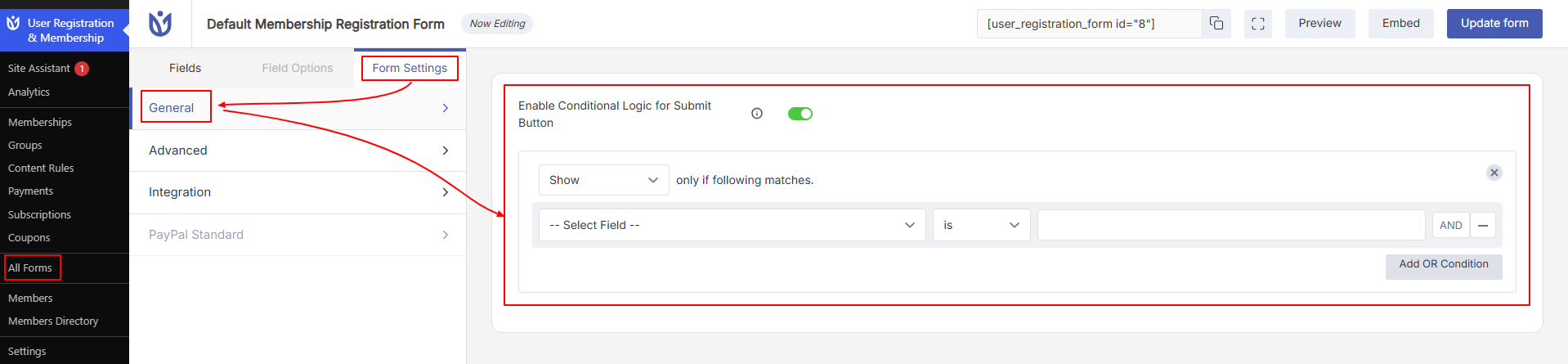
Enable Conditional Logic for Submit Button
Turning this toggle on reveals the rule builder used to control the submit button's behavior. When turned off, the submit button always displays normally, with no conditions applied.
Show, Hide, and Disable
These options define what happens to the submit button when the condition you set is met.
Option | Behavior |
|---|---|
Show | The submit button stays hidden until the condition is met, then appears. |
Hide | The submit button is visible by default, then disappears once the condition is met. |
Disable | The submit button stays visible at all times but can't be clicked until the condition is met. |
Select Field, Condition, and Value
This is where you define the rule itself.
Field | Description |
|---|---|
Select Field | Choose which form field the plugin should check. |
Condition | Choose how the field's value should be compared (for example, "is"). |
Value | Enter the value the field must match for the condition to be true. |
AND and OR Conditions
If you need more than one condition, use AND to require all conditions to be true at the same time, or click Add OR Condition to create an alternate set of conditions that can trigger the same behavior independently.
This works similarly to the plugin's Field Visibility feature, but instead of showing or hiding a form field, it controls the submit button itself.
Closing Section
Once you've set up your conditions and saved the form, preview it on the frontend to confirm the submit button behaves as expected. If you'd also like to show or hide entire form fields based on user input, check out the Field Visibility documentation.