
Conditional Logic
ProCreate dynamic registration forms that show or hide fields based on user input, with smart conditional logic for personalized user experiences.
Last updated on Jul 15, 2026
Want to create smarter registration forms that adapt to user input? User Registration & Membership lets you show or hide form fields, control submit buttons, and redirect users based on their responses. This tutorial will guide you through setting up conditional logic to build dynamic, personalized registration experiences.
Installation
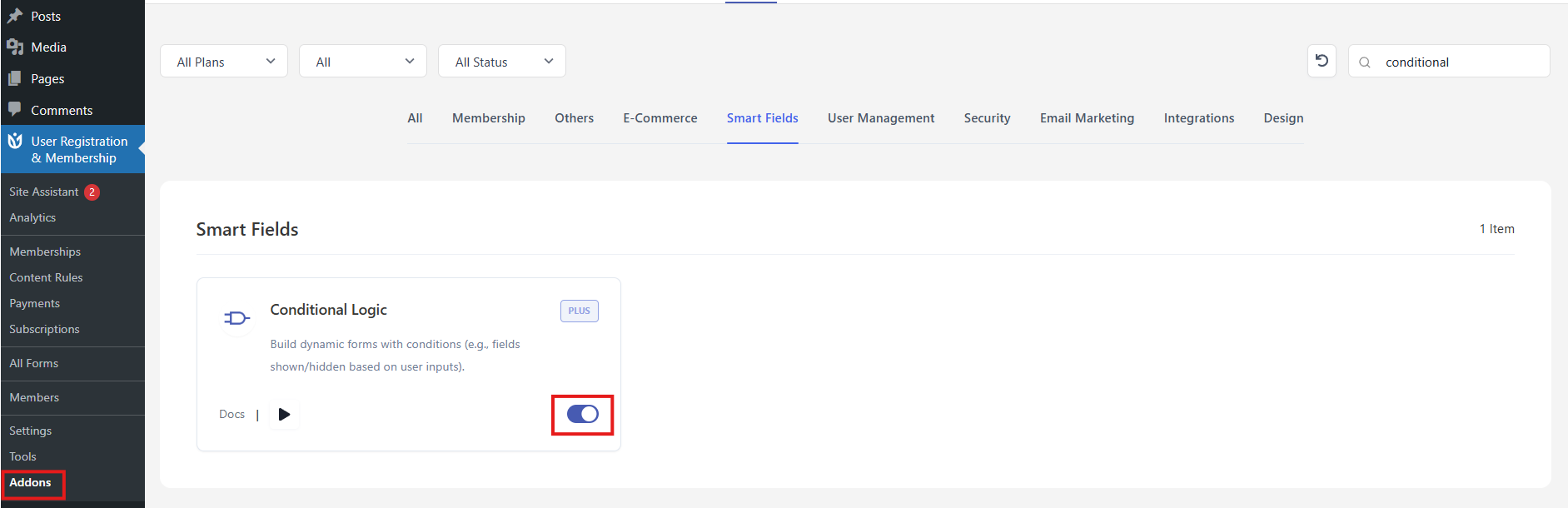
Purchase the User Registration – Conditional Logic add-on.
Download the ZIP file from your WPEverest account.
Go to WordPress Dashboard → Plugins → Add New → Upload Plugin.
Upload the ZIP file and click Install Now.
Make sure the User Registration plugin is already installed.
Activate the add-on from the Installed Plugins page.
Notes
Conditional Logic works only on front-end forms (not in the admin area).
Hidden required fields will not block form submission.
Customizing Conditional Logic
Now, you can apply conditional logic to fields and conditionally hide or show them in the frontend. Conditional Logic allows you to show or hide certain fields based upon other field’s value. You will get conditional settings on every field excluding user password, user email, and username.
For example, I have set up conditional logic on the Last Name field in the screenshot below.
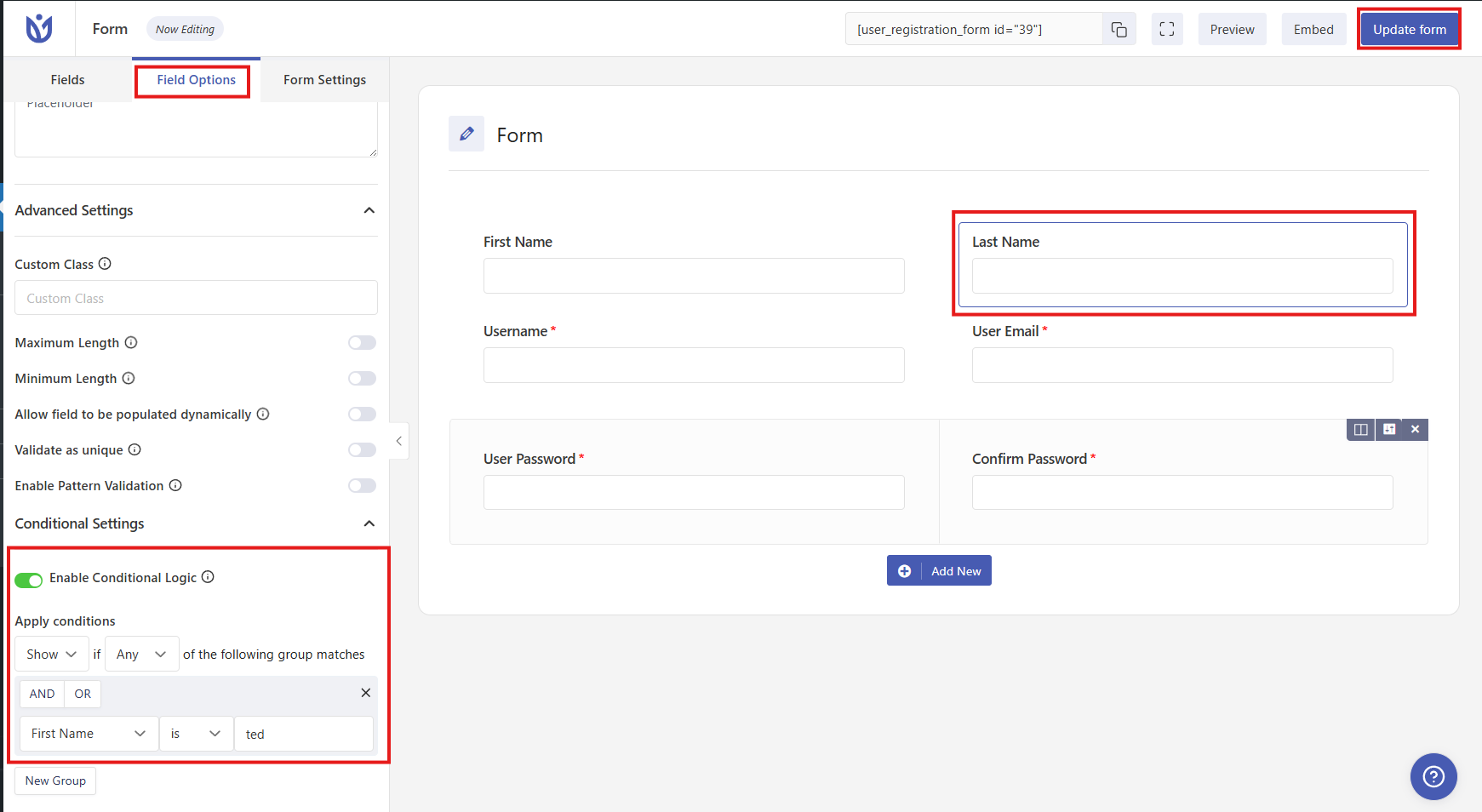
Fig. Condition to Last Name Field. Last Name field will only show to the users if user inserts “ted” in the First Name field.
Enable Conditional Logic: It remains unchecked by default. Click on the field and then Enable it to apply conditional logic to the selected field.
Show or Hide if Any or All of the following group matches:
– You can either choose Show or Hide to show or hide a field depending upon the conditions defined below in groups.
– You can either choose Any if you want any of the following groups to be true. You can choose All if you want all of the group to be true.
Conditional Groups: By default there is one group and it is mandatory to be there. You must have at least one group and at least one condition inside a group, same as that you can see in the screenshot shown above.
You can have multiple conditions inside a group and each Group does have its own logical operator i.e AND and OR.
-If you select AND inside a group then it will make sure that all the conditions defined inside the group must be true.
-If you select OR inside a group then it will make sure that any one of the conditions defined inside the group must be true.
You can also add multiple groups and define more conditions inside those groups.
-To add a new group, click on New Group and a group will be added below.
-To add multiple conditions inside a group, click on the “+” sign that appears when you hover upon an existing condition.
-To delete a condition, click on the “x” sign that appears when you hover upon an existing condition.
See an example screenshot below:
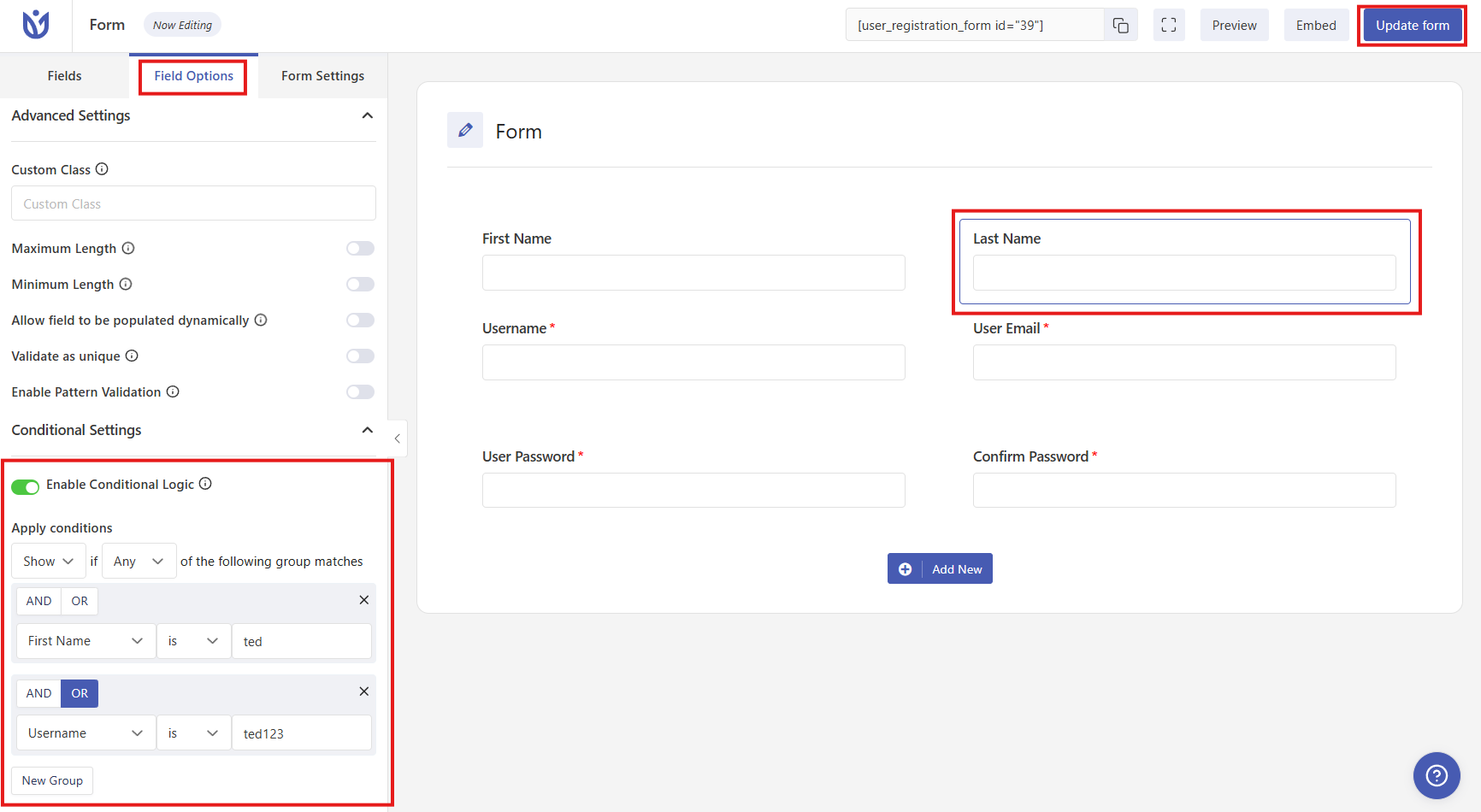
Fig: Last name will only show if either the conditions of the first group are met or the conditions of the second group are met.
You can see that neither AND nor OR is selected in the second group. If you leave it as it is then it will do OR operation by default.
Conditionally Hide/Show Submit button
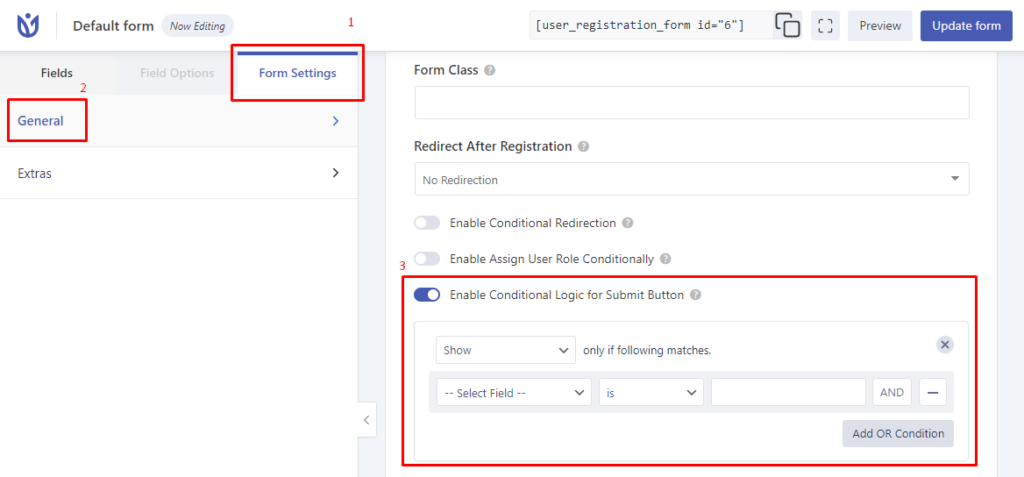
If you want to show/hide submit button based on the form field’s input data, navigate to the Form Builder > Form Settings > General. Now, at the bottom of this setting, you will find the option to enable conditional logic for the submit button.
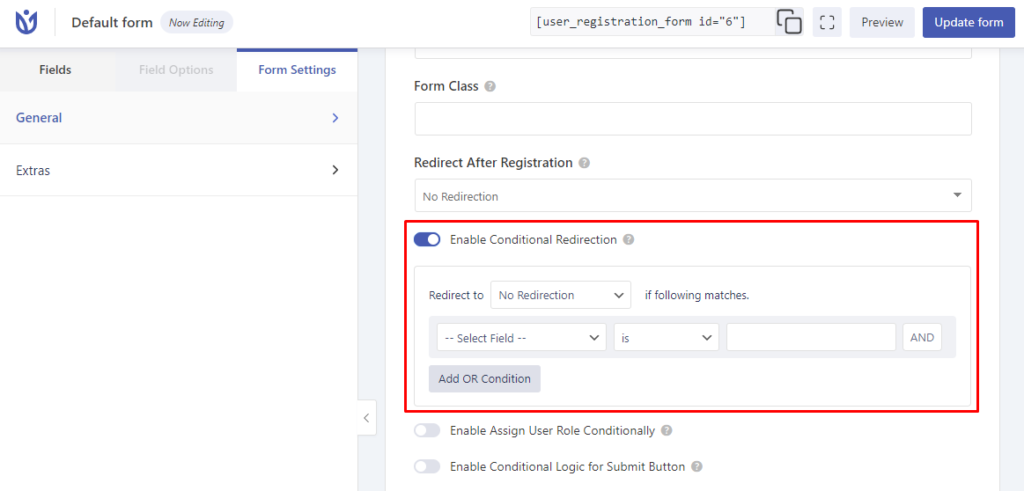
Conditional Redirect after Registration
You can redirect the users conditionally after they submit the registration form. For this, navigate to Form Settings > General and Enable Conditional Redirection
Conditional Logic for Rows
If you want to show/hide the whole rows in User Registration forms, you can do this with the Conditional Logic add-on. For this, go to the form editor, hover on the desired row and click on the row settings.
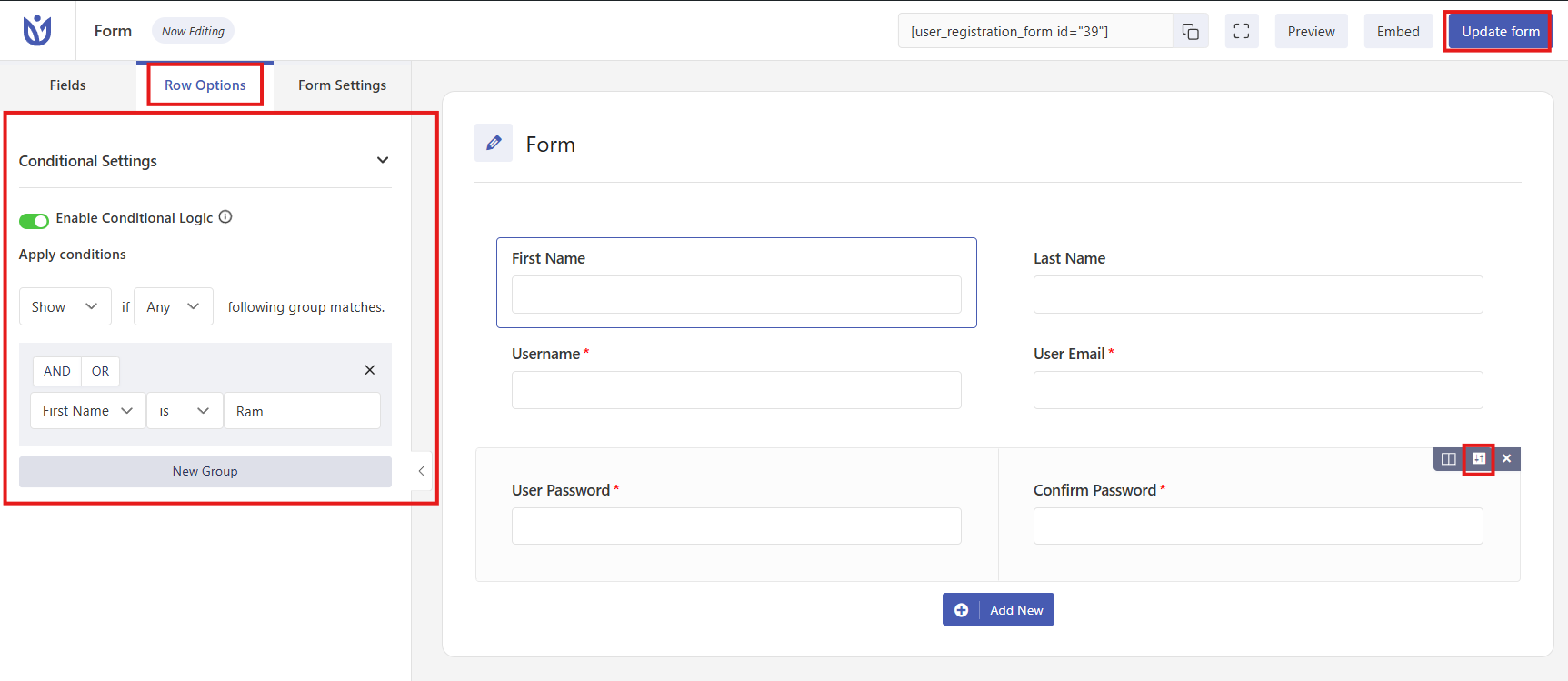
Now, enable the conditional logic and set the required conditional logic.
Important Notes
Conditional logic for submit buttons is a premium feature requiring the Conditional Logic add-on
If no operator (AND/OR) is selected within a group, OR logic is applied by default
You must have at least one group with at least one condition
The submit button will dynamically appear or disappear on the frontend based on user input
This feature works only on frontend forms, not in the admin area