
Set up Wizard Walkthrough
A step-by-step guide to the User Registration & Membership setup wizard. Answer one question, then set up membership plans and payments, or basic registration settings.
Last updated on Oct 14, 2026
Would you like to get your membership site ready in just a few minutes? User Registration & Membership includes a Setup Wizard that asks one question first, then guides you through the steps that match your answer. This tutorial will walk you through every screen so you know what to expect.
Before You Begin
Make sure you have:
The User Registration & Membership plugin installed and activated
WordPress admin access
A rough idea of whether you want to offer membership plans (free or paid)
Step 1: Launch the Setup Wizard
When you first activate the plugin, the Setup Wizard opens automatically. If you skip it, a notice in your WordPress admin says that the setup wizard was skipped and offers a Continue Setup Wizard button.
You can open it again at any time from User Registration & Membership → Settings → Tools → Setup Wizard. See Re-run Setup Wizard.
The progress bar at the top shows where you are. Its steps change with your answer on the first screen:
Your answer | Steps |
|---|---|
Yes | Welcome → Membership → Payment → Finish |
Not now | Welcome → Settings → Finish |
If you answer Yes but create only free plans, the Payment step is removed, because free plans don't need a payment method.
Step 2: Choose Whether to Offer Membership Plans
On the Welcome screen, answer Do you want to offer membership plans on your site?
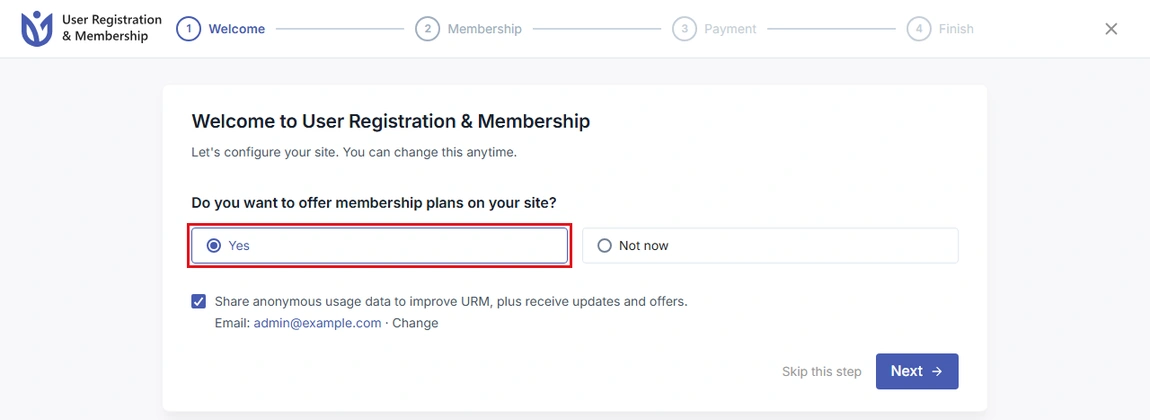
Yes (selected the first time you open the wizard): choose this to let members sign up for free or paid plans. When you open the wizard again, your previous answer is selected.
Not now: choose this for plain user registration without plans.
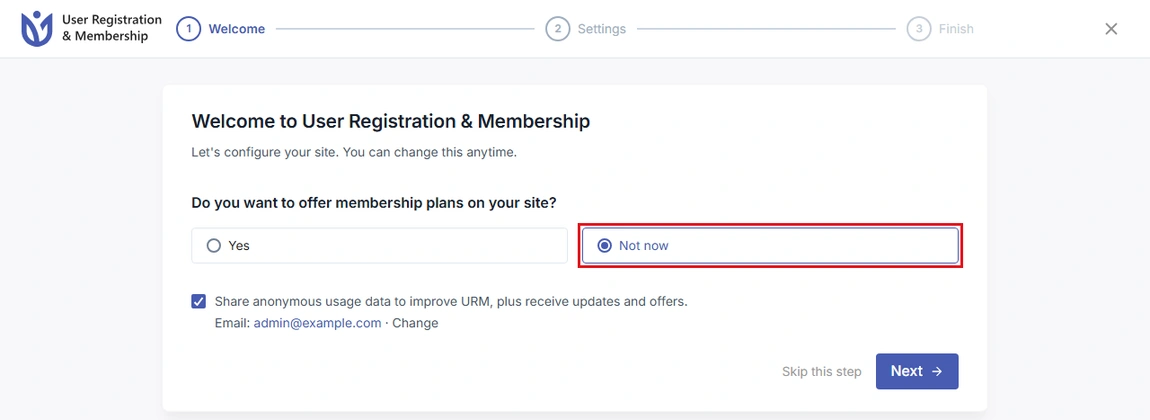
The checkbox below the question reads "Share anonymous usage data to improve URM, plus receive updates and offers." Clear it if you'd rather not. The email address shown is where updates are sent. Click Change to use a different one.
Click Next to continue.
If You Chose Yes
Step 3: Create Your First Membership Plan
The Create Membership screen sets up your first plan and the content it protects.
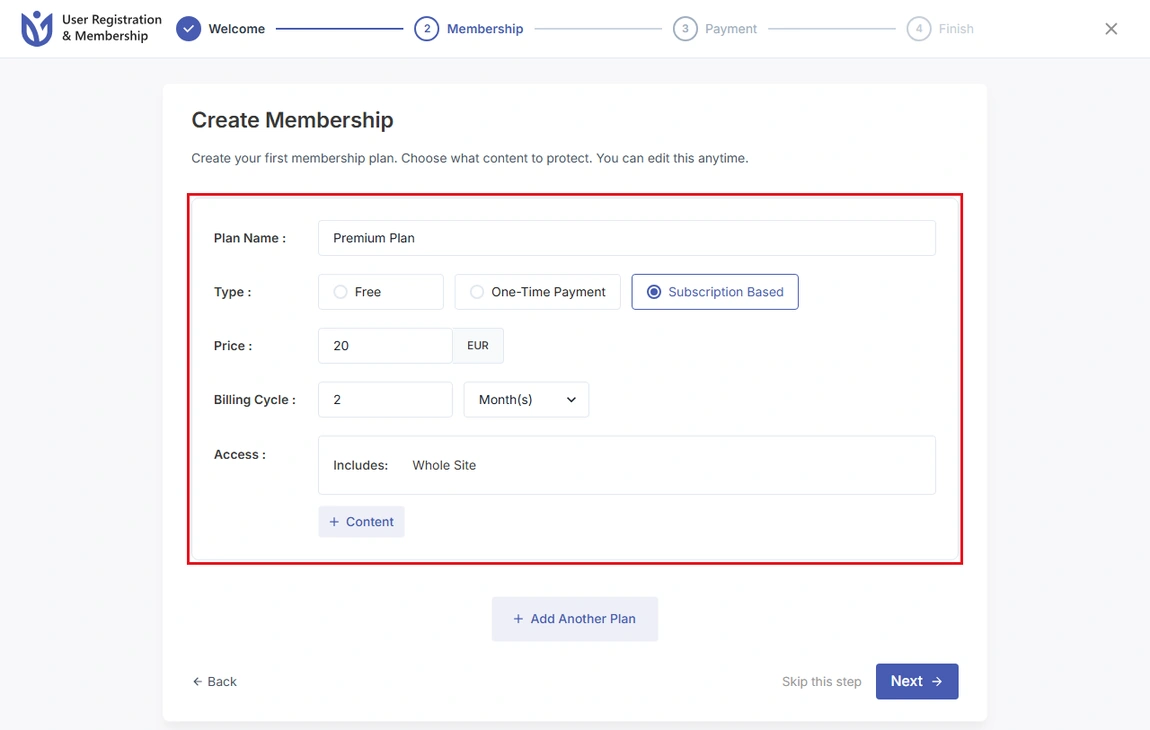
Plan Name: For example, "Premium Member".
Type:
Free: no payment.
One-Time Payment: members pay once.
Subscription Based: members are billed again every cycle. This type needs User Registration & Membership Pro.
Price: The amount, in your store currency. Free plans don't have a price.
Billing Cycle: Shown for subscription plans. Enter a number and choose Day(s), Week(s), Month(s), or Year(s).
Access: Click + Content to choose what the plan unlocks, such as the whole site, pages, or posts.
Click Add Another Plan to create more plans now. You can also add or edit plans later under User Registration & Membership → Memberships. Click Next to continue.
Step 4: Set Up Payments
This step appears only if at least one of your plans is paid.
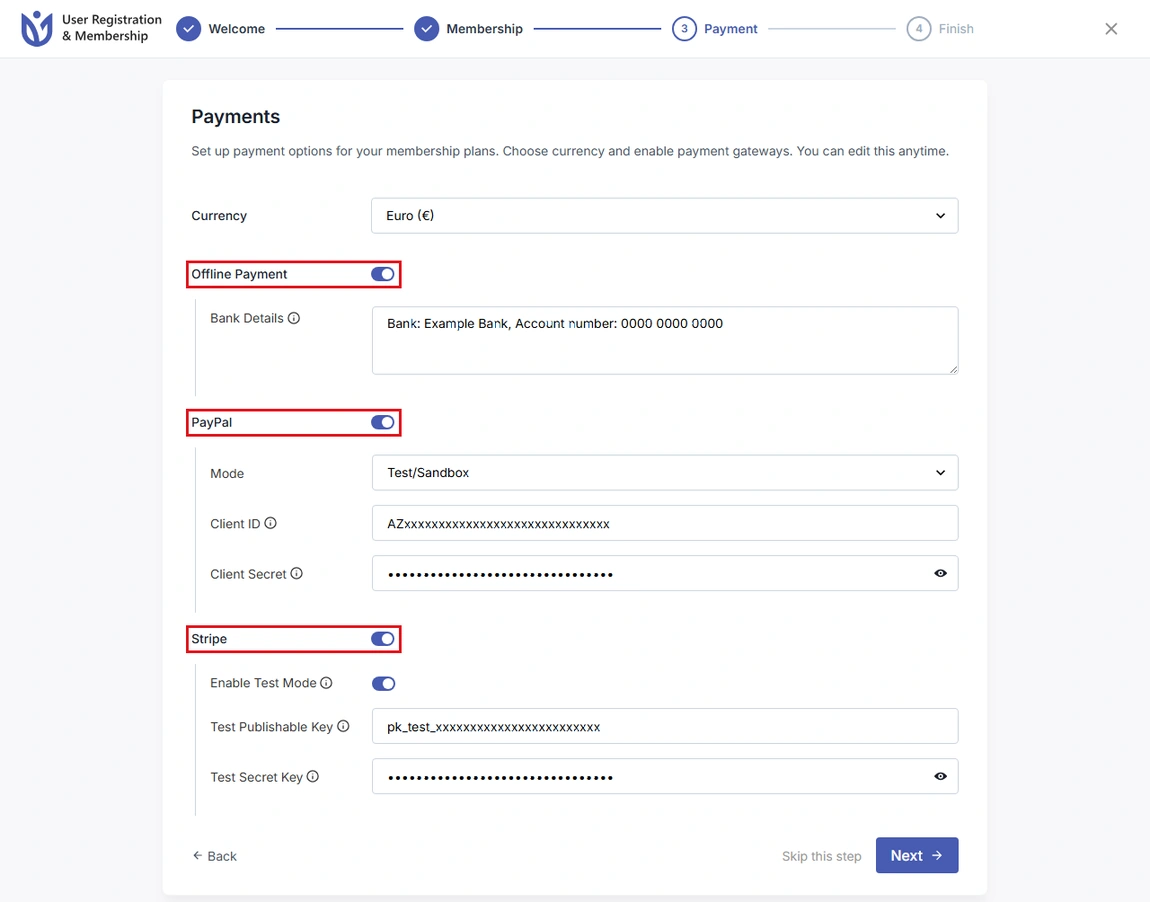
Choose your Currency.
Turn on the payment methods you want to offer:
Offline Payment: Add the instructions members should follow in Bank Details.
PayPal: Choose a Mode (Test/Sandbox while you test, then Production), then enter your Client ID and Client Secret.
Stripe: Use Enable Test Mode while you test, then enter your Test Publishable Key and Test Secret Key. Turn test mode off to enter your live keys.
Turn on at least one method so members can pay, then click Next.
If You Chose Not Now
Step 3: Choose Your Registration Settings
On the Registration Settings screen, decide how new users register.
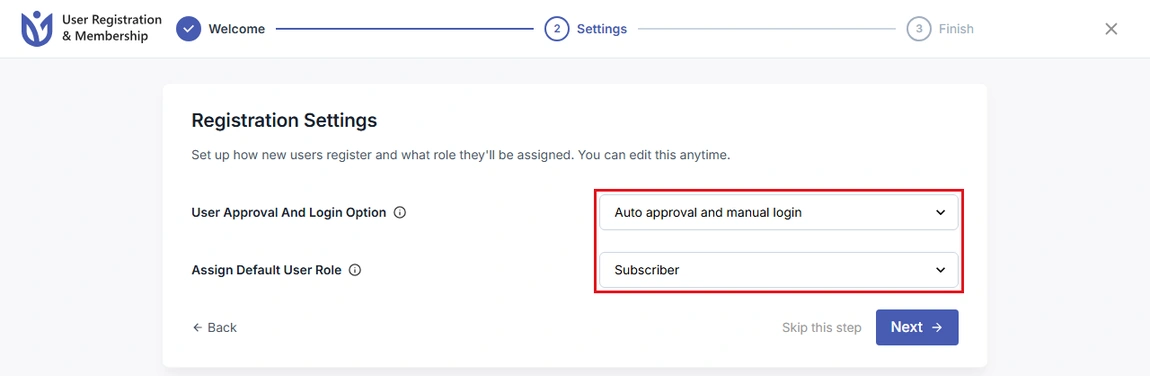
User Approval And Login Option: How new users are approved and signed in.
Auto approval and manual login: users are approved automatically but must log in themselves.
Auto approval and auto login: users are approved and logged in immediately.
Admin approval: you review each registration before the user can log in.
Auto approval after email confirmation: users must confirm their email address before they can access the site.
Assign Default User Role: The WordPress role new users receive. The list shows your site's roles, for example:
Subscriber: can only manage their own profile, a safe choice for most sites.
Contributor: can write posts but not publish them.
Author: can publish their own content.
Editor: can manage all content.
Click Next to continue.
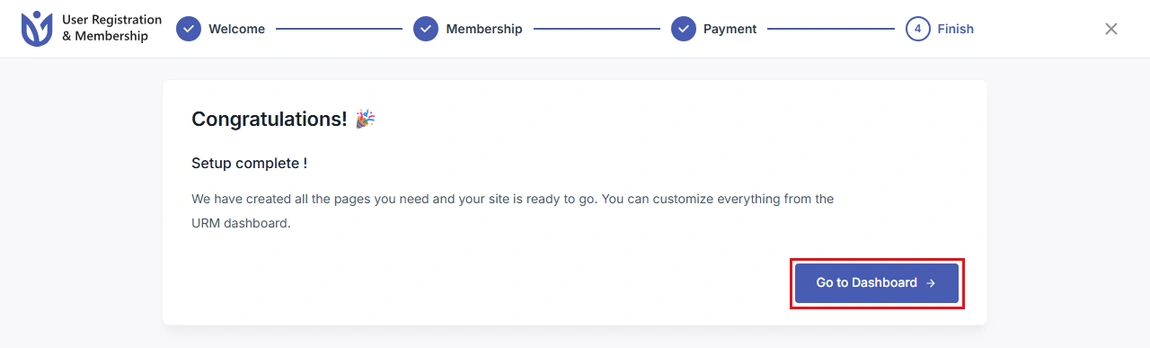
Final Step: Finish
The last screen confirms your setup is complete. Click Go to Dashboard.
The wizard creates your Registration, Login, My Account, and Lost Password pages as soon as it opens, unless you already have them. If you chose Yes, clicking Next on the Welcome screen also creates a Membership Pricing page and a ThankYou page.
What Happens Next
Your required pages are in place and published.
A default registration form is ready to use.
If you chose Not now, the approval and role options you picked are applied.
You can start accepting registrations right away.
Every choice can be changed later from the plugin settings.
To change your answers, re-run the wizard. It doesn't delete your forms, pages, or users, but it resets a few settings. See that page for the list.
That's it! Now you know how to complete the Setup Wizard. Next, would you like to add more membership plans? Be sure to check out our guide on creating a free membership plan for all the details.