
Export User Data
Learn how to export WordPress user registration data to CSV format for analysis, backup, or migration purposes using the User Registration & Membership plugin.
Last updated on Aug 12, 2026
Would you like to download your registered user data for analysis, backup, or migration? User Registration & Membership allows you to export user information to CSV format. This tutorial will show you how to export user data from your WordPress site.
Before getting started, make sure you've installed and activated the User Registration & Membership plugin on your WordPress site.
Accessing the Export Users Feature
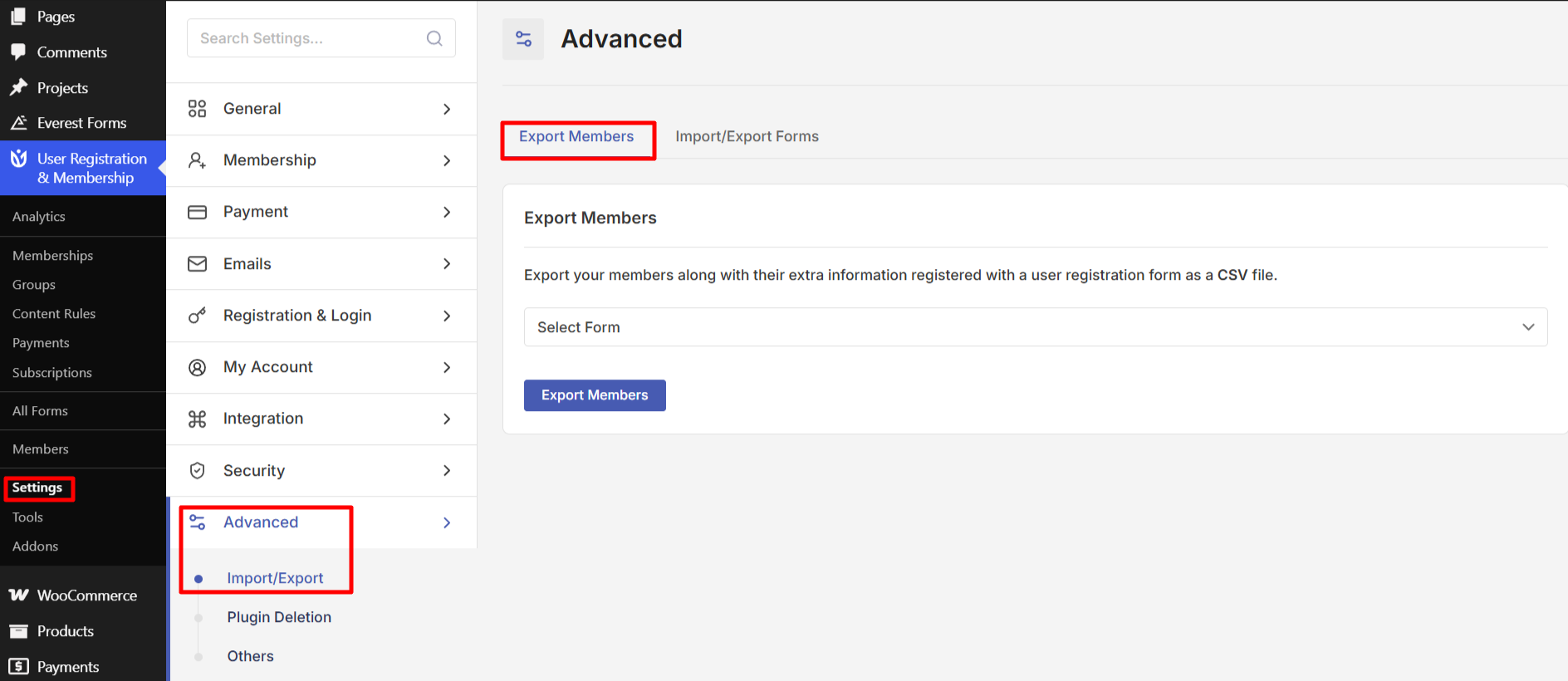
To export user data, go to User Registration & Membership → Settings → Advanced → Import/Export. Then, click on the Export members tab. Here, you'll see the export interface where you can configure which user data to download.
Exporting All User Data
If you're using the free version of User Registration & Membership, the export process is straightforward. Click the Export Users button to download a CSV file containing all additional user registration information. The export includes all data collected through your registration forms without filtering options.
Filtering Export Data Pro
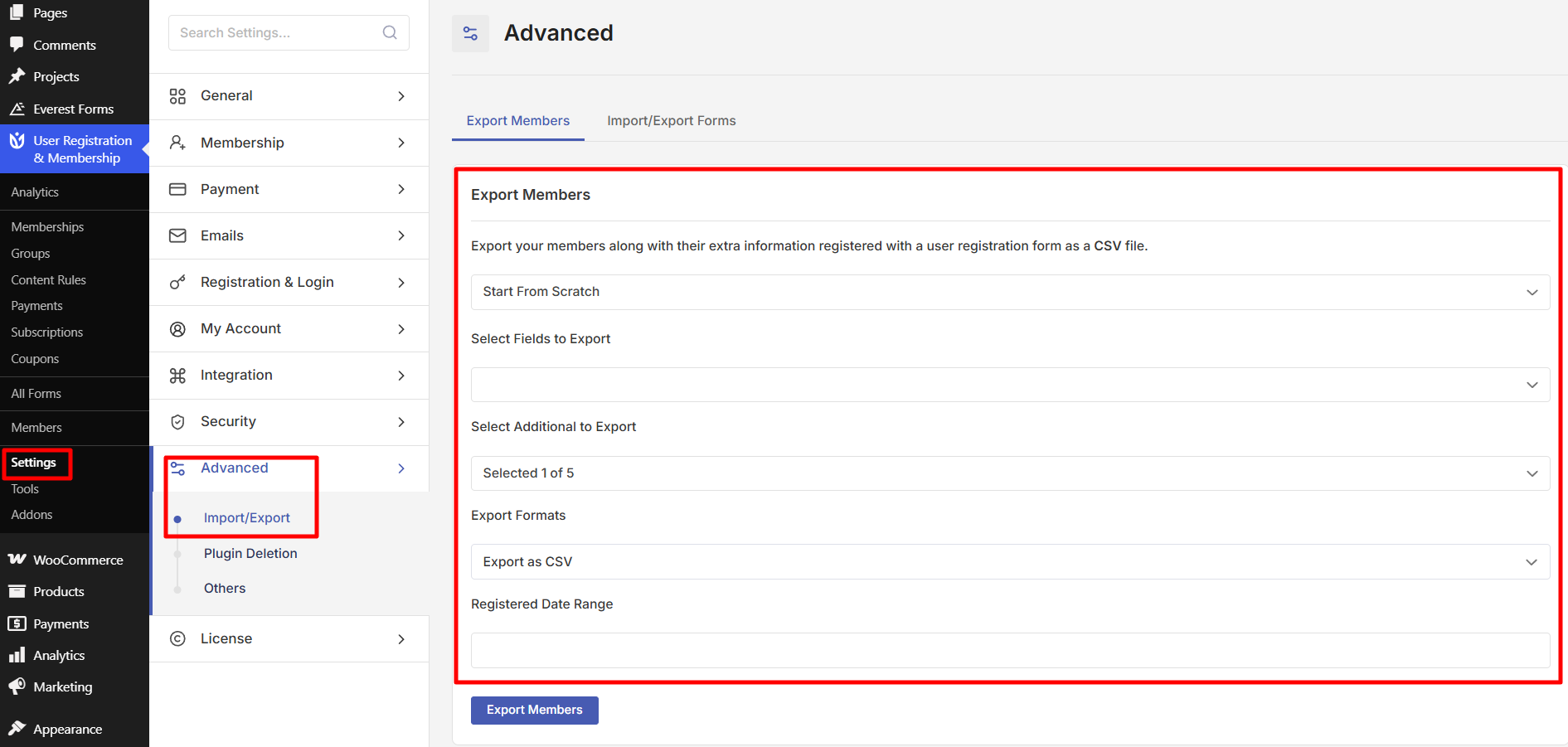
User Registration & Membership Pro provides advanced filtering options to export exactly the data you need. You can filter by registration form, select specific fields, choose additional data items, and set date ranges.
Selecting Forms
From the Select Forms dropdown, choose which registration form to filter users by. This option allows you to export only users who registered through a specific form. If you want to export users from all forms, leave this option unselected.
Choosing Fields to Export
Use the Select Fields to Export option to choose which registration fields to include in your CSV file. This helps you export only the information you need, making the data easier to work with.
Adding Additional Data
From Select Additional to Export, you can include extra information like user roles, user ID, and user status. These additional data items provide context about each user's account beyond their registration form responses.
Setting a Date Range
Use the Registered Date Range option to filter users by when they registered. This is useful when you need to export users who signed up during a specific time period, such as a promotional campaign or event.
Downloading the CSV File
Once you've configured your export settings, click the Export Users button. Your browser will download a CSV file containing the selected user data. You can open this file in spreadsheet applications like Microsoft Excel, Google Sheets, or any CSV-compatible software.
Frequently Asked Questions
What format is the exported data?
User data is exported in CSV (Comma-Separated Values) format, which can be opened in any spreadsheet application.
Does the export include WordPress default user fields?
Yes, the export includes additional user registration information collected by the plugin. For individual user exports via WordPress's Export Personal Data tool, default WordPress fields like Email, First Name, Last Name, and Nickname are included.