
Creating a Separate Password Change Page
A guide to creating a dedicated password change page using the User Registration & Membership plugin's shortcode, separate from the main account dashboard.
Last updated on Jul 14, 2026
Want to give your users a dedicated page where they can change their password? User Registration & Membership allows you to create a standalone password change page separate from the main My Account dashboard. This tutorial will show you how to set up a custom password change page using a simple shortcode.
Before getting started, make sure you've installed and activated the User Registration & Membership plugin on your WordPress site.
Creating the Password Change Page
To create a dedicated password change page, you'll add a new page in WordPress and insert the password edit shortcode.
From your WordPress dashboard, go to Pages → Add New. This will open the page editor where you can create your password change page.
Give your page a title like "Change Password" or "Update Password" — this is what users will see in their browser tab and in your site navigation.
Then, add the following shortcode: [user_registration_edit_password]
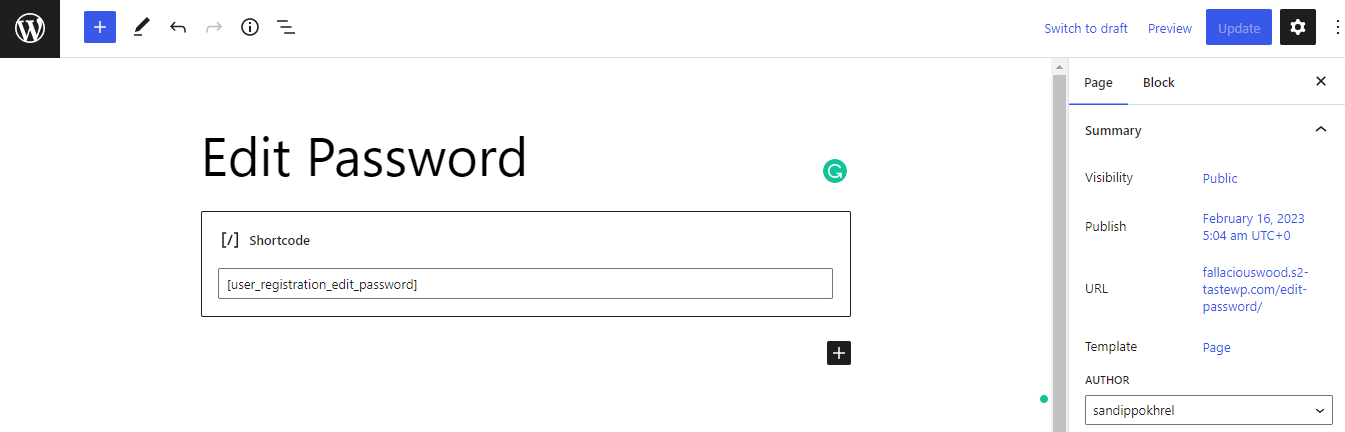
This shortcode will display a password change form on your page. Users will be able to enter their current password and set a new password. Then, publish the page.