
Set Admin Approval After Email Confirmation Option for Registering a User
ProConfigure a two-step user verification process requiring both email confirmation and manual admin approval before granting site access.
Last updated on Jul 14, 2026
This guide explains how to configure a two-step verification process for new user registrations. Users must first confirm their email address, then wait for manual admin approval before gaining full access to your site.
What You'll Need
User Registration & Membership Pro plugin installed and activated
At least one registration form created
Admin access to the WordPress dashboard
Understanding the Two-Step Process
When you enable admin approval after email confirmation, new users go through this workflow:
User submits the registration form
User verifies their email via a confirmation link
Admin reviews the request
Admin approves or denies the user
User is notified and can log in (if approved)
This creates a secure, two-layer verification system that ensures both email validity and admin oversight.
How to Enable This Feature
Step 1: Access Your Registration Form
Log in to your WordPress admin dashboard
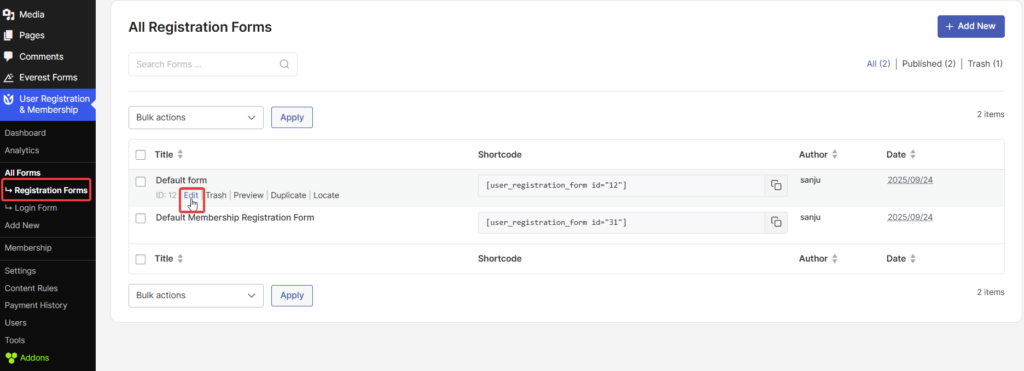
Navigate to User Registration & Membership → All Forms → Registration Forms
Click Edit on the registration form you want to configure
Step 2: Configure Approval Settings
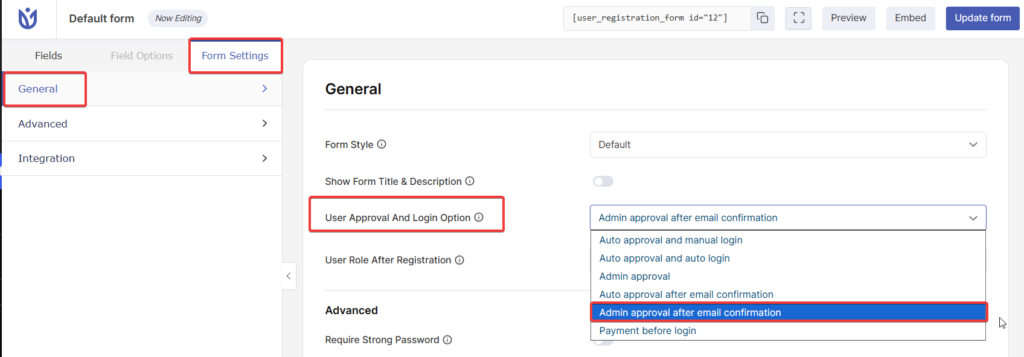
In the Form Editor, click on the Form Settings tab
Go to General → User Approval and Login Options
From the dropdown menu, select Admin Approval after Email Confirmation
Click Update form to save your changes
Step 3: Customize Admin Approval Email (Optional)
You can customize the email that admins receive when a user completes email verification:
Navigate to User Registration & Membership → Settings → Emails → To Admin
Find Admin Approval Request Email with Approval Link
Click the settings icon to customize the email content
Add the {{approval_link}} placeholder to include the approval URL in the email
Optionally add {{form_name}} and {{denial_link}} placeholders
Click Save to update the email template
How to Approve or Deny Users
After a user verifies their email, you'll need to manually approve their registration:
Go to Dashboard → Users → All Users
Find users with Pending status (these have verified email but await approval)
Hover over the username and click Approve or Deny
Alternatively, if you included the {{approval_link}} in the admin email, you can approve directly from the email notification.
What Users See
After submitting the registration form, users will see a message prompting them to verify their email. The exact message can be customized at User Registration & Membership → Settings → Registration & Login → Messages.
After email verification, users will see a message indicating that admin approval is still required. They cannot log in until you approve their registration.