
Redirect Users After Login And Logout
Learn how to configure custom redirect URLs for users after successful login and logout actions using the User Registration & Membership plugin settings.
Last updated on Jul 14, 2026
Would you like to send users to a specific page after they log in and log out? User Registration & Membership allows you to redirect users to any page on your site or an external URL after successful login and logout. This guide will show you how to configure login redirection through your login form settings.
Prerequisites
Before getting started, make sure you've installed and activated the User Registration & Membership plugin on your WordPress site.
Accessing Login Form Settings
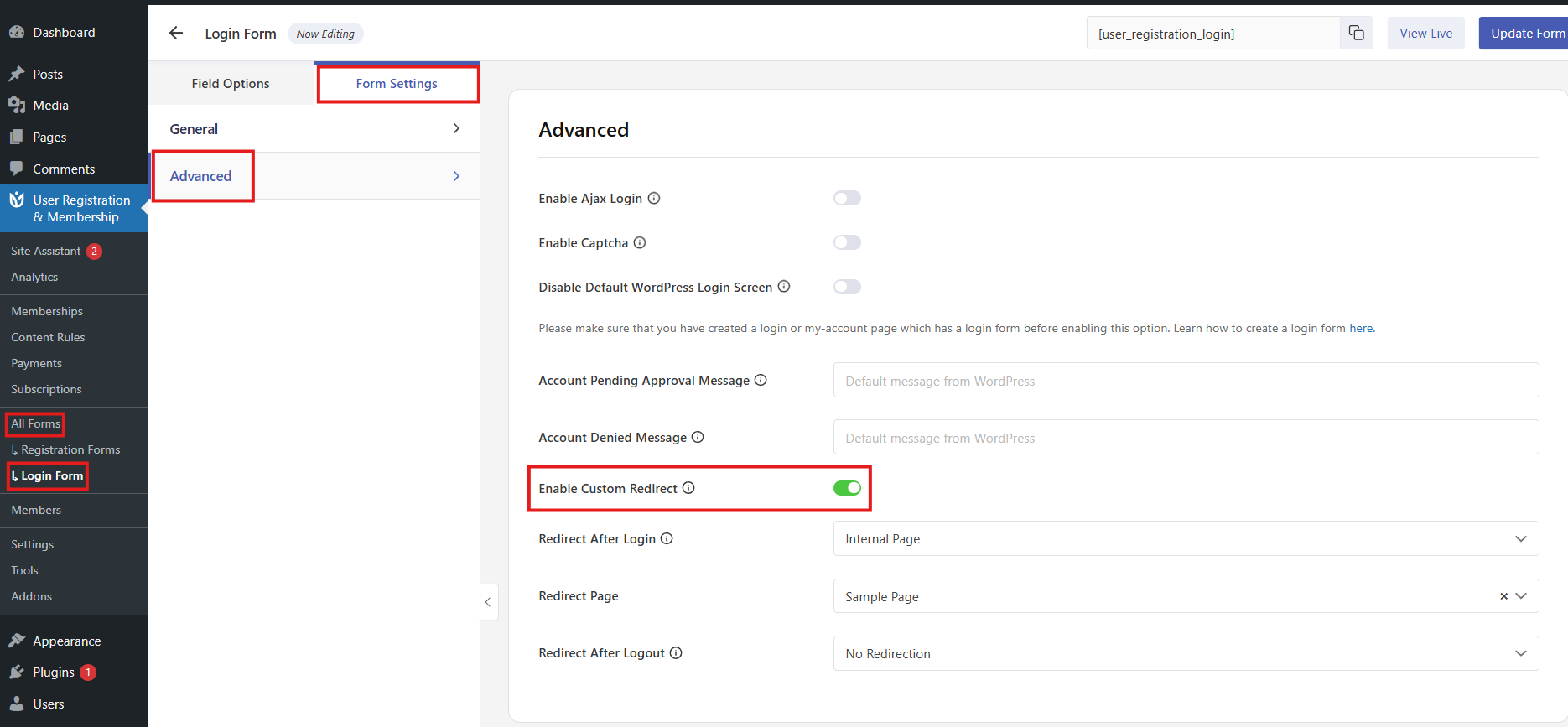
To configure login redirection, go to User Registration & Membership → All Forms → Login Forms. Then, click on the login form you want to edit to open the form builder.
Once you're in the form builder, click on the Form Settings tab at the top of the page.
Configuring Login and Logout Redirection
Navigate to the Advanced tab within Form Settings. Here, you'll see the login redirection options.
Step 1: Enable Custom Redirect
Scroll down to find the Enable Custom Redirect option and toggle it on. This activates the redirection feature for your login form.
Step 2: Choose Your Redirect Option
Once custom redirect is enabled, you'll see a Redirect After Login and Redirect after Logout dropdown menu. Select one of the following options:
No Redirection — Users remain on the current page after logging in or logging out
Internal Page — Redirect users to a specific page on your website
External URL — Redirect users to a custom external link (requires full URL)
Previous Page — Redirect users back to the page they were on before logging out
Role Based Redirection — Redirect users to different pages based on their user role (requires User Registration & Membership Pro)

Step 3: Configure Your Selected Option
For Internal Page: Select the destination page from the dropdown menu that appears. This page must already exist on your site.
For External URL: Enter the complete URL (including https://) in the text field that appears.
For Previous Page: No additional configuration needed — users will automatically return to their previous page.
For Role Based Redirection (Pro only): Select a redirect page for each user role from the dropdown menus that appear. You can assign different pages for Subscribers, Contributors, Authors, Editors, and Administrators.
Saving Your Changes
Once you've configured your redirect settings, click the Update Form button in the top right corner to save your changes.
Testing Your Redirect
To verify your redirect is working:
Log out of your WordPress account
Visit your login page
Log in with a test account
Confirm you're redirected to the correct destination