
Fixing Lost and Reset Password Issues
Last updated on Jul 7, 2026
If you’re having trouble with the Lost Password page, use the User Registration & Membership plugin to resolve them quickly.
Set Up the Lost Password Page
If you are facing an error on the lost password page, we recommend creating a dedicated page for this purpose and linking it directly to your login form settings. This avoids conflicts with other plugins and gives you more control.
Here’s how you can set up the lost password page:
Step 1: Create a New Lost Password Page
On your WordPress dashboard, navigate to Pages > Add New Page.
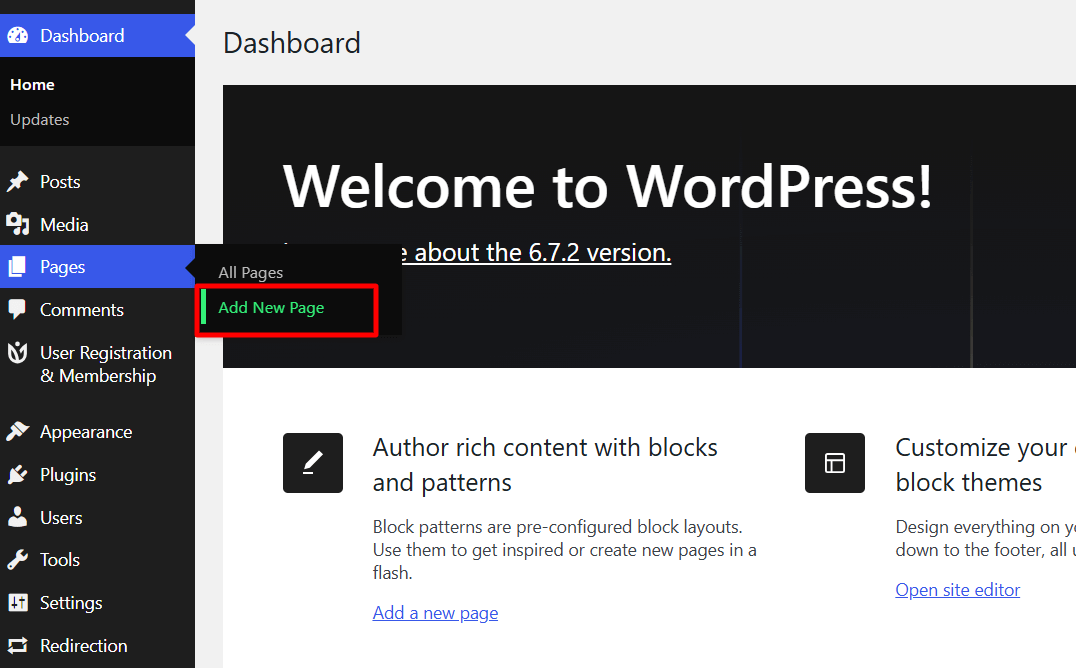
Add New Page
2. Give it a title like “Lost Password”.3. Paste the following shortcode into the page content:
[user_registration_lost_password]
This shortcode generates the lost password request form with an email address field.
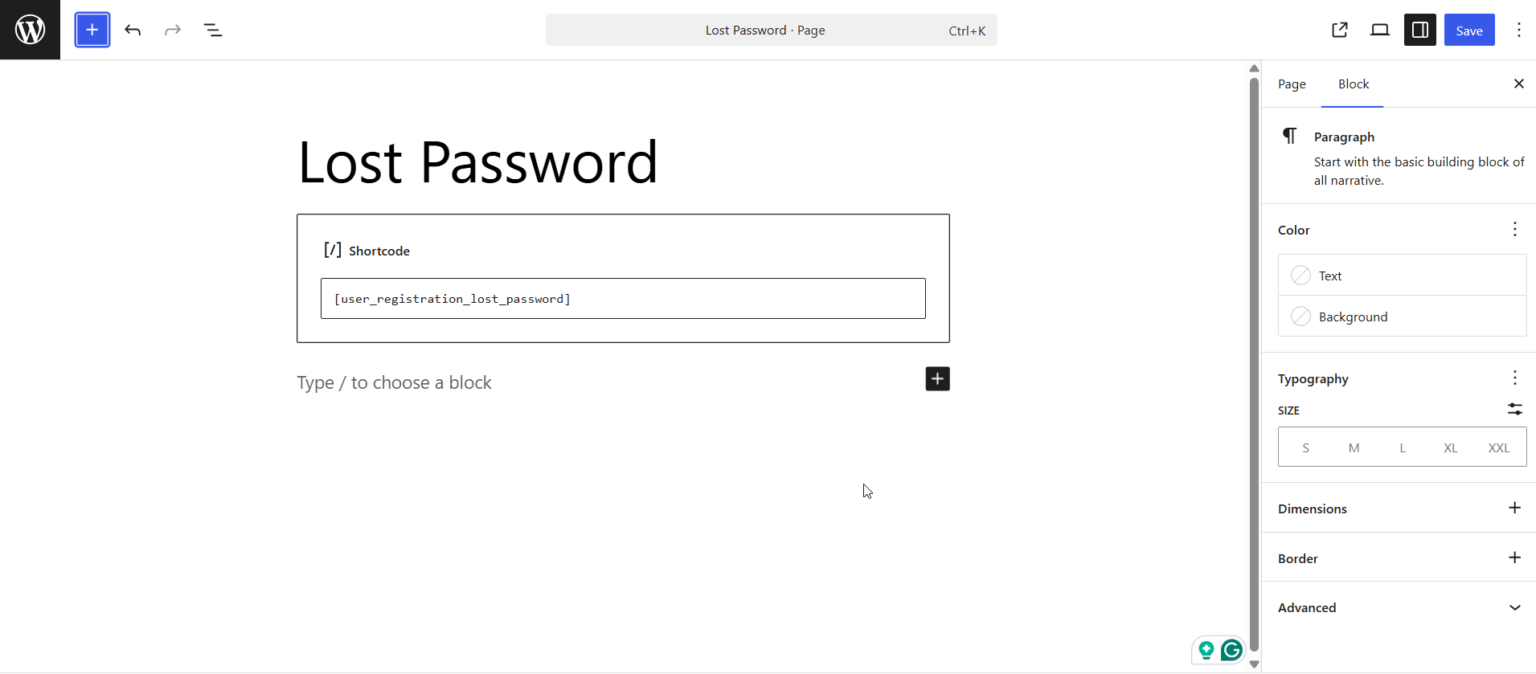
Publish the page.
Step 2: Link the Lost Password Page to Your Login Form
Now, you need to assign the page in User Registration & Membership settings:
Navigate to User Registration & Membership > All Forms > Login Forms.
In the Login Form builder, click on Lost your password?
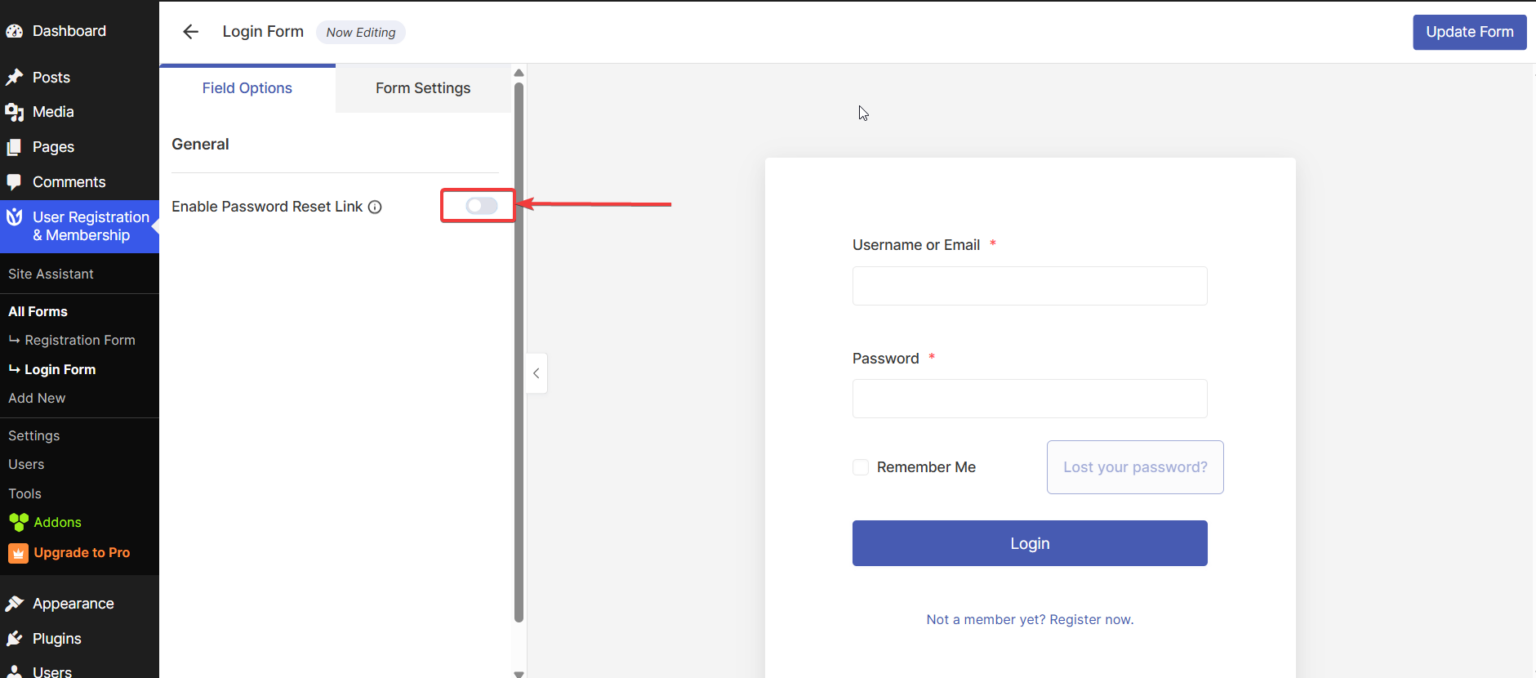
3. Enable Password Reset Link which reveals a new dropdown menu to select Lost Password Page.4. From the dropdown, select the new page you just created in Step 1. In our case, the page name is “Lost Password”.
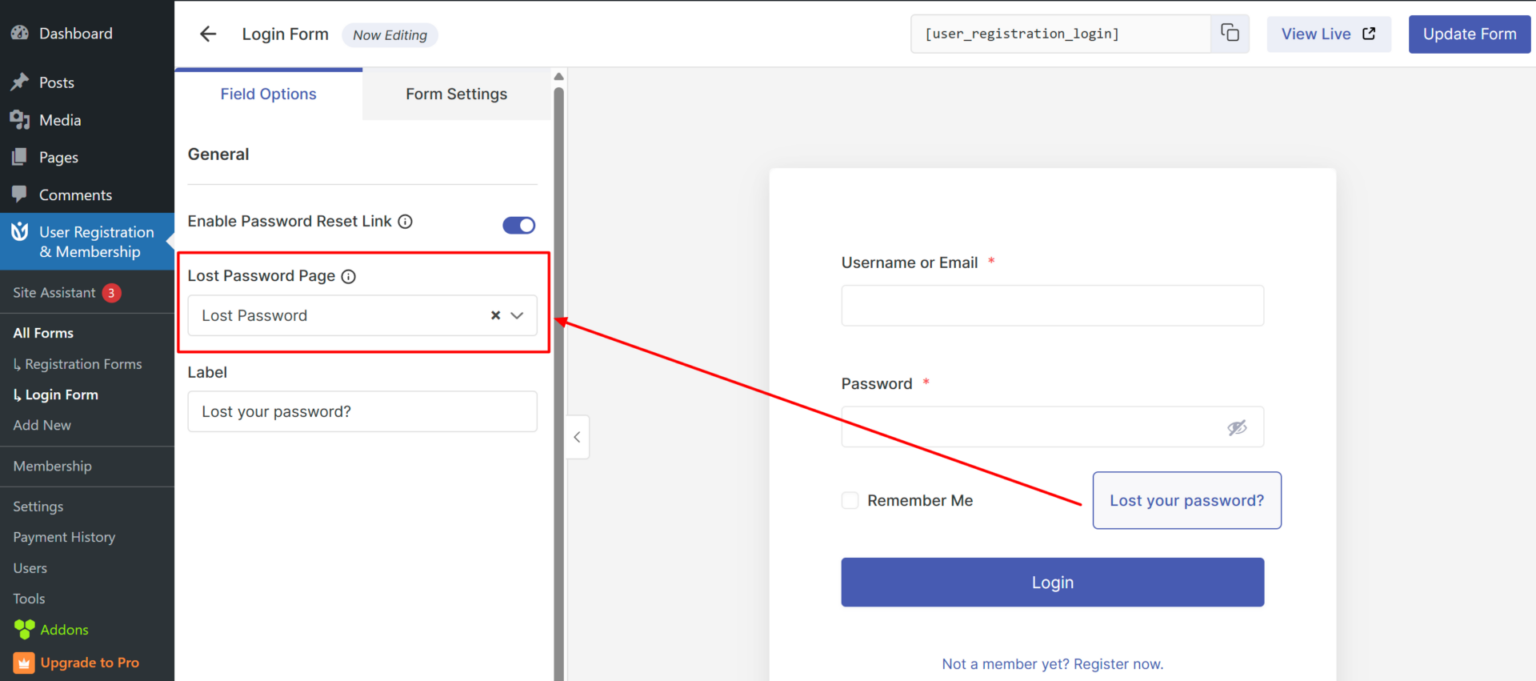
By selecting the page in these settings, the plugin knows exactly where to send users when they click “Lost your password?”
Test the Password Reset Flow
Follow these steps to ensure everything works:
Open your website on a private/incognito browser and register a test account using an accessible email.
Log out of the website and navigate to the Login or My Account page.
Click on the Lost your password link. It should navigate you to the Password Reset page that you created.
Enter the registered email and click on the Reset password button.
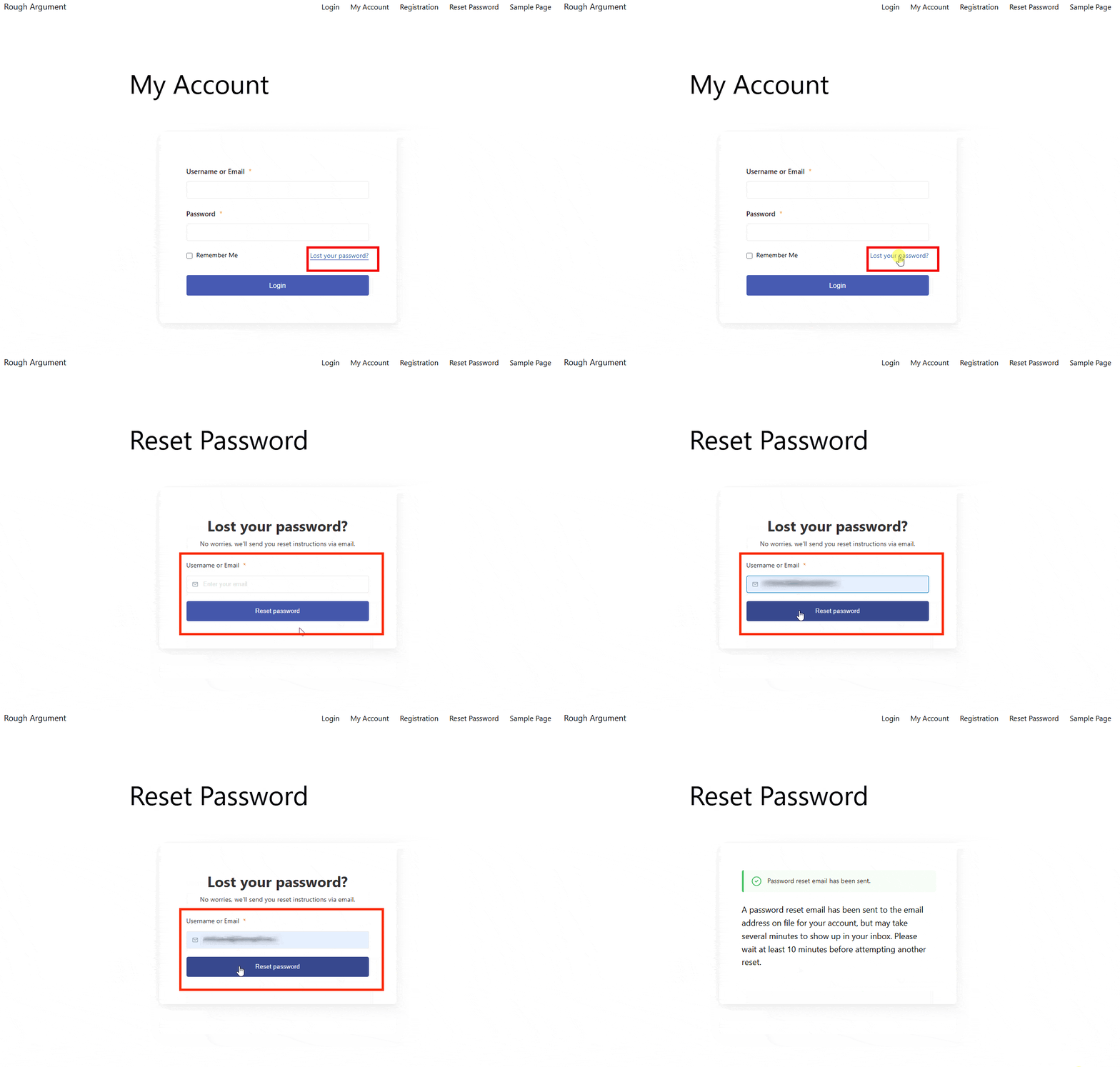
Reset Password
5. Check your inbox to see if you’ve received the reset password email.
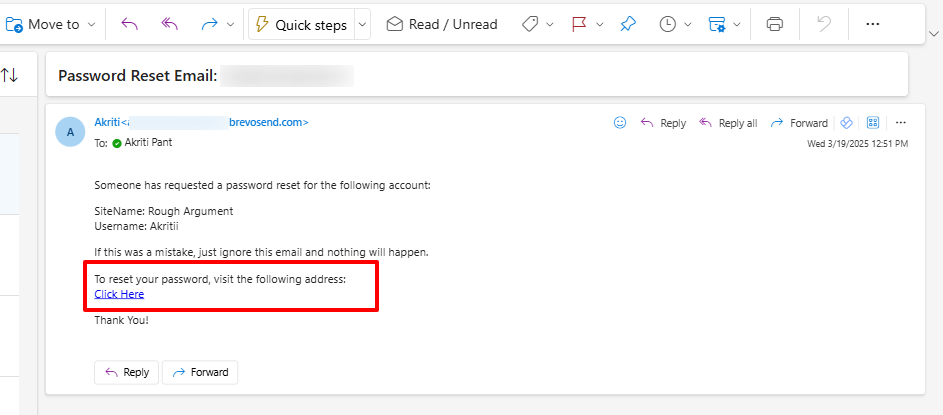
Mail Received in Outlook
6. Click on the link provided in your mail, which opens a new tab consisting of a reset password form.
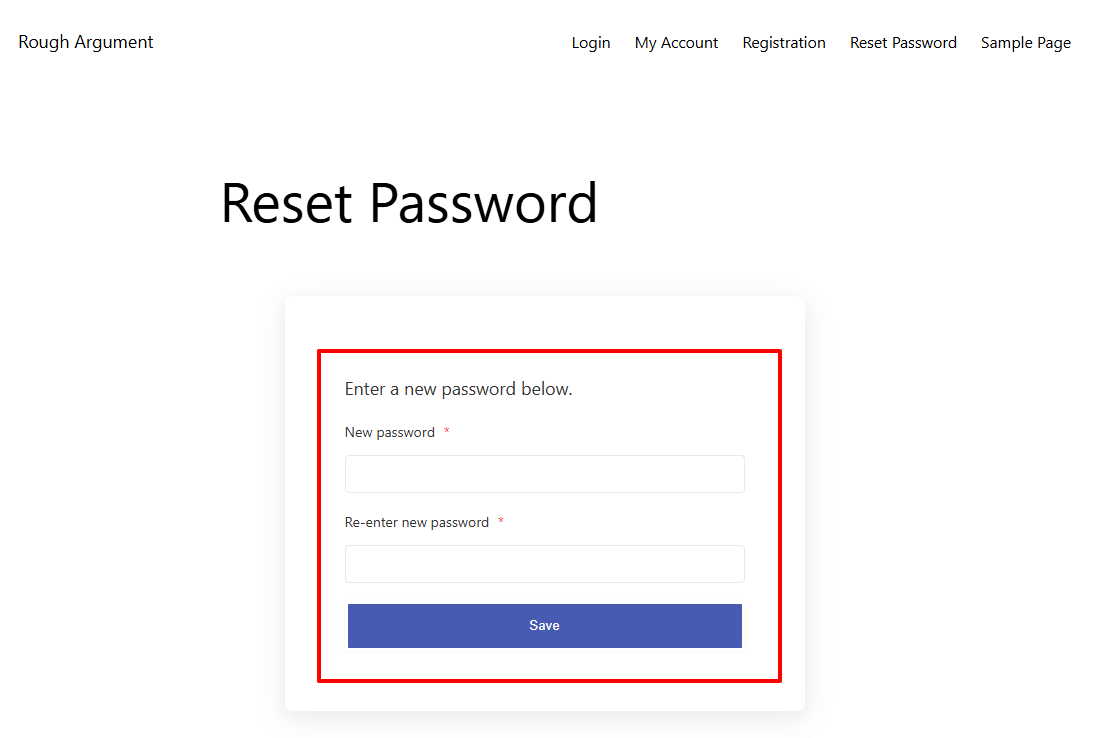
Reset Password Form
7. Set up a new password and log in to the site to verify.
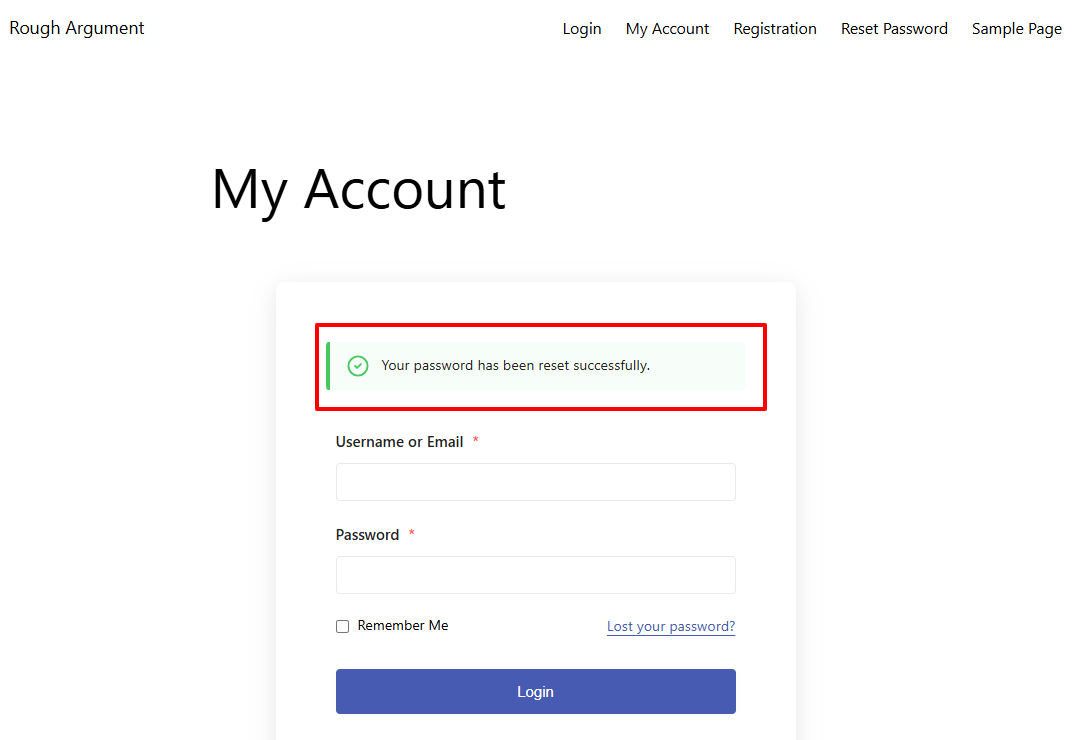
Password Reset Confirmation
Common Issues and Fixes
Even after setting up the Lost Password Page, if you face some issues. Here’s how to fix them:
WordPress Password Reset Email not Sending
If you don’t receive a password reset email, try using the SmartSMTP plugin. WordPress email not landing in the inbox is a common problem that occurs due to improper authentication. Hence, use a reliable email service provider using the SmartSMTP plugin.
Here’s a detailed guide on using SmartSMTP plugin to fix email delivery issue.
Lost Password Page Not Found (404 Error)
If your lost password page isn’t working or shows a 404 error, it may be due to an old cached URL or a permalink issue.
Solution:
Go to WordPress Dashboard > Settings > Permalinks.
Click Save Changes (without making any edits) to refresh the permalinks.
Refresh the Lost Password page and check if it works.
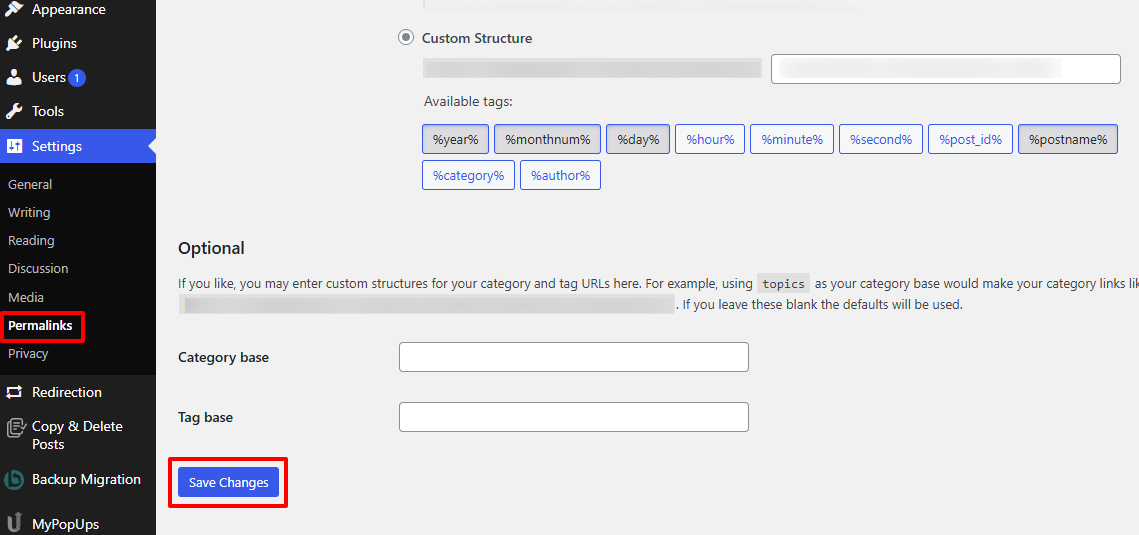
Permalink Settings
Lost Password Page Keeps Redirecting (For WP Engine Hosted Sites)
If your site is hosted on WP Engine, the lost password page might keep redirecting back to itself due to cookie and session issues.
Solution:
Contact WP Engine Support and ask them to exclude the lost password page from cookies and sessions.
Reset Password Email’s Content
If you have modified the URL in the Reset Password Email Content, the user might face issues with the lost password.
Solution:
Go to User Registration & Membership > Settings > Emails > To User and click on Reset Password.
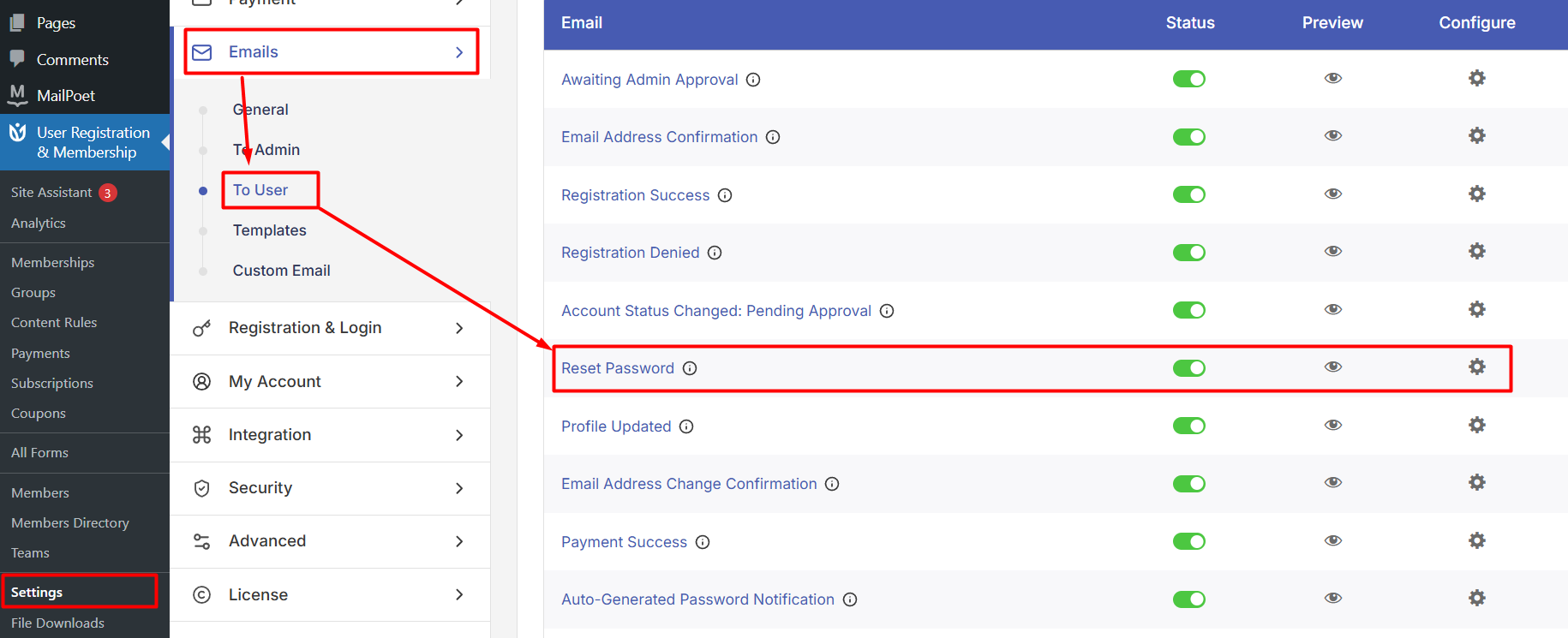
Navigate to Reset Password Email
Ensure the reset password URL is correctly formatted as below in the Email Content Block, which says Click Here:
{{home_url}}/{{ur_reset_pass_slug}}?action=rp&key={{key}}&login={{username}}
Plugin Conflicts
If none of the above solutions work, a third-party plugin might be causing conflicts.
Solution:
Perform a plugin conflict test:
Temporarily deactivate all plugins except User Registration & Membership.
Check if the lost password feature works.
Reactivate plugins one by one to find the conflicting ones.
Old Method (Deprecated): Using My Account Page Endpoints
The lost password page wasn’t a standalone in the deprecated system. Instead, it was a sub-page (endpoint) of the “My Account” page. For example:
My Account Page URL: yoursite.com/my-account
Lost Password Endpoint: yoursite.com/my-account/lost-password
This method is no longer recommended as it caused conflicts with plugins like WooCommerce, which also use similar endpoints. However, if you’re still using this old method and facing the issue, here’s how you can solve it:
Select Correct My Account Page
Navigate to User Registration & Membership > Settings > General > General Options > My Account Section.
Now, select the correct My Account page using the dropdown.
Click on the Save Changes button once you complete the settings.

If you are still experiencing issues, consider checking for theme conflicts or contacting User Registration & Membership support for further assistance.
Here’s how to check plugin and theme conflicts on your WordPress website.