
Translating Email Notifications
This guide explains how to configure WPML to automatically send User Registration & Membership email notifications in each visitor's preferred language.
Last updated on Aug 18, 2026
Overview
This guide explains how to translate the emails sent by User Registration & Membership into other languages using WPML, one of the most widely used multilingual plugins for WordPress. The plugin already supports translated email content, but a multilingual plugin needs to be properly configured before those translations will actually appear to your visitors.
How Email Translation Works
User Registration & Membership sends emails using the content you've configured under the plugin's Emails settings. On its own, the plugin only stores one version of that content. To show a different version to visitors browsing your site in another language, you need a plugin like WPML — it detects each visitor's selected language and swaps in the matching translated text whenever an email is generated.
Prerequisites
User Registration & Membership plugin, installed and activated
WPML plugin, on the Multilingual CMS plan or higher (required for String Translation)
Access Path
WPML → Languages
 WPML → String Translation
 WPML → Theme and Plugins Localization
 User Registration & Membership → Settings → Emails
Step-by-Step Instructions
Step 1: Install and Configure WPML
Install the following WPML plugins:
WPML Multilingual CMS
WPML String Translation
WPML Translation Management (optional)
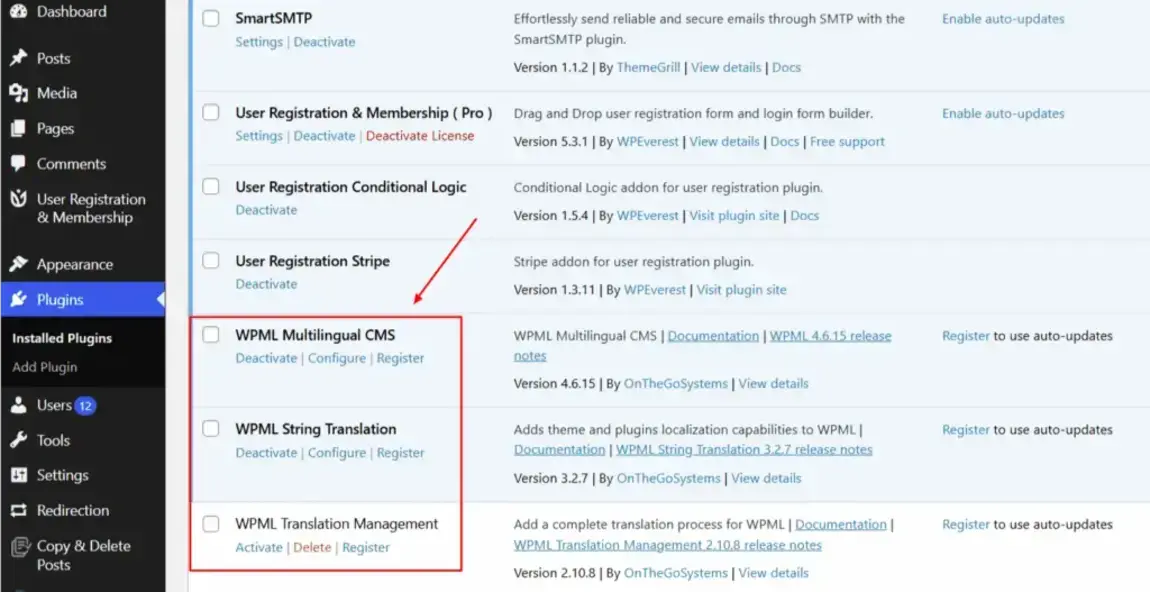
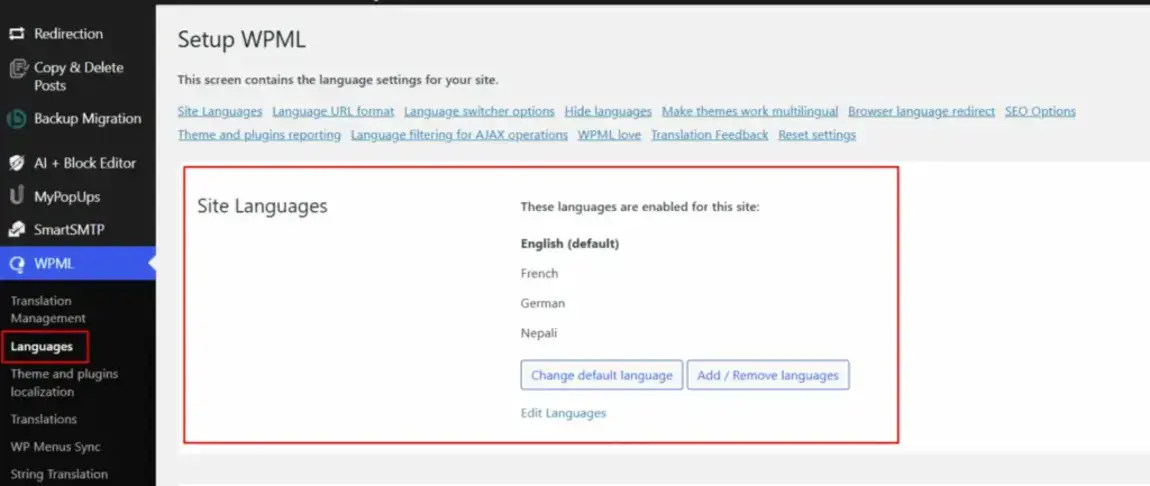
Go to WPML → Languages and run the setup wizard.
Select your default language and the additional languages you want to support.
Choose a URL format (subdirectories are recommended), then save your changes.
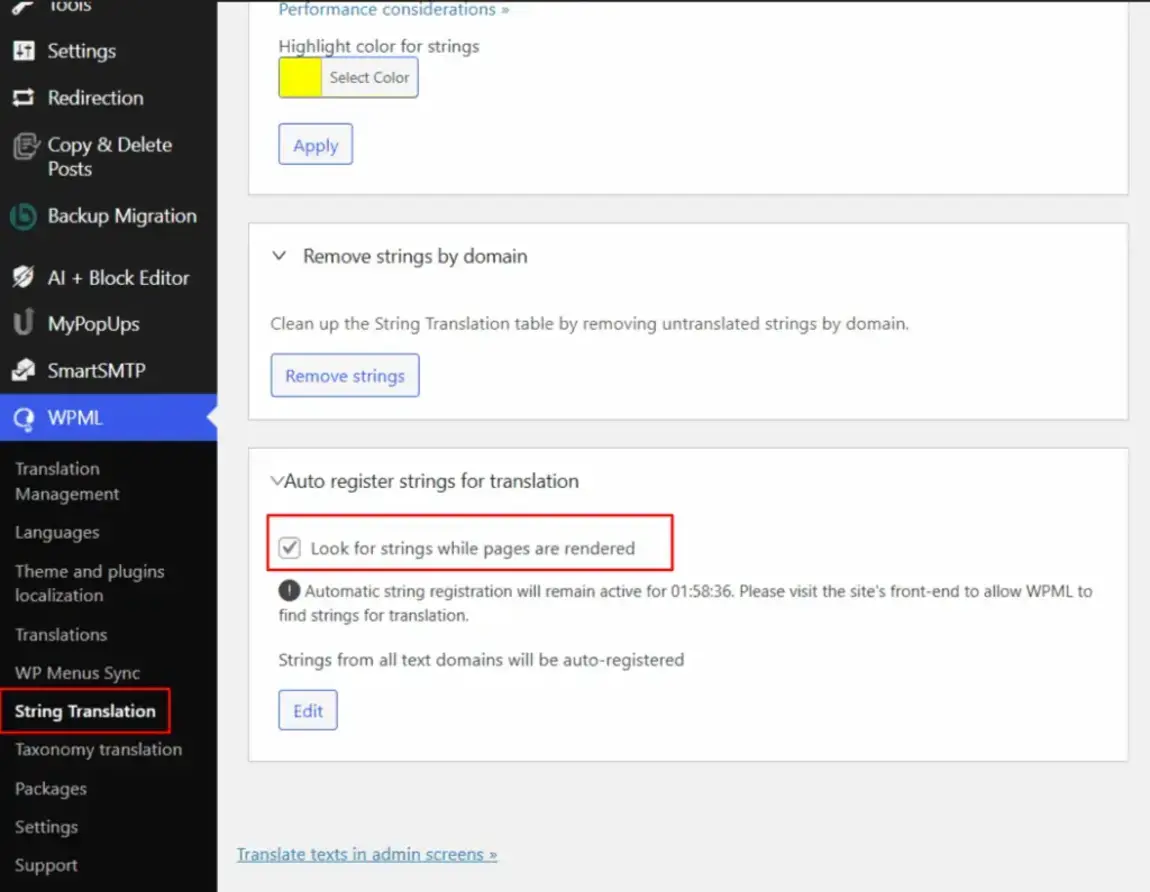
Step 2: Turn On String Detection
Go to WPML → String Translation.
Enable Look for strings while pages are rendered.
Step 3: Register URM's Email Strings
You can register the plugin's translatable strings automatically or manually.
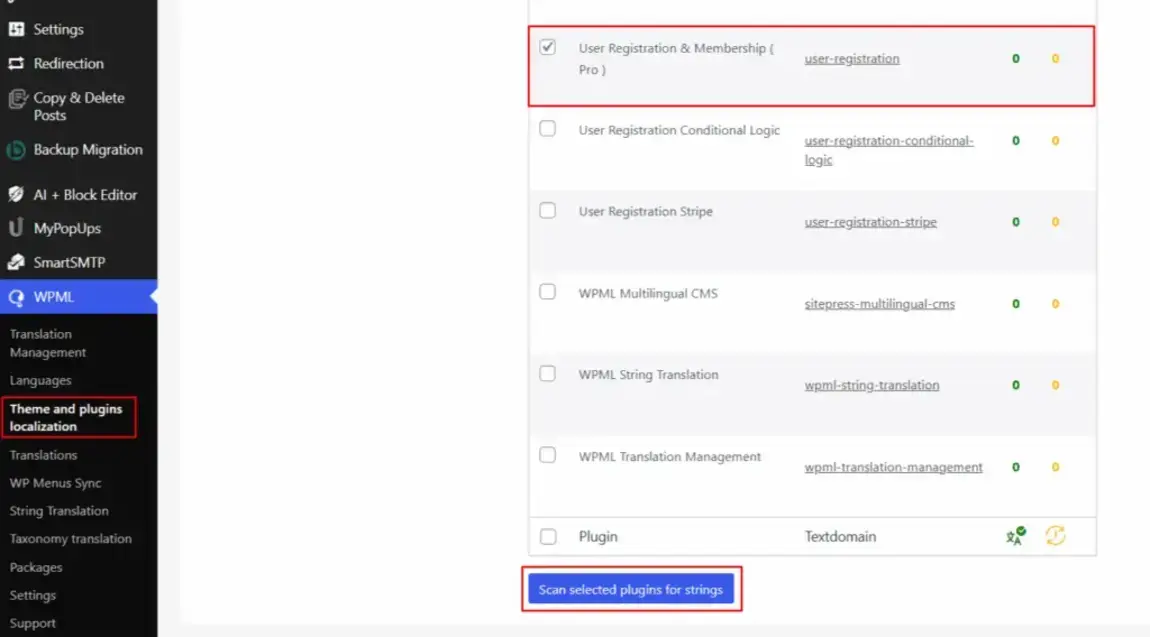
Method A: Automatic Registration
Go to WPML → Theme and Plugins Localization.
Click Scan Selected Plugins for Strings.
Select User Registration & Membership from the plugin list.
Click Scan to register all translatable strings.
Method B: Manual Registration
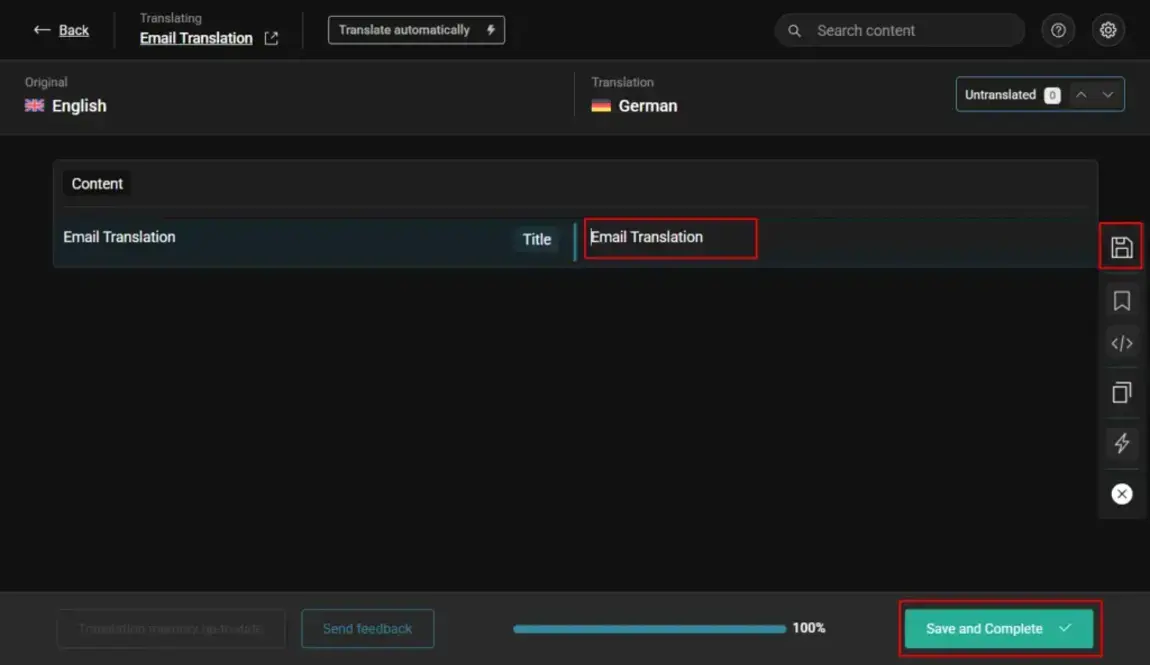
Create or open a page containing a form that triggers an email, such as your registration form.
Go to Pages → All Pages, then click the + icon next to that page to create a translated version. Complete and save the translation.
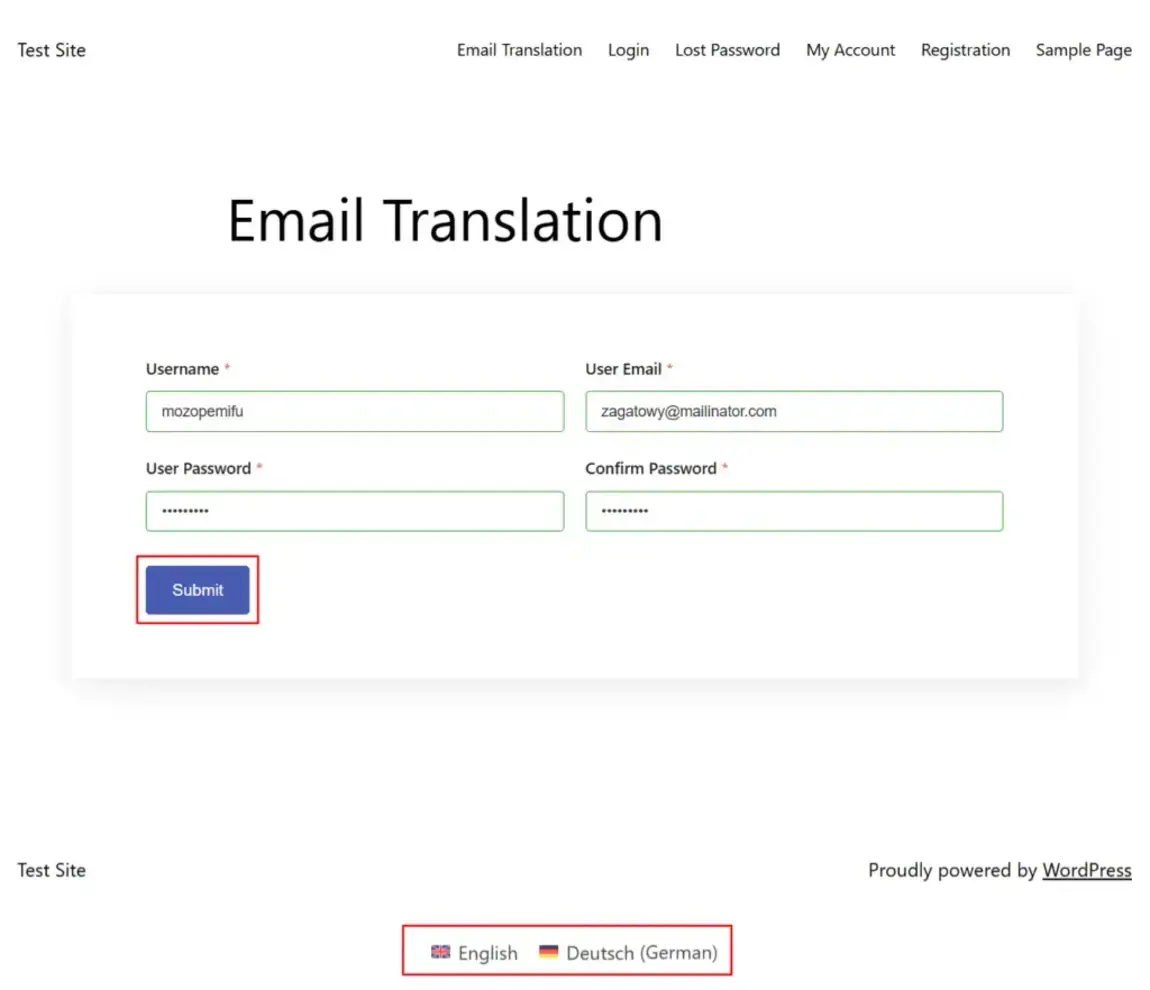
Register a test user account on that page. Then switch to each target language using the WPML language switcher and repeat the action that triggers the email (for example, registering again). This registers the email strings with WPML so they become available to translate.
Step 4: Translate the Email Content
Go to WPML → String Translation.
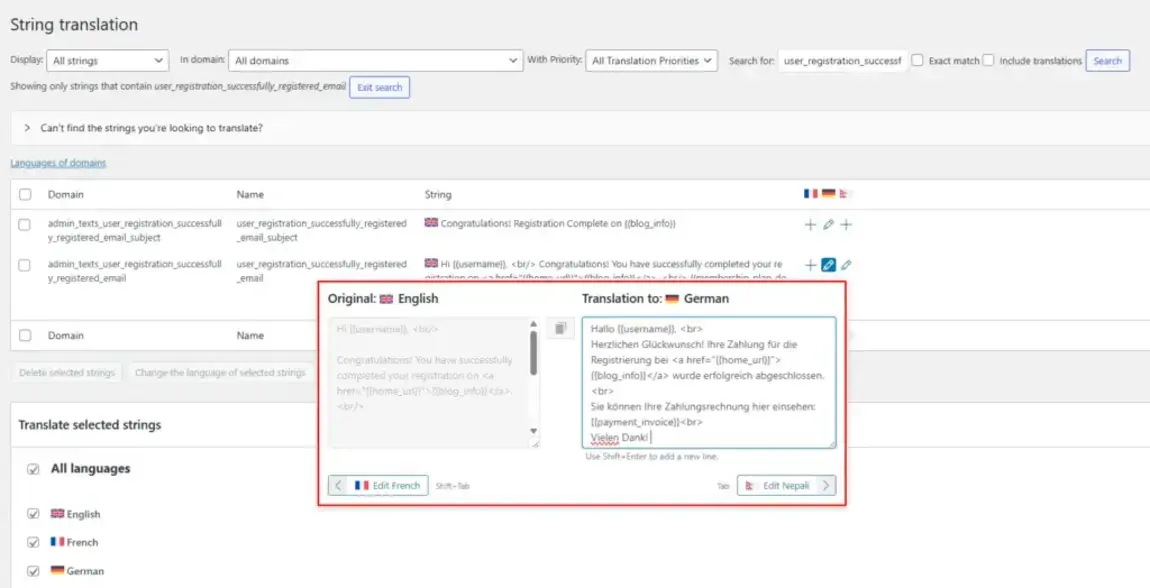
Filter by domain, or search for strings containing "email," "mail," "message," or "notification." Email string names typically follow a pattern such as user_registration_successfully_registered_email.
Click the translation icon next to a string to open the translation field.
Enter your translation for each target language and save.
Keep all dynamic placeholders exactly as they appear in the original text — for example{{username}},{{site_name}},{{activation_link}},{{membership_plan}}, and{{expiry_date}}. These are automatically replaced with real data when the email is sent, so changing or removing them will break the email.
Step 5: Test Your Translations
Switch your site to each target language using the WPML language switcher.
Register a new test account and confirm the email arrives in the correct language.
Repeat this check for translated form fields and email subject lines using the same method.
Additional Resources
Closing
Once your email strings are registered and translated, User Registration & Membership will automatically send each visitor the correct language version based on their selected site language. If you add new email templates or form fields later, repeat Steps 3–5 to register and translate the new strings.