
Two Factor Authentication
ProEnhance WordPress security by enabling two-factor authentication for user logins with one-time password verification using the Pro addon.
Last updated on Jul 15, 2026
Would you like to add an extra layer of security to your WordPress site? User Registration & Membership allows you to enable two-factor authentication (2FA) for user logins. This tutorial will show you how to set up and configure 2FA to protect user accounts with one-time password verification.
Prerequisites
Before getting started, make sure you've installed and activated the User Registration & Membership plugin on your WordPress site. Then, make sure you've installed and activated the Two Factor Authentication addon.
Two Factor Authentication requires the Personal plan or higher.
Activating the Two Factor Authentication Addon
To enable two-factor authentication, go to User Registration & Membership → Addons and locate the Two Factor Authentication addon. Toggle the switch to activate it.
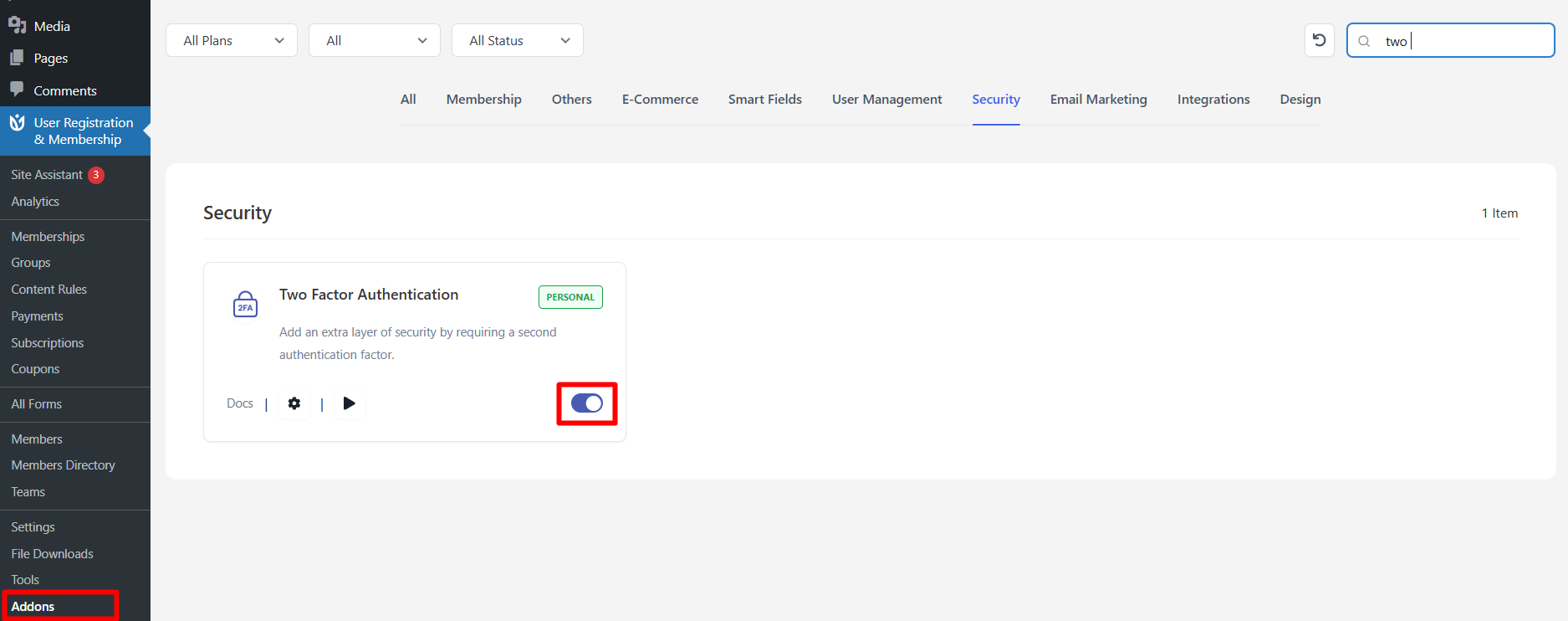
Once activated, you'll see Two Factor Authentication settings appear under User Registration & Membership → Settings → Security.
Configuring Two Factor Authentication Settings
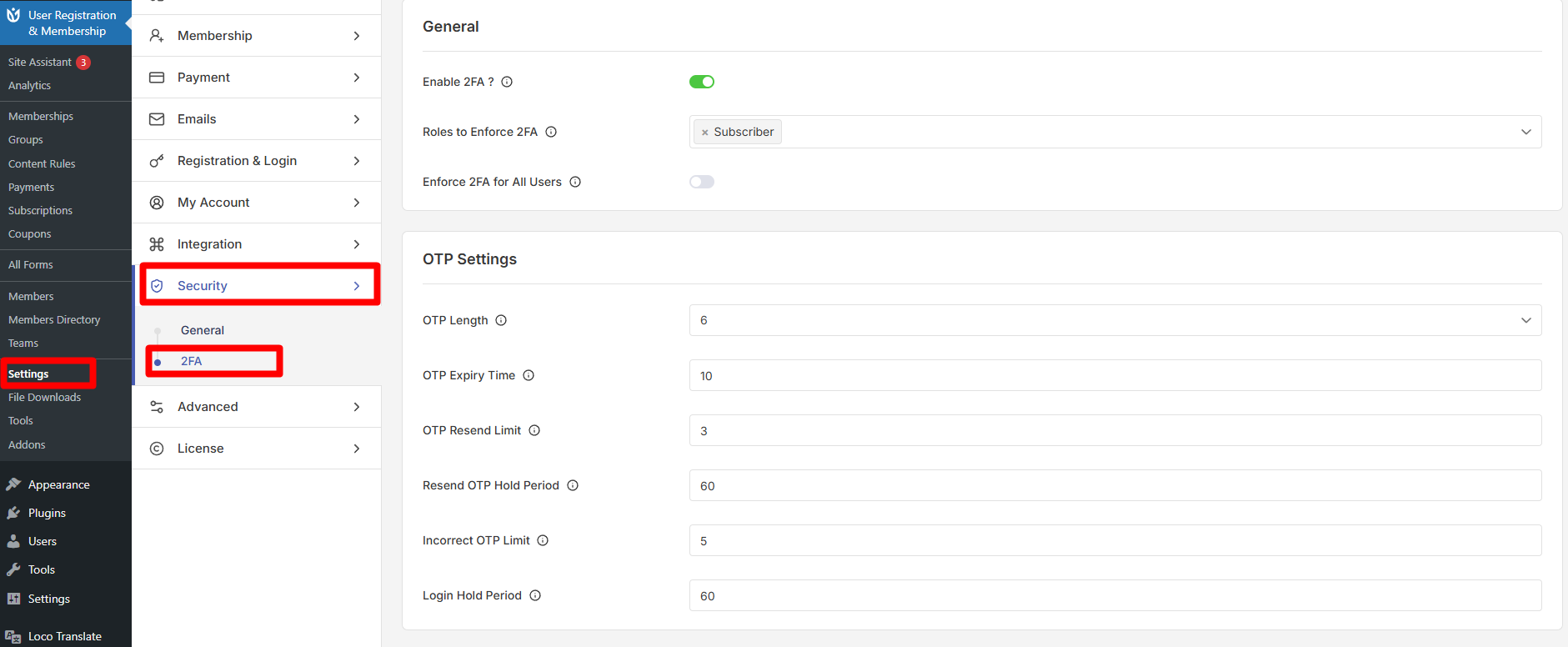
Navigate to User Registration & Membership → Settings → Security → Two Factor Authentication. Here, you'll see the configuration options for 2FA.
Enabling Two Factor Authentication
Toggle on Enable 2FA to activate two-factor authentication for your site. Once enabled, users will be required to verify their identity with a one-time password after entering their username and password.
Selecting User Roles for 2FA
Under Roles to Enforce 2FA, select which user roles must use two-factor authentication. You can choose specific roles like Administrator, Editor, or Subscriber — or enable 2FA for all users regardless of role.
If you'd prefer to enforce 2FA for all users regardless of their registration source, toggle on Enable 2FA for all Users.
Configuring OTP Settings
The OTP Settings section controls how one-time passwords are generated and validated.
OTP Length
Set the number of characters in the OTP code. Choose from 4, 6, or 8 digits. Longer codes provide stronger security but may be harder for users to type.
OTP Expiry Time
Enter the time in minutes before an OTP expires. For example, setting this to 5 means users have 5 minutes to enter their verification code before it becomes invalid.
OTP Resend Limit
Set the maximum number of times users can request a new OTP. This prevents abuse while allowing users to receive a new code if the first one doesn't arrive.
Resend OTP Hold Period
If users hit the resend limit, they'll be locked out from requesting new codes. Enter the hold period in minutes before they can request codes again.
Incorrect OTP Limit
Set how many times users can enter an incorrect OTP before being locked out. This prevents brute-force attacks on verification codes.
Login Hold Period
Enter the lockout time in minutes after users hit the incorrect OTP limit. During this period, users cannot attempt to log in.
Customizing OTP Messages
Scroll down to the OTP Messages section to customize the frontend messages users see during the two-factor authentication process. You can modify the text to match your site's tone or provide clearer instructions.
Click Save Changes to save your two-factor authentication configuration.
Enabling SMS-Based OTP (Optional)
By default, OTP codes are sent via email. If you'd prefer to send verification codes via SMS, you'll need to activate the SMS Integration module and set up Twilio integration.
To enable SMS OTP:
Go to User Registration & Membership → Addons and activate the SMS Integration addon
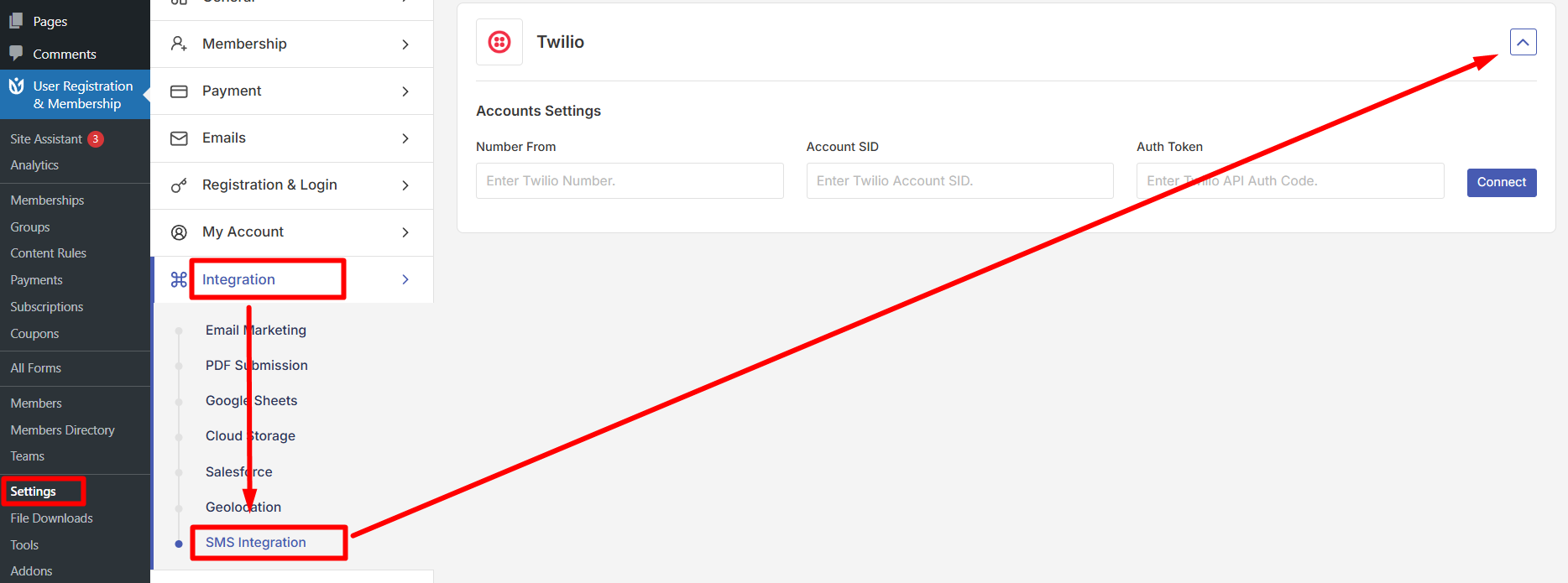
Configure your Twilio credentials at User Registration → Settings → Integration → SMS Integration → Twilio
Edit your registration form and add a Phone number field mapped to smart format
Go to Form Settings → General → User Approval and Login Option
Select Auto approval after SMS verification
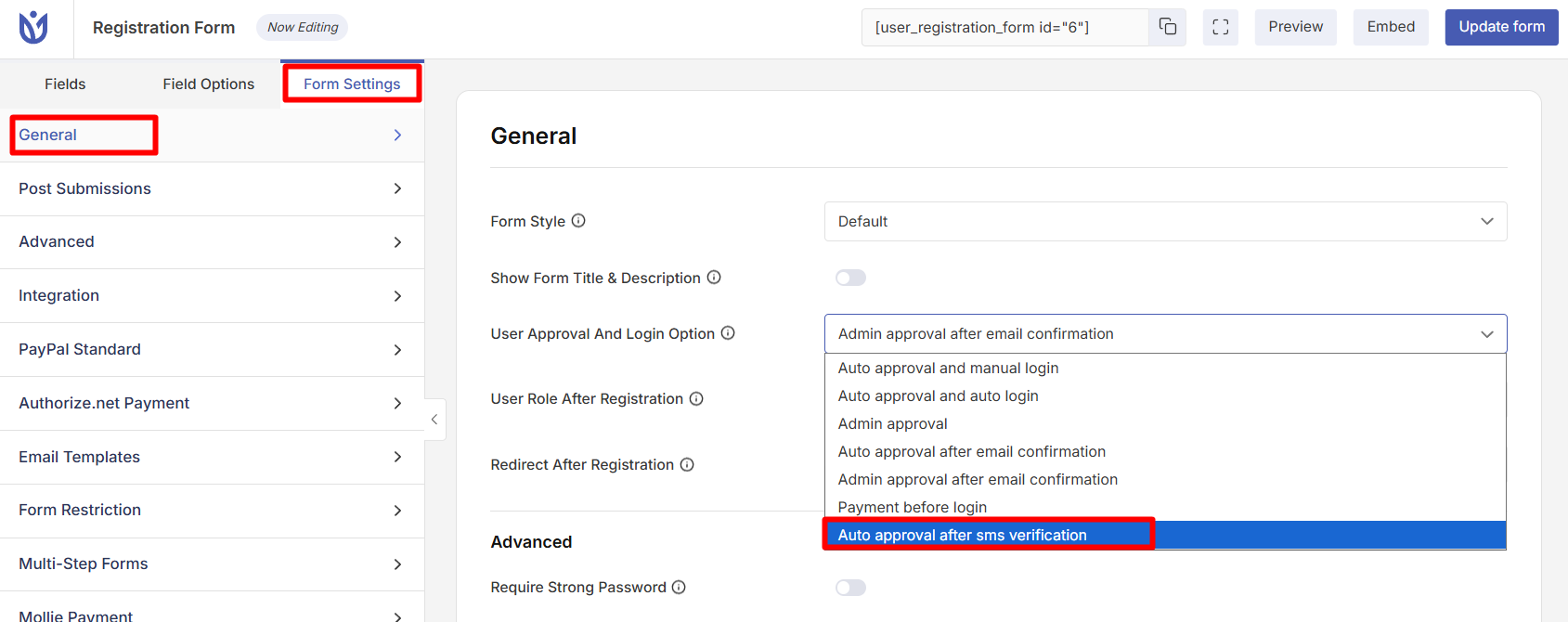
Once configured, users will receive OTP codes via SMS to their registered phone number instead of email.
Testing Two Factor Authentication
To test 2FA, log out of your WordPress account and attempt to log in again. After entering your correct username and password, you'll be redirected to an OTP verification page.
Check your email (or phone if using SMS) for the one-time password. Enter the code on the verification page to complete login.
If you don't receive the code, click Resend Code to request a new one.