
SMS Integration
ProEnable SMS-based user verification using Twilio to send one-time passwords during registration and login processes.
Last updated on Jul 15, 2026
Would you like to verify users via SMS during registration or login? User Registration & Membership allows you to send one-time password (OTP) codes to users' mobile phones using Twilio's SMS service. This tutorial will show you how to set up and configure SMS-based verification for your registration forms.
Before Getting Started
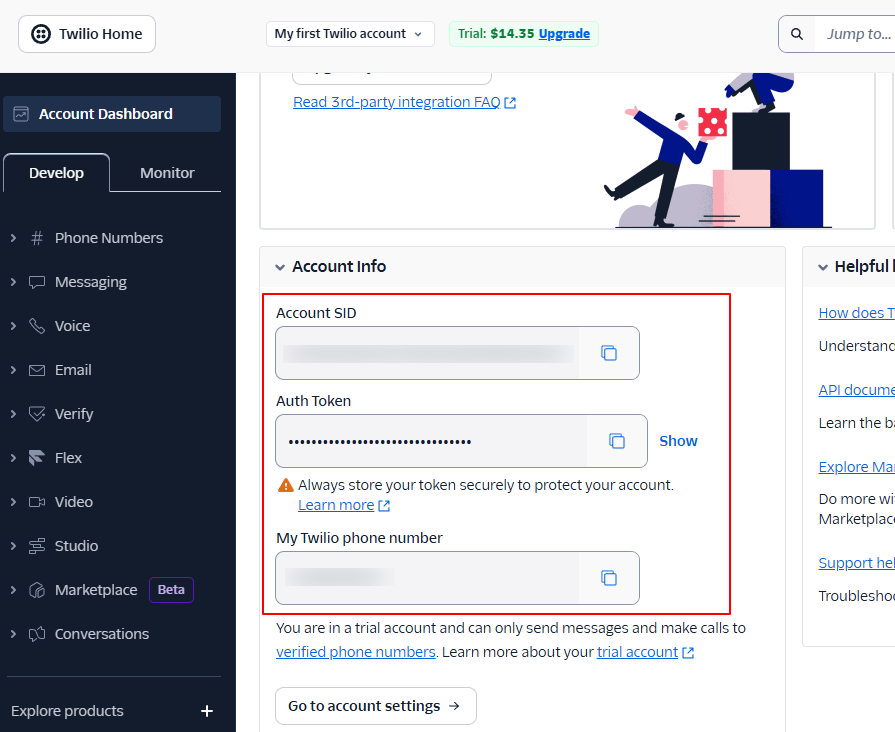
Before getting started, make sure you've installed and activated the User Registration & Membership Pro plugin. Then, make sure you've created a Twilio account with SMS service enabled and obtained your Account SID, Auth Token, and Twilio phone number.
Activating the SMS Integration Module
To enable SMS verification, go to User Registration & Membership → Addons in your WordPress dashboard. Here, you'll see the SMS Integration module in the list of available addons.
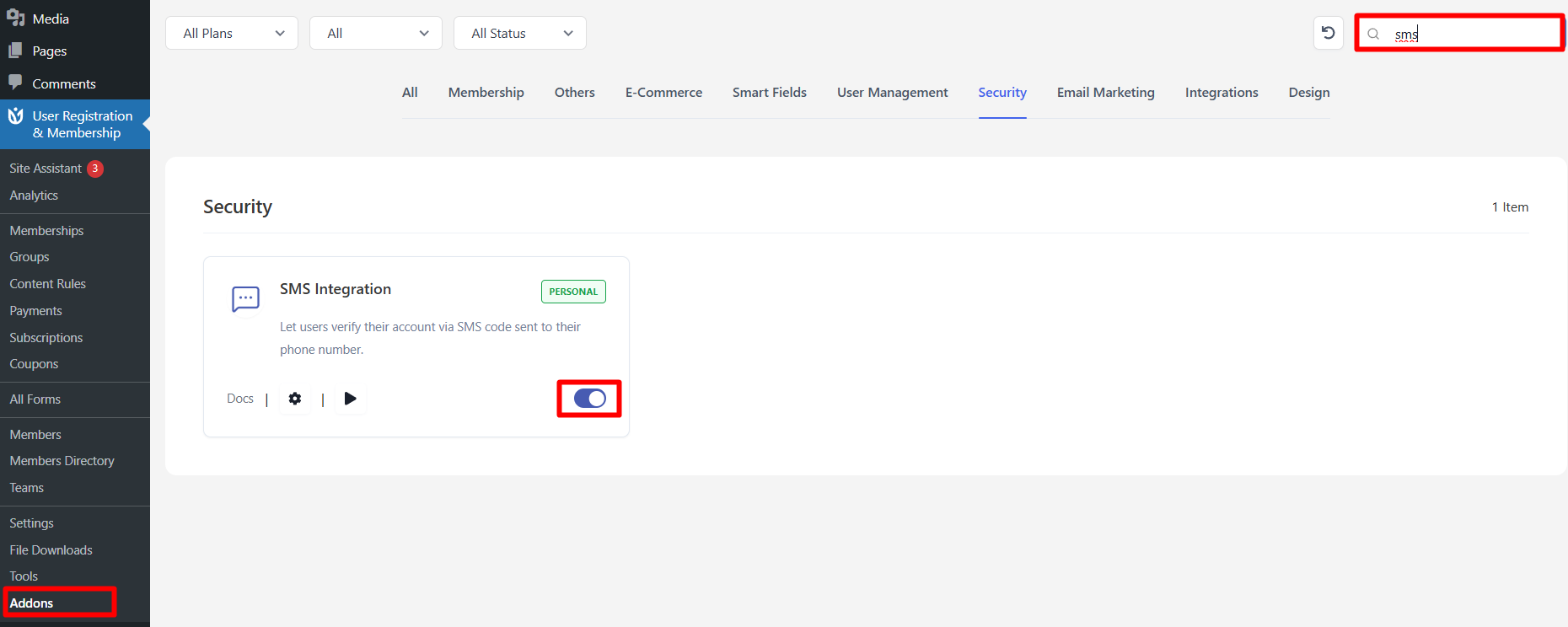
Toggle the SMS Integration addon to activate it. Once activated, the module will be ready to configure with your Twilio credentials.
Connecting Your Twilio Account
From the WordPress dashboard, go to User Registration & Membership → Settings → Integration → SMS Integration → Twilio. Here, you'll see the Twilio integration settings where you can connect your account.
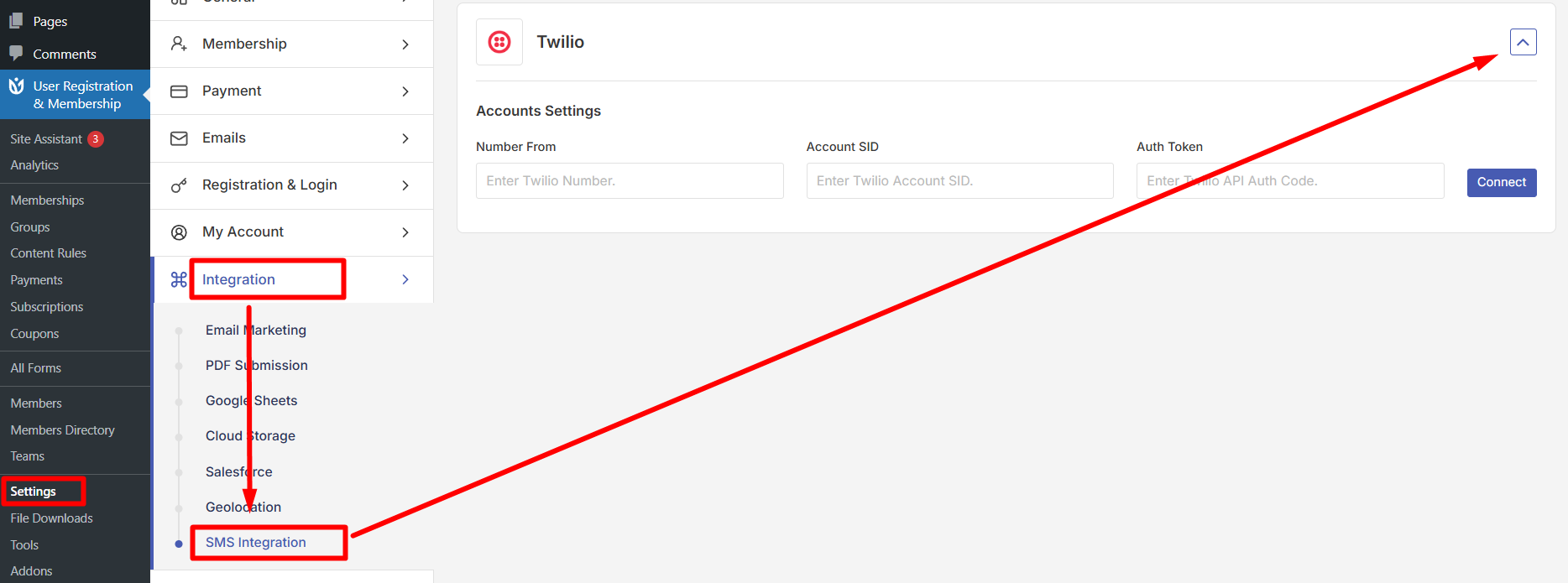
Enter your Twilio Account SID, Auth Token, and Twilio phone number in the provided fields. Then, enter an account name (this can be anything you choose to identify the connection). Click Connect to link your Twilio account with User Registration & Membership.
Once connected, you'll see a confirmation that your Twilio account is active and ready to send SMS messages.
Configuring OTP Settings
User Registration & Membership provides several settings to control how OTP codes work. To configure these settings, go to User Registration & Membership → Settings → Security → Two Factor Authentication.
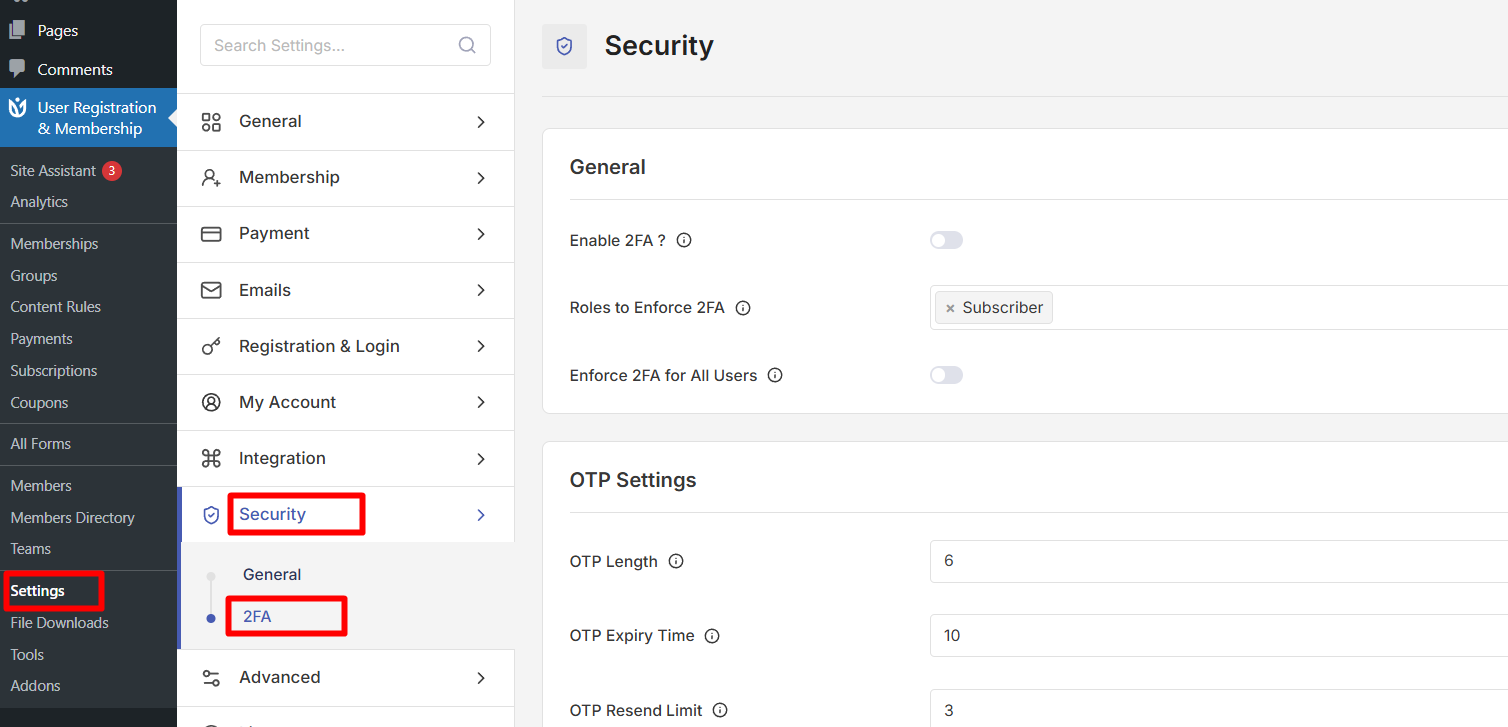
Here, you'll find options to customize the OTP verification process:
OTP Length: Choose between 4, 6, or 8 digit codes. Longer codes provide more security.
OTP Expiry Time: Set how many minutes users have to enter their verification code before it expires.
OTP Resend Limit: Control how many times users can request a new verification code.
Resend OTP Hold Period: Set how long users must wait before they can request verification codes again after reaching the resend limit.
Incorrect OTP Limit: Define how many wrong verification codes users can enter before being locked out.
Login Hold Period: Set how long users are locked out from logging in after too many wrong verification codes.
Click Save Changes to apply your OTP configuration.
Enabling SMS Verification on Registration Forms
To enable SMS verification for a specific registration form, go to User Registration & Membership → All Forms and select the form you want to edit. Navigate to Form Settings → General and enable the SMS verification option.
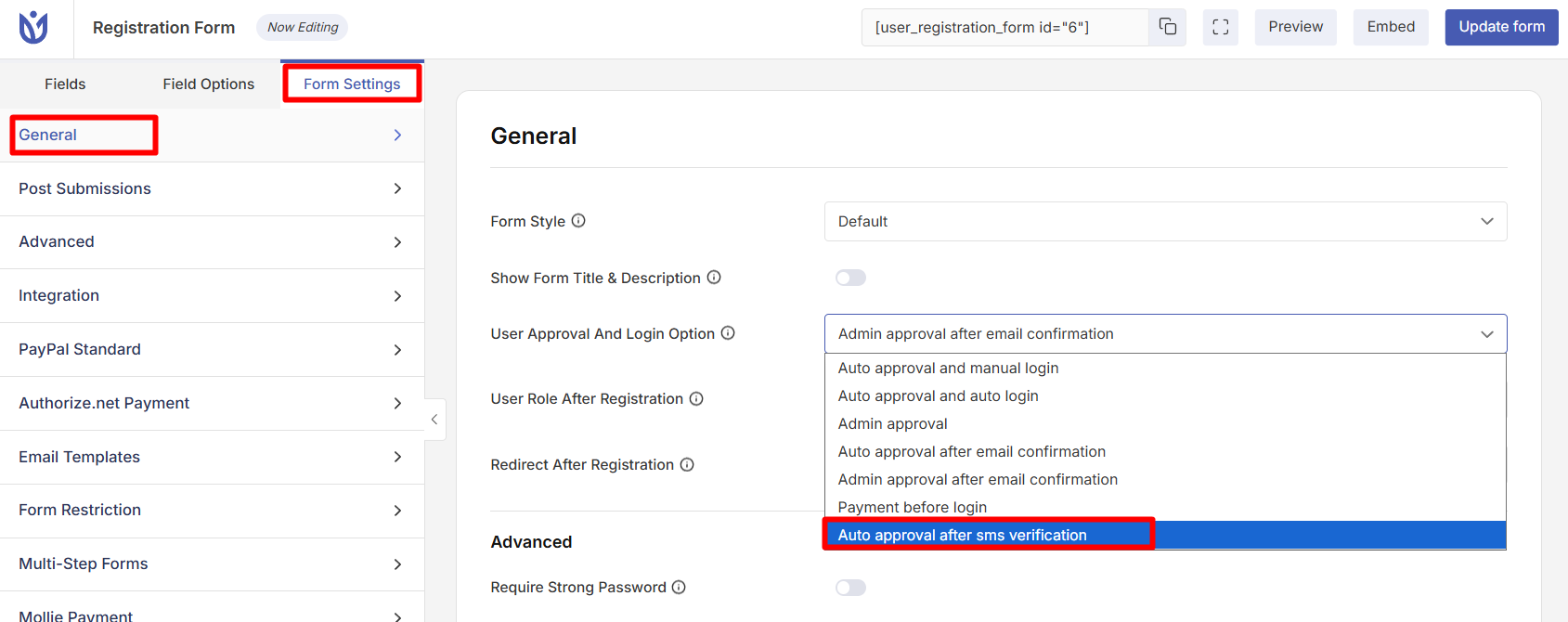
Make sure your registration form includes a phone number field so users can provide their mobile number for receiving OTP codes. If you haven't added a phone field yet, go to the form builder and drag the Phone field from the Extra Fields section into your form.
How SMS Verification Works for Users
Once SMS verification is enabled, here's what happens when users register or log in:
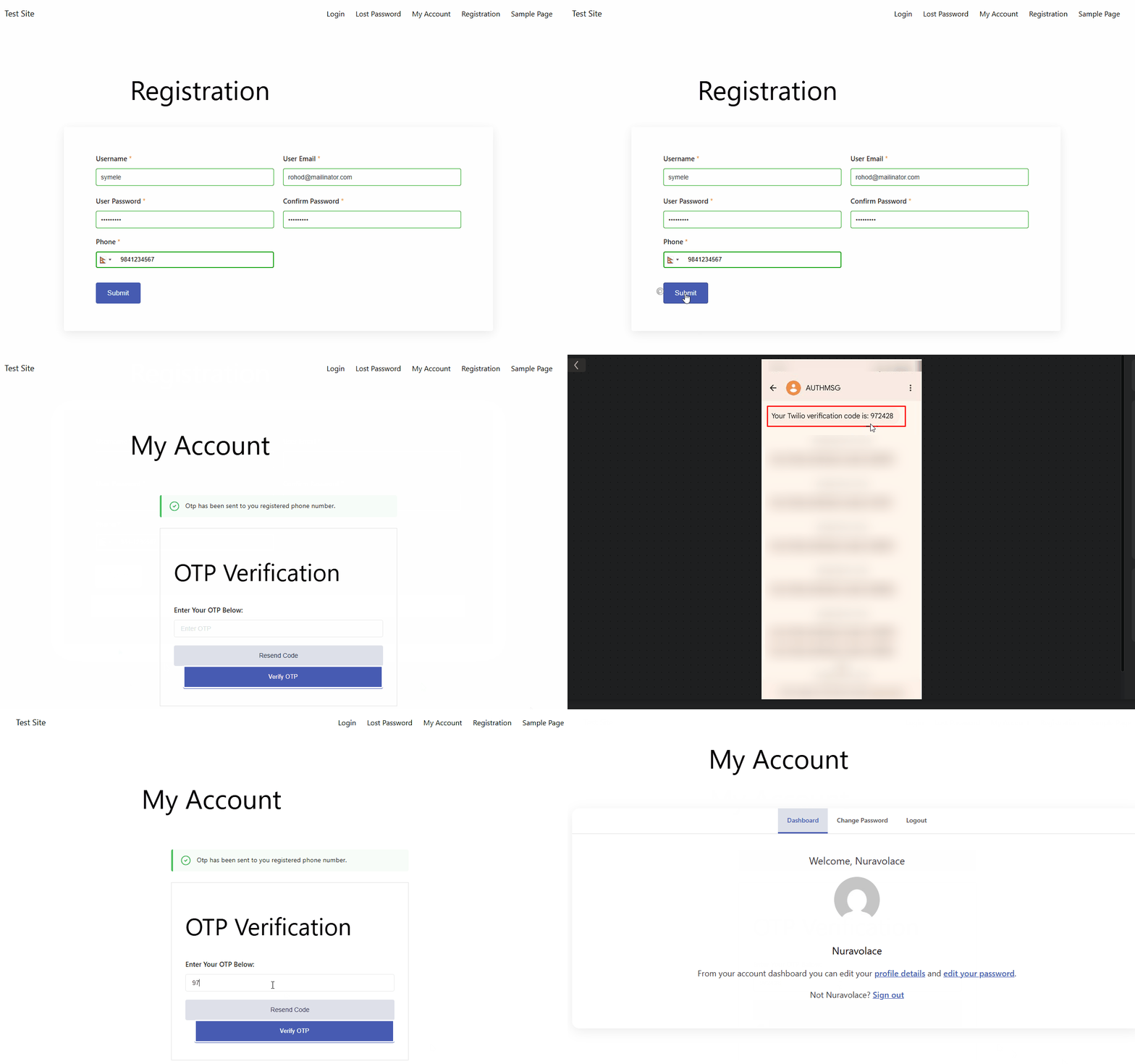
User fills out the registration form and submits it with their phone number.
User Registration & Membership sends an OTP code to the provided phone number via Twilio.
User receives the SMS message with the verification code on their mobile phone.
User enters the OTP code on the verification screen to complete registration or login.
If the code is correct and hasn't expired, the user's account is verified and they gain access.
If users don't receive the code, they can click the resend button to request a new OTP (subject to the resend limits you configured).
Important Notes About SMS Integration
Keep in mind that SMS messages cost money per message sent through Twilio. Each OTP code sent to a user will incur a charge from Twilio based on their pricing for your region.
Users must have a valid phone number to receive SMS verification codes. If a user enters an incorrect or invalid phone number, they won't receive the OTP and won't be able to complete registration.
OTP codes expire after the time limit you set in the settings. If a user waits too long to enter their code, they'll need to request a new one.
The phone number must be verified with Twilio before SMS messages can be sent to it. Check your Twilio account settings to ensure your phone numbers are properly configured.