
Security Settings
Control WordPress dashboard access by user role and configure two-factor authentication to secure your site's admin area.
Last updated on Aug 12, 2026
Would you like to protect your WordPress site from unauthorized dashboard access? User Registration & Membership provides security settings to control who can access your WordPress admin area and improve the login experience. This guide will show you how to configure the General security settings and set up Two-Factor Authentication.
Before getting started, make sure you've installed and activated the User Registration & Membership plugin on your WordPress site.
General Security Settings
To access general security settings, navigate to User Registration & Membership → Settings → Security → General in your WordPress dashboard.
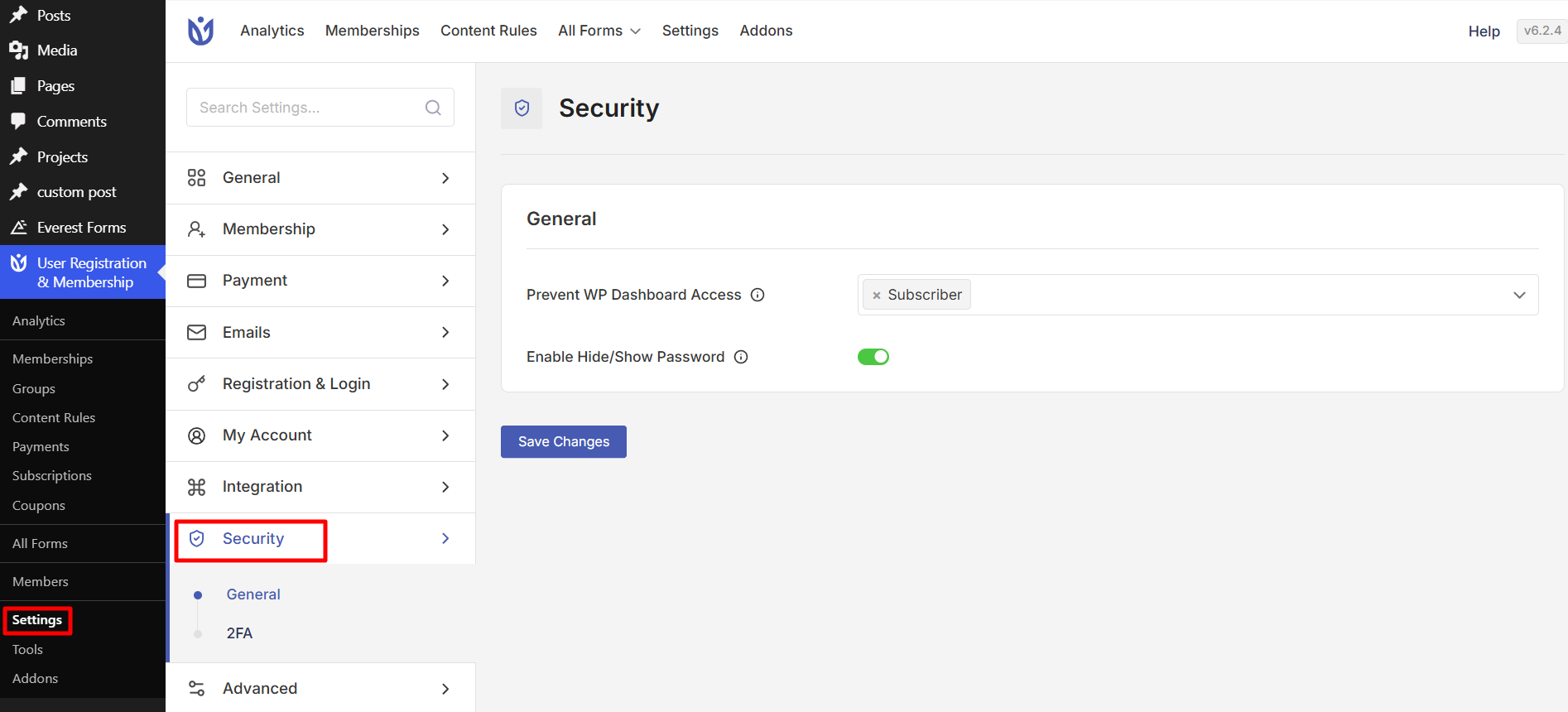
Preventing WordPress Dashboard Access
By default, the Subscriber role is prevented from accessing the WordPress dashboard. You can configure which user roles are restricted from accessing the admin area:
Go to User Registration & Membership → Settings → Security → General.
Find the Prevent WP Dashboard Access (Hide Admin Bar) option.
Select the user roles you want to restrict from the dropdown. You can select multiple roles.
Click Save Changes.
When you prevent dashboard access for a role, the admin bar is also hidden for users with that role. This keeps your site interface clean for members who don't need backend access.
Enabling Password Visibility Toggle
The Hide/Show Password feature allows users to reveal their password as they type on login forms, making it easier to verify they've entered it correctly:
Go to User Registration & Membership → Settings → Security → General.
Enable the Hide/Show password option.
Click Save Changes.
A toggle button will appear on login forms, allowing users to reveal their password to verify they've typed it correctly.
Two-Factor AuthenticationPro
Two-Factor Authentication (2FA) adds an extra layer of security to user accounts by requiring users to verify their identity with a one-time password (OTP) after entering their username and password. This helps protect accounts even if login credentials are compromised.
Requirements: Two-Factor Authentication requires the User Registration Pro plugin with a Personal plan or higher.
For complete setup instructions, configuration options, and OTP settings, please refer to the Two-Factor Authentication documentation.
Frequently Asked Questions
These are answers to some of the most common questions we receive about security settings.
Can I prevent dashboard access for custom user roles?
Yes, the Prevent WP Dashboard Access setting works with both default WordPress roles and custom user roles created by other plugins.
Does the password visibility toggle work on all forms?
The Hide/Show Password toggle appears on login forms created with User Registration & Membership. It does not affect the default WordPress login page unless you've replaced it with a custom login form.
What happens if a user forgets their password and 2FA is enabled?
Users can use the Lost Your Password link on the login form to reset their password. The OTP verification will be required after they enter their new password.
Can I require 2FA for administrators only?
Yes, you can select specific user roles in the Roles to Enforce 2FA field. Select only the Administrator role to require 2FA for admins while leaving it optional for other users.
How do I set up SMS-based OTP for Two-Factor Authentication?
To use SMS-based OTP, you must activate the SMS Integration module from User Registration & Membership → Addons and configure your Twilio account credentials in the SMS Integration settings.