
Resetting Captcha Keys
Learn how to reset CAPTCHA site and secret keys for Google reCAPTCHA, hCaptcha, or Cloudflare Turnstile in User Registration & Membership settings.
Last updated on Jul 14, 2026
Would you like to reset your CAPTCHA site and secret keys in User Registration & Membership? User Registration & Membership allows you to reset CAPTCHA keys for any configured CAPTCHA provider directly from the settings interface. This tutorial will show you how to reset your CAPTCHA keys when needed.
Before getting started, make sure you've installed and activated the User Registration & Membership plugin on your WordPress site. Then, make sure you've already saved CAPTCHA keys at least once — the reset option only appears after keys have been saved.
Accessing the CAPTCHA Settings
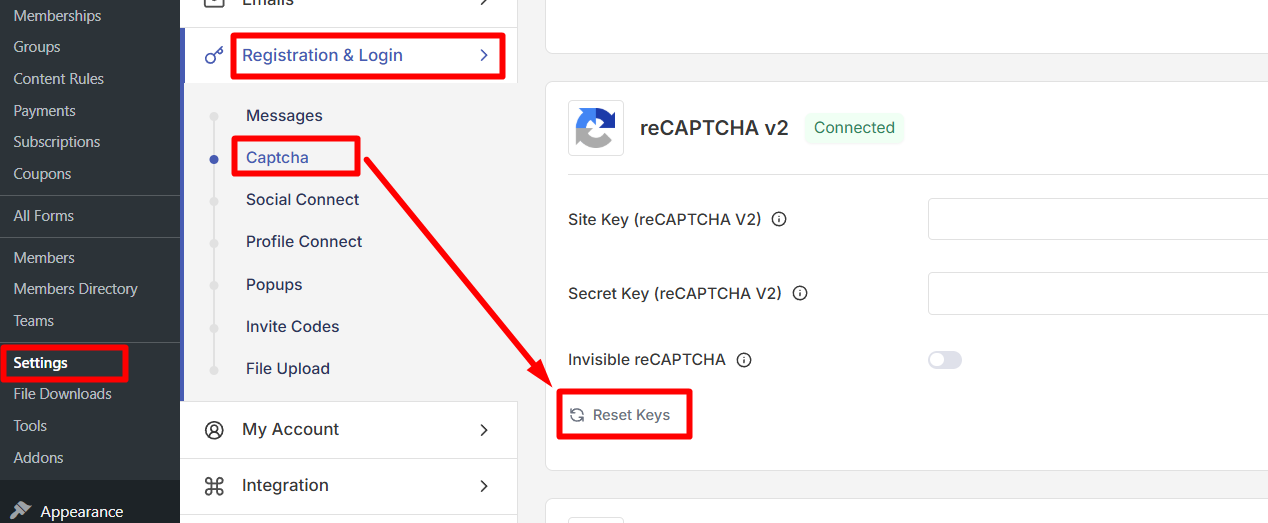
To reset your CAPTCHA keys, go to User Registration & Membership > Settings > Registration & Login > Captcha. Here, you'll see all available CAPTCHA providers including Google reCAPTCHA, hCaptcha, and Cloudflare Turnstile.
Selecting Your CAPTCHA Provider
Select the CAPTCHA provider whose keys you want to reset from the available options. Once you've selected a provider, you'll see the configuration fields for that specific CAPTCHA service.
Resetting the Keys
Locate the Reset Keys option on the bottom left side of the CAPTCHA settings section. Click on Reset Keys to begin the reset process.
A confirmation modal will appear asking you to confirm the action. Click Reset to confirm that you want to reset both the site key and secret key.
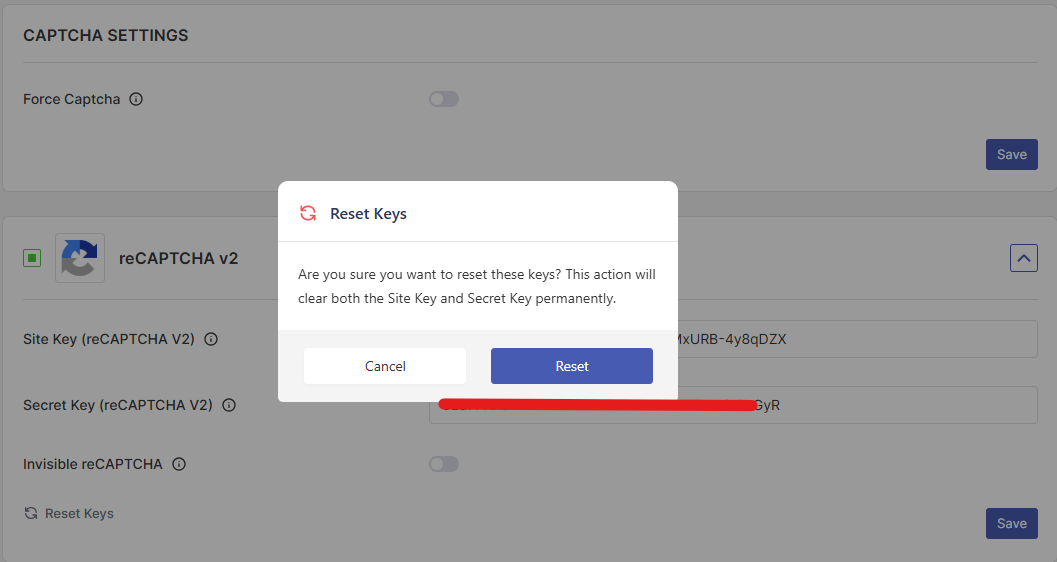
Once confirmed, both the site key and secret key will be reset, and the CAPTCHA will be automatically disabled for that provider.
Re-entering Your Keys
After resetting, you'll need to re-enter your site key and secret key from your CAPTCHA provider's dashboard. Be sure to save your secret keys immediately, as most CAPTCHA providers don't show them again after initial setup.