
Integrate hCaptcha
Learn how to add hCaptcha protection to your WordPress registration and login forms using User Registration & Membership plugin to prevent spam and bot attacks.
Last updated on Jul 15, 2026
Would you like to protect your registration and login forms from spam and bot attacks? User Registration & Membership allows you to integrate hCaptcha as a reliable alternative to Google reCAPTCHA. This tutorial will show you how to set up hCaptcha on your registration and login forms.
Before getting started, make sure you've installed and activated the User Registration & Membership plugin on your WordPress site.
Creating Your hCaptcha Account
To use hCaptcha with User Registration & Membership, you'll need an hCaptcha account and API credentials.
Go to hcaptcha.com and create a free account. Once you've logged in, you'll see your hCaptcha dashboard.
Getting Your hCaptcha Keys
hCaptcha requires two keys to work with your registration forms: a Site Key and a Secret Key.
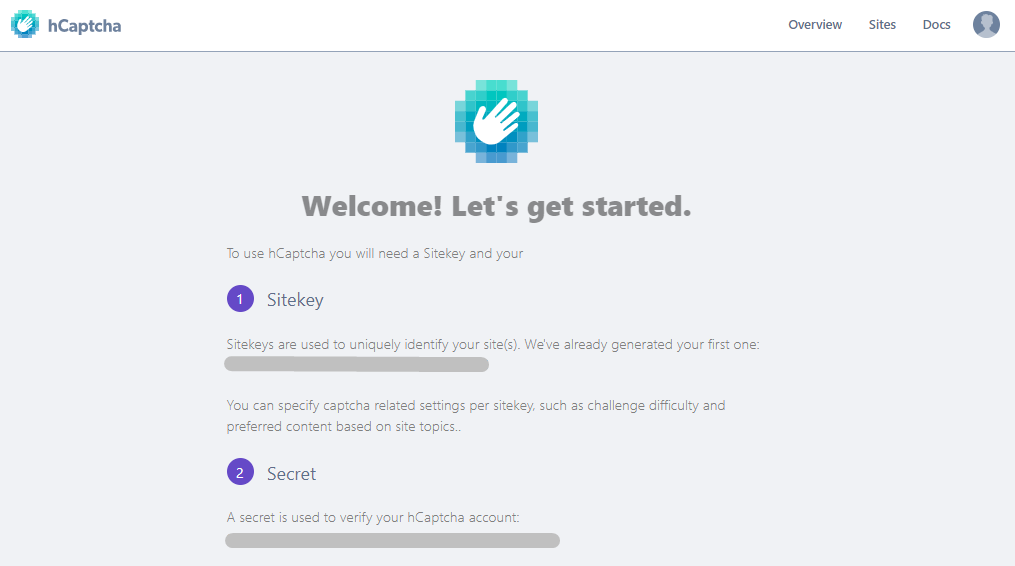
From your hCaptcha dashboard, copy the Site Key. This key identifies your website to hCaptcha's service.
Then, visit https://dashboard.hcaptcha.com/settings to access your account settings. Here, you'll find your Secret Key. Copy this key as well.
The Secret Key is located on a separate settings page from the Site Key. Keep both keys secure and never share them publicly.
Connecting hCaptcha to User Registration & Membership
Once you have your hCaptcha keys, you can connect hCaptcha to your WordPress site.
From your WordPress dashboard, go to User Registration & Membership > Settings > Registration & Login > Captcha. Here, you'll see the Captcha Type option.
Select hCaptcha from the Captcha Type dropdown menu. Two new fields will appear: Site Key and Secret Key.
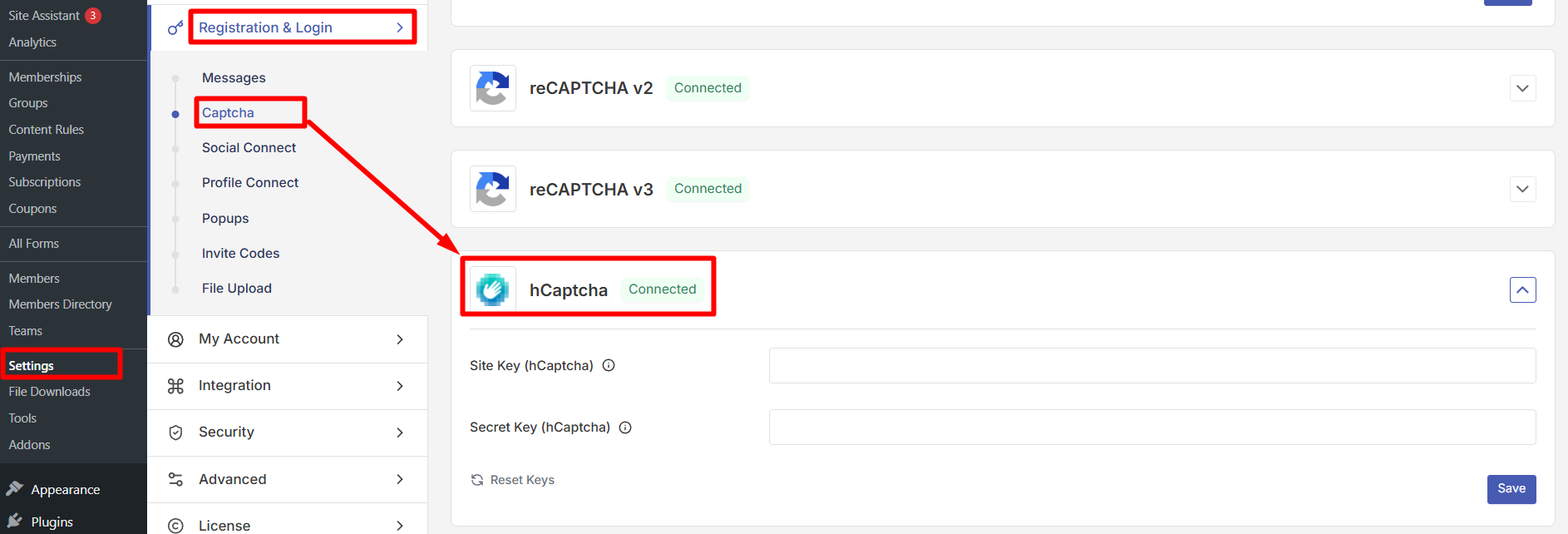
Paste your hCaptcha Site Key into the Site Key field, then paste your Secret Key into the Secret Key field. Click Save Changes to save your hCaptcha configuration.
Tip: We recommend testing your hCaptcha configuration directly in the settings to verify your keys are valid before enabling it on your forms.
Enabling hCaptcha on Registration Forms
Now that hCaptcha is connected, you can enable it on your registration forms.
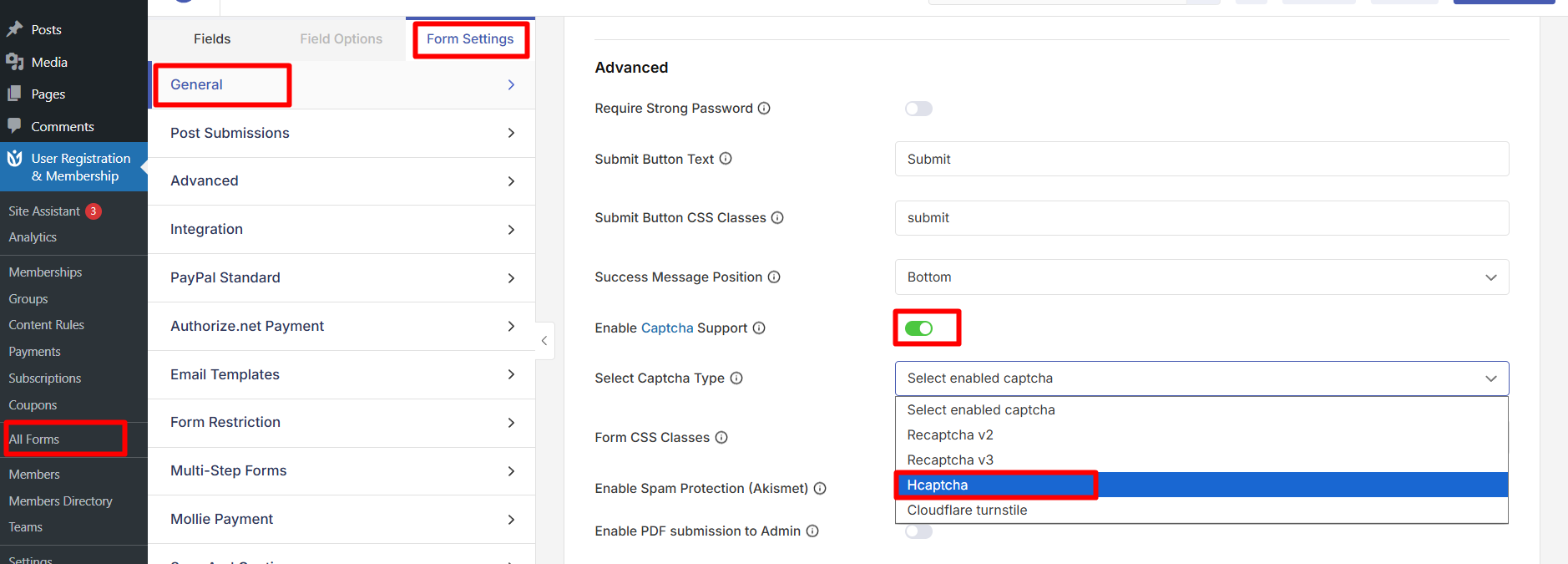
Go to User Registration & Membership > All Forms > Registration Forms and select the form you want to protect. Click Edit to open the form builder.
Navigate to Form Settings > General. Scroll down to find the Enable Captcha option and toggle it on.
From the Captcha Type dropdown that appears, select hCaptcha. Click Update Form to save your changes.
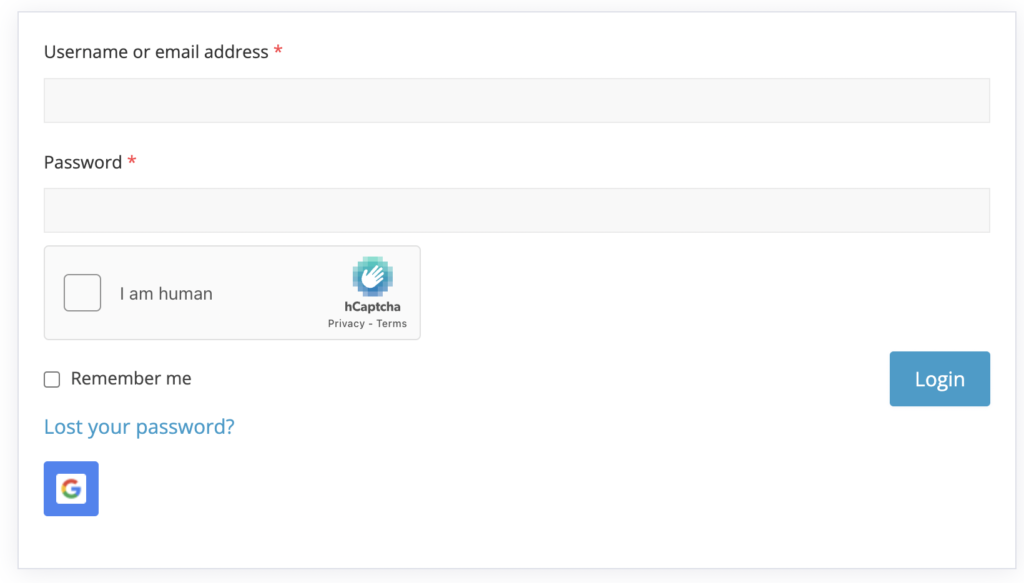
Your registration form now displays an I am human checkbox powered by hCaptcha. Users may be asked to verify their identity by selecting images before they can submit the form.
Enabling hCaptcha on Login Forms
You can also protect your login forms with hCaptcha to prevent automated login attempts.
Go to User Registration & Membership > All Forms > Login Forms and select the login form you want to protect. Click Edit to open the form settings.
Navigate to Form Settings > Advanced. Find the Enable Captcha option and toggle it on.
Select hCaptcha from the Captcha Type dropdown menu. Click Update Form to apply the changes.
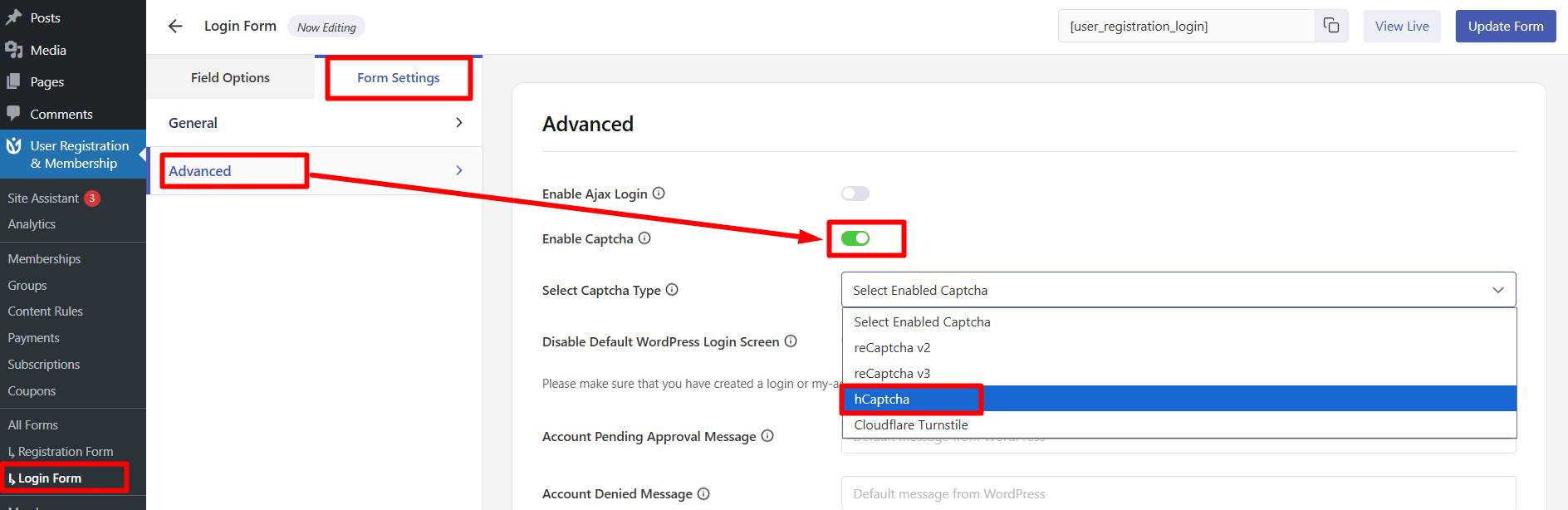
Users will now see the hCaptcha verification on your login form before they can sign in.
Frequently Asked Questions
What is hCaptcha and how is it different from Google reCAPTCHA?
hCaptcha is a CAPTCHA service provided by Intuition Machines Inc that offers more reliable bot detection. It works similarly to Google reCAPTCHA by presenting users with challenges to verify they are human, but uses different verification methods and privacy policies.
Is hCaptcha free to use?
Yes, hCaptcha offers a free tier that works with User Registration & Membership. You can create a free account at hcaptcha.com and use it on your WordPress site without any cost.
Where do I find my hCaptcha Secret Key?
The Secret Key is located on a separate page from your Site Key. After logging into your hCaptcha account, visit https://dashboard.hcaptcha.com/settings to access your Secret Key. The Site Key is visible on your main dashboard.
Can I use hCaptcha on both registration and login forms?
Yes, once you've configured hCaptcha in your global settings, you can enable it on any registration form or login form individually. Each form has its own Enable Captcha setting that you can toggle on or off.
How do I test if hCaptcha is working correctly?
User Registration & Membership allows you to test hCaptcha directly in the configuration settings before deploying it to your forms. After entering your Site Key and Secret Key, use the test feature to verify your keys are valid and working properly.
That's it! Now you know how to integrate hCaptcha with User Registration & Membership to protect your forms from spam and bots. Next, would you like to explore other security features? Be sure to check out our guide on two-factor authentication for additional login security.