
GDPR Compliance
Configure GDPR compliance features including user consent collection, data access, and deletion capabilities to meet privacy regulations on your WordPress site.
Last updated on Jul 15, 2026
Would you like to ensure your WordPress site complies with GDPR data protection requirements? User Registration & Membership allows you to collect user consent, provide data access, and enable data deletion to meet privacy regulations. This guide will show you how to configure GDPR compliance features.
Before getting started, make sure you've installed and activated the User Registration & Membership plugin on your WordPress site. You'll also need WordPress version 4.9.6 or later to use the built-in Export and Erase Personal Data tools.
Collecting User Consent
To comply with GDPR, you must obtain explicit consent before collecting user data. Go to User Registration & Membership > All Forms and select the form you want to edit. In the form builder, drag the Privacy Policy field from the left panel into your form.
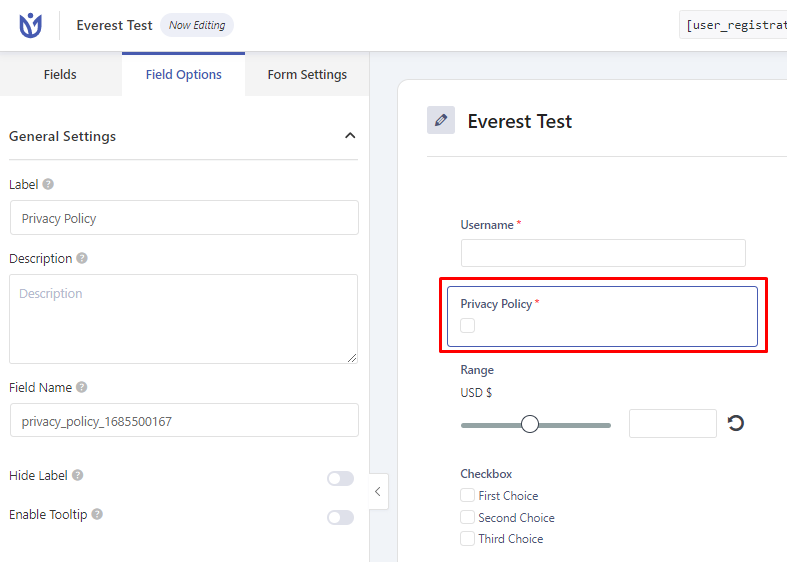
Click on the Privacy Policy field to configure it. Under Field Options, mark the field as Required to ensure users cannot submit the form without providing consent. In your privacy policy page, clearly state how you will use the submitted data.
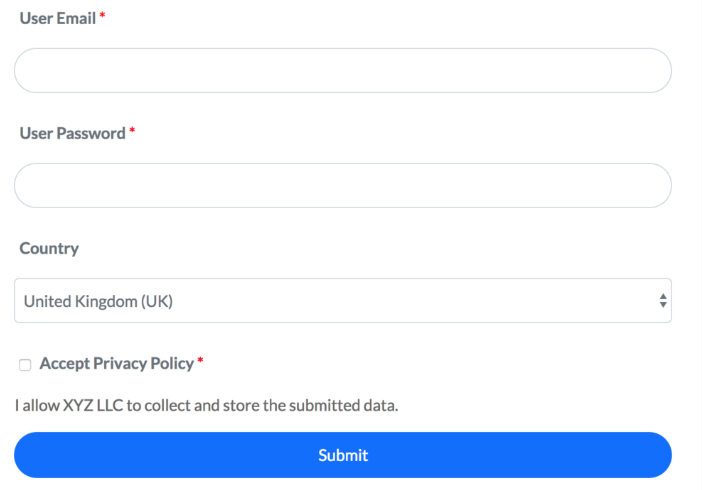
The Privacy Policy field should always be marked as required to ensure GDPR compliance.
Providing Data Access Rights
Users have the right to access and modify their personal data. Once registered, users can view and update their information through the My Account page. Go to User Registration & Membership > Settings > General > Pages and ensure you've selected a My Account page.
Users can access their profile by navigating to the My Account page on your site. Here, they'll see all their stored information and can update their details as needed.
Exporting User Personal Data
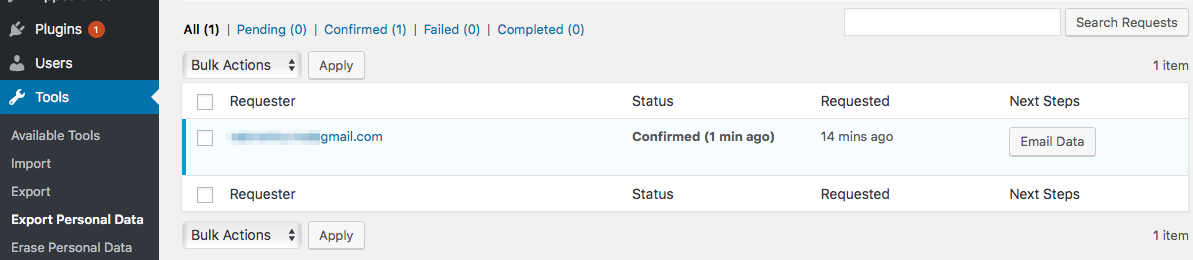
To export a user's personal data, go to Tools > Export Personal Data from your WordPress dashboard. Enter the user's email address or username in the search field, then click Send Request.
The user will receive a confirmation email asking them to verify the export request. Once the user clicks the confirmation link in the email, you'll see their request listed as confirmed in your dashboard. Click the Email Data button next to the user's email address.
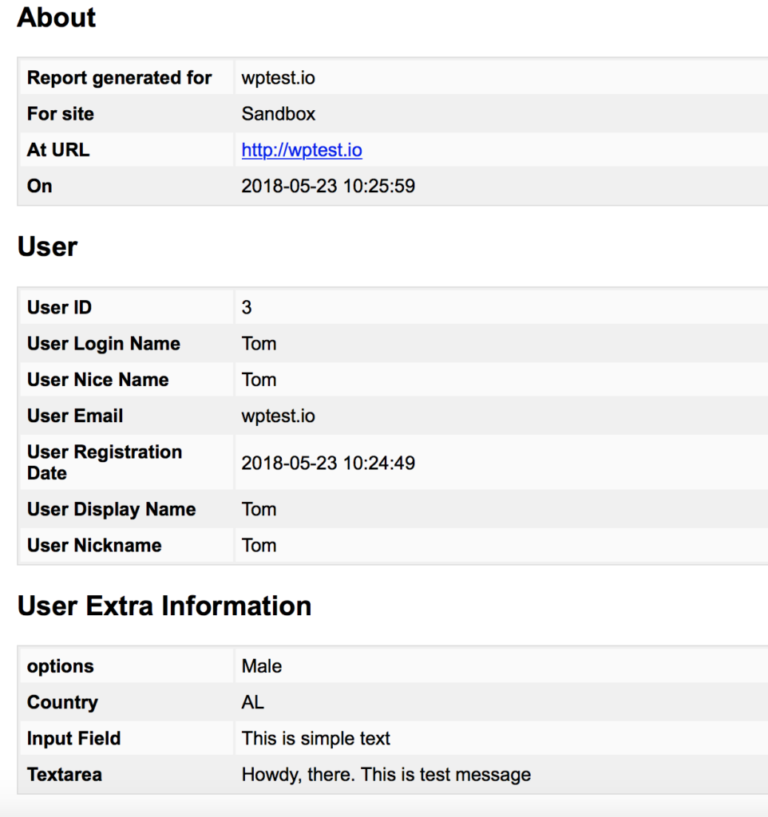
The user will receive a zip file containing an HTML file with all their personal information, including data collected by the User Registration & Membership plugin.
Erasing User Personal Data
Users have the right to request deletion of their personal data. To erase a user's data, go to Tools > Erase Personal Data from your WordPress dashboard. Enter the user's email address or username, then click Send Request.
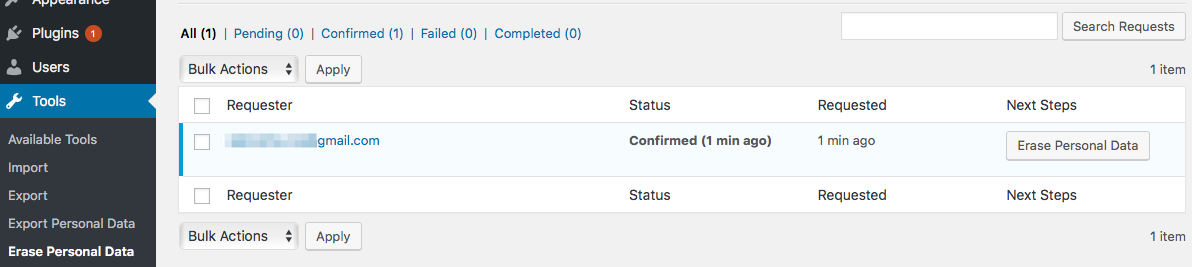
The user will receive an email asking them to confirm the deletion request. Once the user clicks the confirmation link, an Erase Personal Data button will appear in your dashboard. Click this button to delete all extra information saved by the User Registration & Membership plugin.
Note: Default WordPress user fields like Email, First Name, Last Name, and Nickname require manual user deletion by the admin from the Users page in your dashboard. The Erase Personal Data tool only deletes extra information saved by User Registration & Membership.