
Avoid Bot/Spam user Registration
Learn how to identify spam sources and implement security layers to prevent bots and automated spam accounts from registering on your WordPress site.
Last updated on Jul 14, 2026
Would you like to stop bots and spam accounts from flooding your registration forms? User Registration & Membership provides multiple security layers to protect your forms from automated registrations and keep your user database clean. This tutorial will show you how to identify spam sources and implement the right protection methods.
Before getting started, make sure you've installed and activated the User Registration & Membership plugin on your WordPress site.
Identifying the Source of Spam Registrations
Before applying spam protection, you need to identify where spam registrations are coming from. User Registration & Membership tracks the registration source for every user.
To check registration sources, go to User Registration & Membership > Members. Here, you'll see a Source column that shows where each user registered.
Blank source — User registered through WordPress's default registration form (not your User Registration form)
Form name displayed — User registered through a specific User Registration form
Once you know the source, you can apply the appropriate protection method.
Disabling Default WordPress Registration
If spam registrations show a blank source, they're coming from WordPress's default registration form — not your User Registration forms. To stop this, you need to disable the default WordPress login and registration screens.
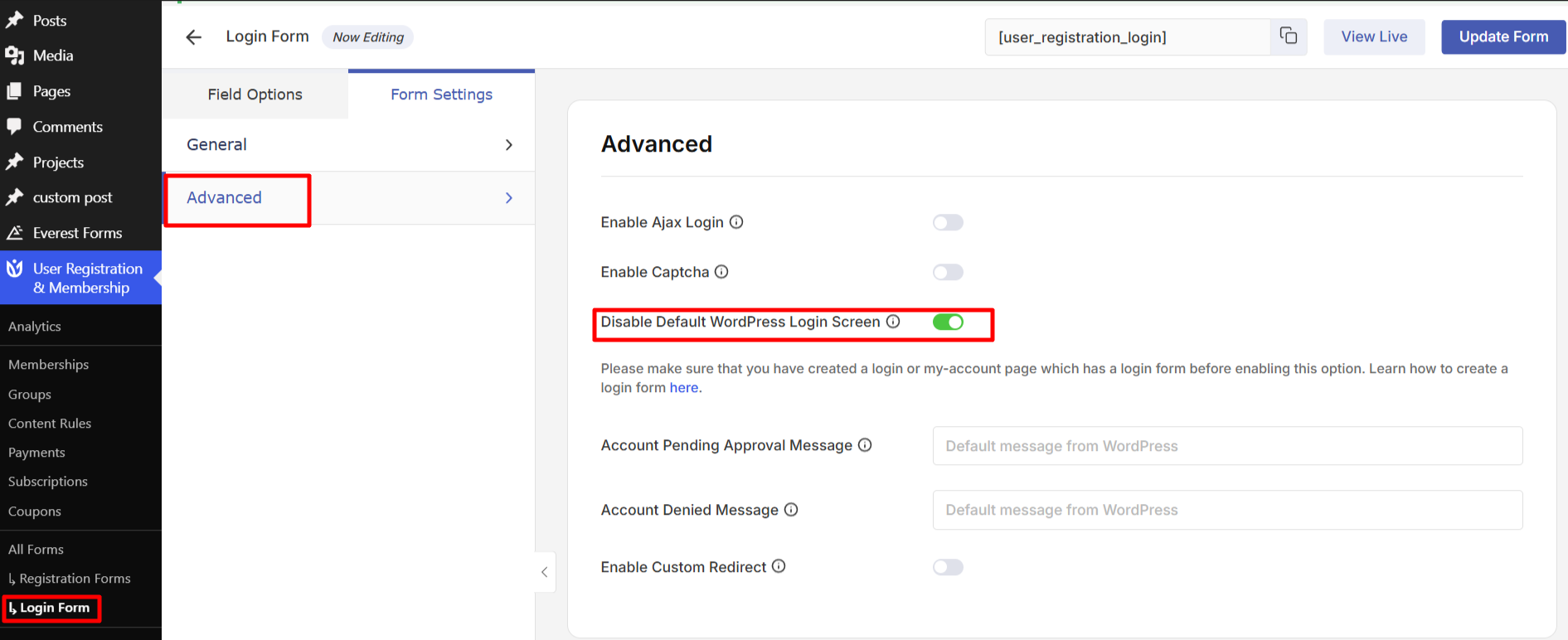
From the form builder, go to User Registration & Membership > All Forms > Login Forms. Open your Login Form in the Login Form Builder.
Navigate to Form Settings > Advanced. Toggle on Disable Default WordPress Login Screen.
Before enabling this option, make sure you've created a My Account page. Go to User Registration & Membership > Settings > General > Pages and verify that a My Account page is selected. If not, create a page and add the [user_registration_my_account] shortcode to it.
Once you disable the default WordPress login screen, users visiting /wp-login.php or /wp-admin will be redirected to your custom login page instead.
Enabling CAPTCHA Protection
If spam is being submitted through your User Registration forms (where the form name appears in the Source column), enabling CAPTCHA is the recommended way to prevent automated bot submissions.
User Registration & Membership supports the following CAPTCHA providers:
Google reCAPTCHA (v2 & v3) – Protects your forms using either an interactive checkbox (v2) or invisible background verification (v3). For setup instructions, refer to the Google reCAPTCHA documentation.
hCaptcha – A privacy-focused alternative to Google reCAPTCHA. For setup instructions, refer to the hCaptcha documentation.
Cloudflare Turnstile – A lightweight CAPTCHA solution that minimizes user interaction. For setup instructions, refer to the Cloudflare Turnstile documentation.
To enable CAPTCHA for a registration form, navigate to User Registration & Membership → All Forms, edit the desired form, then go to Form Settings → Advanced and enable Captcha.
After enabling CAPTCHA on the form, configure your preferred provider by following the corresponding setup guide linked above.
Using Honeypot Spam ProtectionPro
Honeypot protection works invisibly to catch bots without requiring any action from real users. It adds hidden fields to your form that bots automatically fill out, but human users never see.
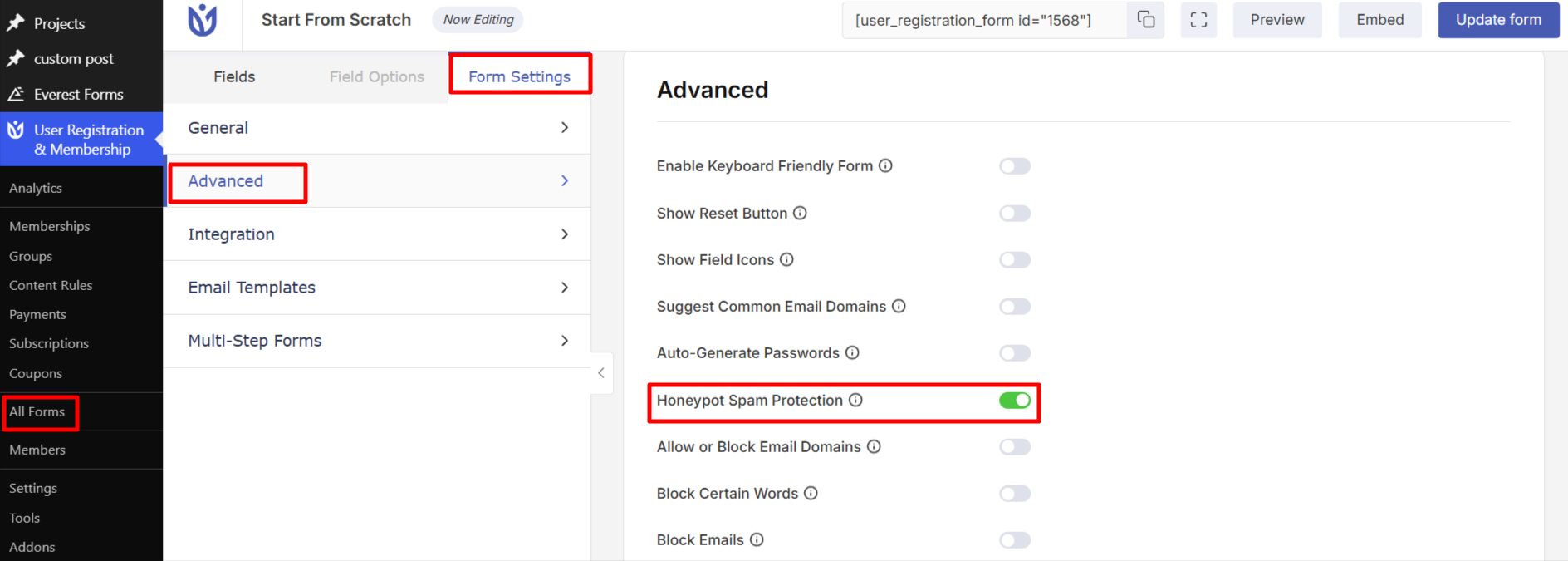
To enable honeypot protection, go to User Registration & Membership > All Forms and edit your registration form. Navigate to Form Settings > Advanced and toggle on Honeypot Spam Protection.
Honeypot protection is completely invisible to users and works alongside CAPTCHA for maximum protection.
Akismet Spam Protection
User Registration & Membership also supports integration with Akismet to help detect and filter spam registrations automatically. Once configured, Akismet analyzes each registration submission and helps prevent spam entries from being added to your members list.
For complete setup and configuration instructions, refer to the Integrating Akismet Spam Protection with User Registration Forms documentation.
Restricting Email DomainsPro
If spam registrations are coming from specific email domains, you can block those domains or allow only trusted domains.
Go to User Registration & Membership > All Forms and edit your registration form. Navigate to Form Settings > Advanced.
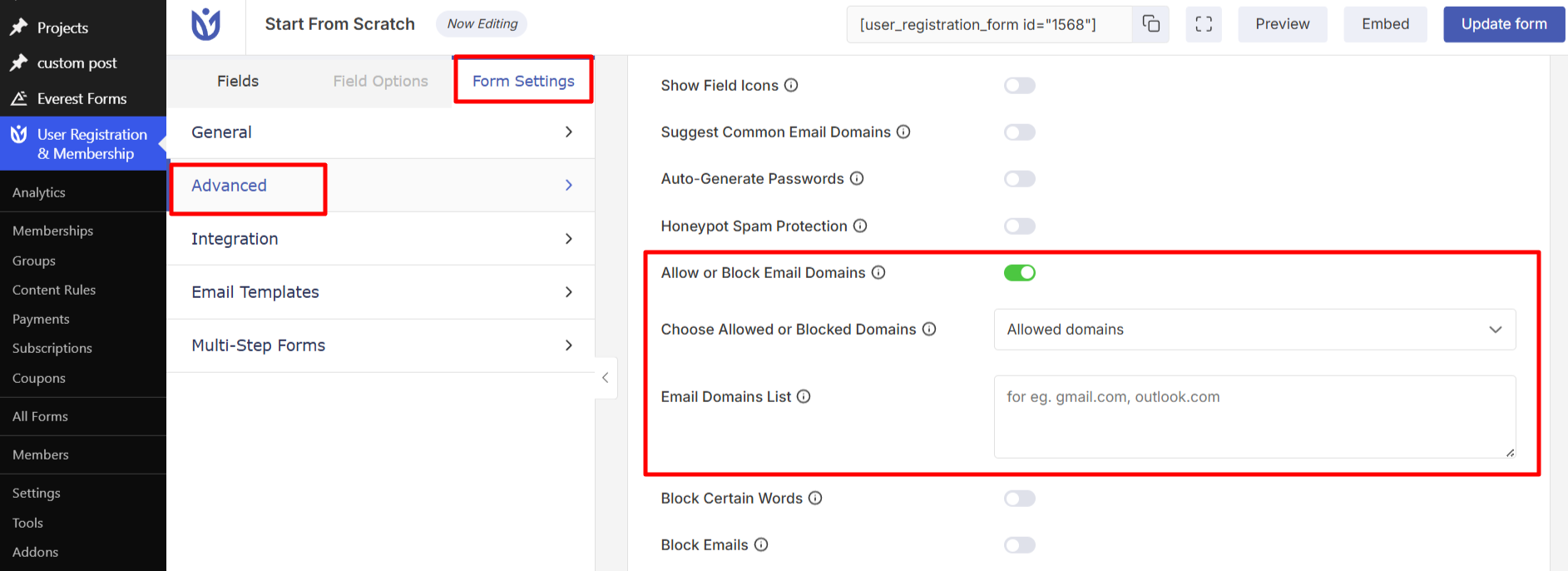
To block specific domains, use the Block Emails or Block Certain Words options. Enter the domains you want to block, separated by commas.
To allow only specific domains, use the Allow or Block Email Domains option. Select Allow and enter the trusted domains. Only users with email addresses from those domains will be able to register.
Combining Multiple Protection Methods
For maximum protection, combine multiple spam prevention methods:
Disable the default WordPress registration form to close that entry point
Enable CAPTCHA on your User Registration forms to block automated bots
Enable Akismet spam protection to automatically detect and filter spam registrations.
Turn on honeypot protection for invisible bot detection
Block suspicious email domains if you notice patterns in spam registrations
Consider enabling admin approval for registrations if you need manual review
That's it! Now you know how to protect your registration forms from bots and spam. Next, would you like to learn how to manage user approvals? Be sure to check out our guide on user approval workflows for more details.