
Akismet
Learn how to integrate Akismet spam filtering with User Registration & Membership to automatically block bot registrations and protect your forms from spam submissions.
Last updated on Jul 15, 2026
Would you like to protect your registration forms from spam submissions?
User Registration & Membership allows you to integrate Akismet's powerful spam filtering to automatically block bot registrations and keep your member list clean. This tutorial will show you how to install Akismet, configure the integration, and enable spam protection on your registration forms.
Before Getting Started
Before getting started, make sure you've installed and activated the User Registration & Membership plugin on your WordPress site. You'll also need an Akismet account to obtain your API key.
Installing the Akismet Plugin
To begin protecting your forms, you'll need to install the Akismet plugin from the WordPress plugin directory.
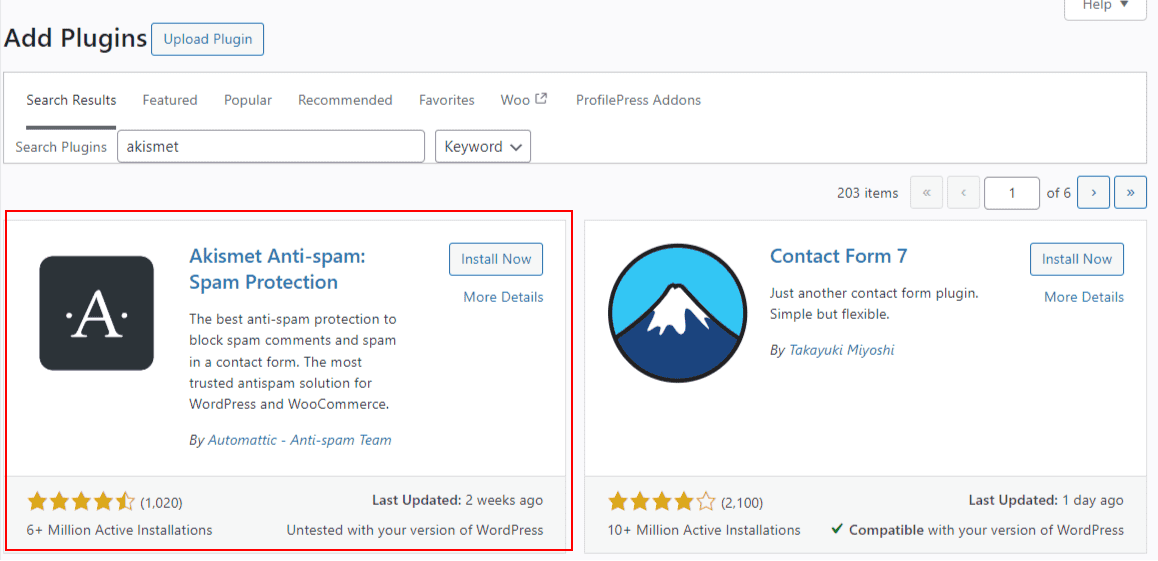
From your WordPress dashboard, go to Plugins → Add New. In the search bar, type 'Akismet' and press enter. When the Akismet plugin appears in the results, click the Install Now button. Once installation completes, click Activate to enable the plugin.
Obtaining Your Akismet API Key
Once Akismet is activated, you'll need an API key to connect it to your site.
Log in to your Akismet account at https://akismet.com/account/. If you don't have an account yet, you can create one for free. Once logged in, you'll see your API Key displayed on the account page. Copy this key—you'll need it in the next step.
Configuring Akismet in WordPress
Now you'll connect Akismet to your WordPress site using the API key you just copied.
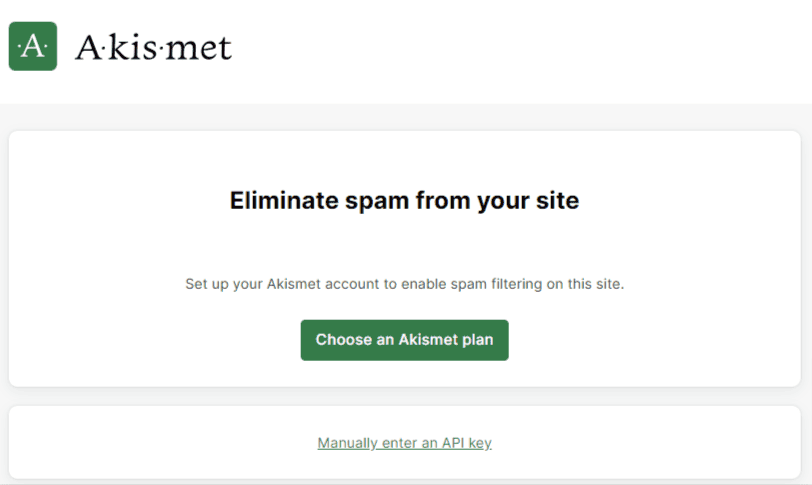
After activating the Akismet plugin, you'll see a setup screen. Click Manually enter an API Key. Paste the API Key you copied from your Akismet account into the field provided, then click Connect with API Key. Akismet is now configured and ready to protect your site.
Enabling Akismet Protection on Registration Forms
With Akismet configured, you can now enable spam protection on individual registration forms.
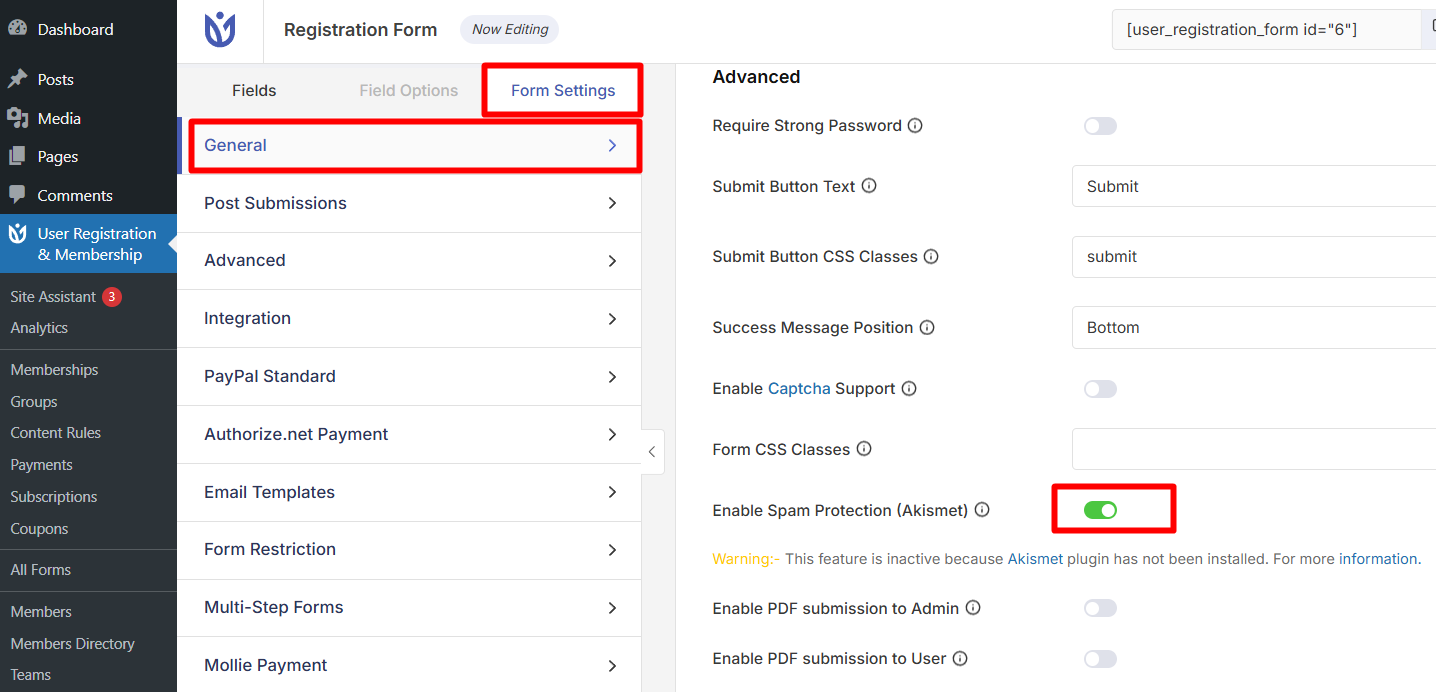
Go to User Registration & Membership → All Forms from your WordPress dashboard. Click Edit on the registration form you want to protect. Navigate to Form Settings → General. Here, you'll see the option to enable Akismet anti-spam protection. Toggle the setting to On, then click Update Form to save your changes.
Akismet protection must be enabled individually for each registration form. If you have multiple forms, repeat this process for each one you want to protect.
How Akismet Protects Your Forms
Once enabled, Akismet automatically analyzes every registration submission in real-time. When a user submits your registration form, Akismet checks the submission against its global spam database. If the submission is identified as spam, it's automatically flagged and excluded from your members list—no manual review required.
Keep in mind that Akismet was originally designed for comment spam protection, but it works effectively with form submissions as well. The service uses advanced algorithms to distinguish between legitimate registrations and automated bot submissions.
Frequently Asked Questions
Do I need to enable Akismet on every form?
Yes. Akismet protection is configured at the individual form level. You'll need to enable it in the Form Settings → Anti-Spam and Security section for each registration form you want to protect.
Is an Akismet account required?
Yes. You need an active Akismet account and API key before you can configure the integration. Akismet offers both free and paid plans depending on your needs.
Can I use Akismet with other spam protection features?
Yes. Akismet works alongside other User Registration spam protection features like CAPTCHA, honeypot protection, and email domain restrictions. Using multiple layers of protection provides the strongest defense against spam.
Now you know how to integrate Akismet spam protection with your User Registration forms. Next, would you like to add additional security layers to your forms? Be sure to check out our guide on configuring CAPTCHA protection for even stronger spam prevention.