
Invite Codes
ProLearn how to create and configure invite-only registration by requiring special invitation codes for user sign-ups on your WordPress site.
Last updated on Jul 14, 2026
Would you like to control who can register on your WordPress site by requiring special invitation codes? User Registration & Membership allows you to create invite-only registration forms where users must enter a valid code to join your site.
This tutorial will show you how to set up invite codes, configure their settings, and add them to your registration forms.
Prerequisites
To use the Invite Codes Addon, ensure User Registration & Membership Pro is installed and activated. If not, purchase it from wpuserregistration.com and follow our guide on activating it with a license key. This addon is available for Plus and Professional plans.
Activate the Invite Codes Addon
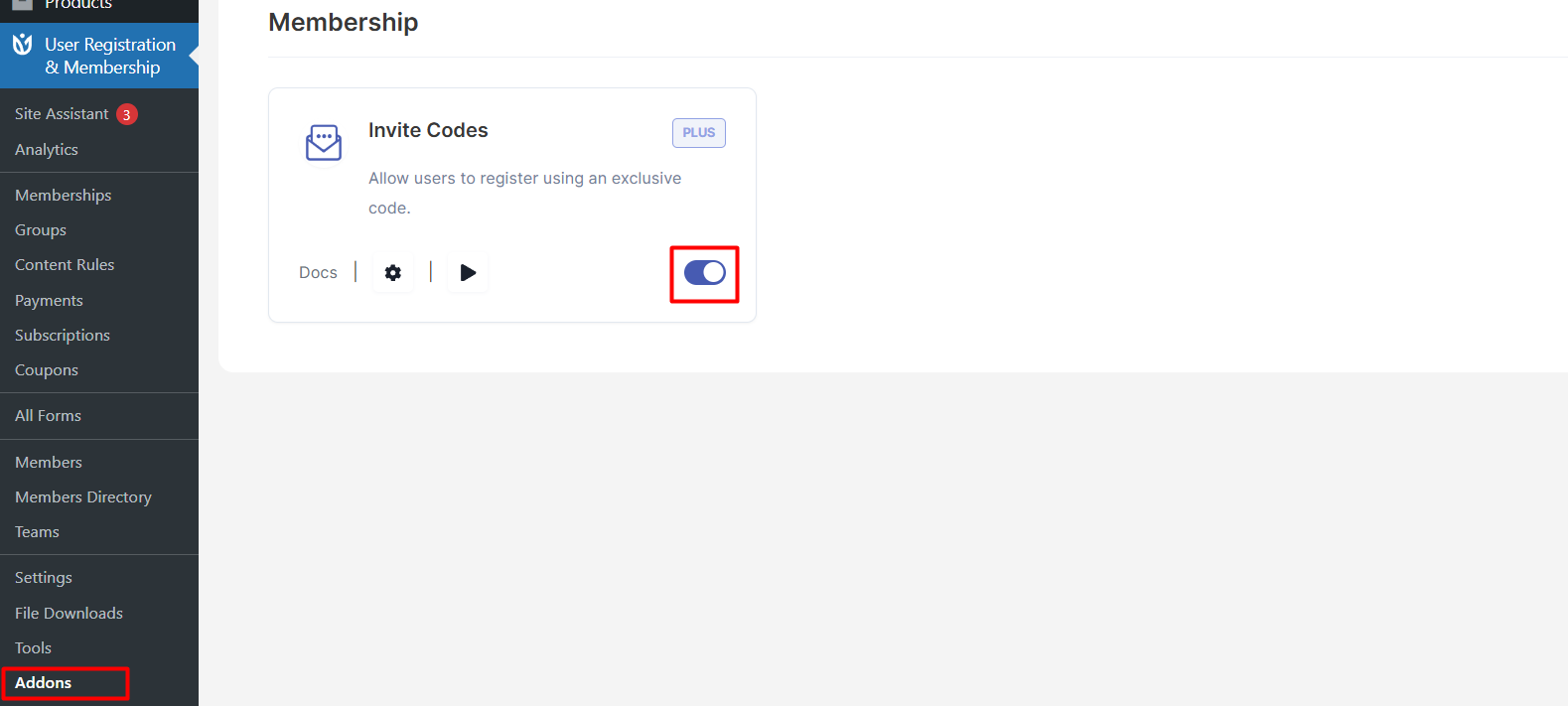
Navigate to User Registration & Membership > Addons in your WordPress dashboard.
Locate or search for the Invite Codes Addon and toggle to Activate.
Create Invitation Codes
After you’ve activated the Invite Codes add-on, you need to first create , go to User Registration & Membership > Settings > Registration & Login > Invite Codes.
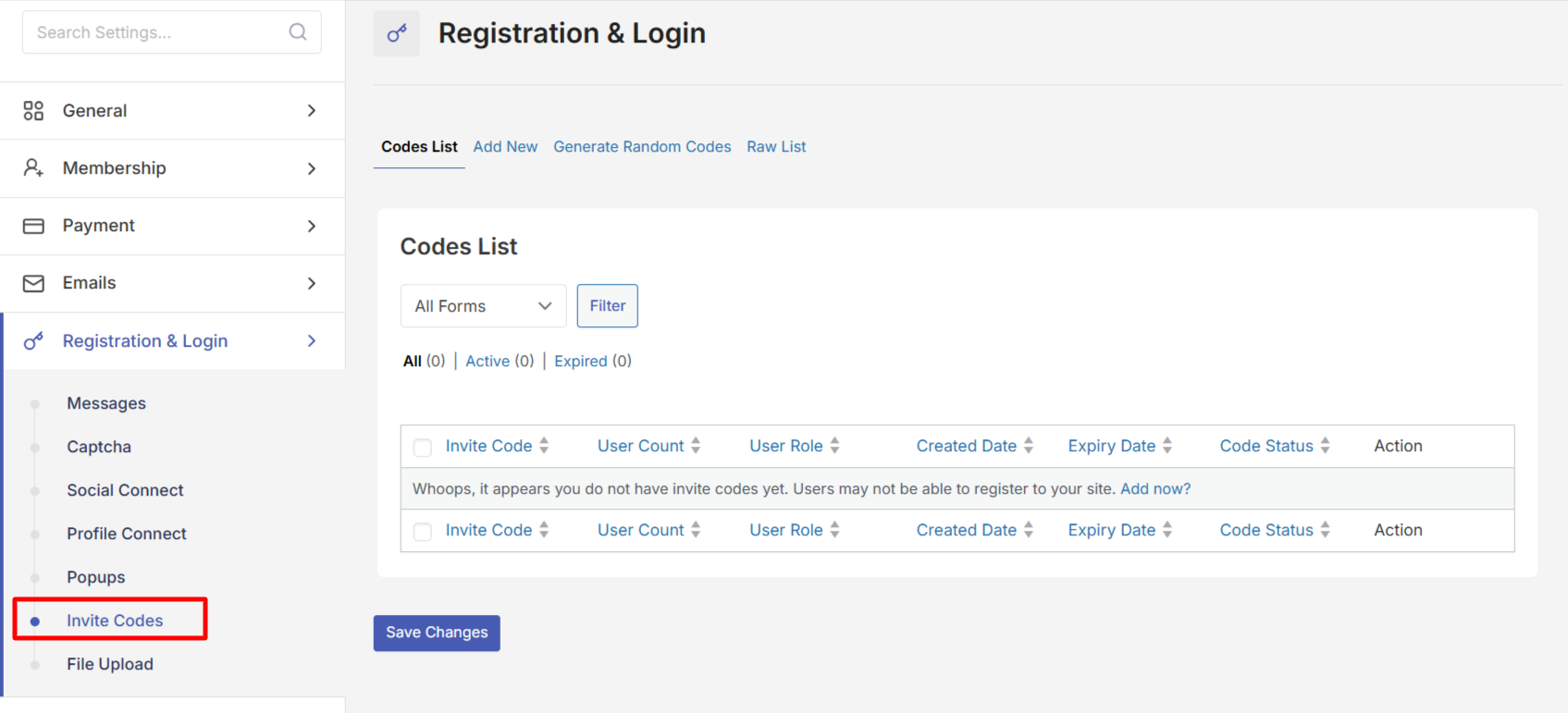
To generate a invite code, click on Add New and in the details.
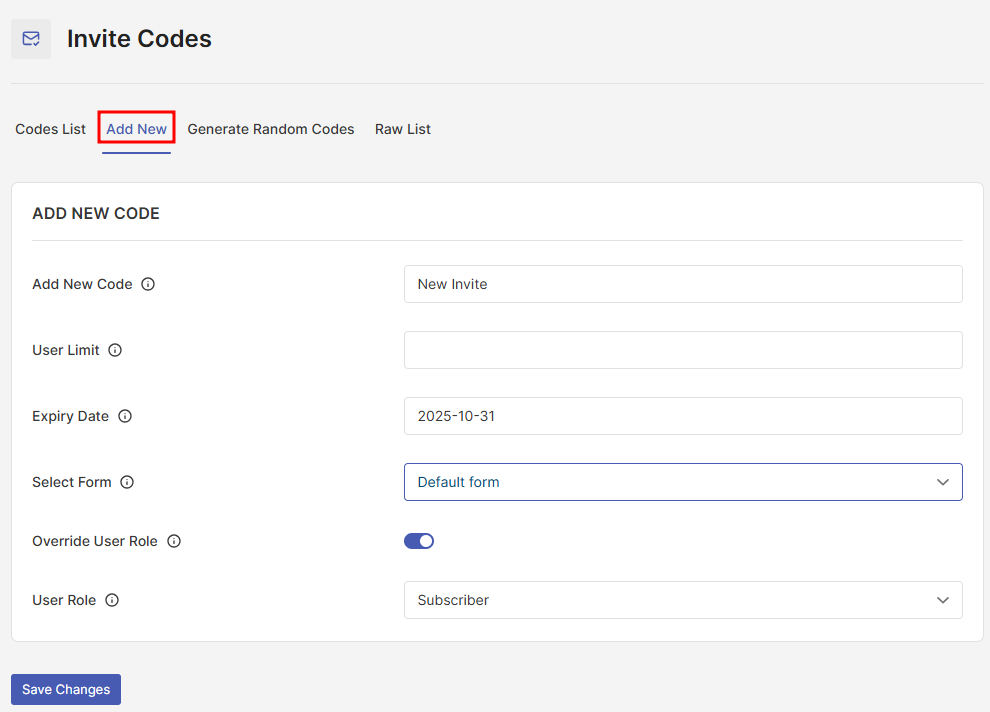
Adding a new invite code to User Registration and Membership Pro
Add New Code: Enter the name of the code.
User Limit: Limit the number of users can use this code. Leave empty for unlimited times.
Expiry Date: Set the date in which the code will be expired. Leave empty for no expiry date.
Select Form: Select the form to set this invite code to successfully register.
Override User Role: Enable/Disable the user overriding for the invite code.
User Role: Override the user role from form settings and assign to the user registered with this invite code.
Generate Random Codes
You can also generate any number of random codes from Generate Random Codes section.
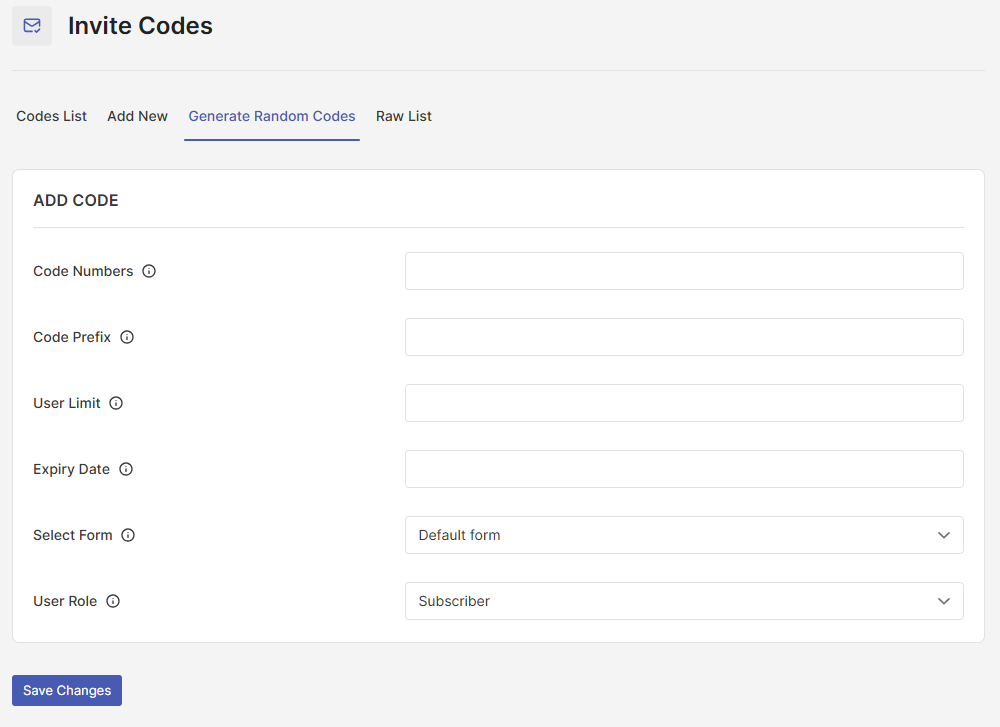
Generating registration invite codes on random using User Registration & Membership plugin
Code Numbers: Number of random codes to generate.
Code Prefix: Add prefix to randomly generated codes.
User Limit: Limit the number of users can use this code. Leave empty for unlimited times.
Expiry Date: Set the date in which the code will be expired. Leave empty for no expiry date.
Select Form: Select the form to set this invite code to successfully register.
User Role: Override the user role from form settings and assign to the user registered with this invite code.
Raw List
You can view all invite codes raw list from Raw List Section.
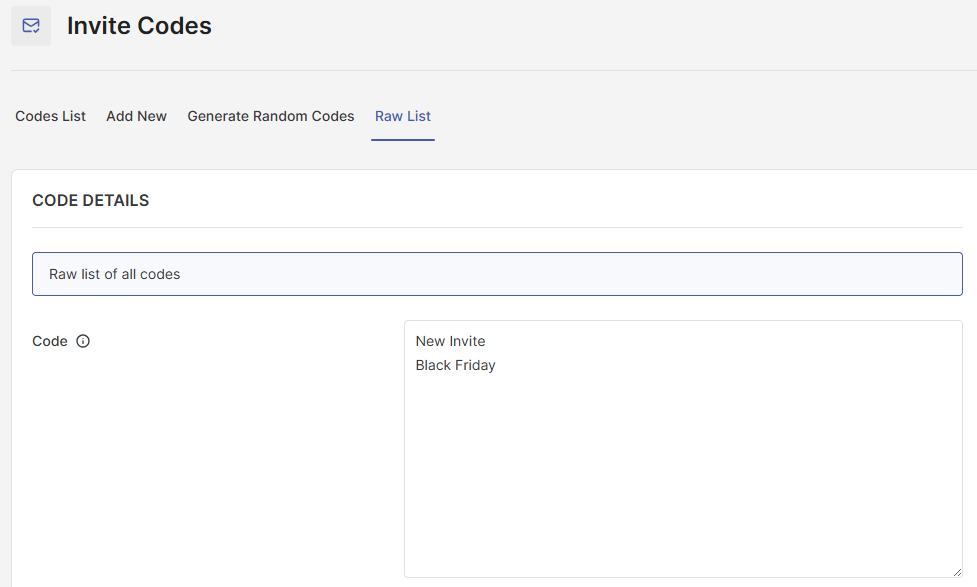
That’s all. Now you can add Invitation Field to your forms.
Add Invitation Code Field to Registration Forms
Go from User Registration & Membership > All Forms > Registration Forms and open the desired form in the form builder.
Drag and drop the Invitation Code field from the Fields tab to the form.
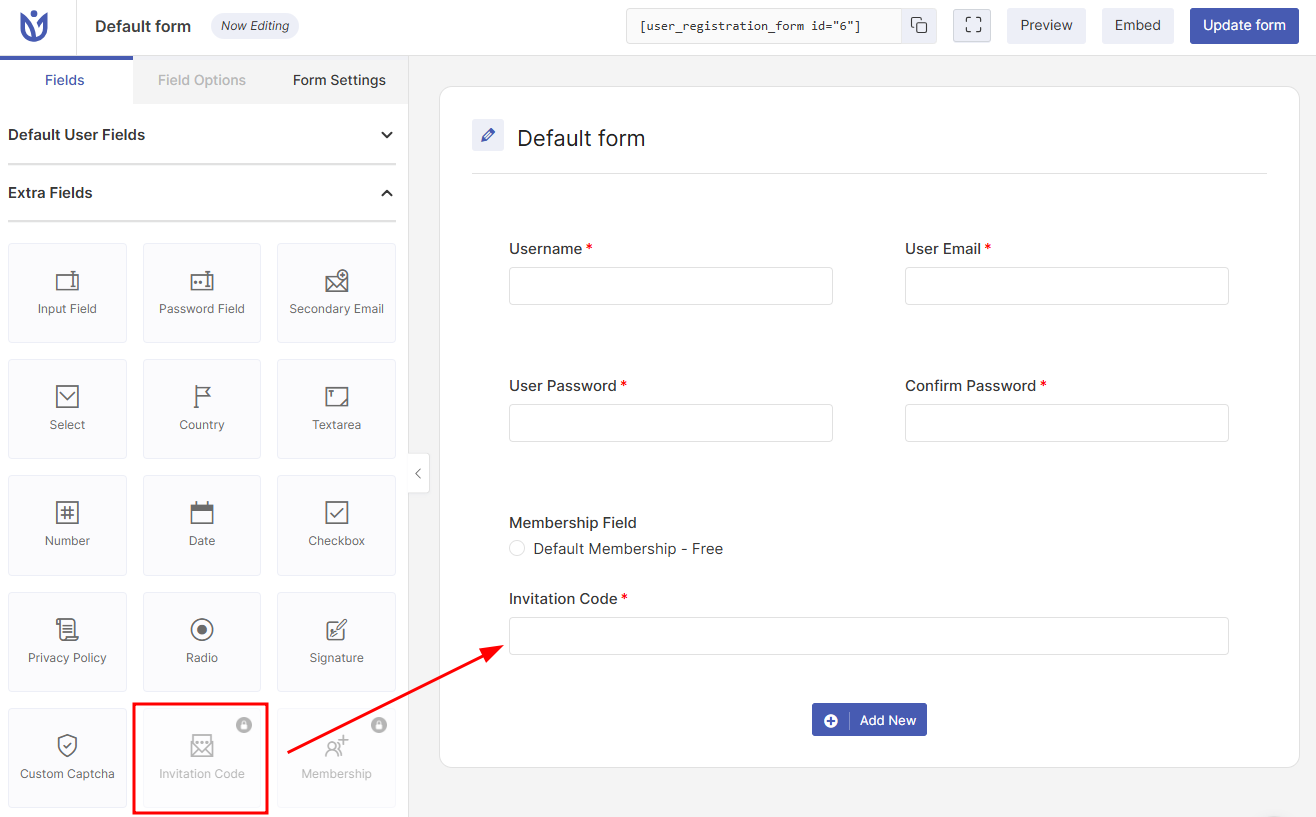
With the Invitation Code selected on the Form Builder click on the Field Options for further settings.
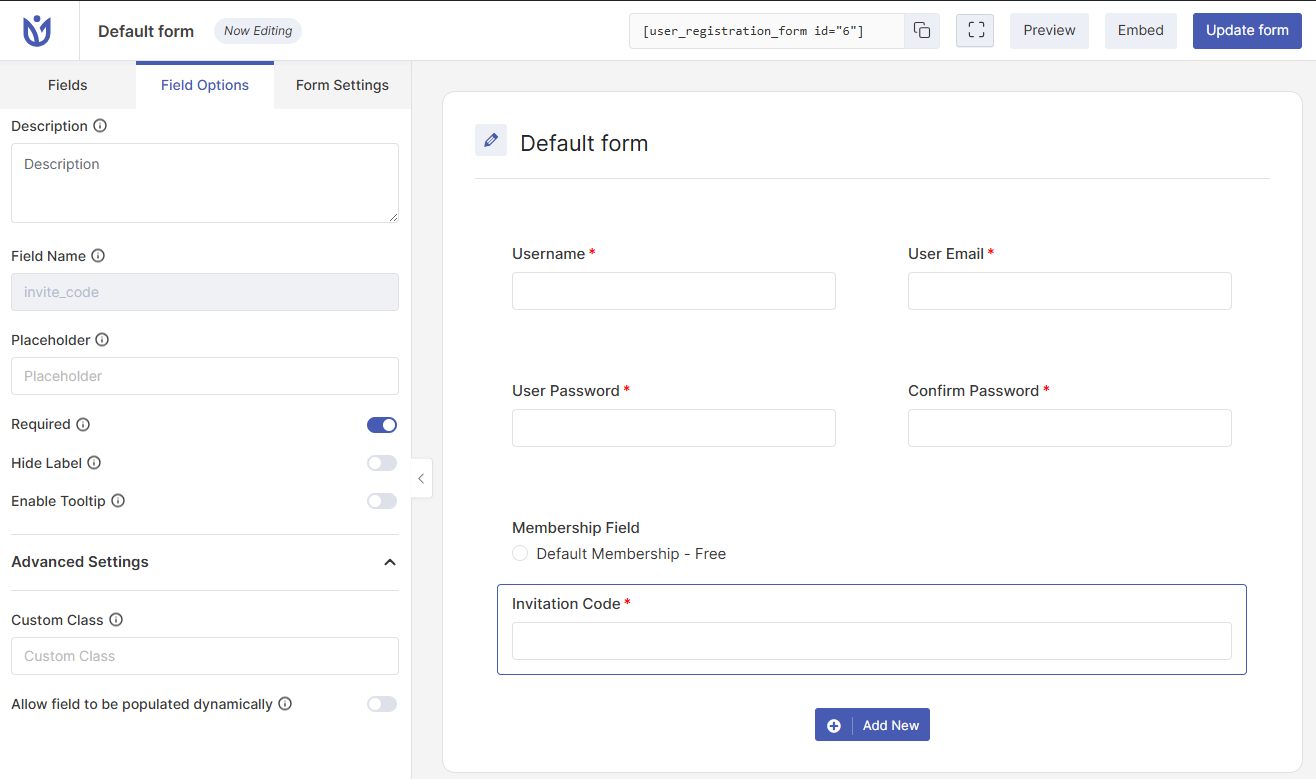
General Settings
Label: Change the text for the Invitation Code field label.
Description: Enter text description for the Invitation Code field.
Placeholder: Enter a placeholder for the Invitation Code field.
Hide: Toggle to show or hide the Invitation Code field label.
Enable Tooltip: Toggle to add a tooltip message for the Invitation Code field.
Advanced Settings
Custom Class: Add a CSS class to the Invitation Code form field.
Allow field to be populated dynamically: Enabled this to allow the Invitation Code form field to be populated dynamically.
That’s all. Save your changes by clicking on the Update form button on the top right.
Form Messages for Invitation Code Form Field
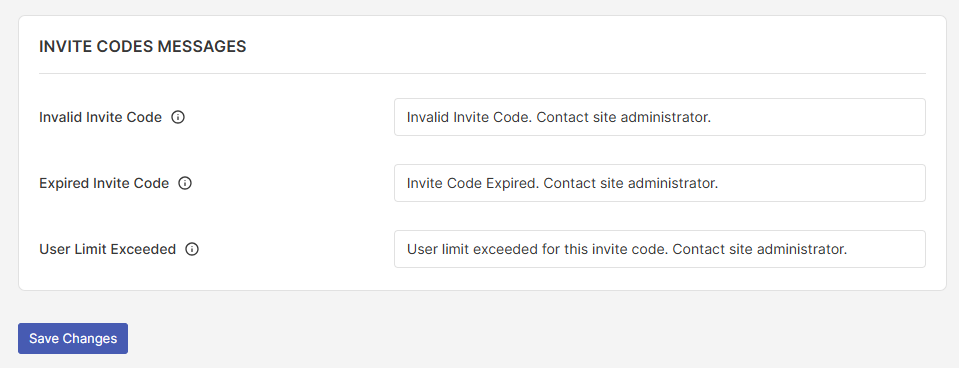
You can customize the messages on invalid, expired, user limit invite codes from User Registration & Membership -> Settings -> Registration & Login -> Messages ->Invite Codes Message.
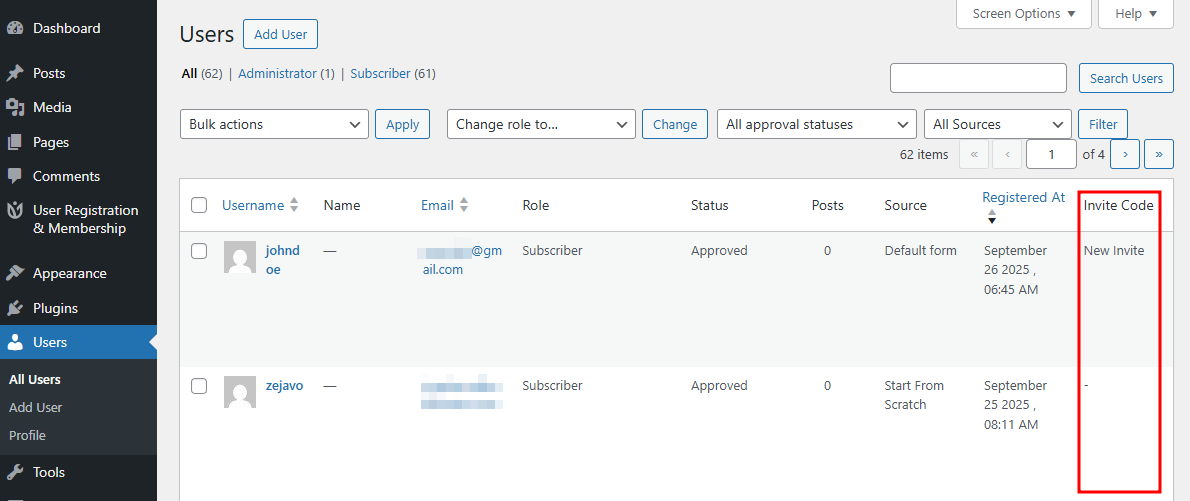
You can view the invitation codes used by users to register from Dashboard > Users.
Import/Export Invite Codes
Go to User Registration & Membership > Settings > Import/Export
Click on ‘Import/Export Invite Codes’.
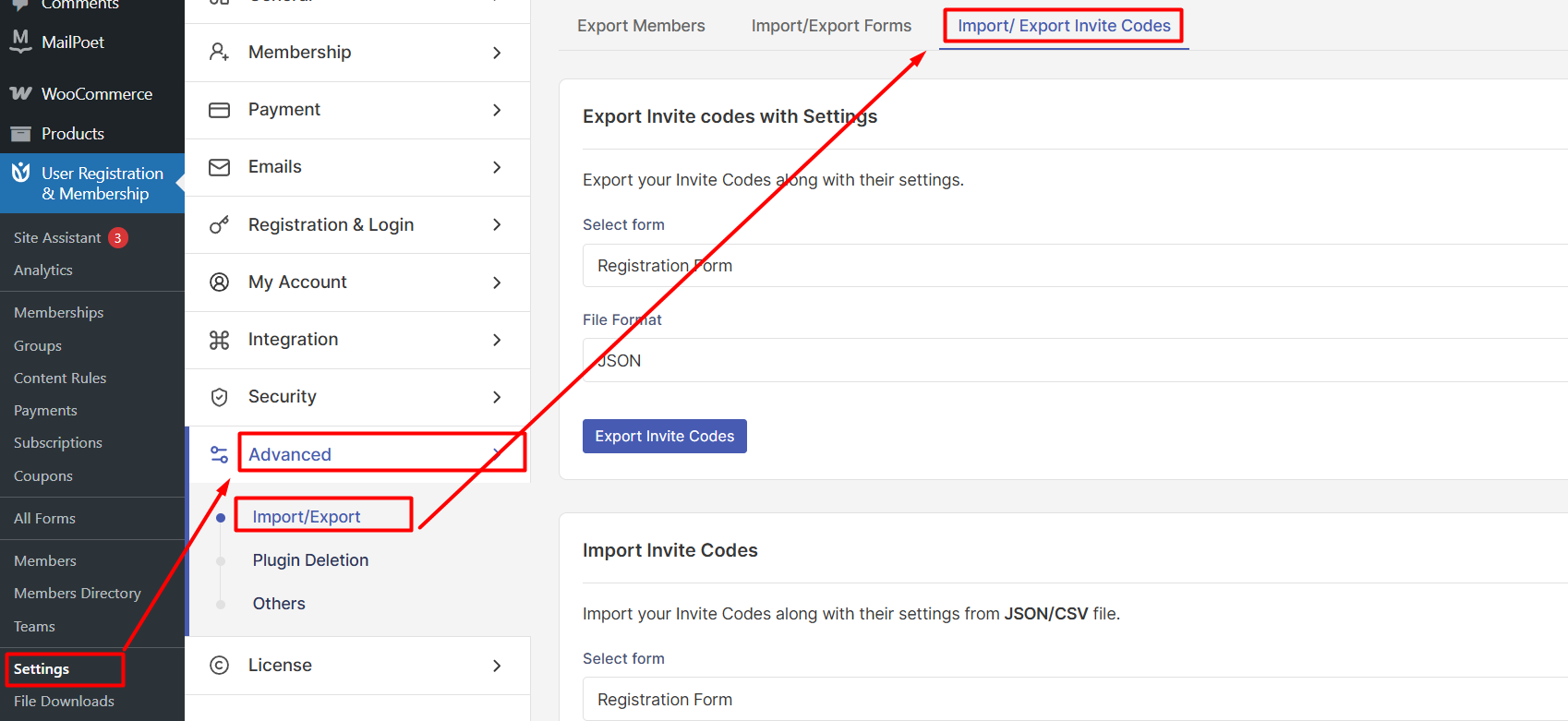
Export Invite Codes: This option allows you to export the invite codes associated with specific forms along with their settings in JSON and CSV.
Import Invite Codes: This option allows you to select the available json file with the invite codes and import it to any of the available forms. Only JSON and CSV file format are allowed.
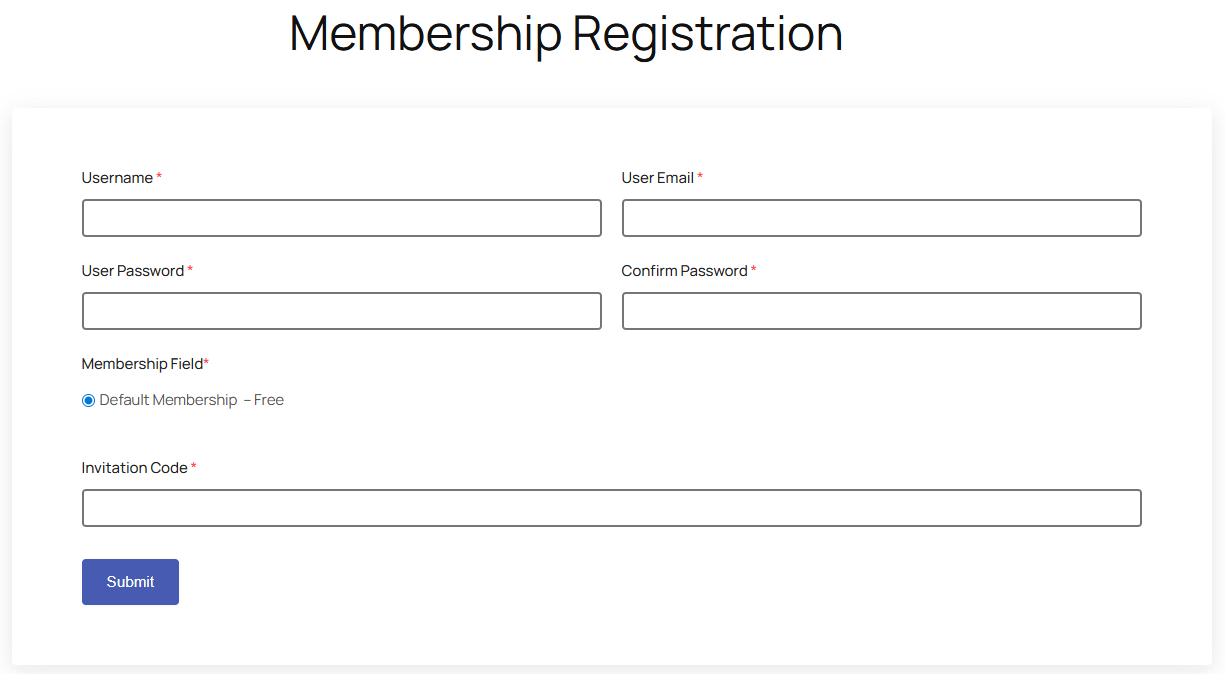
Frontend View
If you want to step by step invite codes setup guide then please follow our blog post on how to register users with invitation codes.