
Style Customizer
ProCustomize the visual appearance of your registration and login forms—including colors, fonts, spacing, and borders—using a live preview interface that requires no coding.
Last updated on Aug 20, 2026
Style Customizer
The Style Customizer add-on allows you to customize the visual appearance of your User Registration forms and login forms without writing any code. Using a live preview interface, you can modify colors, fonts, spacing, borders, and other design elements to match your website's branding.
Installing the Style Customizer Add-on
The Style Customizer is a premium add-on included with User Registration & Membership Pro. Before you can use it, you need to install and activate the add-on.
Prerequisites
Before getting started, make sure you have:
User Registration & Membership Pro plugin installed and activated
A valid Pro license key
At least one registration form or login form created
Activating the Add-on
To activate the Style Customizer add-on, go to User Registration & Membership → Addons in your WordPress dashboard. Locate the Style Customizer add-on in the list and toggle the switch to activate it.
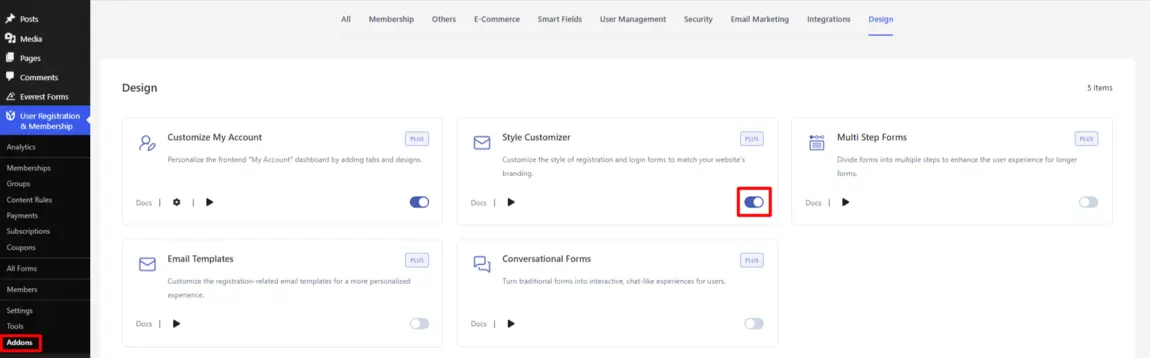
Customizing Registration Forms
Once the add-on is activated, you can access the Style Customizer from your registration form settings.
Accessing the Style Customizer
To customize your registration form:
Go to User Registration → Add New.
Add the required fields to your registration form.
Click the Form Designer icon at the bottom-right of the form builder.
Use the Form Designer to customize your form’s appearance.
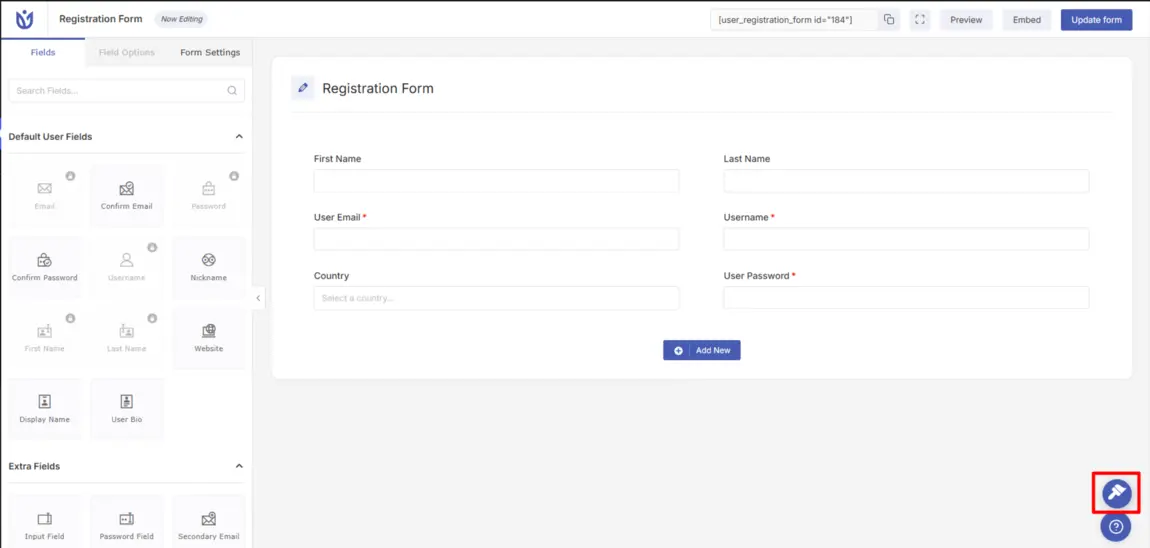
The Style Customizer will open in a new interface with your form preview on the right and customization options on the left.
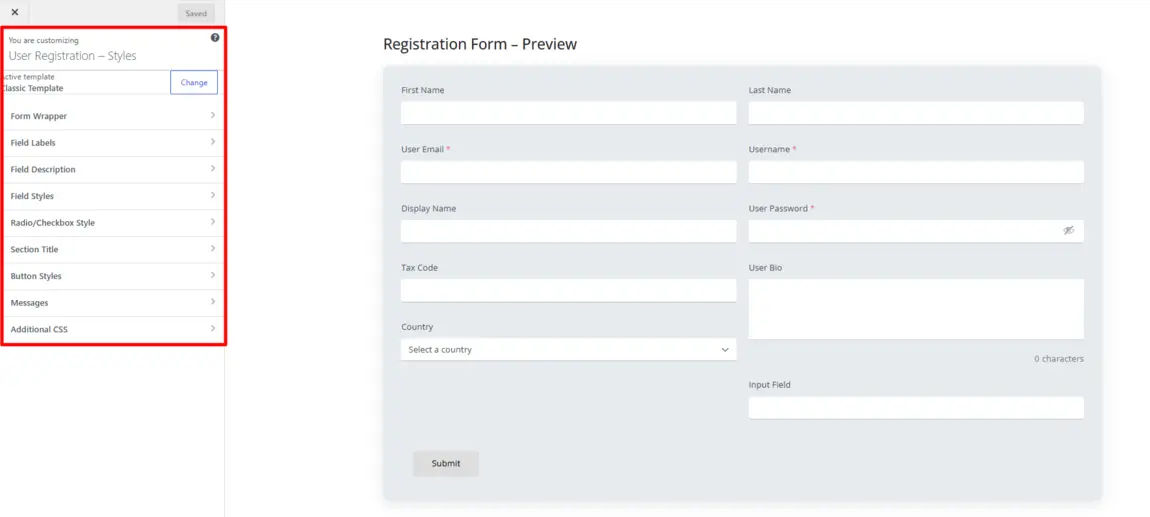
Registration Form Customization Sections
The Style Customizer provides several customization sections for registration forms. Each section controls different visual aspects of your form. All changes appear instantly in the live preview on the right side of the screen.
The following sections can be customized according to your requirements:
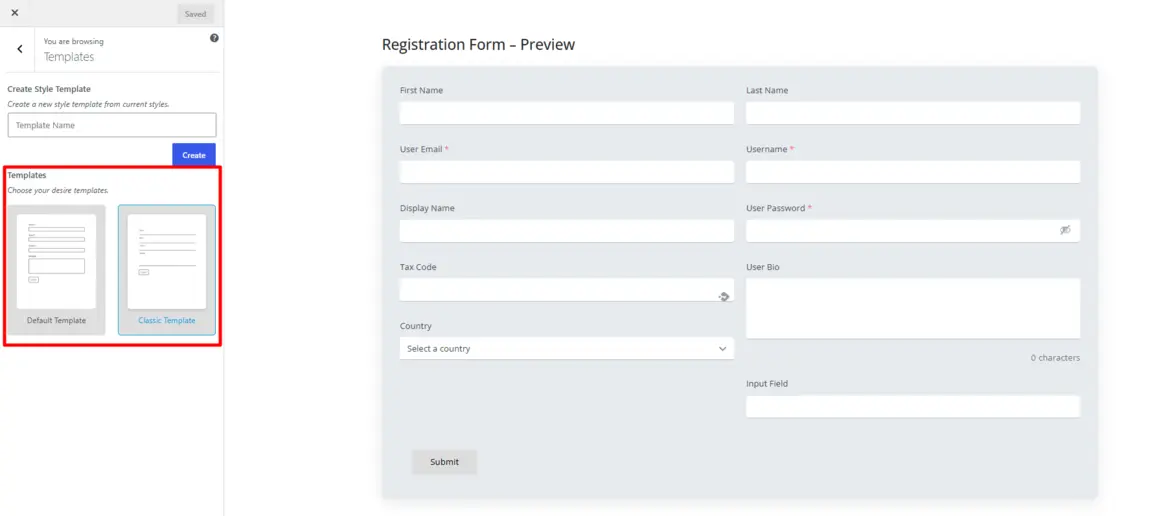
1. Active Template
The Active Template option allows you to change the overall layout of your form. You can choose between the Default and Classic Template, or create your own custom template.
2. Form Wrapper
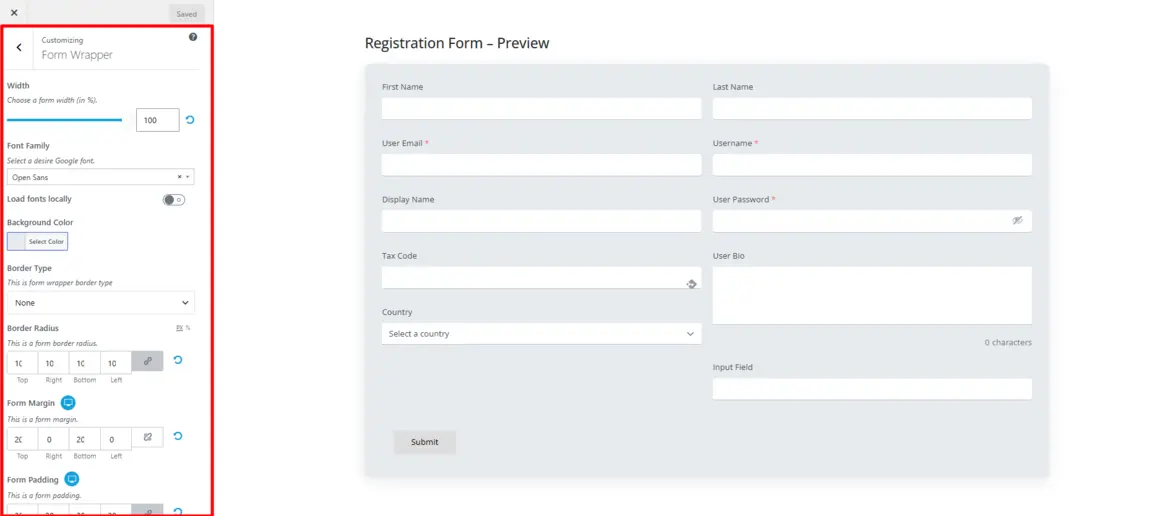
The Form Wrapper controls the overall outline and background of your form. You can configure:
Form Width
Font Family
Background Color
Border Type
Border Width
Border Color
Border Radius
Form Margin
Form Padding
3. Field Labels
The Field Labels section allows you to customize the labels and descriptions displayed for your form fields.
Font Size
Font Color
Font Style
Text Alignment
Line Height
Margin
Padding
4. Field Description
The Field Description section allows you to customize the descriptions provided for your form fields.
Font Size
Font Color
Font Style
Text Alignment
Line Height
Margin
Padding
5. Field Styles
The Field Styles section allows you to customize the appearance of the fields where users enter their information.
Font Size
Font Color
Placeholder Font Color
Font Style
Alignment
Border Type
Border Width
Border Color
Border Focus Color
Border Radius
Background Color
Field Margin
Field Padding
6. Radio/Checkbox Style
The Radio/Checkbox Style section allows you to customize the appearance of radio buttons and checkboxes.
Font Size
Font Color
Font Style
Alignment
Inline Style
Style Variation
Radio/Checkbox Color
Form Margin
Form Padding
7. Section Title
The Section Title section allows you to customize the appearance of your form section titles.
Font Size
Font Color
Font Style
Text Alignment
Line Height
Form Margin
Form Padding
8. Button Styles
The Button Styles section allows you to customize the appearance of buttons used in your form.
Font Size
Font Style
Font Color
Hover Font Color
Button Color
Button Hover Color
Button Alignment
Border Type
Border Width
Border Color
Border Hover Color
Border Radius
Line Height
Button Margin
Button Padding
9. Messages
The Messages section provides two options: Show Error Message and Show Success Message. You can enable these options to display error and success messages for your form fields and customize their appearance.
The available styling options include:
Font Size
Font Color
Background Color
Font Style
Alignment
Border Type
Border Width
Border Color
Border Radius
Line Height
Field Margin
Field Padding
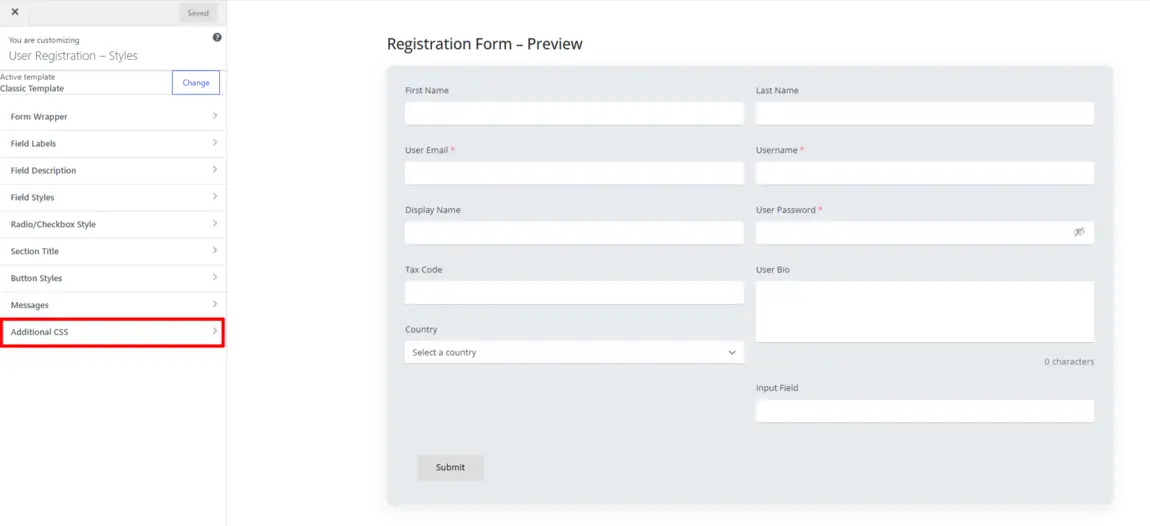
10. Additional CSS
The Additional CSS section allows you to add your own CSS code to further customize your registration form. You can use the built-in CSS editor to add custom styles according to your requirements.
Customizing Login Forms
The Style Customizer also works with login forms created using User Registration & Membership.
Accessing Login Form Customizer
To customize a login form:
Navigate to User Registration & Membership → Login Form
Click on the login form you want to customize
Click the Form Designer icon at the top-right of the form builder.
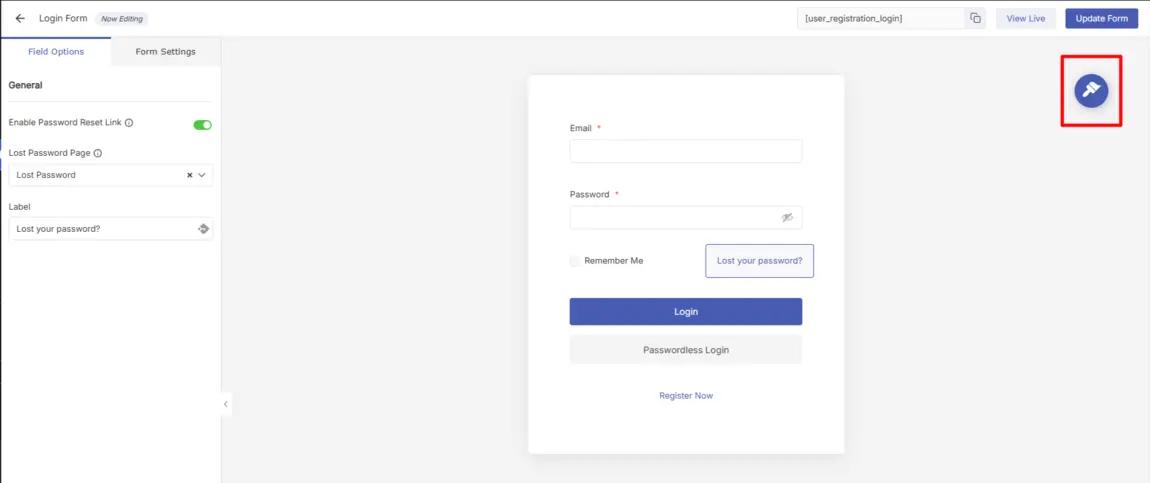
The customizer opens with your login form preview on the right and styling options on the left.
Login Form Customization Sections
Login forms have similar customization sections to registration forms, with some additional options specific to login functionality.
Form Container
Control the login form wrapper appearance with the same options available for registration forms.
Input Fields
Style the username and password input fields:
Field background and text colors
Border styling
Field dimensions and spacing
Focus and active states
Login Button
Customize the login button appearance:
Button colors and typography
Size and spacing
Hover effects
Links
Style the Lost Password and Remember Me links:
Link text color
Hover color
Font size
Saving Your Customizations
After making your styling changes in the Style Customizer:
Review your changes in the live preview
Click the Save button at the top of the customizer panel
Your styles are now applied to the form on your live site
You can return to the Style Customizer at any time to make additional changes. Your previous customizations are saved and will appear when you reopen the customizer.
Resetting Styles
If you want to start over with default styling:
Open the Style Customizer for your form
Look for the Reset or Reset to Default option
Click to restore all default styles
Save your changes
That's it! Now you know how to customize both registration and login forms using the Style Customizer add-on. Next, would you like to learn about other design customization options? Be sure to check out our guide on form templates and layouts.
Frequently Asked Questions
Can I customize different forms with different styles?
Yes, each registration form can have its own unique styling. Customizations you apply to one form will not affect other forms.
Do I need coding knowledge to use the Style Customizer?
No, the Style Customizer is designed for users without coding experience. All customization options are available through visual controls. The Additional CSS section is optional and only needed for advanced customizations.
Will my customizations be lost if I update the plugin?
No, your Style Customizer settings are stored in your WordPress database and will not be affected by plugin updates.
Can I export my style settings to use on another form?
The knowledge base does not include details on exporting style settings between forms. Check the plugin documentation or contact support for information about this feature.
That's it! Now you know how to use the Style Customizer add-on to create beautiful, branded registration forms that match your website's design. Next, would you like to explore other customization options? Be sure to check out our guide on customizing form fields and settings for more ways to personalize your registration experience.