PDF Form Submission
ProLearn how to generate and download PDF documents from user registration form entries using the PDF Submission addon for record-keeping and compliance.
Last updated on Jul 14, 2026
Would you like to generate PDF versions of user registration form submissions? User Registration & Membership allows you to create downloadable PDF documents from form entries. This tutorial will show you how to set up and use PDF form submission functionality.
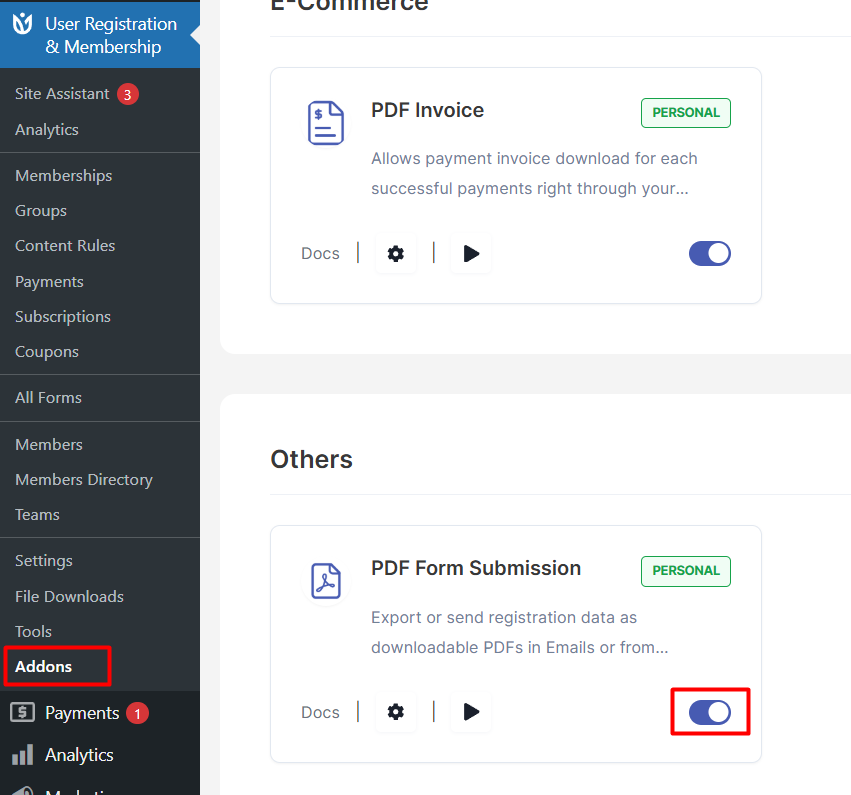
Before getting started, make sure you've installed and activated the User Registration & Membership plugin on your WordPress site. Then, make sure you've installed and activated the PDF Submission addon via User Registration & Membership > Addons.
Understanding PDF Form Submission
PDF Form Submission generates PDF documents from registration form entries. Users can download these PDFs, and administrators can access them from the WordPress dashboard. This feature is useful for record-keeping, compliance documentation, or providing users with confirmation of their registration details.
Setup and Configuration
Once, you have completed the above-mentioned task of installing and activating the plugin, now let’s move ahead on setting up this add-on for your site.
First of all, what you see is an extra tab of PDF Submission when you visit the User Registration -> Settings section after you have successfully installed this plugin added to your site. You can see the same as in the image below:
As in the above screenshot, it is the default option of this add-on. In the setting section can see different options which are described below for:
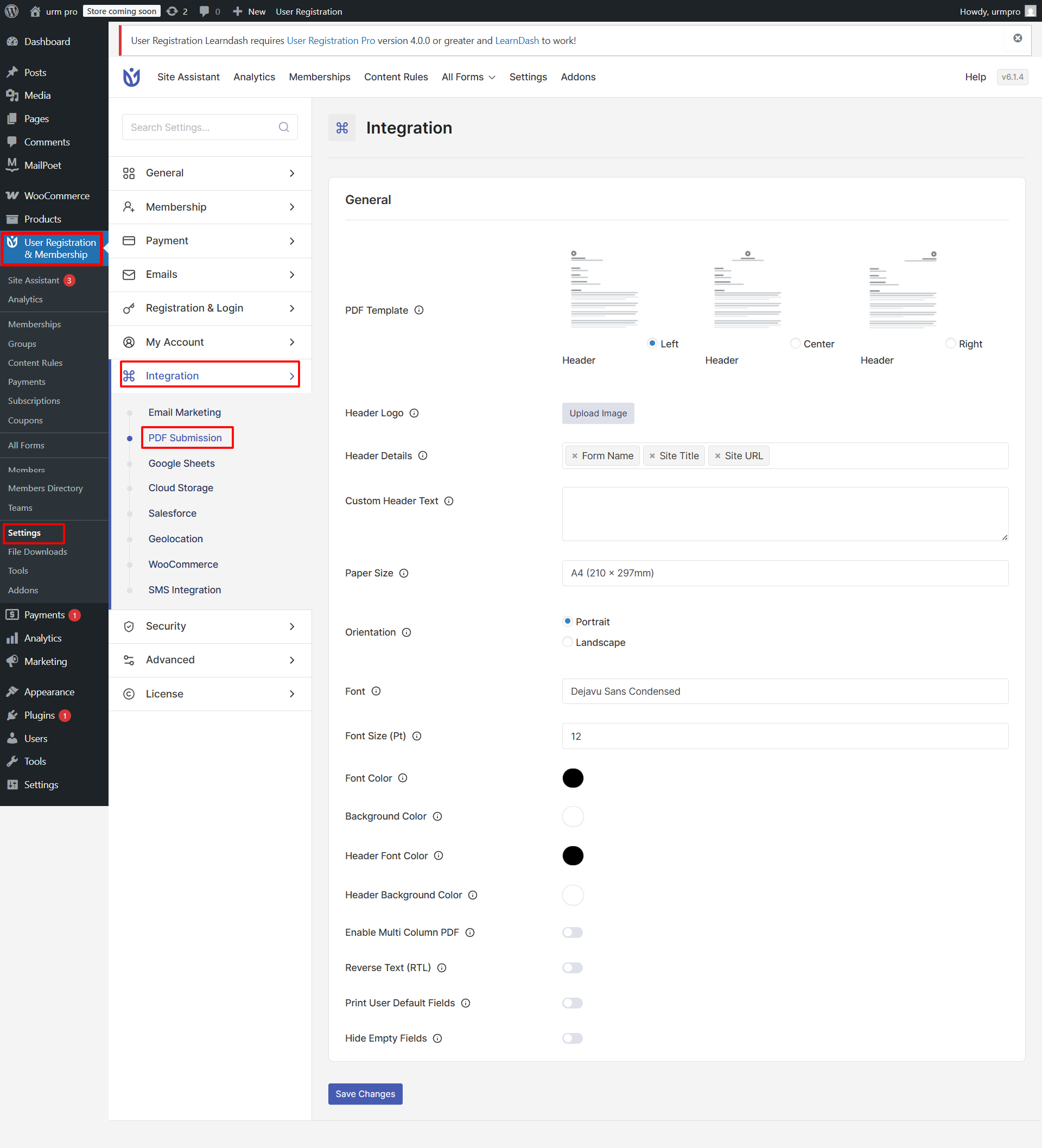
PDF Template: You can now determine which template’s format to be used while sending the pdf. The Left Header Template is the default one.
Header Logo: If you have any specific logo designs, you can add them over here.
Header Details: Options whether to include form name, site title, or site URL in the PDF file. You can select multiple options with CTRL + Click.
Custom Header Text: Set your own custom header texts for the PDFs.
Page Size: You can select the type of the page (example: A4, Letter, Legal, Ledger, Executive ) in which you want to generate the PDF.
Orientation: Options to select the orientation of the page.
Font: Choose between multiple font types for the PDF text.
Font Size: Type the font size of the PDF text.(example: 20)
Design-related options: Font Color, Background Color, Header Font Color, Header Background Color.
Enable Multi-Column PDF: Two-column pdf is generated from the two-column form.
Reverse Text(RTL): The PDF is generated in the RTL format.
Print User Default Field: Display User Default Fields on PDF generated to Admin
Hide Empty Fields: Hide empty fields from the PDF
Enable PDF Email Attachment
To enable PDF email attachments go to the Form Setting tab. (User Registration & Membership > Registration Forms > Edit)
In the Form Setting tab > General, you can see two options Enable PDF submission to Admin and Enable PDF submission to User.
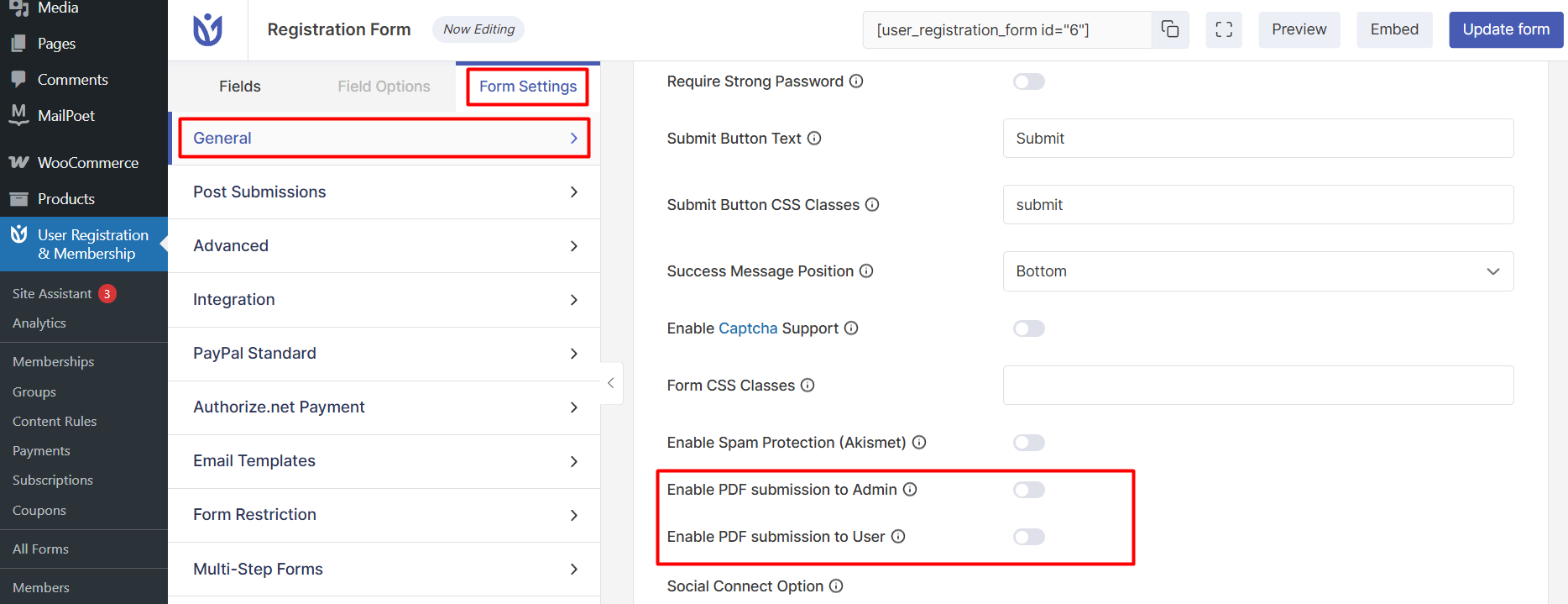
Enable PDF Submission to Admin: This option will attach a PDF file to the admin on form submission. By default, this option is disabled.
Enable PDF Submission to User: This option will attach the PDF file to users’ email on form submission. By default, this option is disabled.
Download PDF Button ShortCode
You can use the following shortcode to show a Download PDF button on your site. This PDF will have the user details for that specific user. This button will only be visible once the users are logged in.
[user_registration_download_pdf_button]
Download Submitted Forms
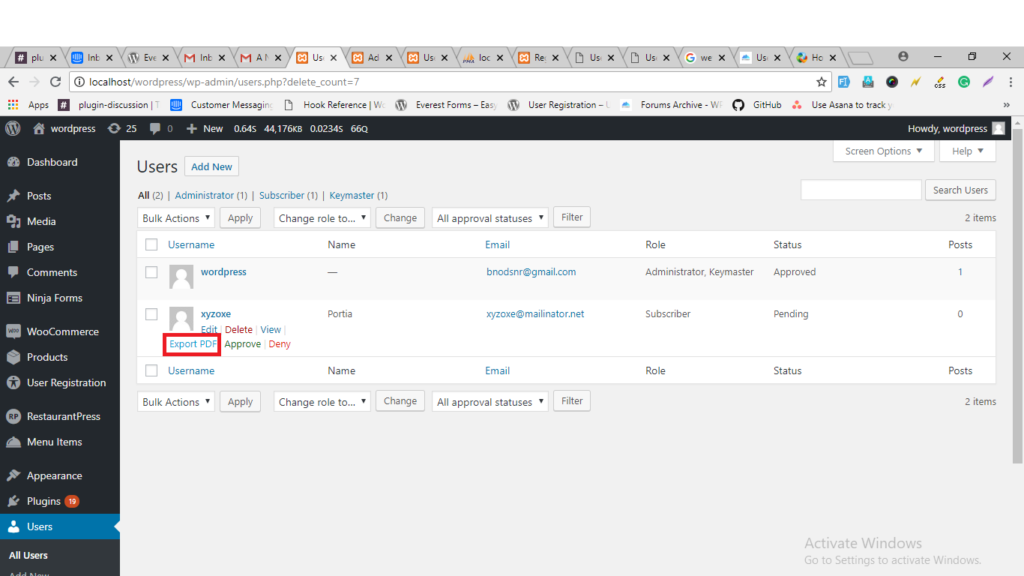
You can download the submitted forms by navigating to Users->All Users. If you hover the mouse on the user list you can see the Export PDF button on each user.
You can export PDF by clicking the Export button.