
Enabling Multiple Registration
Learn how to enable the Multiple Registration addon to create unlimited registration forms with custom fields, settings, and user roles for different user types on your WordPress site.
Last updated on Jul 14, 2026
Would you like to create different registration forms for different types of users on your site? User Registration & Membership allows you to create unlimited registration forms, each with its own fields, settings, and user roles. This tutorial will show you how to enable and use the Multiple Registration addon to create multiple registration forms.
Prerequisites
Before getting started, make sure you've installed and activated the User Registration & Membership plugin on your WordPress site. Then, make sure you've activated the Multiple Registration addon.
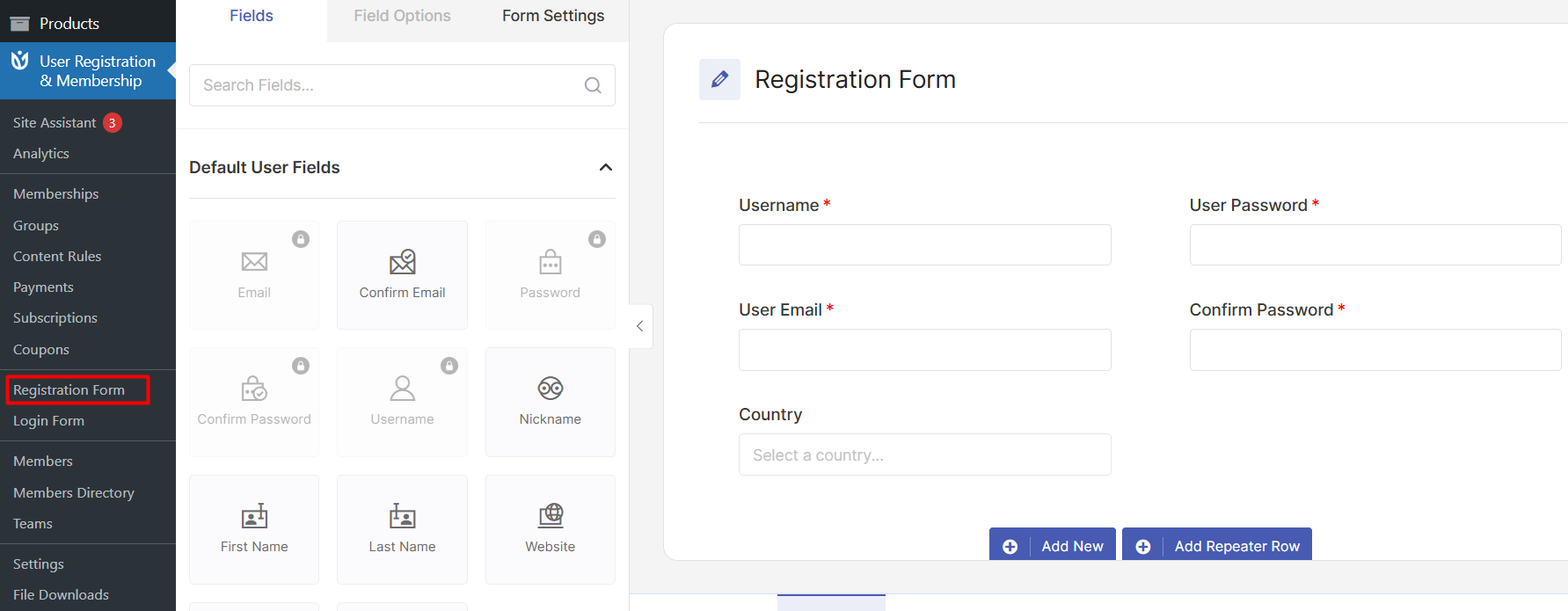
Before:
Before enabling the Multiple Registration addon, you only get one registration form and one login form that the plugin creates for you. You'll see this Registration Form as a URM menu item with the single default registration form.
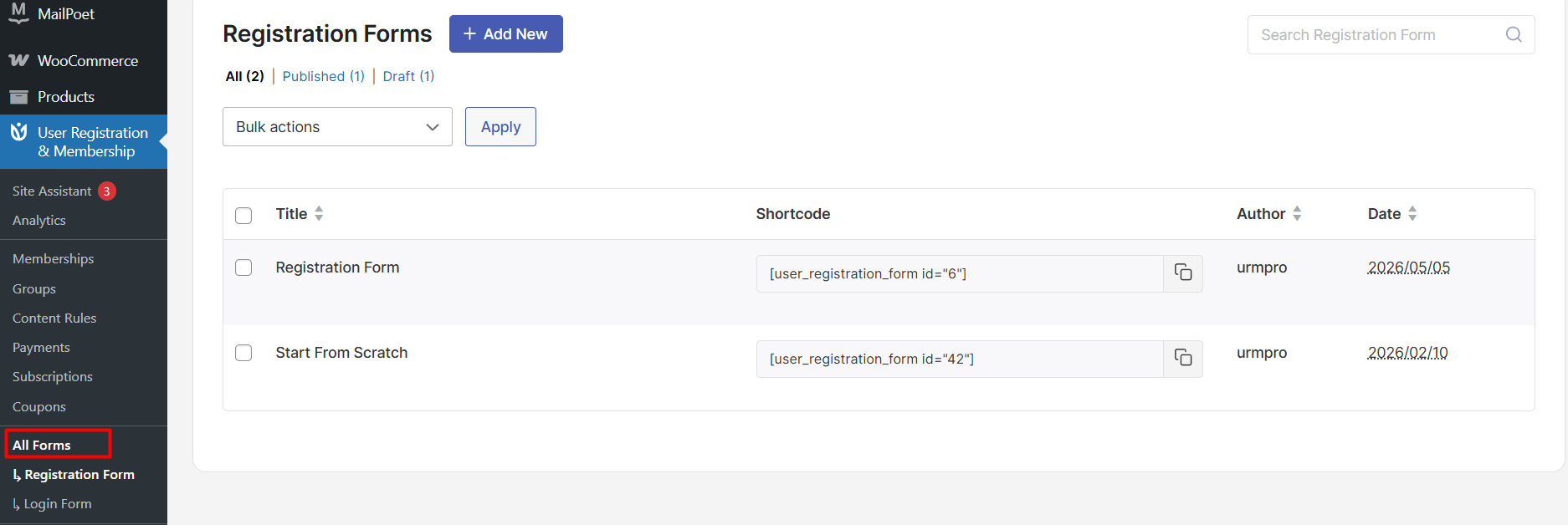
After:
After enabling the addon, you'll be able to create multiple forms. So, the Registration Form and Login Form from the URM menu item is replaced by All Forms. Inside All Forms, you can view and manage all your forms.
Activating the Multiple Registration Addon
To enable multiple registration forms, go to User Registration & Membership > Addons. Here, you'll see a list of available addons for your plan.
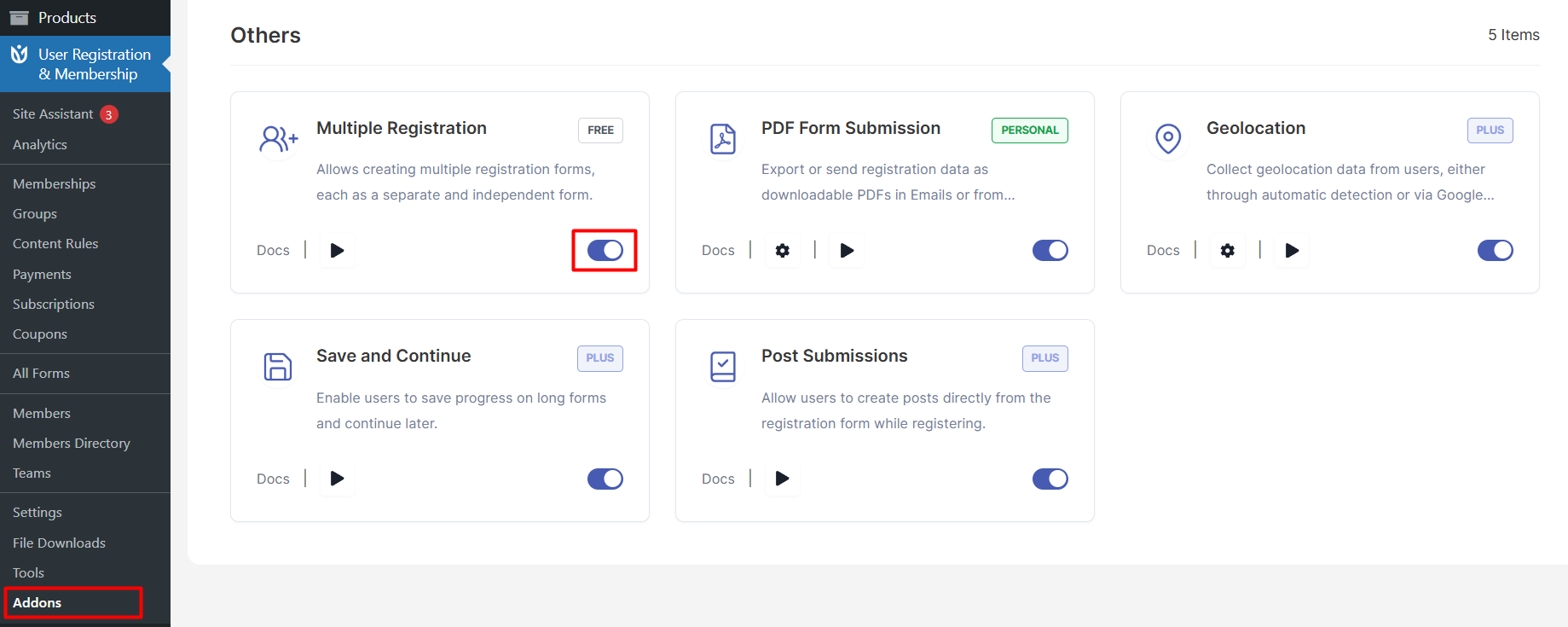
Locate the Multiple Registration addon and toggle the switch to activate it. Once activated, you can create as many registration forms as you need.
Creating Your First Additional Registration Form
Once the addon is activated, go to User Registration & Membership > All Forms > Registration Forms. Click the Add New button in the top-right corner.
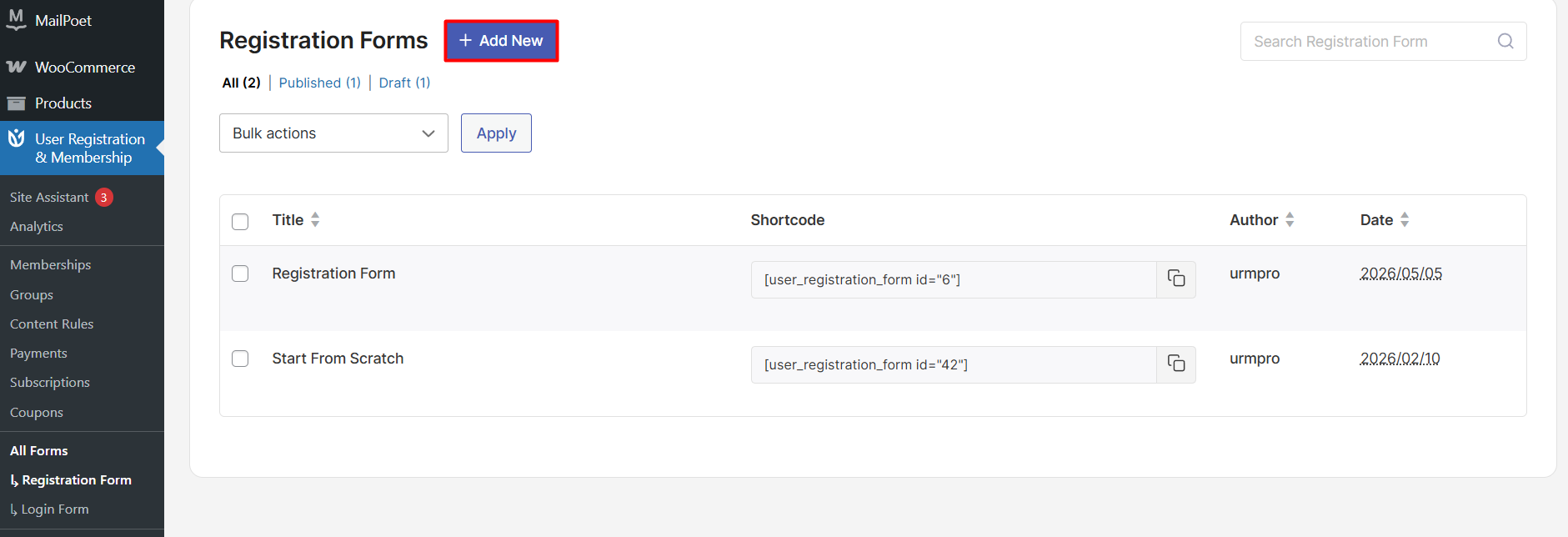
You'll see two options: choose from a premade form template or Start from Scratch. Select the option that fits your needs.
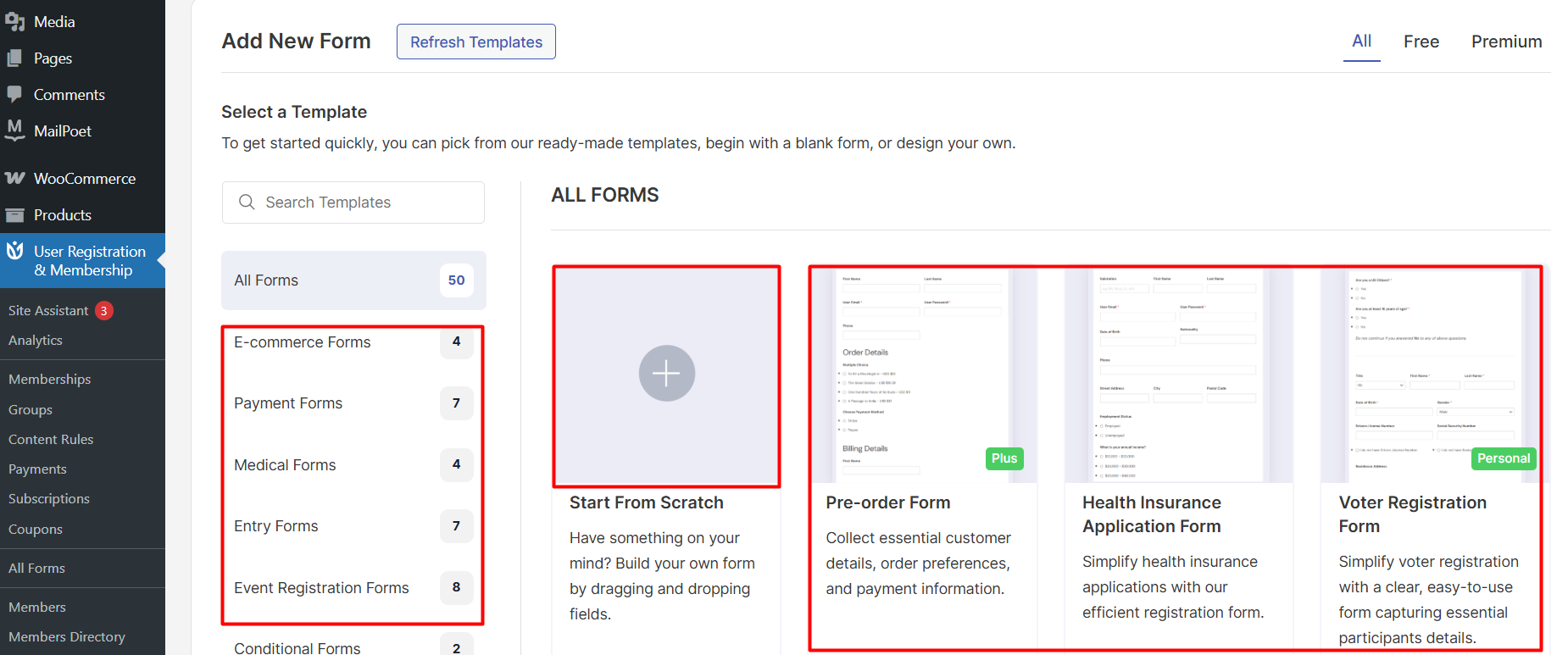
Assign a name to your new registration form. This helps you identify the form later when managing multiple forms.
Then, you can continue building your form or manage these forms as per your needs.
Managing Multiple Registration Forms
To view all your registration forms, navigate to User Registration & Membership > All Forms. Here you'll see a list of all forms you've created.
Click the Locate button next to any form to see which page it appears on. This helps you track where each form is being used on your site.
You can edit any form by clicking its name in the list. You can also preview forms before publishing them to see how they'll appear to users.
Common Use Cases for Multiple Registration Forms
Multiple registration forms are useful when you need different registration processes for different user types. For example, you might create separate forms for customers, vendors, students, or team members.
Each form can collect different information, assign different user roles, and redirect users to different pages after registration. This gives you complete control over your user onboarding process.
Frequently Asked Questions
Can I create unlimited registration forms?
Yes, once the Multiple Registration addon is activated, you can create as many registration forms as you need for your site.
Can each form have different settings?
Yes, each registration form has its own independent settings. You can configure different approval methods, user roles, redirect URLs, and email notifications for each form.
How do I know which form a user registered through?
The plugin tracks which form each user registered through. You can view this information in the WordPress Users list or through the plugin's analytics features.
That's it! Now you know how to enable and use multiple registration forms on your WordPress site. Next, would you like to learn how to customize individual form fields or configure advanced form settings? Be sure to check out our complete guide to registration form customization for all the details.