
Creating Popups for Registration and Login Forms
ProLearn how to create and customize popup modals for registration and login forms, keeping users on the current page while they sign up or authenticate.
Last updated on Jul 15, 2026
Would you like to display your registration or login forms in elegant popup modals instead of full pages? User Registration & Membership allows you to create popup forms that appear when users click a button or menu item - perfect for keeping visitors on your current page while they sign up or log in.
This tutorial will show you how to create popup forms, customize their appearance, and add them to your site using shortcodes, menu items, or buttons.
Before getting started, make sure you've installed and activated the User Registration & Membership plugin on your WordPress site. If you want to create registration popups, you'll also need at least one registration form already created.
Creating a New Popup
To create a popup, go to User Registration & Membership → Settings → Registration & Login → Popups.
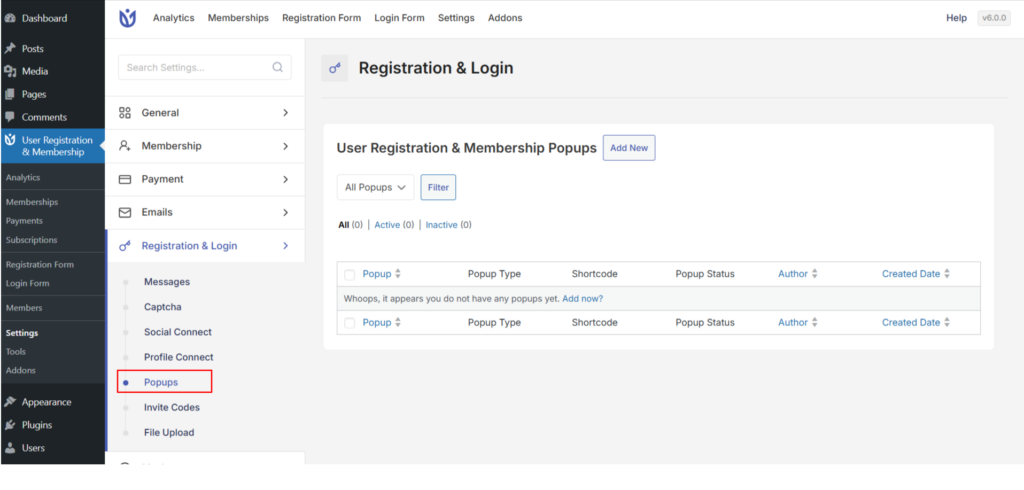
Here, you'll see a list of any existing popups. Click the Add New button in the top-right corner to create a new popup.
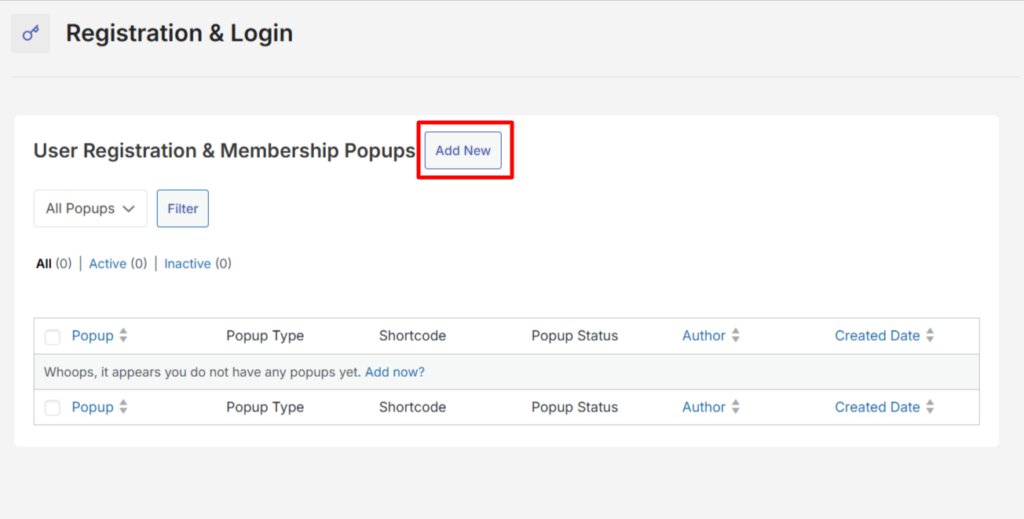
Configuring Popup Display Settings
Once you click Add New, you'll see the popup configuration screen with three main sections.
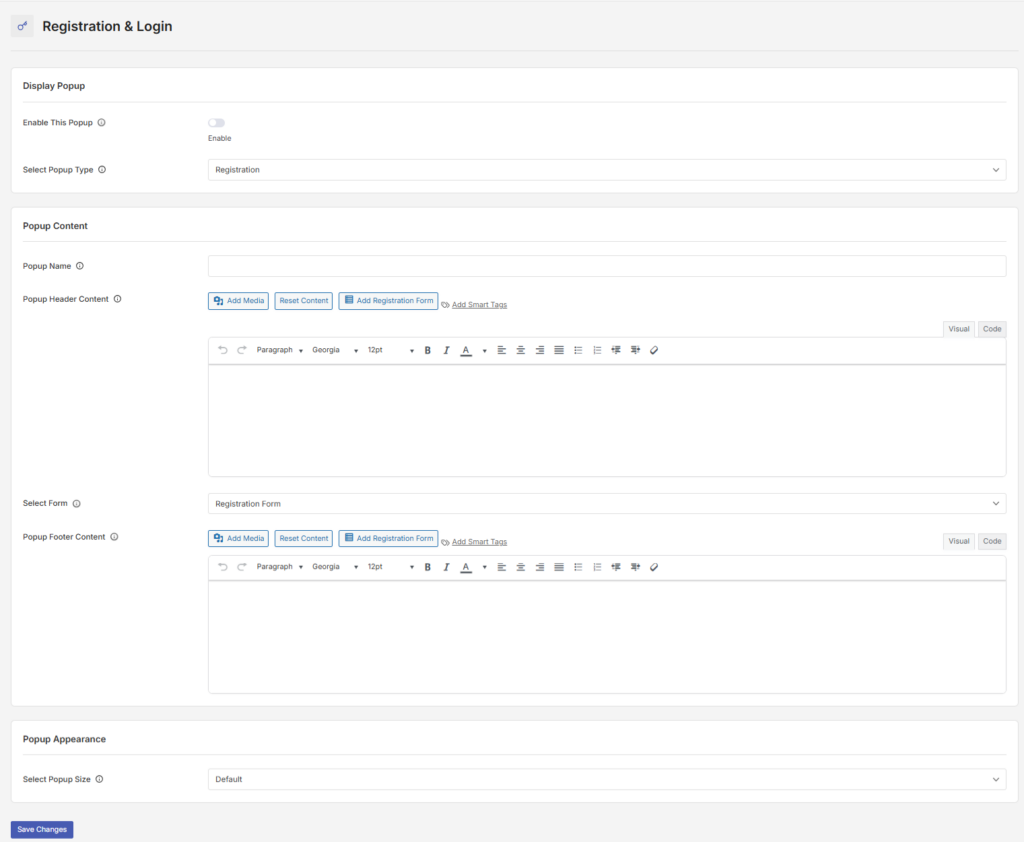
Display Popup Section
In this section, you'll enable the popup and choose its type.
Toggle on Enable This Popup to activate it. Then, select your Popup Type:
Registration — Displays a registration form in the popup
Login — Displays a login form in the popup
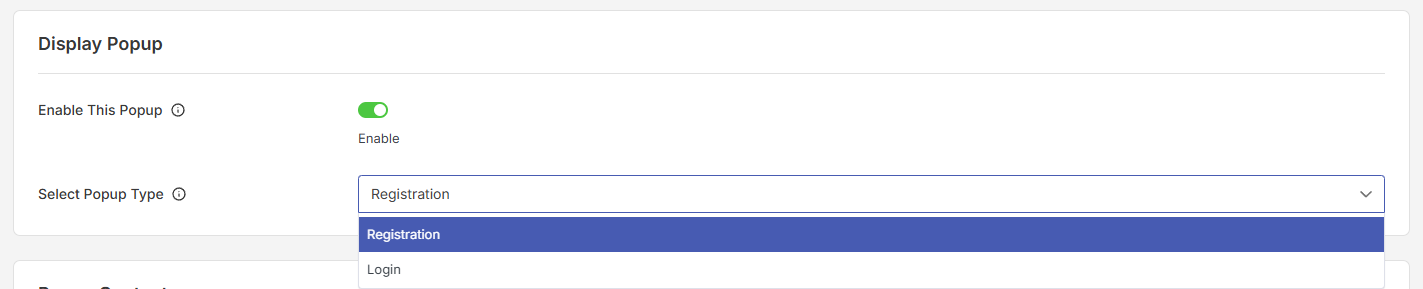
The form selection option only appears when you choose Registration as the popup type. Login popups use the default login form automatically.
Popup Content Section
Next, configure what appears inside your popup.
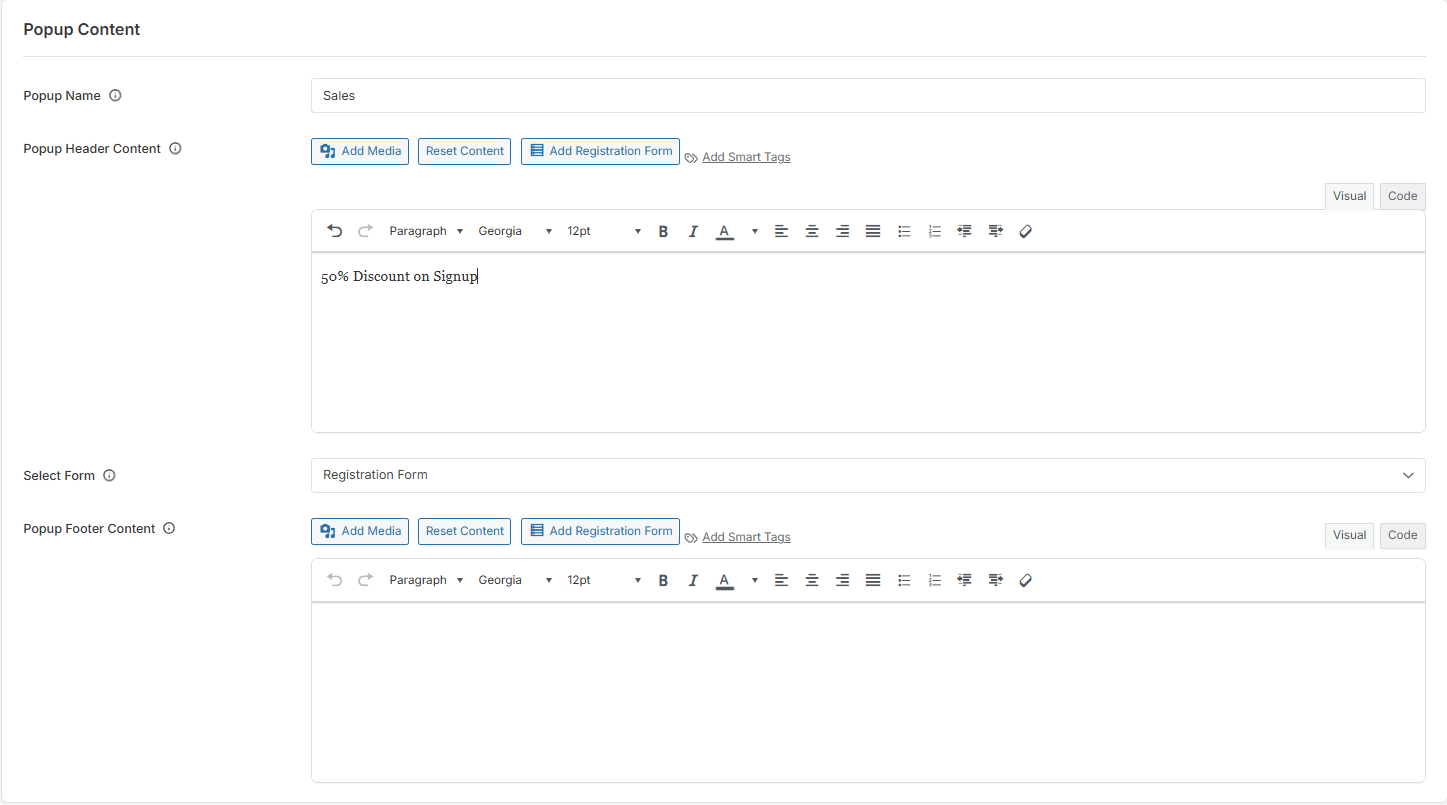
Enter a Popup Name for internal identification—this helps you organize multiple popups but won't be visible to visitors.
In the Popup Header Content editor, add any text, images, or HTML you want to appear at the top of your popup. This is a great place for a welcome message or branding.
If you're creating a registration popup, you'll see a Select Form dropdown. Choose which registration form you want to display inside the popup.
In the Popup Footer Content editor, add any content you want to appear at the bottom of your popup, such as terms of service links or additional information.
Popup Appearance Section
Finally, choose how large your popup should appear.

Select your Popup Size from three options:
Default — Standard popup size suitable for most forms
Large — Wider popup for forms with more fields
Extra Large — Maximum width for complex forms or additional content
Click Add Popup to save your configuration.
Adding Popups to Your Site
Once you've created a popup, you'll see a shortcode generated for it. You can add this popup to your site in three different ways.
Method 1: Using Shortcodes on Pages
Copy the shortcode from the popup list and paste it into any page or post using a shortcode block.
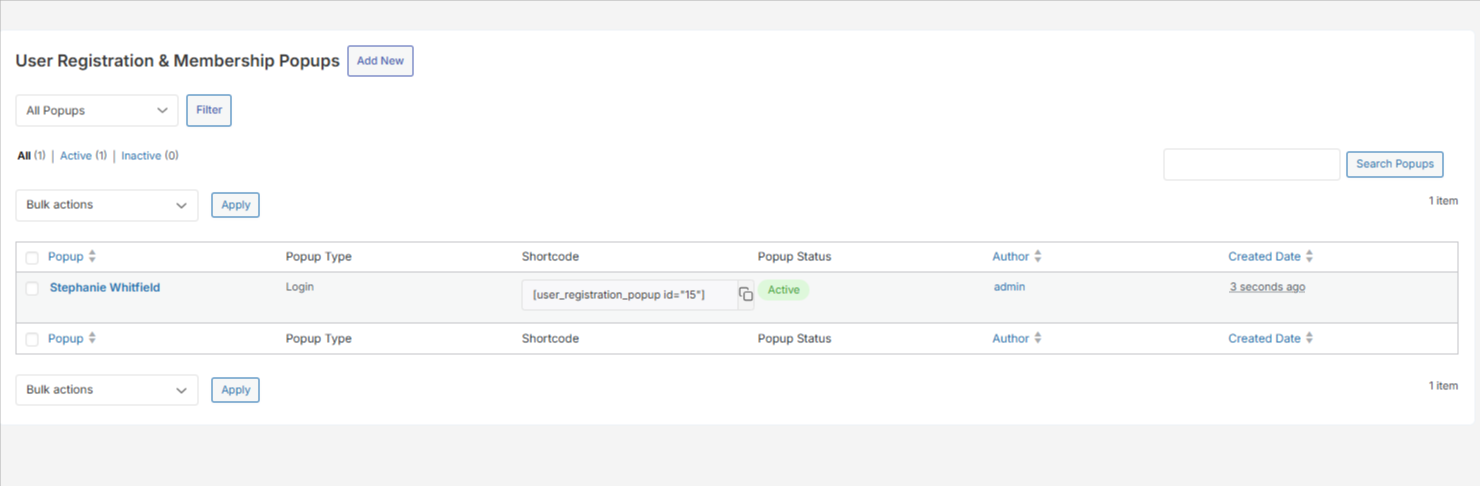
For example: [user_registration_popup id="1"]
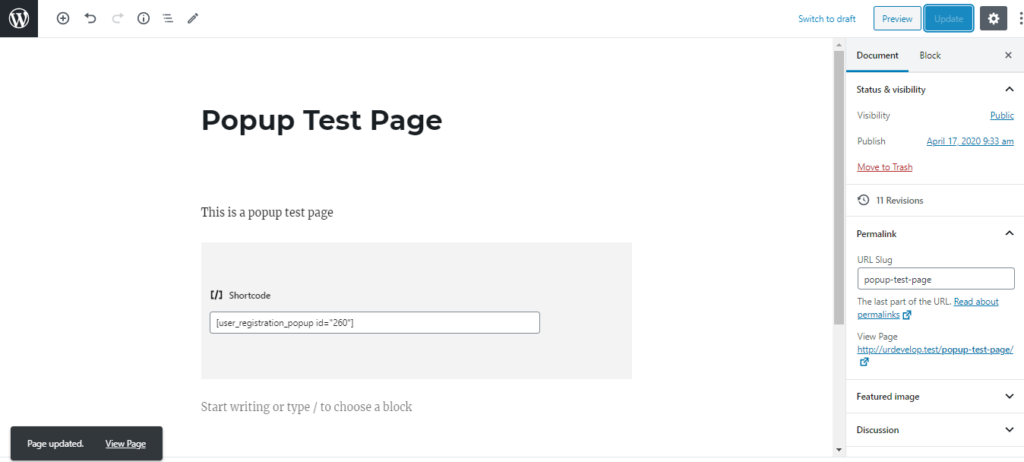
By default, this displays the popup automatically when the page loads.
Method 2: Adding to Navigation Menus
Go to Appearance → Menu in your WordPress dashboard.
Add the popup to your menu by selecting it from the available menu items. Click Save Menu to apply your changes.
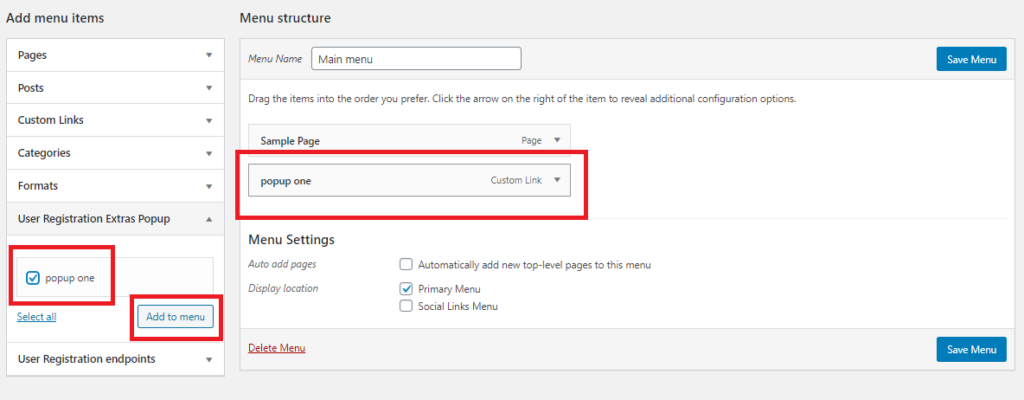
When visitors click the menu item, the popup will appear.
Method 3: Creating a Button Trigger
To display the popup only when visitors click a button, add the type="button" parameter to your shortcode:
[user_registration_popup id="1" type="button"]
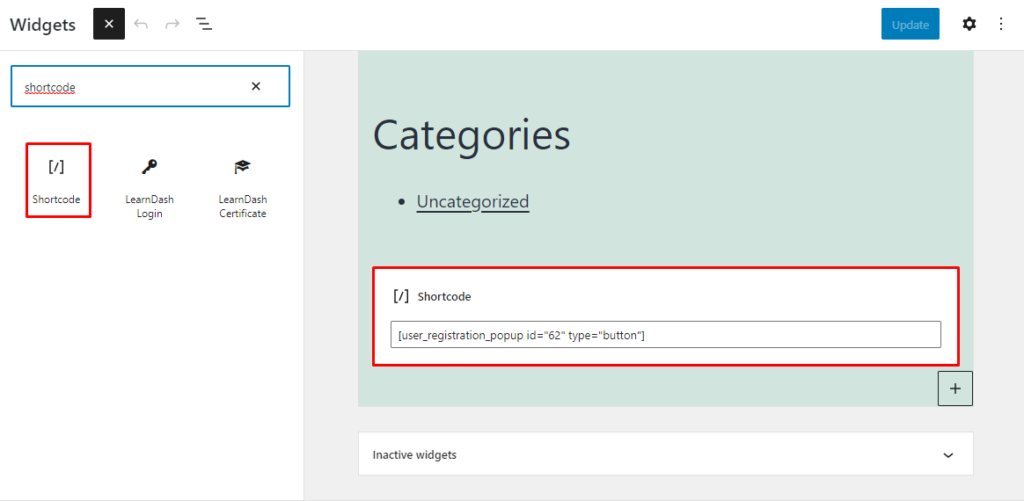
This creates a clickable button on your page. When clicked, the popup appears.
To customize the button text, add the button_text parameter:
[user_registration_popup id="1" type="button" button_text="Register Now"]
This is useful for placing signup buttons in your content, widget areas, or anywhere else on your site.
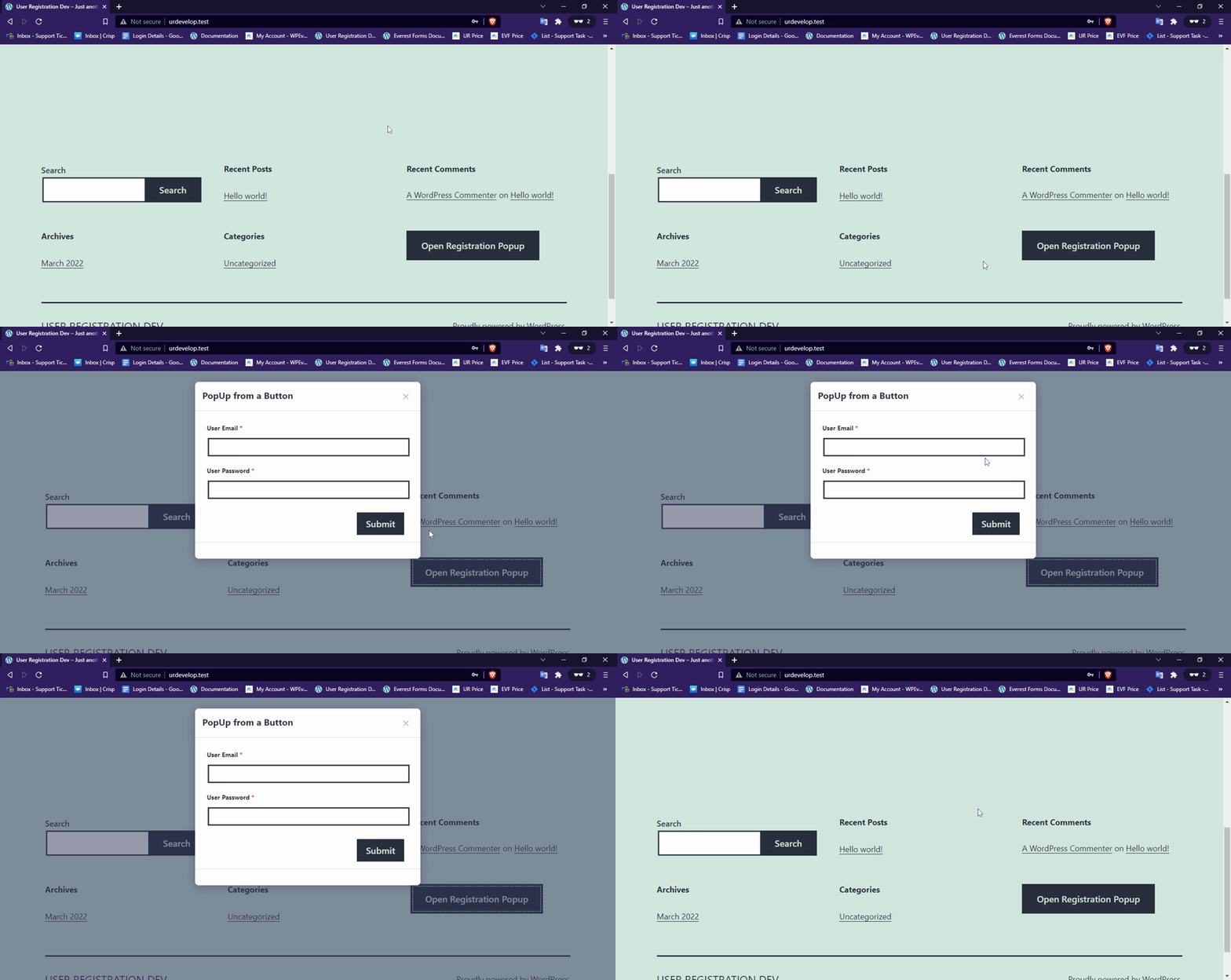
Testing Your Popup
After adding your popup to a page, visit the page on your site's front end to test it.
If you used the default shortcode, the popup should appear automatically when the page loads. If you used the button method, click the button to verify the popup opens correctly.
Make sure all form fields display properly and that users can successfully submit the form.