
Taxes and VAT
ProConfigure automatic tax and VAT calculations for membership payments based on member location with country and state-specific rates.
Last updated on Jul 15, 2026
Would you like to automatically calculate and add taxes to membership payments based on your members' locations?
User Registration & Membership allows you to configure country-specific and state-specific tax rates that are automatically applied during checkout. This tutorial will show you how to set up tax calculation for your membership forms.
Before You Begin
Before getting started, make sure you've installed and activated the User Registration & Membership plugin. Then, make sure you've installed and activated the Taxes add-on, which is available with Plus, Professional, and ThemeGrill Agency plans.
Tax calculation only works with Membership Registration Forms that include a Country field. The Country field is required because User Registration & Membership uses the member's country to determine which tax rate to apply.
Activating the Taxes Add-on
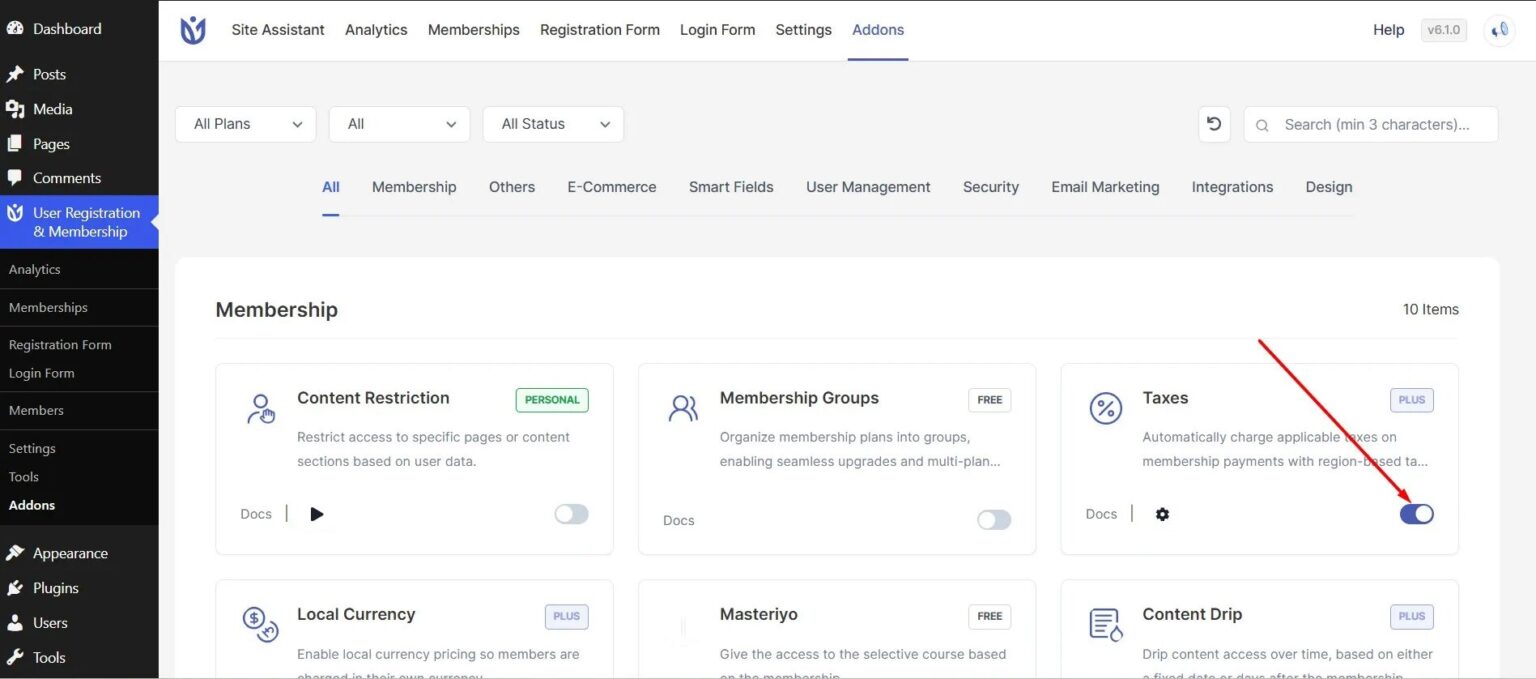
To activate the Taxes add-on, go to User Registration & Membership > Addons in your WordPress dashboard. Here, you'll see a list of all available add-ons for your plan.
Find the Taxes add-on in the list and toggle it ON to activate. Once activated, the tax configuration options will appear in your payment settings.
Enabling Tax Calculation at Checkout
From the WordPress dashboard, go to User Registration & Membership > Settings > Payment > Tax & VAT. Here, you'll see the tax configuration interface.
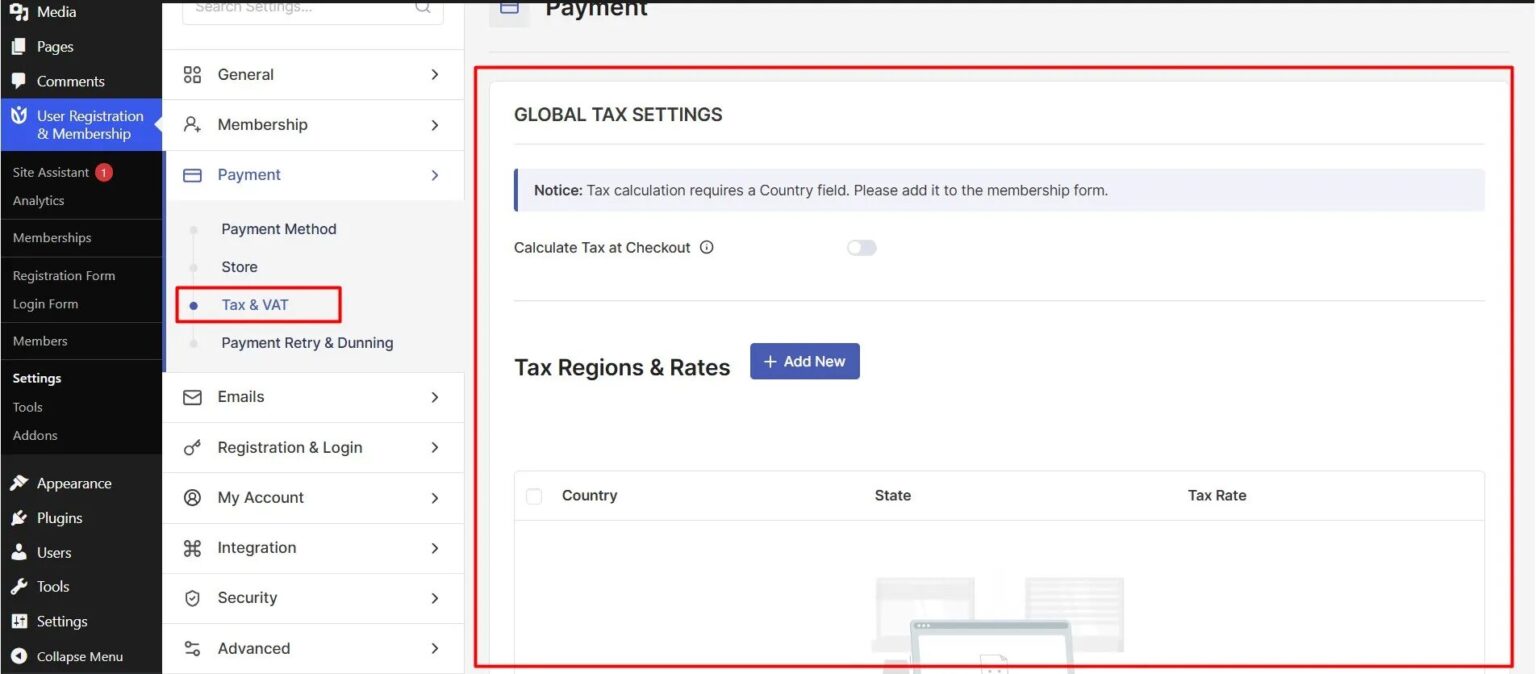
Toggle on Calculate Tax at Checkout to enable automatic tax calculation during the membership purchase process.
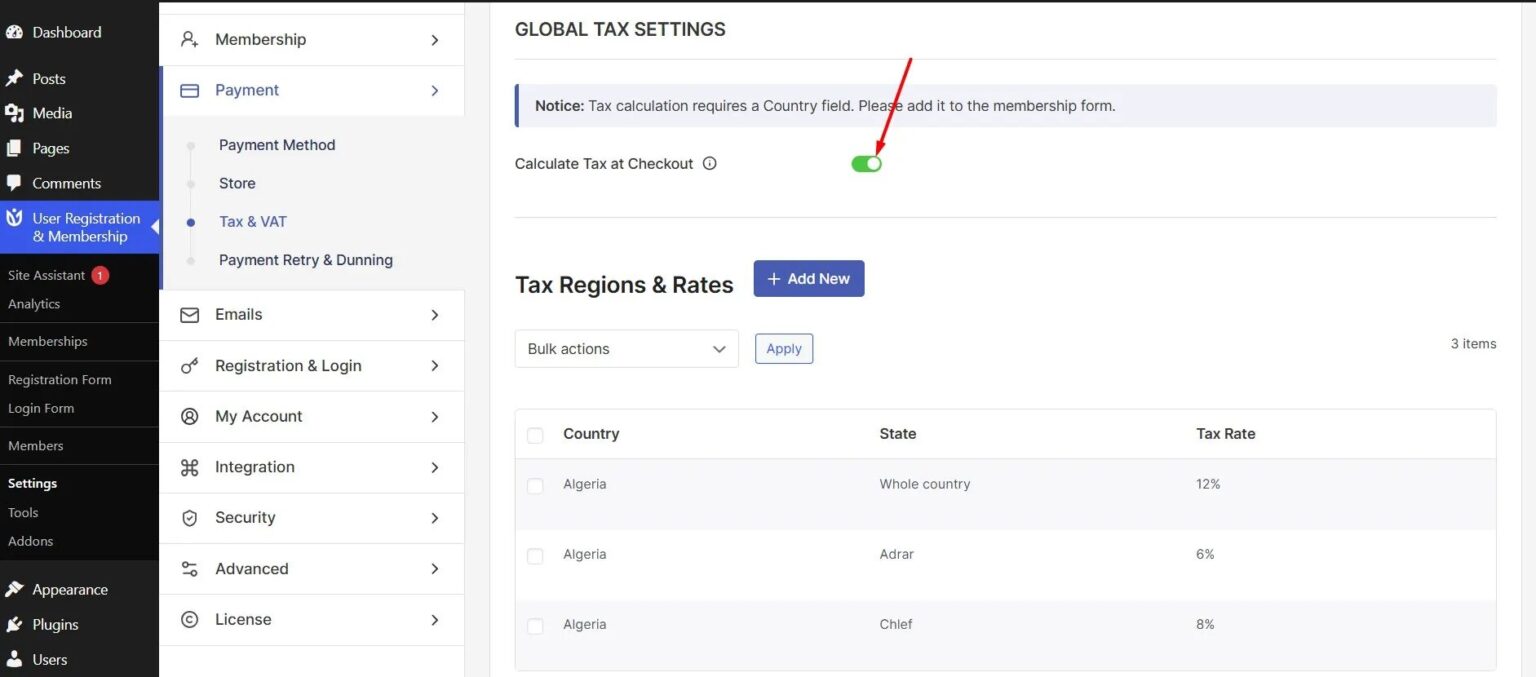
When enabled, taxes are automatically calculated and added to membership fees based on the customer's country.
Adding Tax Regions and Rates
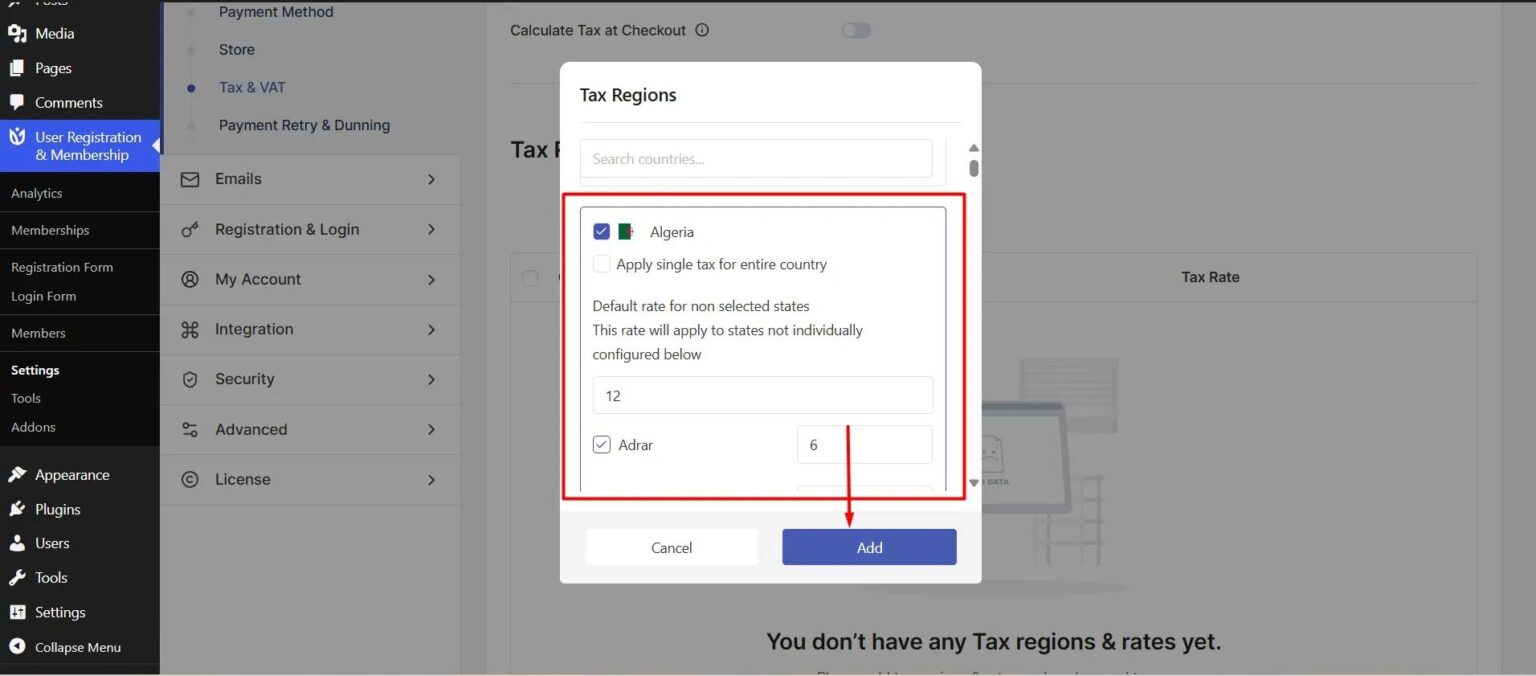
Once tax calculation is enabled, you can configure tax rates for different countries and regions. Click the Add New button in the Tax Regions & Rates section.
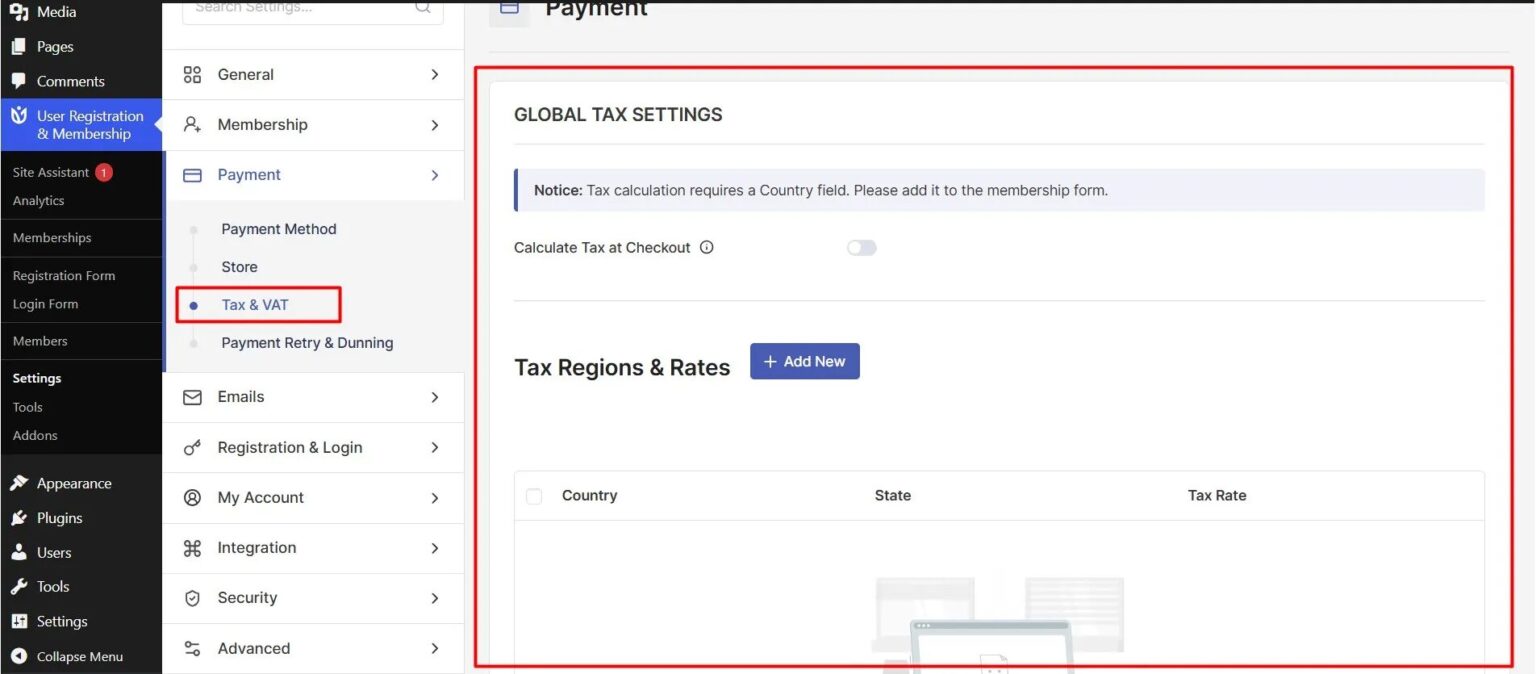
Select a country from the dropdown menu. Then, enter a default tax rate as a percentage. This default rate applies to all states or regions within that country unless you configure specific state-level rates.
If you'd prefer to set different tax rates for specific states within a country, enter the state-specific rates below the default rate. For example, you might set a 5% default rate for the United States, but configure California at 7.25% and New York at 8.52%.
Click Add to save the tax region.
Then, click Save Settings to apply your changes.
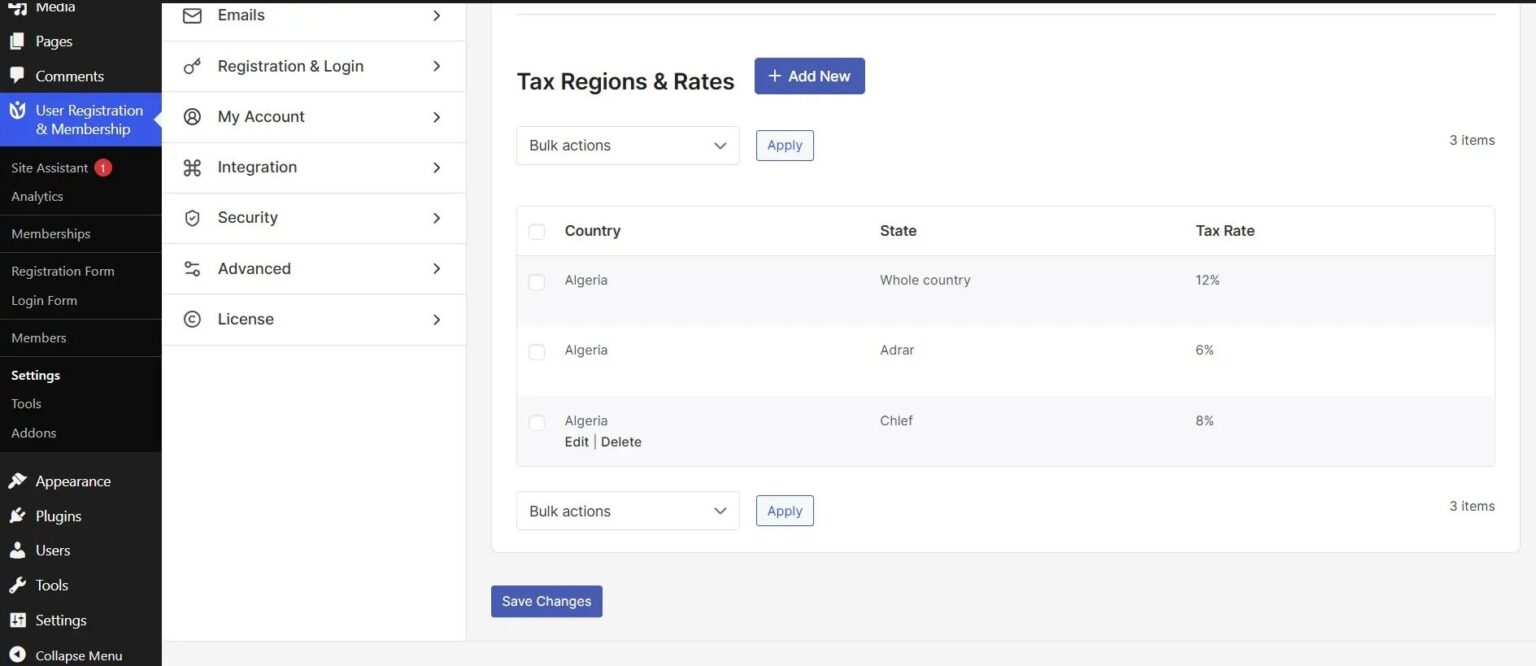
Tax rates are stored as percentages. If you want to charge 10% tax, enter 10 in the rate field, not 0.10.
Adding a Country Field to Your Membership Form
For tax calculation to work, your Membership Registration Form must include a Country field. To add one, go to User Registration & Membership > All Forms and select the membership form you want to edit.
In the form builder, drag the Country field from the Extra Fields section on the left into your form. The Country field includes 249 countries by default. Then, add other field like membership fields or others to your form.
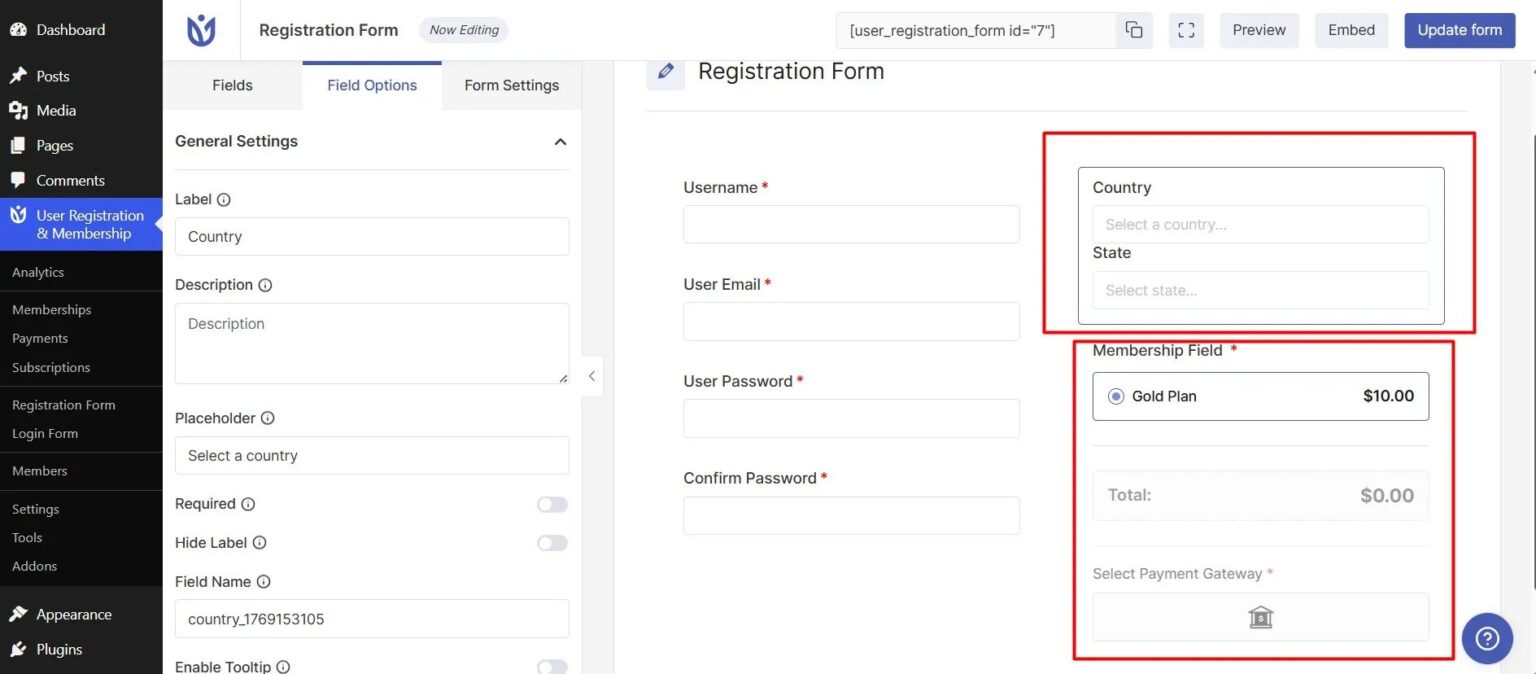
Click Update Form to save your changes. Now, when members fill out the form, they'll select their country, and the appropriate tax rate will be applied automatically at checkout.
How Tax Calculation Works During Checkout
When a member completes a Membership Registration Form, User Registration & Membership checks the country they selected in the Country field. The plugin then looks up the tax rate you configured for that country.
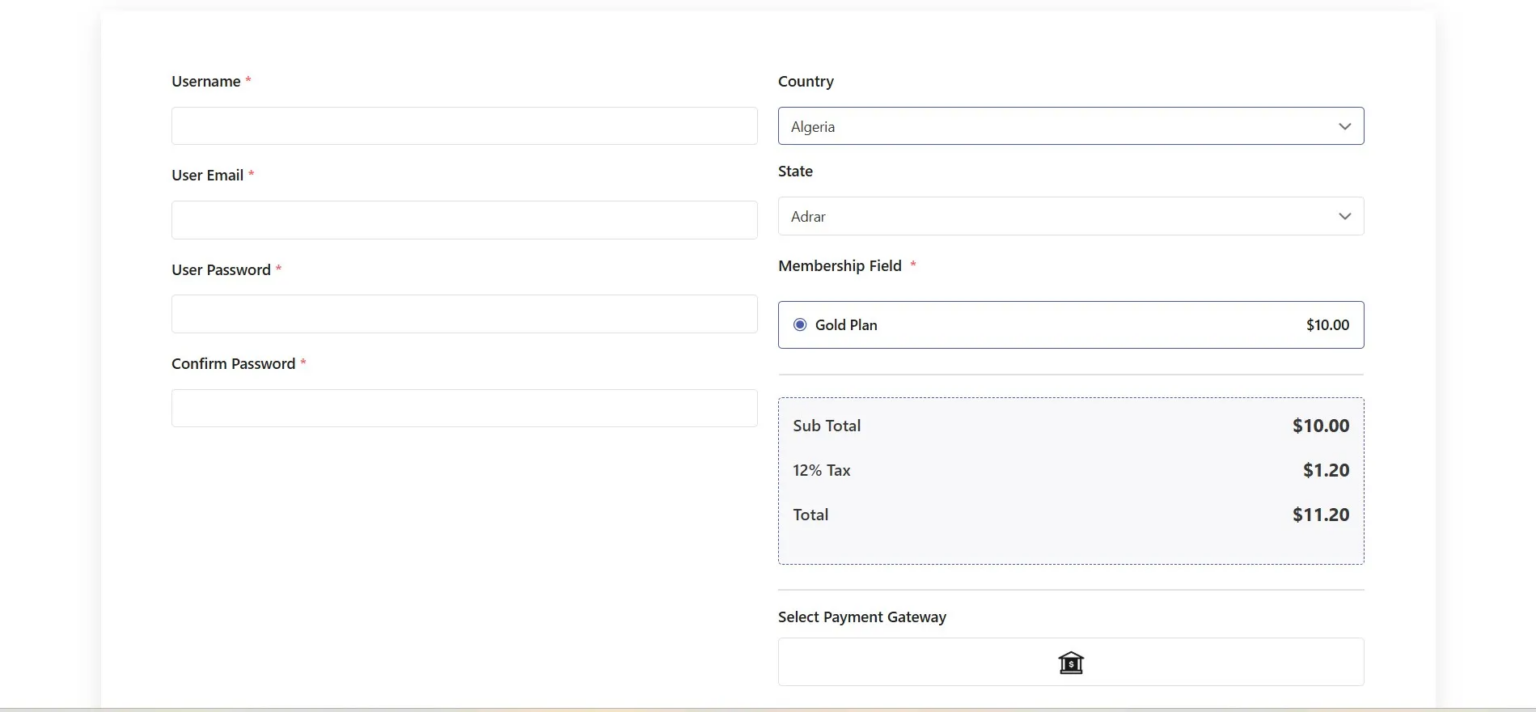
If you configured state-specific rates and the member's state matches one of those rates, the state-specific rate is applied. Otherwise, the default country-level rate is used.
The tax amount is calculated as a percentage of the membership price and displayed to the member before they complete payment. The final total includes the membership price plus the calculated tax.
Managing Multiple Tax Regions
You can add tax rates for as many countries as needed. To add another tax region, click Add New again in the Tax Regions & Rates section and repeat the configuration process.
Keep in mind that deleting a country removes all state-specific rates for that country. If you need to update rates, edit the existing region instead of deleting and recreating it.
Be sure to click Save Settings after adding or updating tax regions. Changes won't take effect until you save.
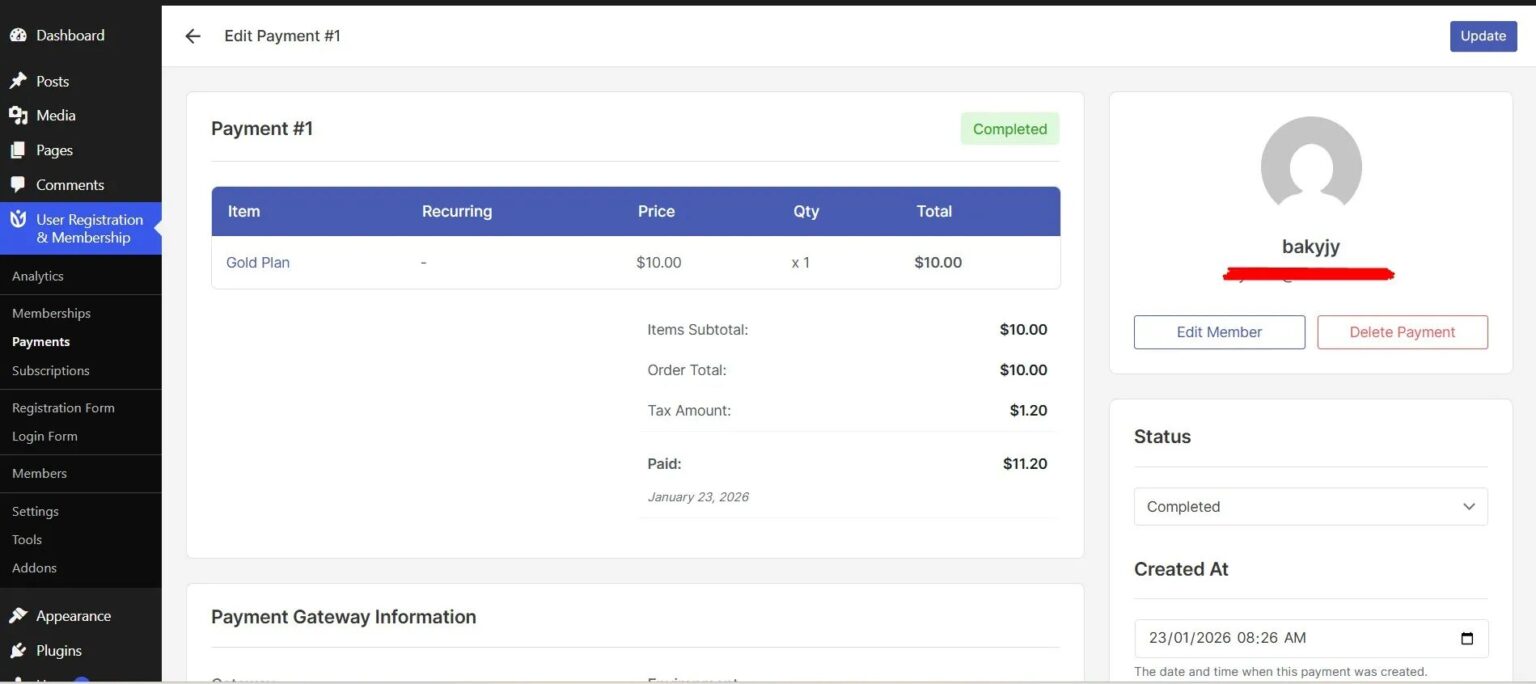
How Admins See Tax
Admins can view tax details under:
User Registration & Membership → Payments → Edit Payments
This helps track tax collected per user or per membership plan.
Frequently Asked Questions
Does tax calculation work with all membership types?
Tax calculation only works with Membership Registration Forms that include payment. It does not apply to free memberships or standard registration forms without membership plans.
Can I set different tax rates for different membership plans?
Tax rates are applied based on the member's country, not the membership plan. All membership plans use the same tax rates you configure in the Tax & VAT settings.
Can members see the tax amount before completing payment?
Yes. The tax amount is displayed during checkout before the member completes payment. They'll see the membership price, the tax amount, and the final total.
That's it! Now you know how to configure tax calculation for your membership forms. Next, would you like to learn how to customize your membership invoices? Be sure to check out our guide on configuring invoice generation for all the details.