
Membership Subscription Dashboard
Manage and monitor all membership subscriptions from a centralized dashboard with search, filtering, and bulk action tools for efficient subscription administration.
Last updated on Jul 15, 2026
To access the Subscriptions dashboard from your WordPress admin panel, go to:
User Registration & Membership → Subscriptions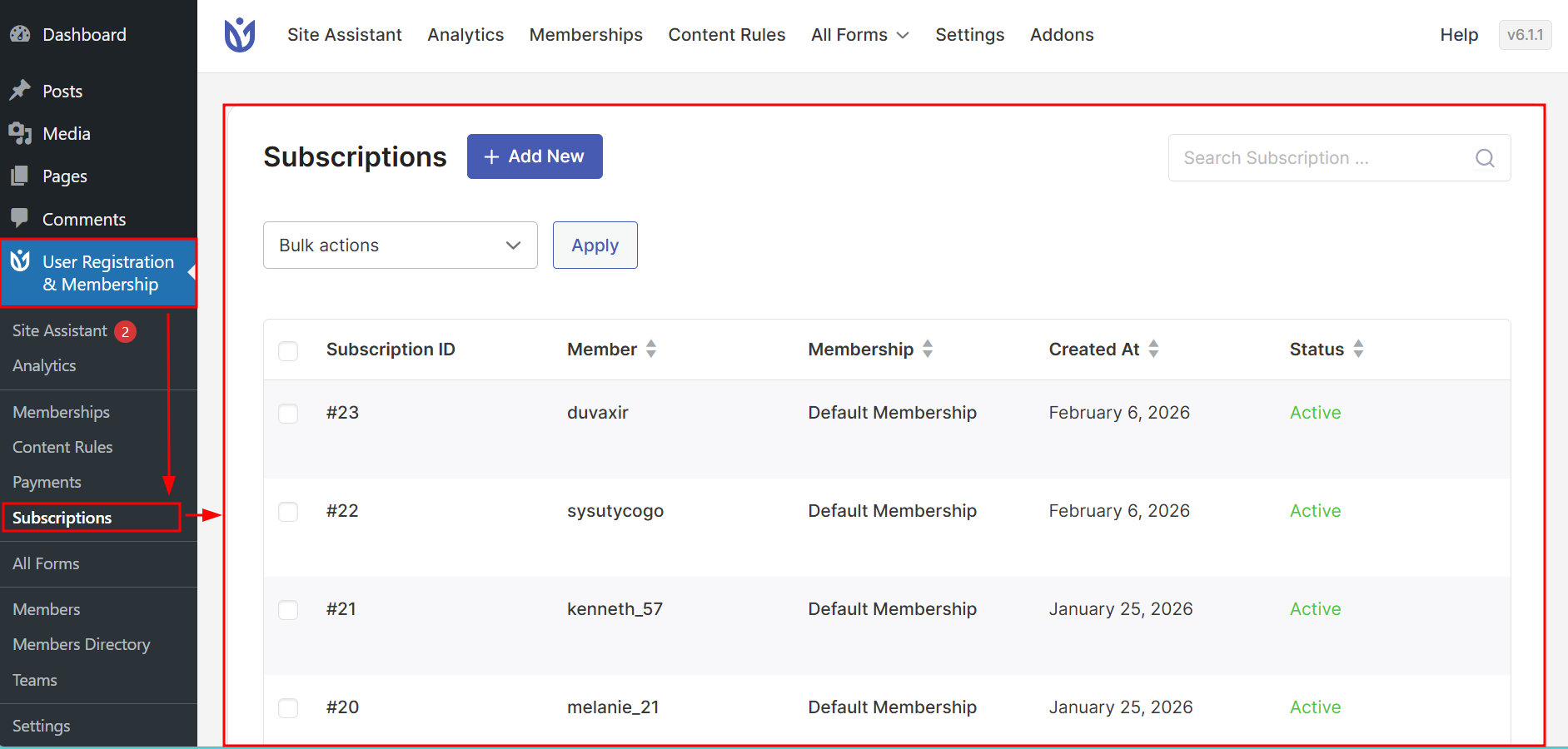
Subscription Dashboard
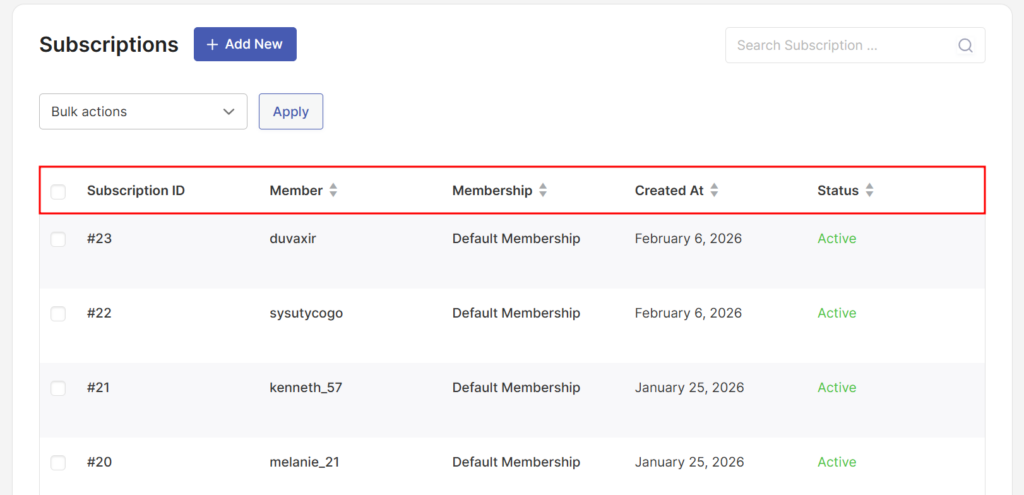
The Subscription Dashboard displays a table of all subscriptions created on your site — whether they are free, paid, active, or canceled.
Each row in the table includes the following columns:
Column | Description |
|---|---|
Subscription ID | A unique identifier automatically assigned to each subscription. |
Member | The username of the member who holds the subscription. |
Membership Plan | The name of the membership plan assigned to the subscription. |
Created At | The date the subscription was created. |
Status | The current state of the subscription: Active, Pending, or Canceled. |
Search Subscriptions
At the top right of the dashboard, you will find a search bar that lets you quickly locate a specific subscription.
You can search using:

Username — Enter the member's WordPress username.
Member email address — Enter the email address associated with the member's account.
This is especially useful when you need to manage or review subscriptions for a specific member on a large site.
Bulk Actions
The Subscriptions table supports bulk actions, allowing you to manage multiple subscription records at once.
To perform a bulk action:
Select one or more subscriptions using the checkboxes on the left side of the table.
Open the Bulk Actions dropdown above the table.
Choose Delete from the list.
Click Apply.
This is particularly helpful when cleaning up test subscriptions or removing invalid records in bulk rather than one at a time.
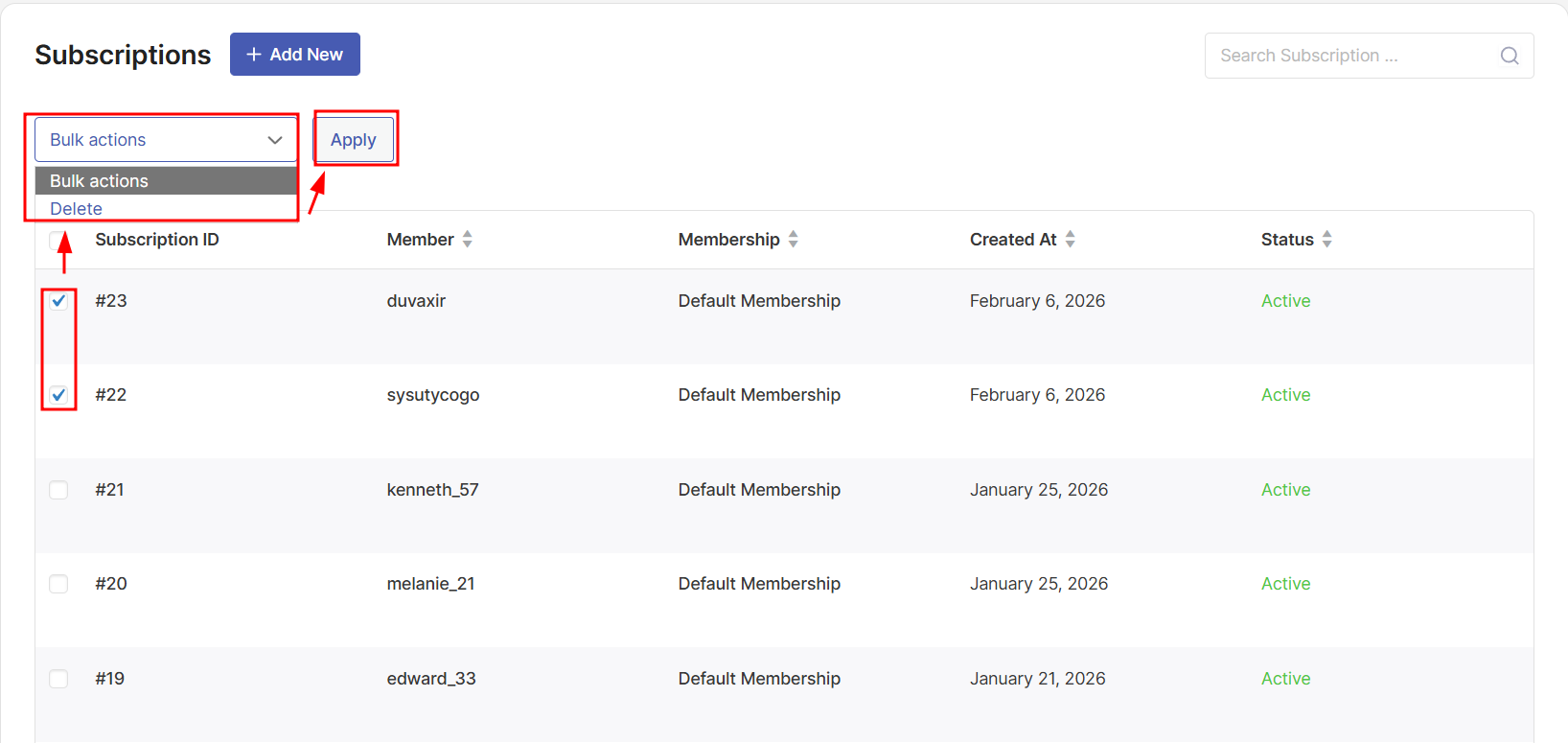
Bulk deletion is permanent. Deleted subscriptions cannot be restored, so review your selection carefully before clicking Apply.
Sorting Subscriptions
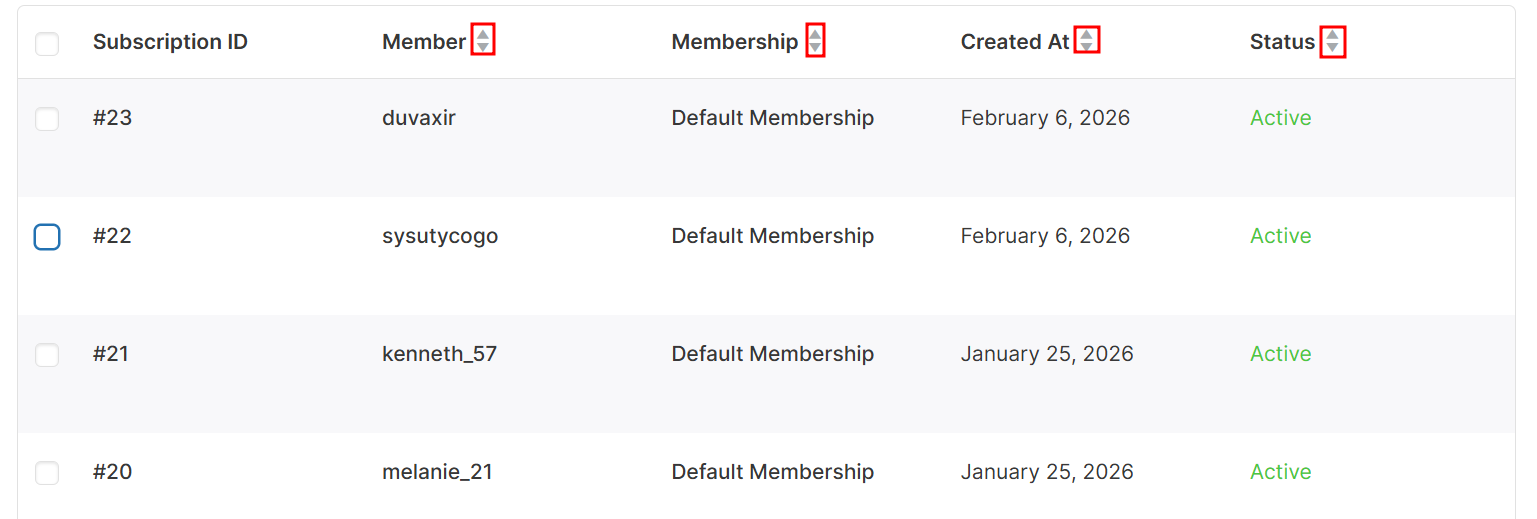
You can sort the subscriptions list directly from the table by clicking any sortable column header.
The following columns support sorting:
Subscription ID
Member
Membership
Created At
Status
Clicking a column header once sorts the list in ascending order. Clicking it again toggles to descending order. This makes it easy to find the newest subscriptions, group by status, or identify members alphabetically.
Managing Subscriptions
Clicking on any subscription row in the table opens the Edit Subscription screen, where you can review its full details and make administrative changes.
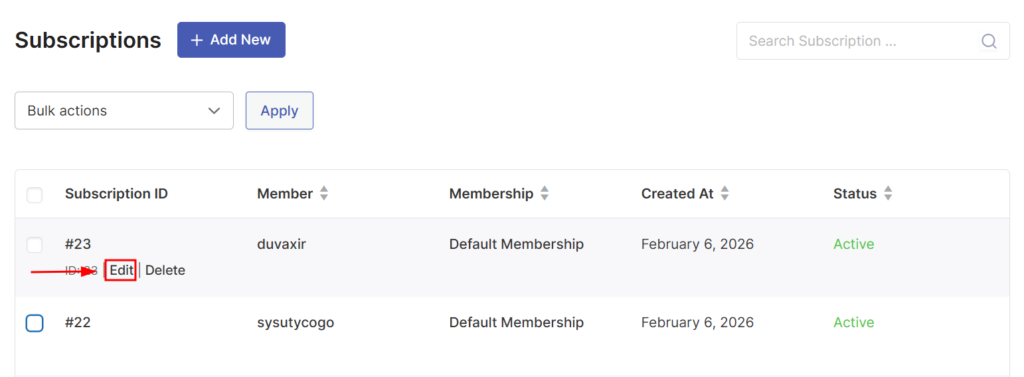
Edit Subscription Screen
The Edit Subscription screen provides a complete overview of the selected subscription along with all the controls you need to manage it.
The screen is divided into several panels, each covering a different aspect of the subscription.
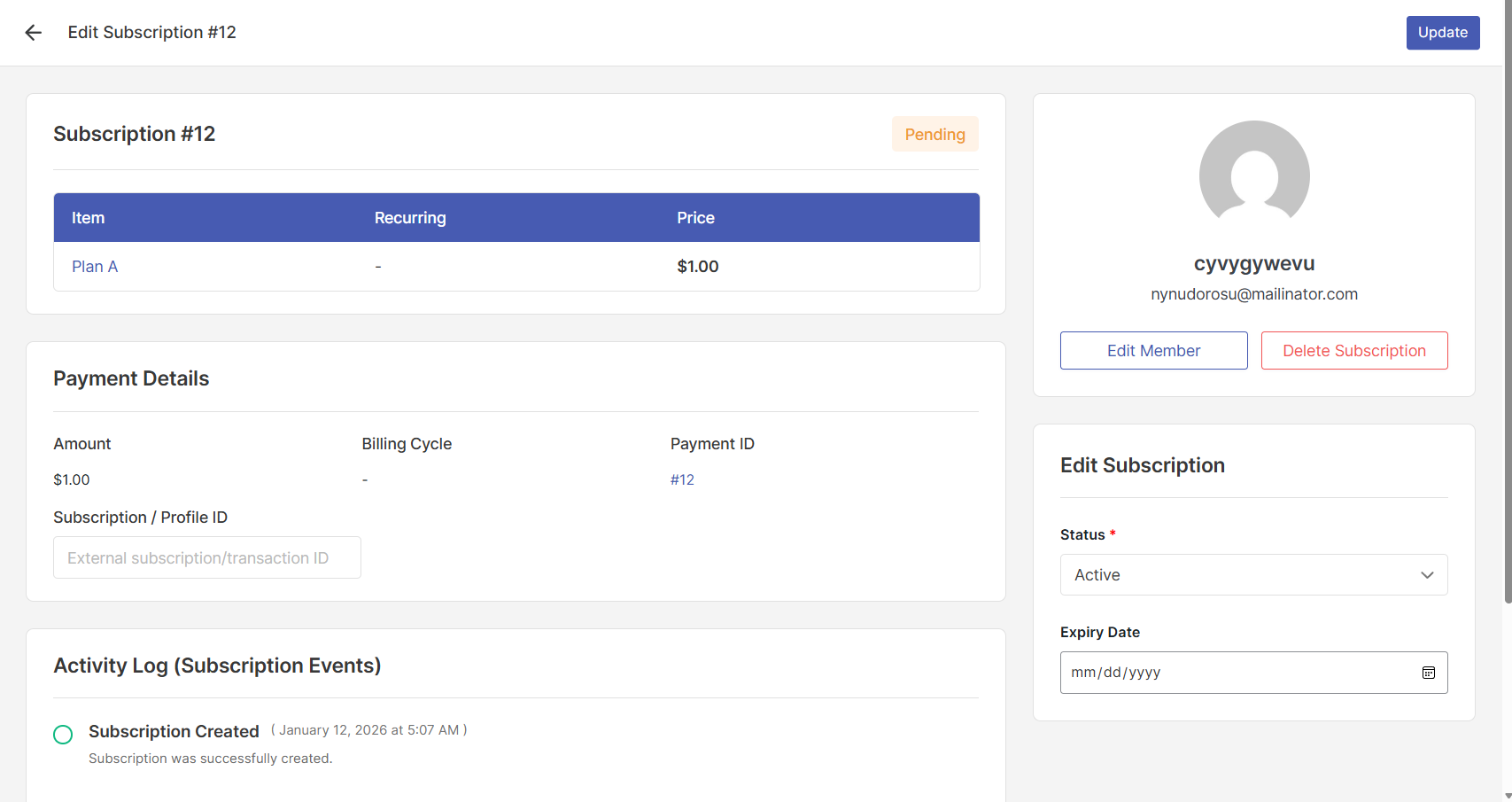
Subscription Details
This panel shows the membership plan associated with the subscription and key details about it.
Information displayed includes:
Subscription Status — The current state of the subscription.
Membership Plan — The name of the plan the member is subscribed to.
Membership Type — Whether the membership is One-Time or Recurring.
Price — The cost of the membership plan.
This helps you quickly identify what the member is enrolled in without leaving the edit screen.
Payment Details
This panel displays the payment information linked to the subscription.
Fields shown include:
Amount — The payment amount for this subscription.
Billing Cycle — How often the member is billed (e.g., monthly, yearly).
Payment ID — The unique identifier for the associated payment transaction.
Subscription ID (if applicable) — An external subscription ID from the payment gateway, such as a Stripe subscription ID.
Member Actions
The Member Actions panel shows the username and email address of the subscribed member.
From this panel, you can:
Edit Member — Opens the member's WordPress user profile, where you can update their account details.
Delete Subscription — Permanently removes the subscription record from your site.
Deleting a subscription from this panel is permanent and cannot be undone. Make sure you want to remove the record entirely before proceeding.
Subscription Status
The Status field on the right side of the Edit Subscription screen lets you control the current state of the subscription.
Available statuses and what each one means:
Status | Description |
|---|---|
Active | The subscription is currently valid and the member has full access. |
Pending | The subscription has been created but is not yet active. |
Trial | The subscription is in a trial period, giving the member temporary access. |
Expired | The subscription has reached its end date and access has been revoked. |
Canceled | The subscription was manually or automatically terminated before its end date. |
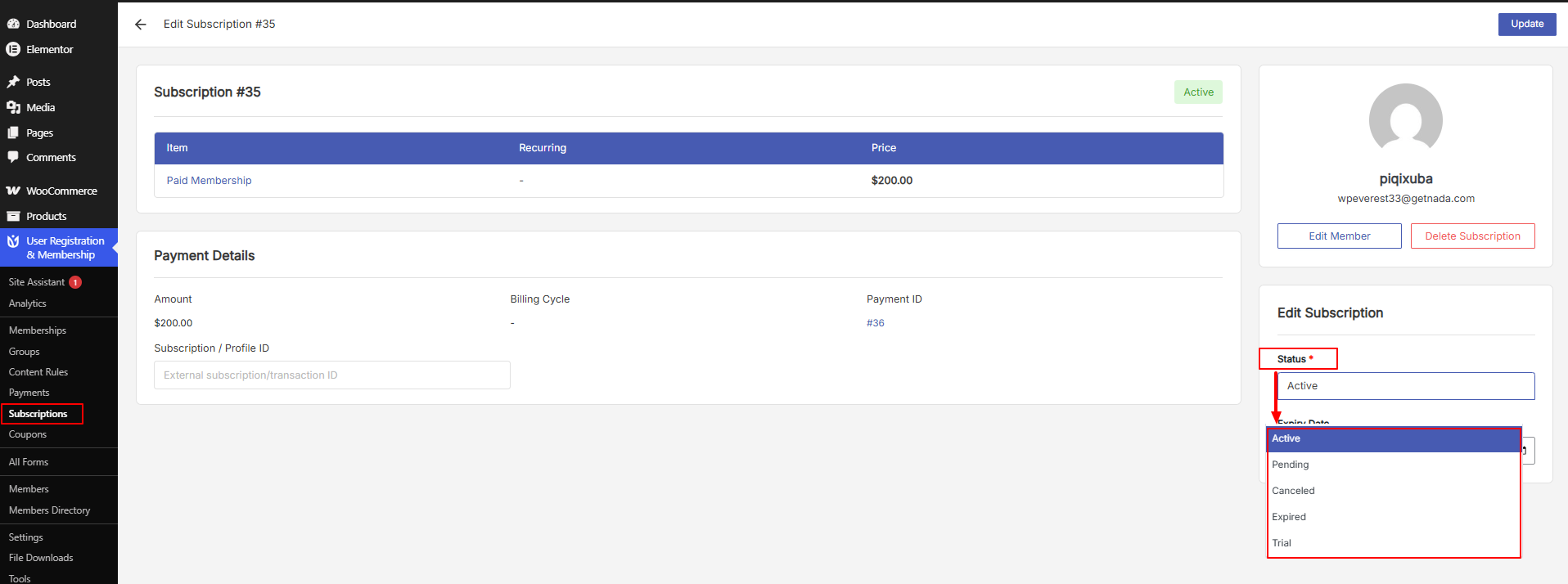
After selecting the appropriate status, click Update in the top-right corner to save your changes.
Expiry Date
The Expiry Date field lets you manually set or change when a subscription should end.
This is useful in several situations:
Granting temporary access — Set a specific end date for a complimentary or promotional subscription.
Extending a subscription — Push the expiry date forward to give a member more time.
Correcting an incorrect expiry — Fix a date that was set incorrectly during manual or automated creation.
Click the calendar icon next to the field to open a date picker and select the desired date. Then click Update to save.
Activity Log
The Activity Log panel records important events that have occurred for the subscription.
Events logged include:
Subscription creation
Status changes
Each entry is timestamped, giving you a clear chronological history of what has happened with the subscription. This is helpful for resolving member disputes or auditing account changes.
Editing a Subscription (Changing Status)
To update the status of an existing subscription:
Go to User Registration & Membership → Subscriptions.
Click on the subscription you want to update.
Locate the Status field on the right side of the Edit Subscription screen.
Select the required status from the dropdown list.
Click Update to save the change.
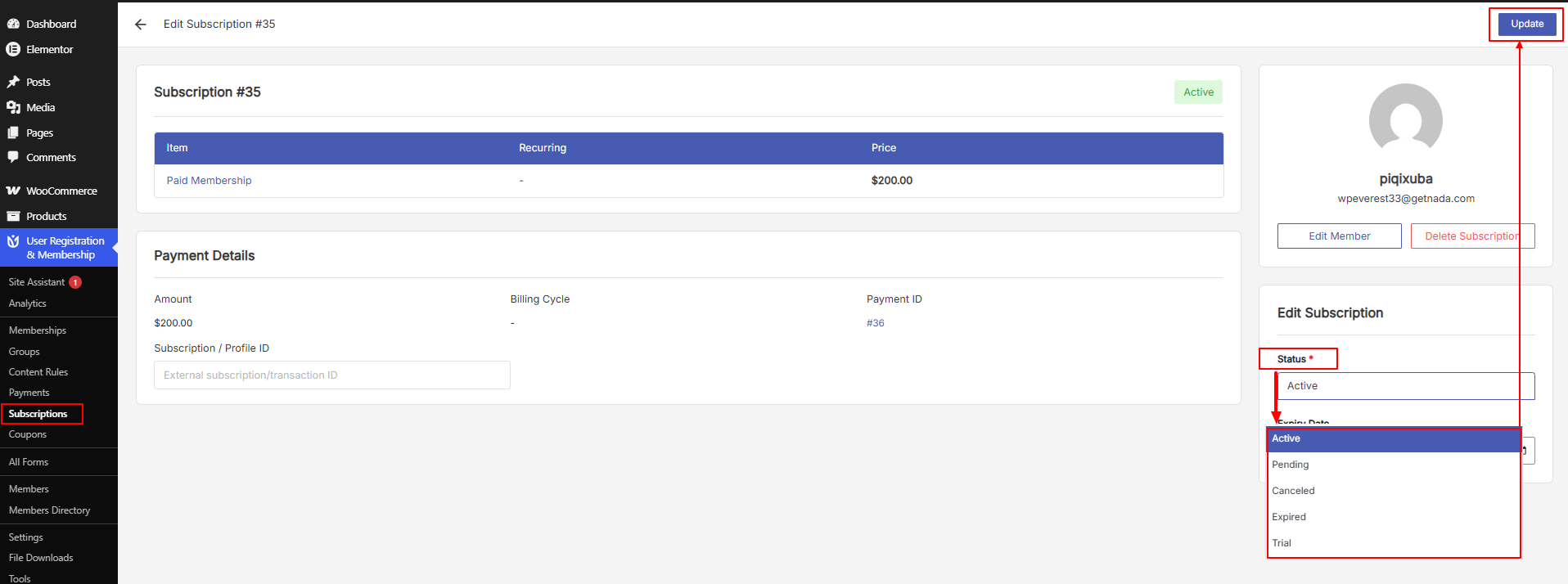
This lets you manually control a member's access without needing to modify or delete their membership plan.
Deleting a Subscription
To permanently remove a subscription record:
Go to User Registration & Membership → Subscriptions.
Click on the subscription you want to delete.
In the Member Actions panel, click Delete Subscription.
Confirm the deletion when prompted.
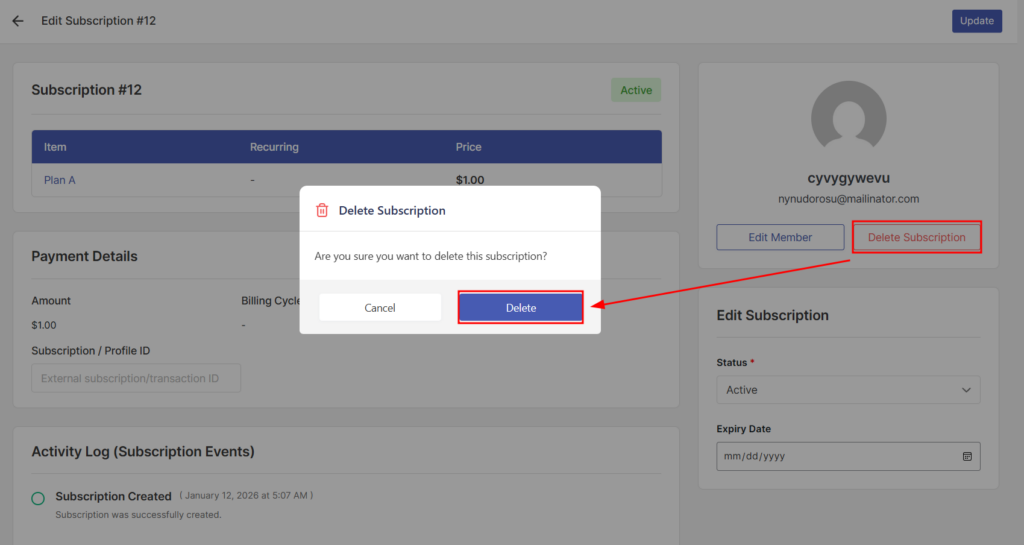
Important: Deleted subscriptions are permanently removed from your site and cannot be restored. Use this option only when you are certain the record is no longer needed.
Adding a Subscription Manually
You can create a subscription directly from the admin dashboard without requiring the member to go through the checkout process. This is useful for:
Granting access to a member who paid offline or through another method.
Migrating users from another membership system.
Creating complimentary or trial subscriptions for specific members.
To add a subscription manually:
Go to User Registration & Membership → Subscriptions.
Click Add New at the top of the page.

This opens the Create Subscription screen.
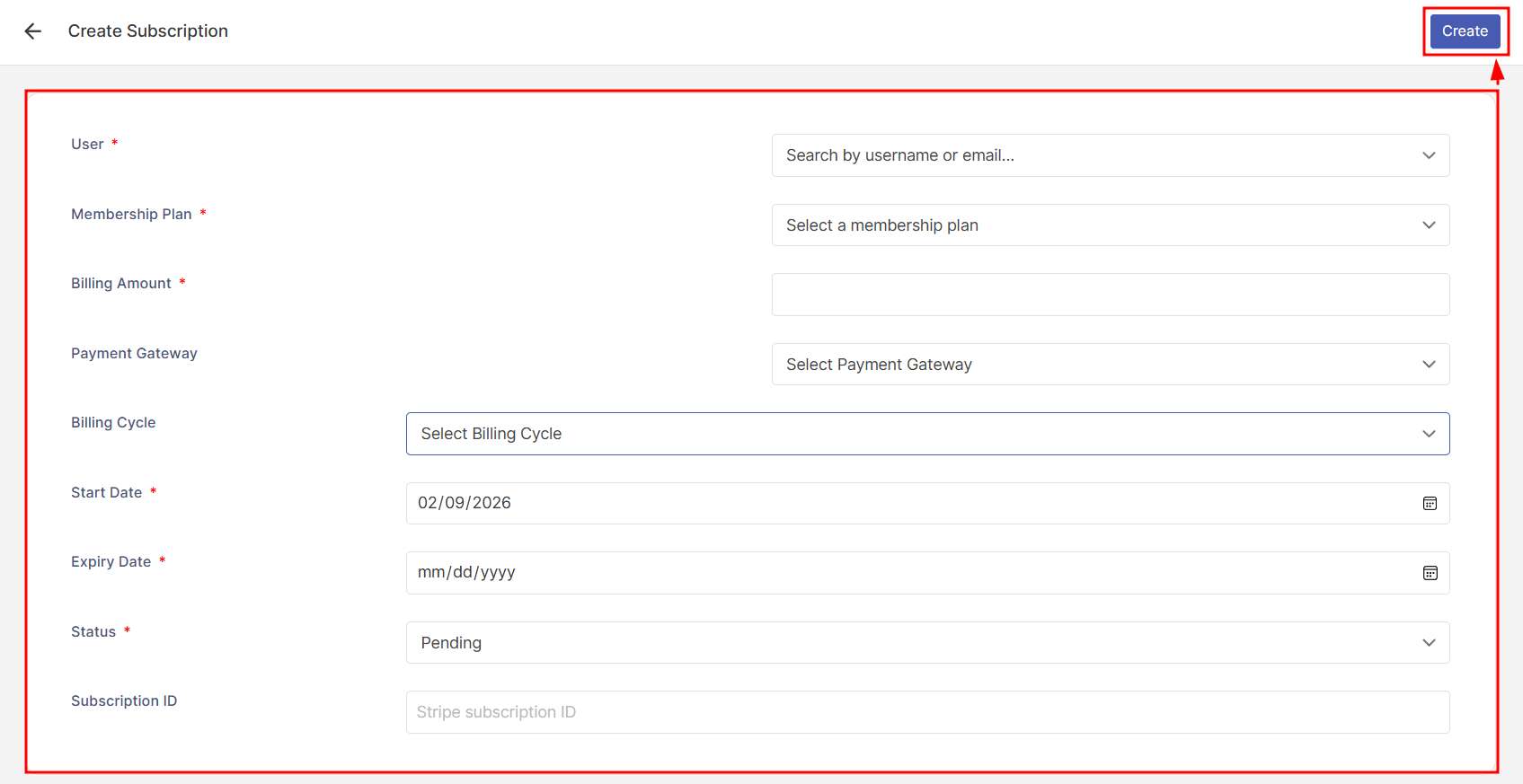
Fill in the following details:
Field | Description |
|---|---|
User | Search and select the WordPress user by username or email address. |
Membership Plan | Choose the membership plan to assign to this subscription. |
Billing Amount | Enter the subscription amount for this record. |
Payment Gateway | (Optional) Select the payment gateway if the subscription is linked to an external payment. |
Billing Cycle | Choose the billing frequency, if applicable. |
Start Date | Select the date when the subscription should become active. |
Expiry Date | Set the date when the subscription should end. |
Status | Set the initial status: Pending, Trial, Active, Expired, or Canceled. |
Subscription ID | (Optional) Enter an external ID such as a Stripe subscription ID for reference purposes. |
Once you have filled in all the required details, click Create in the top-right corner. The new subscription will be saved and will appear in the Subscriptions table.
After setting up and managing your subscriptions, you can review related payment transactions from User Registration & Membership → Payments. For membership plan configuration, visit User Registration & Membership → Memberships.