
Local Currency
ProEnable automatic currency conversion for membership plans based on visitor location or manual selection using geolocation and exchange rate integration.
Last updated on Aug 12, 2026
Would you like to sell memberships in different currencies based on where your members are located? User Registration & Membership allows you to display and charge membership prices in your visitors' local currencies using automatic geolocation or manual currency switching. This guide will show you how to set up local currency pricing for your membership plans.
Before Getting Started
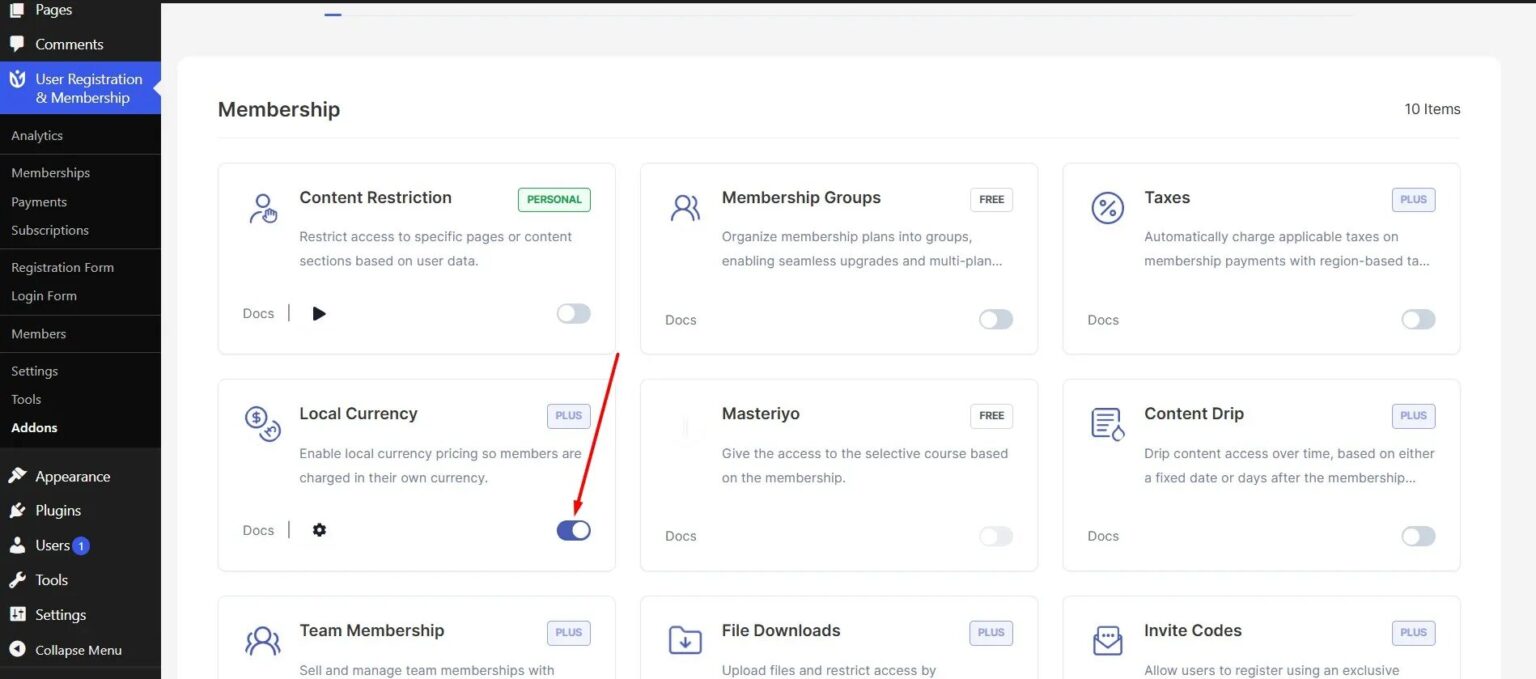
Before getting started, make sure you've installed and activated the User Registration & Membership Pro plugin. Then, make sure you've installed and activated the Local Currency addon from User Registration & Membership > Addons.
You'll also need:
A MaxMind License Key and Account ID if you want to use automatic geolocation
An Open Exchange Rates API Key if you want automatic currency conversion
At least one membership plan created and published
Understanding How Local Currency Works
The Local Currency addon lets you show membership prices in different currencies based on your visitor's location. You can set this up in two ways:
Automatic geolocation: The system detects the visitor's country using their IP address and shows prices in their local currency
Manual currency switching: Visitors can choose their preferred currency from a dropdown on your site
You organize currencies into pricing zones. Each pricing zone includes a group of countries, a currency, and either a manual exchange rate or automatic conversion from your base currency.
Configuring Global Currency Settings
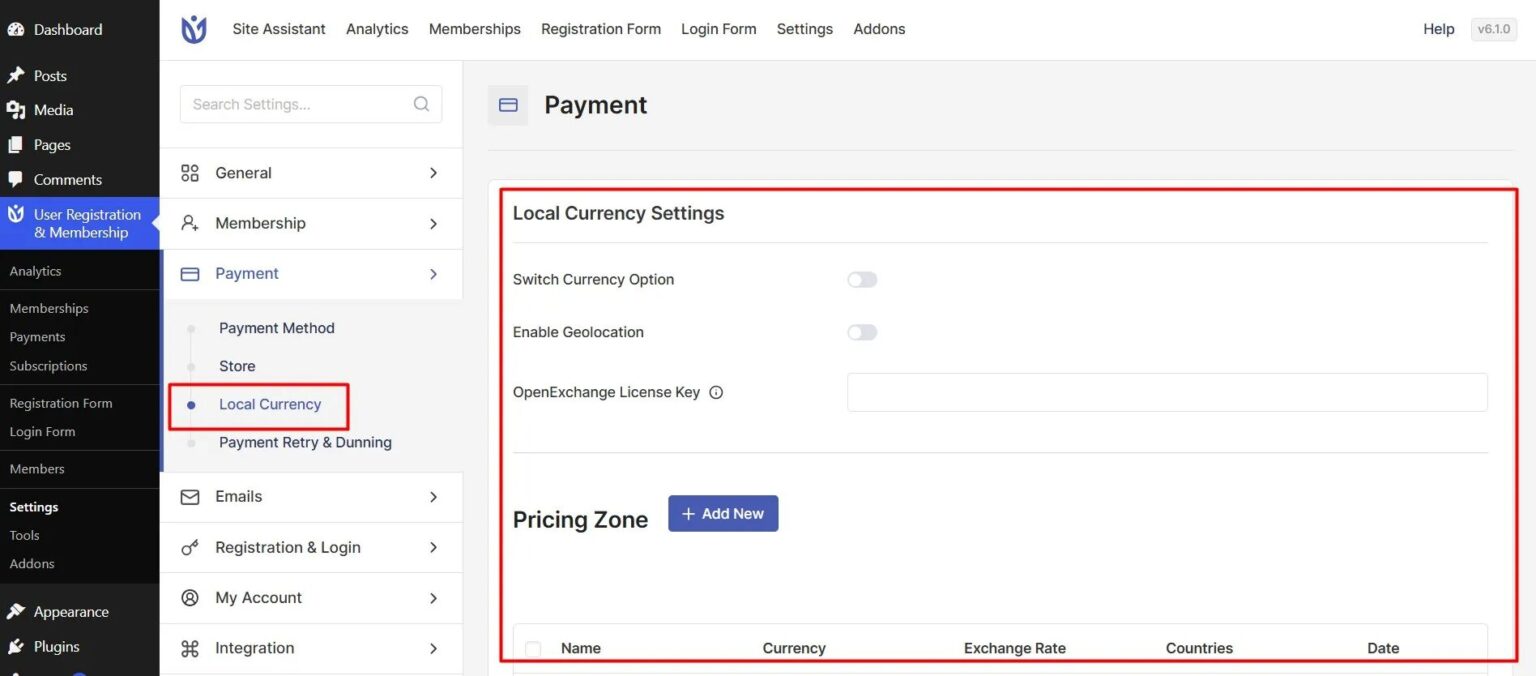
To configure your base currency and geolocation settings, go to User Registration & Membership > Settings > Payment > Local Currency.
Setting Your Base Currency
Your base currency is the currency you use for all exchange rate calculations. To set it, go to User Registration & Membership > Settings > Payment and select your preferred currency from the Base Payment Currency dropdown. All other currencies will be converted from this base currency.
Enabling Manual Currency Switching
To allow visitors to manually switch between currencies, toggle on Calculate tax at checkout under the Local Currency settings. When enabled, visitors will see a currency selector on your membership pages where they can choose their preferred currency.
Connecting MaxMind for Geolocation
To automatically detect visitor locations and show local currency, you need to connect MaxMind. Here's how:
Enter your MaxMind License Key in the MaxMind License Key field
Enter your MaxMind Account ID in the MaxMind Account ID field
Click Save to apply your settings
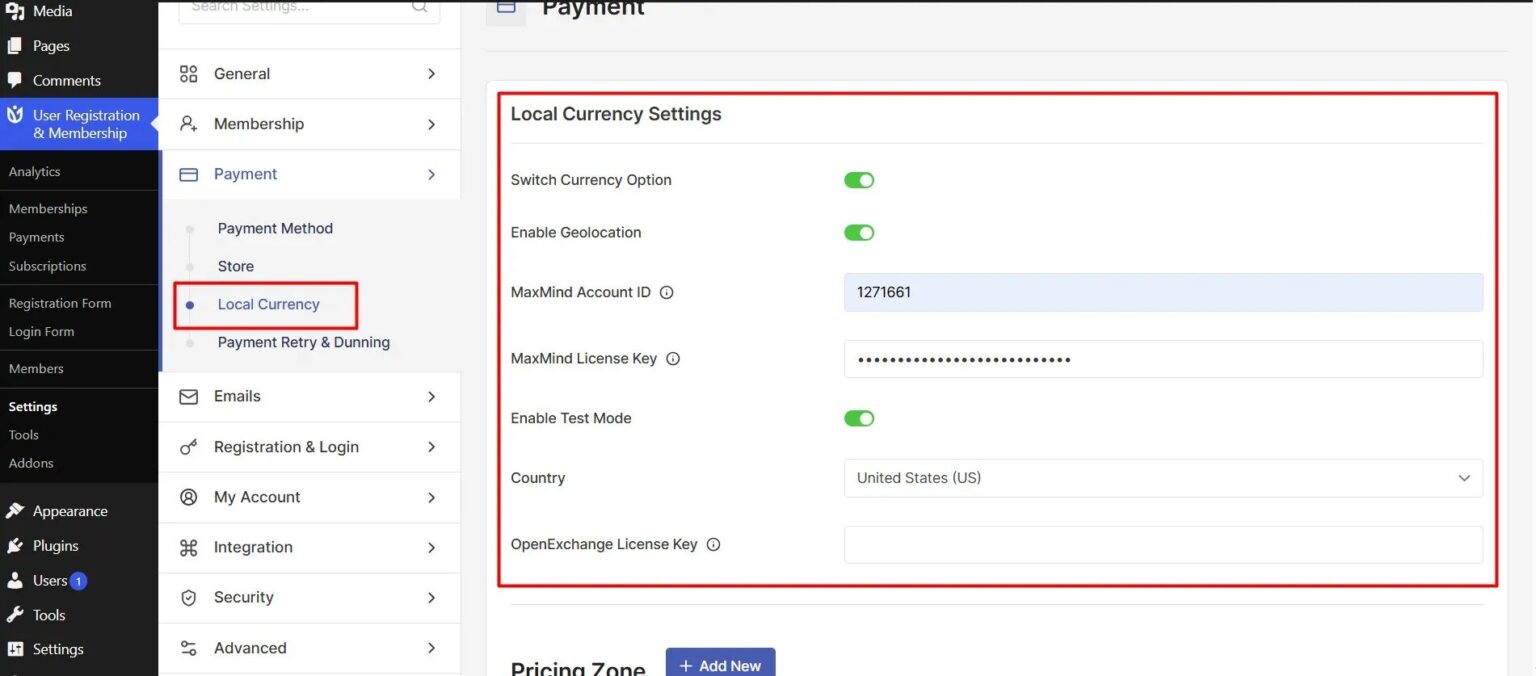
Once connected, the system will automatically detect each visitor's country and display prices in the appropriate currency based on your pricing zones.
Testing with Test Mode
Before going live, you can test how prices appear for different countries. To enable test mode, toggle on Test Mode and select a country from the Test Country dropdown. When test mode is enabled, the system will show prices as if all visitors are from the selected test country.
Creating Pricing Zones
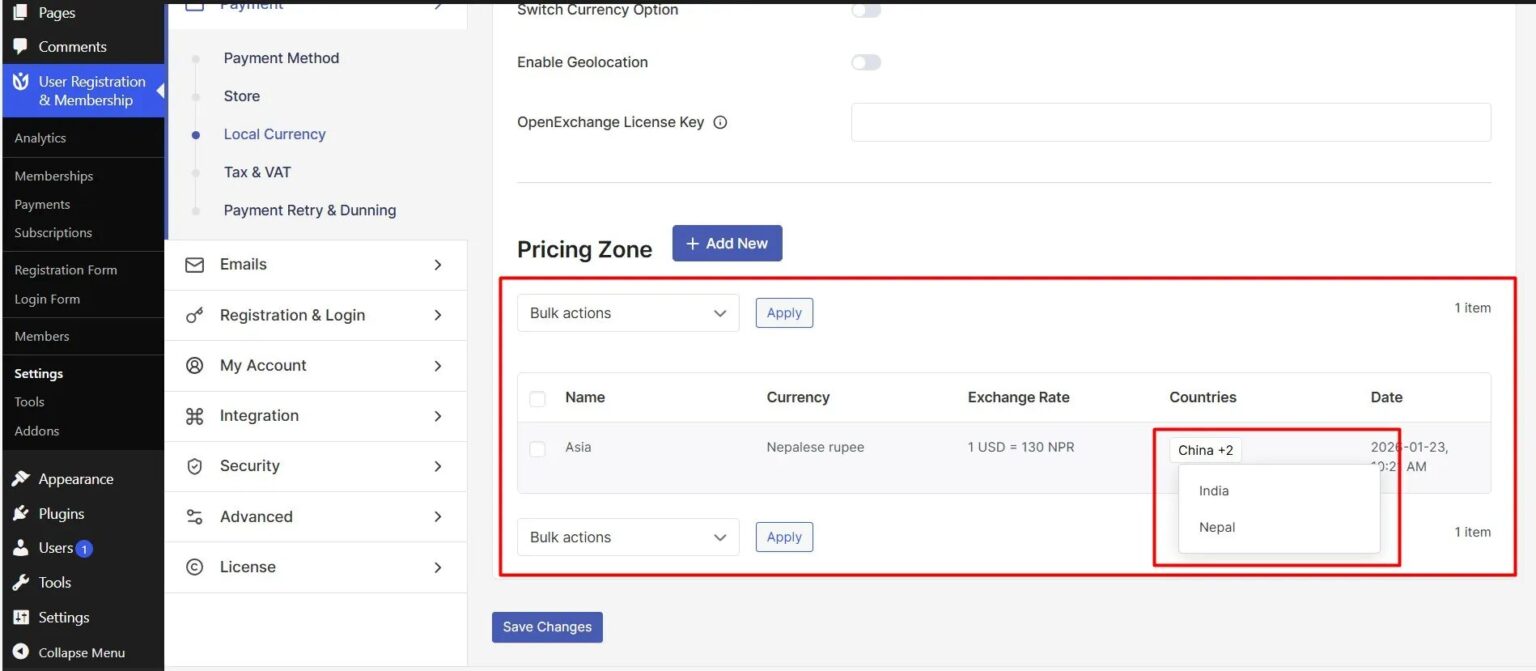
Pricing zones let you group countries together and assign them a specific currency and exchange rate. To create a pricing zone, go to User Registration & Membership > Settings > Payment > Local Currency and scroll to the Pricing Zones section.
Adding a New Pricing Zone
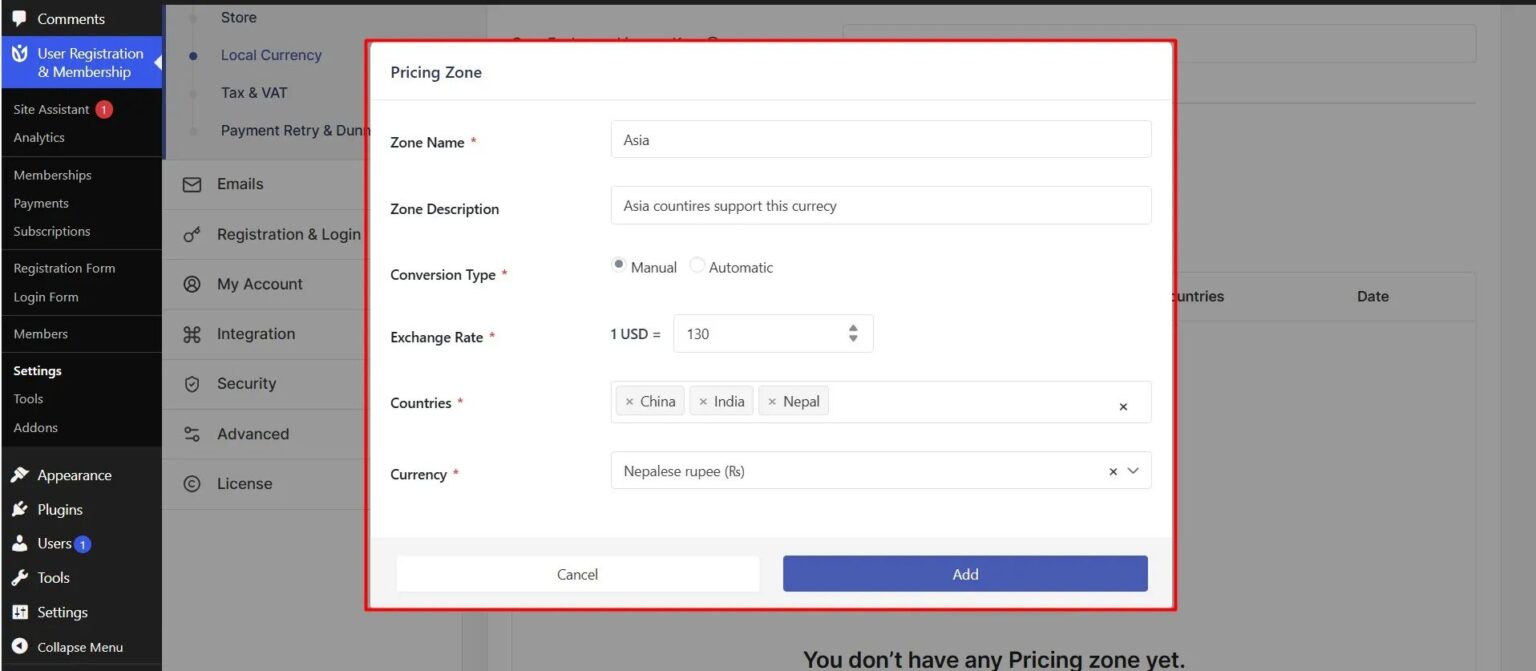
To add a new pricing zone, click Add New under the Pricing Zones section. Then configure the following settings:
Enter a Zone Name to identify this pricing zone
Add an optional Zone Description to provide additional context
Select Conversion Type: choose Manual to enter your own exchange rate, or Automatic to use live rates from Open Exchange Rates
If you selected Manual, enter your Exchange Rate
Select the Countries that belong to this pricing zone from the dropdown
Select the Currency for this pricing zone
Click Add to save the pricing zone
Using Automatic Exchange Rates
If you want exchange rates to update automatically based on current market rates, select Automatic as your Conversion Type. You'll need to add your Open Exchange Rates API Key in the Open Exchange Rates API Key field at the top of the Local Currency settings page.
Once configured, exchange rates will update automatically. Keep in mind that exchange rates are cached for 24 hours, so recent rate changes won't show immediately.
Managing Existing Pricing Zones
You can view all your pricing zones in the Pricing Zones table. To update a pricing zone, click on it in the table, make your changes, and save. To remove a pricing zone, click the delete icon next to the zone name.
Enabling Local Currency for Membership Plans
Once you've created your pricing zones, you need to enable local currency for each membership plan that should use it. To enable local currency for a membership plan, go to User Registration & Membership > Memberships and click on the membership you want to edit.
Then:
Navigate to the Advanced tab
Toggle on Enable Local Currency
Select which Pricing Zone applies to this membership from the dropdown
Click Save to update the membership plan
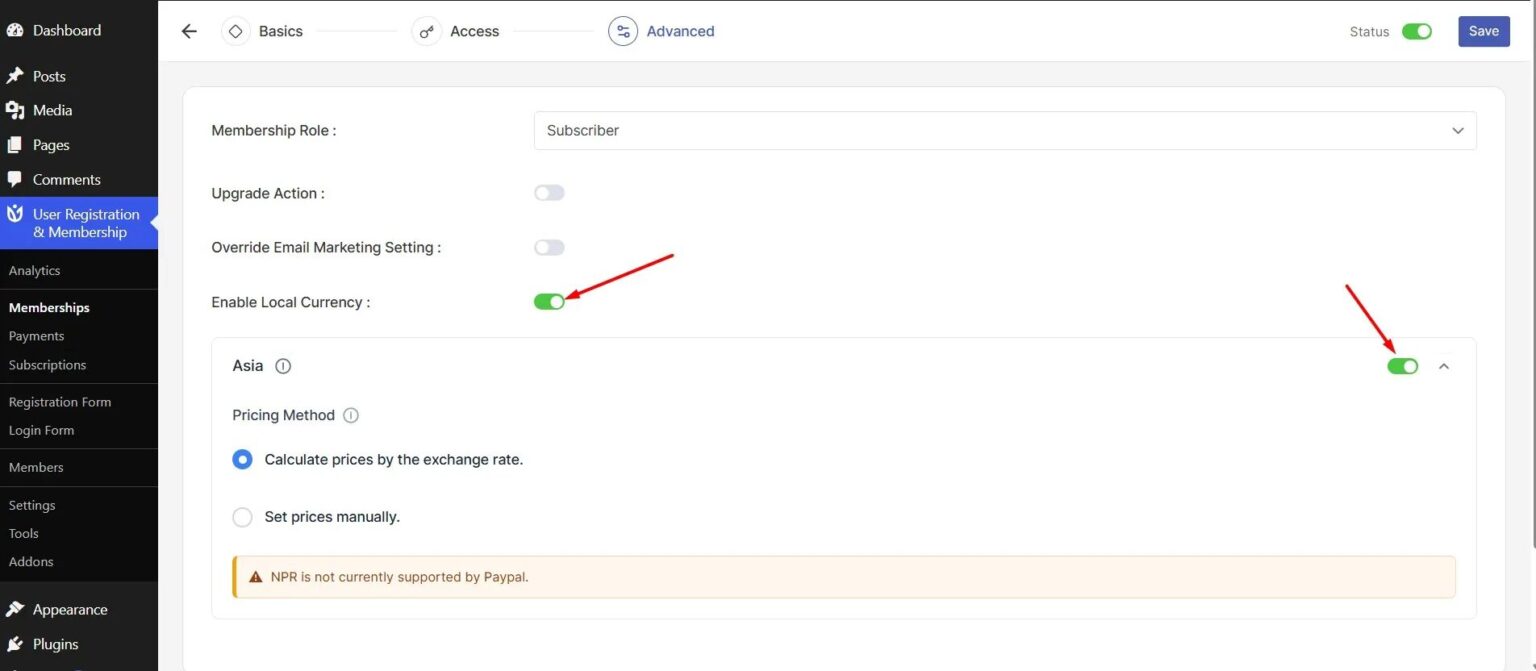
Once enabled, visitors will see prices in their local currency when viewing this membership plan on your site.
How Visitors See Local Pricing
When visitors view your membership plans, they'll see prices displayed in their local currency based on either automatic geolocation or their manual currency selection. The currency symbol and format will match the selected currency.
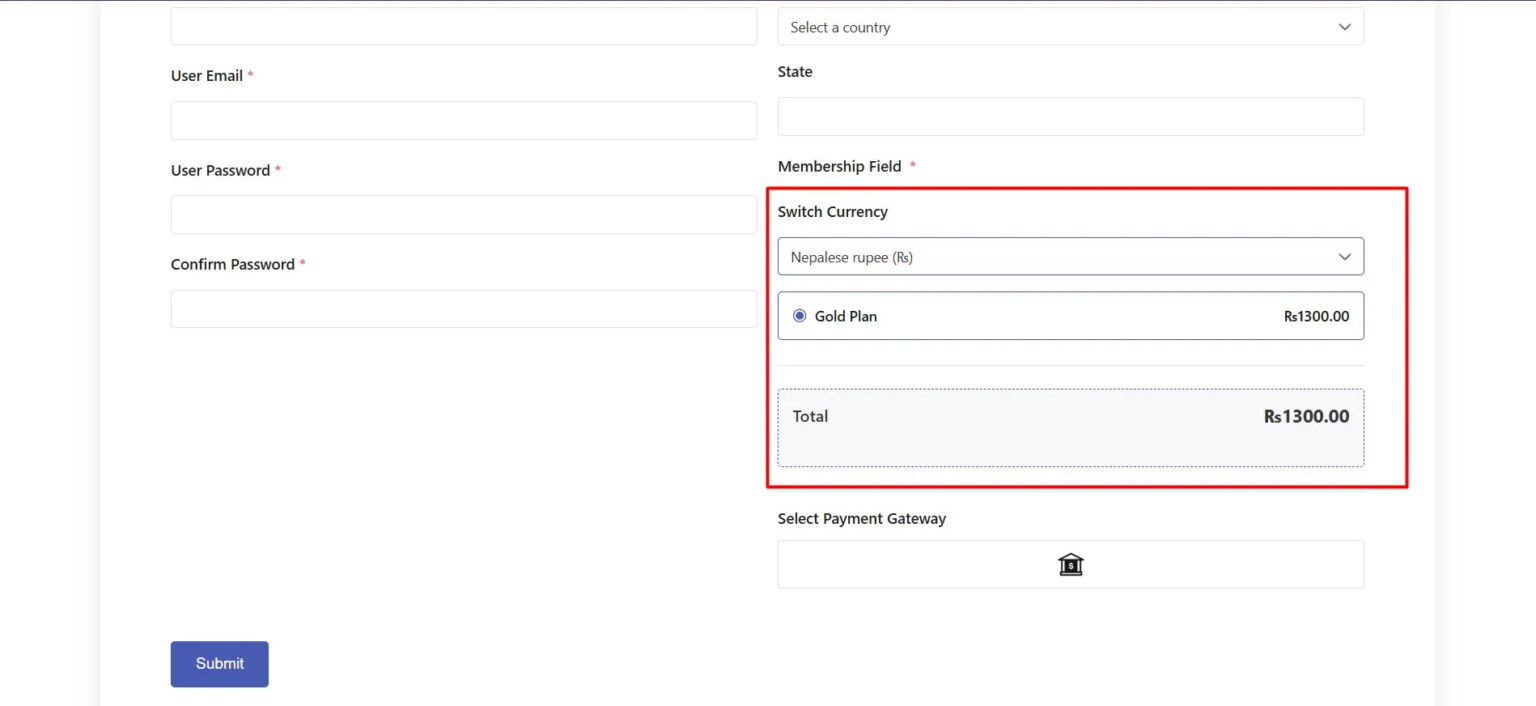
If you've enabled manual currency switching, visitors will see a currency selector where they can choose their preferred currency. If you've enabled geolocation, the system will automatically detect their country and show the appropriate currency without any action needed from the visitor.
Frequently Asked Questions
Can I assign the same country to multiple pricing zones?
No, each country can only belong to one pricing zone. If you try to add a country that's already in another zone, you'll need to remove it from the first zone before adding it to a new one.
How often do automatic exchange rates update?
Exchange rates are cached for 24 hours. This means recent rate changes won't show immediately, but rates will refresh automatically every day.
Will local currency work on my local development site?
Geolocation won't work for local or development sites using localhost or 127.0.0.1 addresses because these don't have real IP addresses that can be geolocated. You can use test mode to preview how pricing will appear for different countries.
What happens if I don't have valid API keys?
Without valid MaxMind API keys, geolocation won't work and the addon will fall back to your default currency. Without an Open Exchange Rates API key, automatic conversion won't work and you'll need to use manual exchange rates.
Can I update exchange rates manually?
Yes. If you're using manual conversion, you can update exchange rates anytime by editing the pricing zone and entering a new exchange rate value. If you're using automatic conversion, rates update automatically every 24 hours.
That's It!
Now you know how to set up local currency pricing for your membership plans. Next, would you like to learn how to configure tax rates for different regions? Be sure to check out our guide on setting up taxes and VAT for complete pricing control.