
Coupons
ProCreate and manage discount coupon codes for membership purchases with percentage or fixed-amount reductions to incentivize user registrations and subscriptions.
Last updated on Jul 15, 2026
Would you like to offer discounts on membership purchases or paid registrations? User Registration & Membership allows you to create coupon codes that visitors can apply during checkout to receive percentage-based or fixed-amount discounts. This tutorial will show you how to set up and manage coupons for your membership site.
Before getting started, make sure you've installed and activated the User Registration & Membership plugin. Then, make sure you've installed and activated the Coupons addon, available with Personal plan or higher.
Activating the Coupons Addon
To enable coupon functionality, go to User Registration & Membership → Addons. Locate the Coupons addon under the E-Commerce category and toggle it to activate.
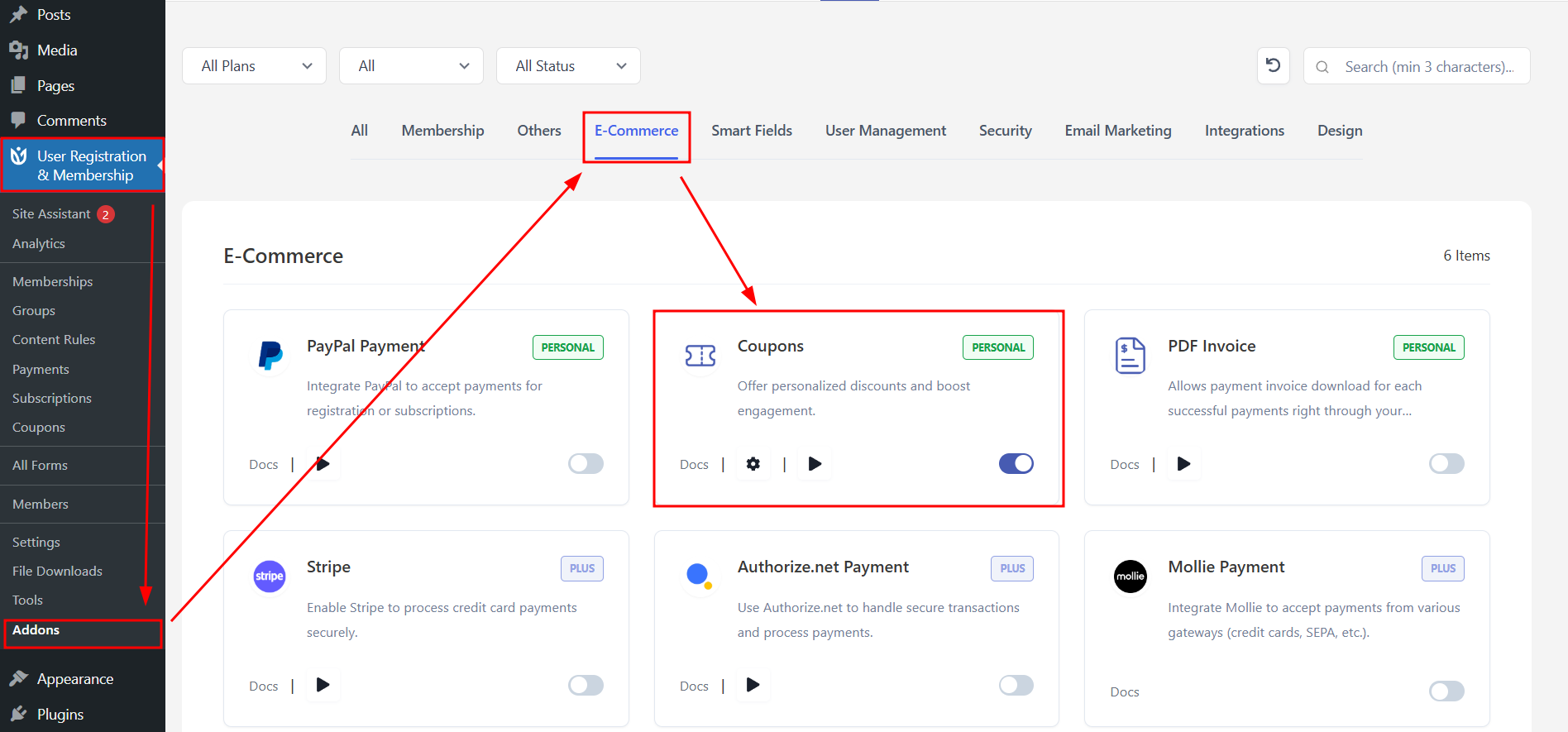
Once activated, a new Coupons menu will appear in your WordPress dashboard.
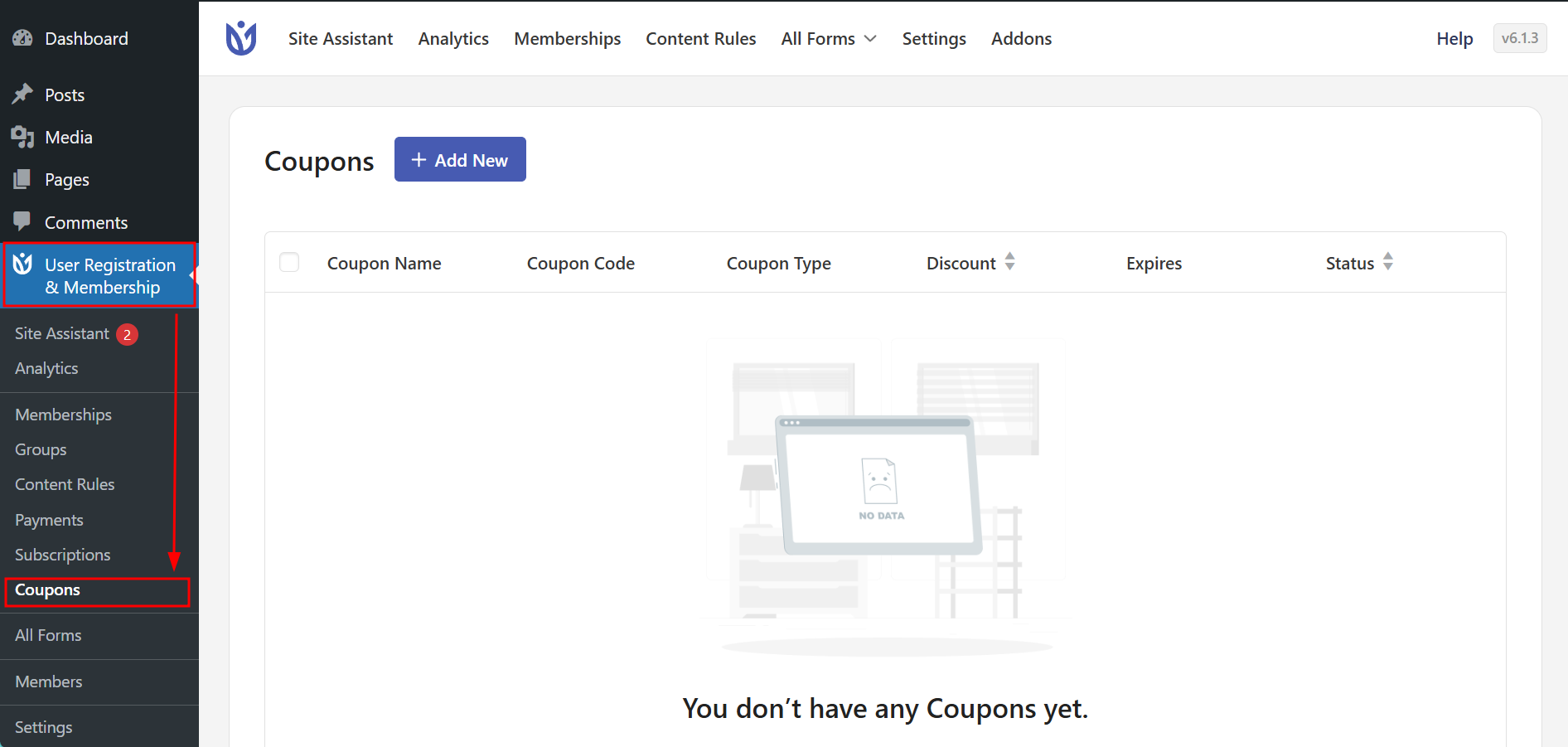
Creating a New Coupon
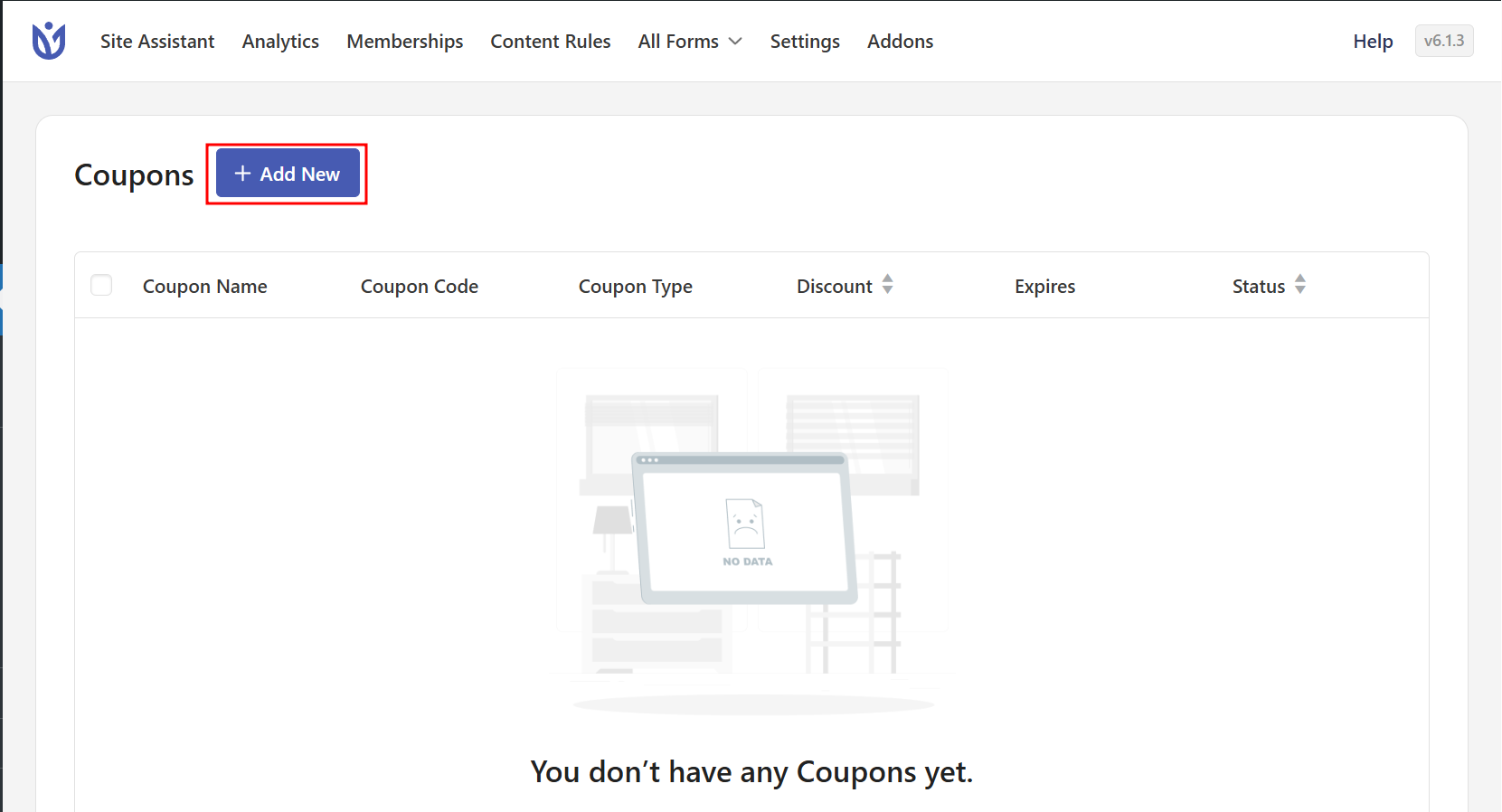
To create a new coupon, go to User Registration & Membership → Coupons and click Create New Coupon. Here, you'll configure the coupon settings.
Enter a Coupon Code that users will type during checkout. This code should be memorable and easy to type—for example, WELCOME10 or SUMMER2024.
Next, enter details and select the Discount Type. Choose Fixed Discount to reduce the price by a specific dollar amount, or choose Percent Based to reduce the price by a percentage of the total.
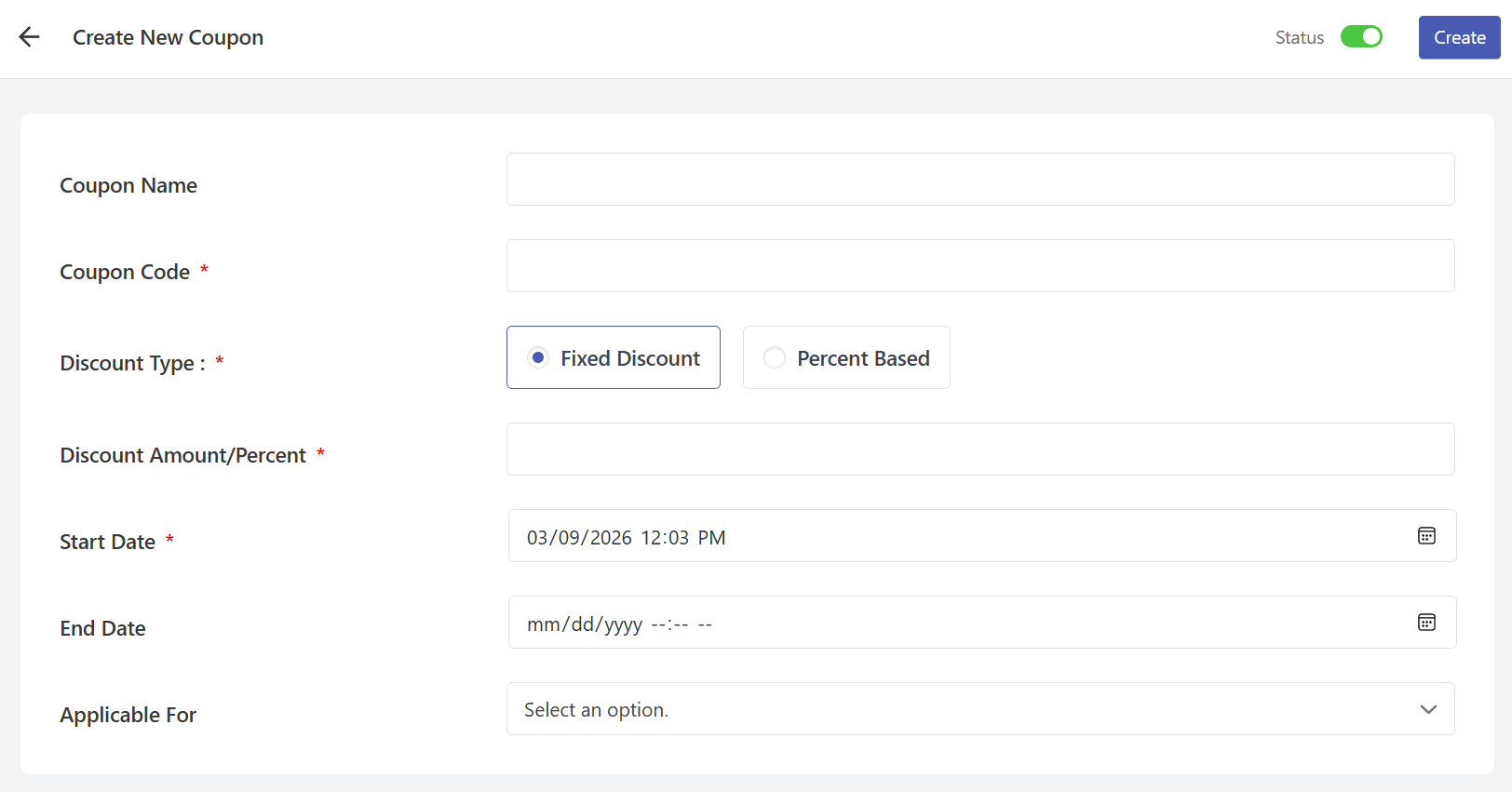
Then, enter the Discount Amount or Percent. If you selected Fixed Discount, enter the dollar amount to subtract from the total. If you selected Percent Based, enter the percentage to discount.
Set the Start Date to specify when the coupon becomes valid. Set the End Date to specify when the coupon expires. If you'd prefer the coupon to never expire, leave the End Date field empty.
Under Applicable For, choose whether the coupon applies to Forms or Memberships. Then, select the specific forms or membership plans where the coupon can be used.
Click Create Coupon to save your settings.
Adding Coupon Fields to Registration Forms
For registration forms with payment fields, you must manually add the Coupon Code field to the form. Go to User Registration & Membership → All Forms and click Edit on the form where you want to add coupons.
From the form builder, drag and drop the Coupon Code field from the Payment Fields section into your form.
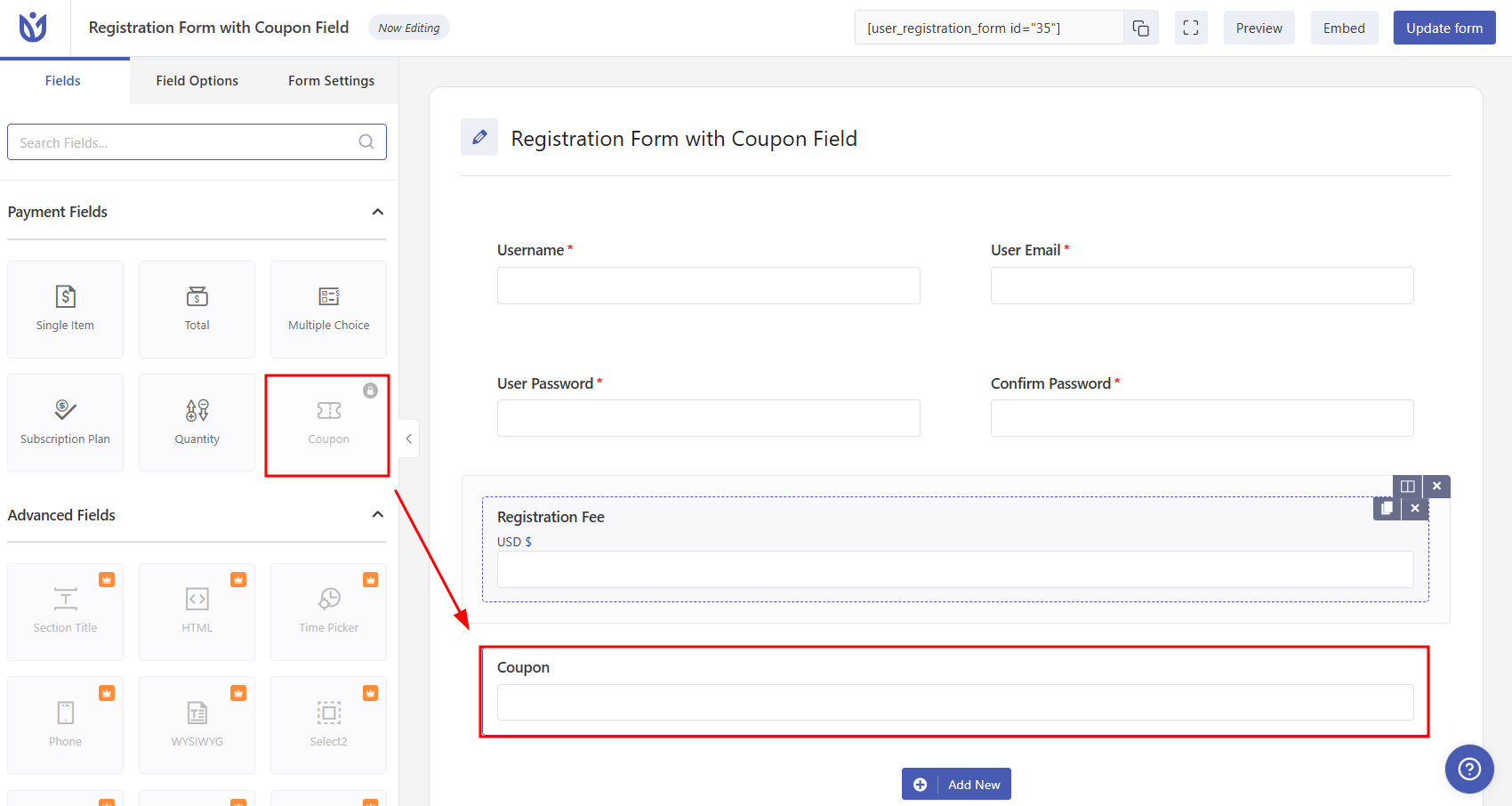
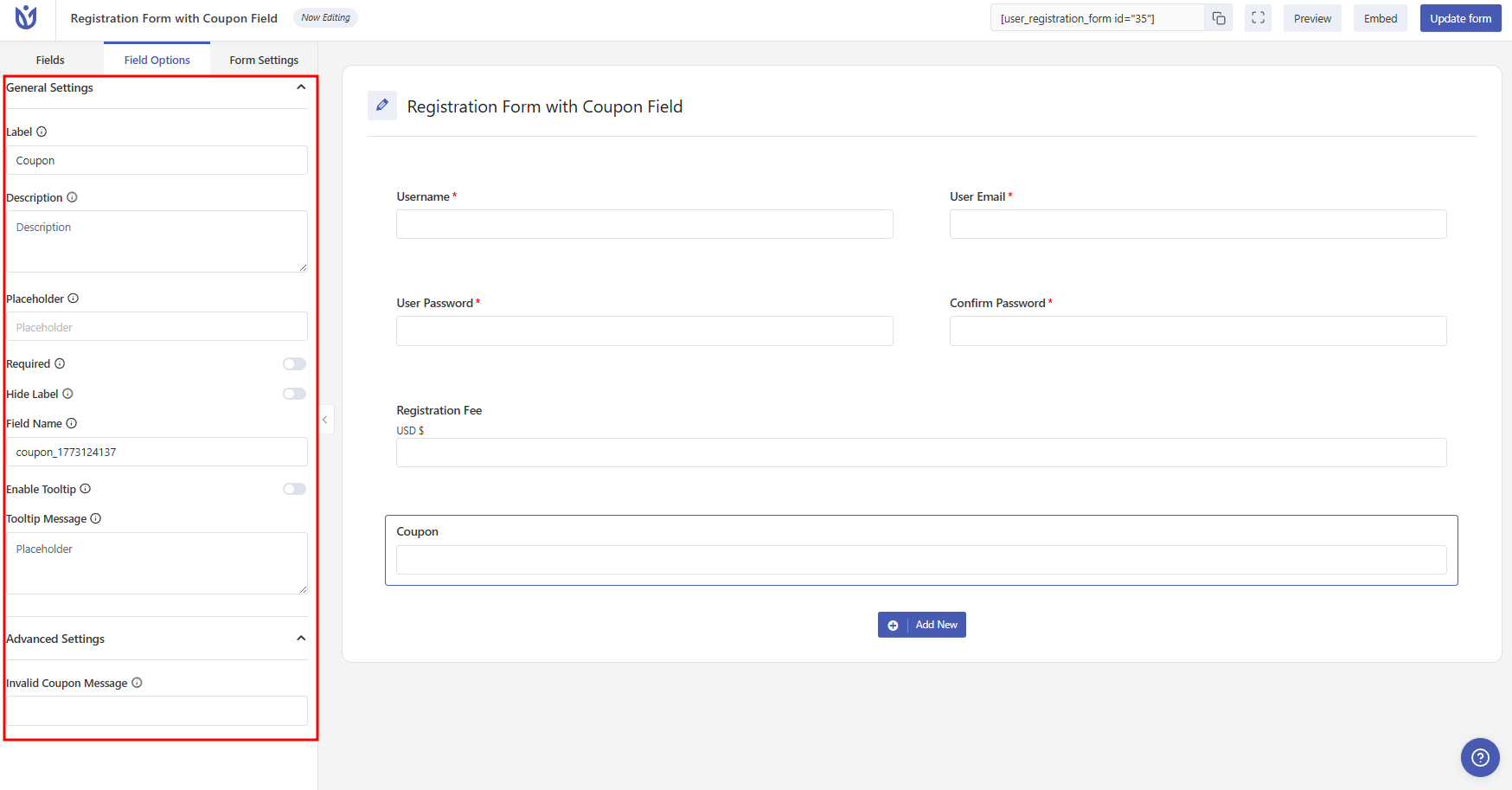
Click on the coupon field and Field options will appear. Enter the field options and click Update form to save the form.
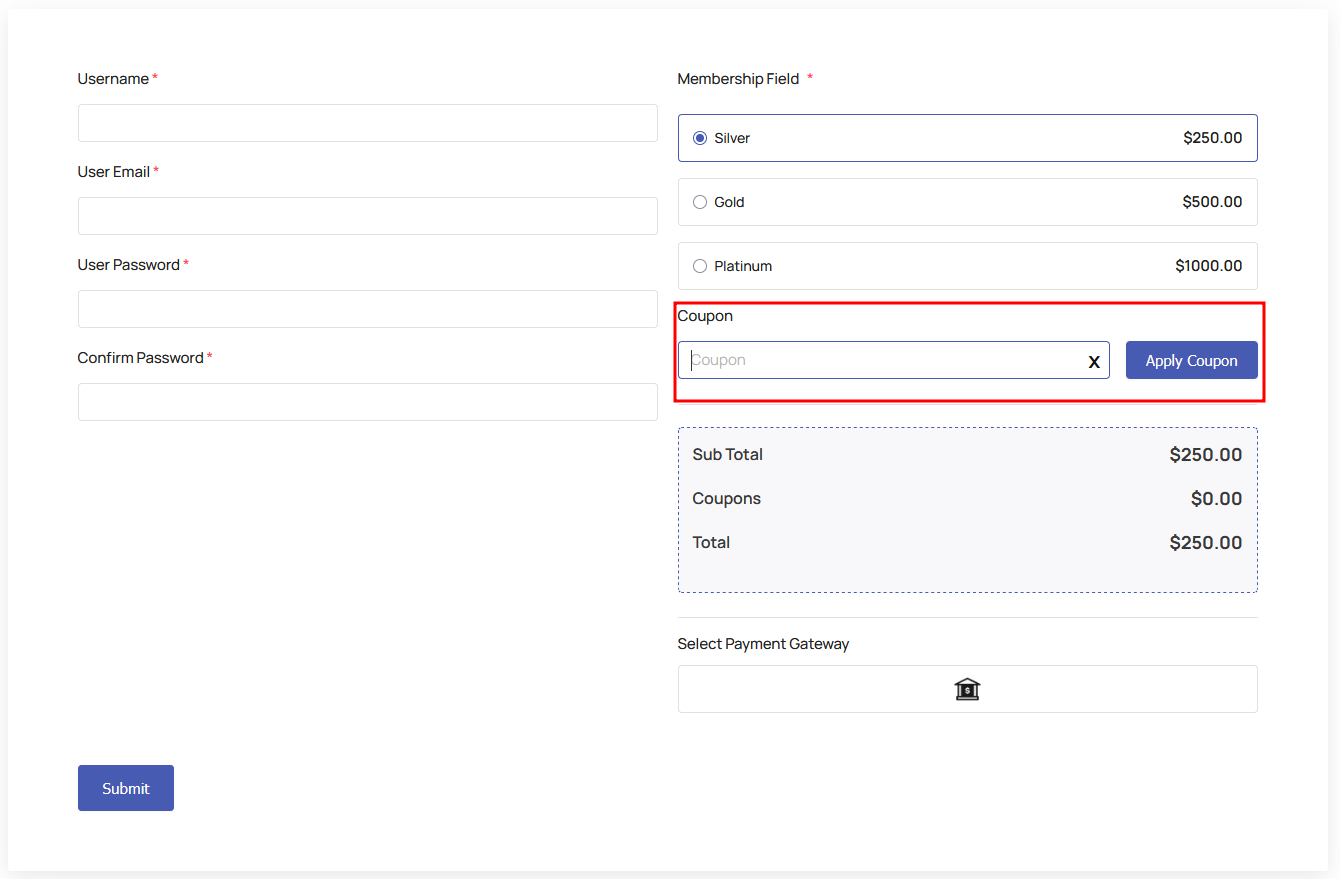
For membership purchases, the coupon field appears automatically on the checkout page when you create a coupon for a membership plan - no manual field addition is needed.
How Visitors Apply Coupons
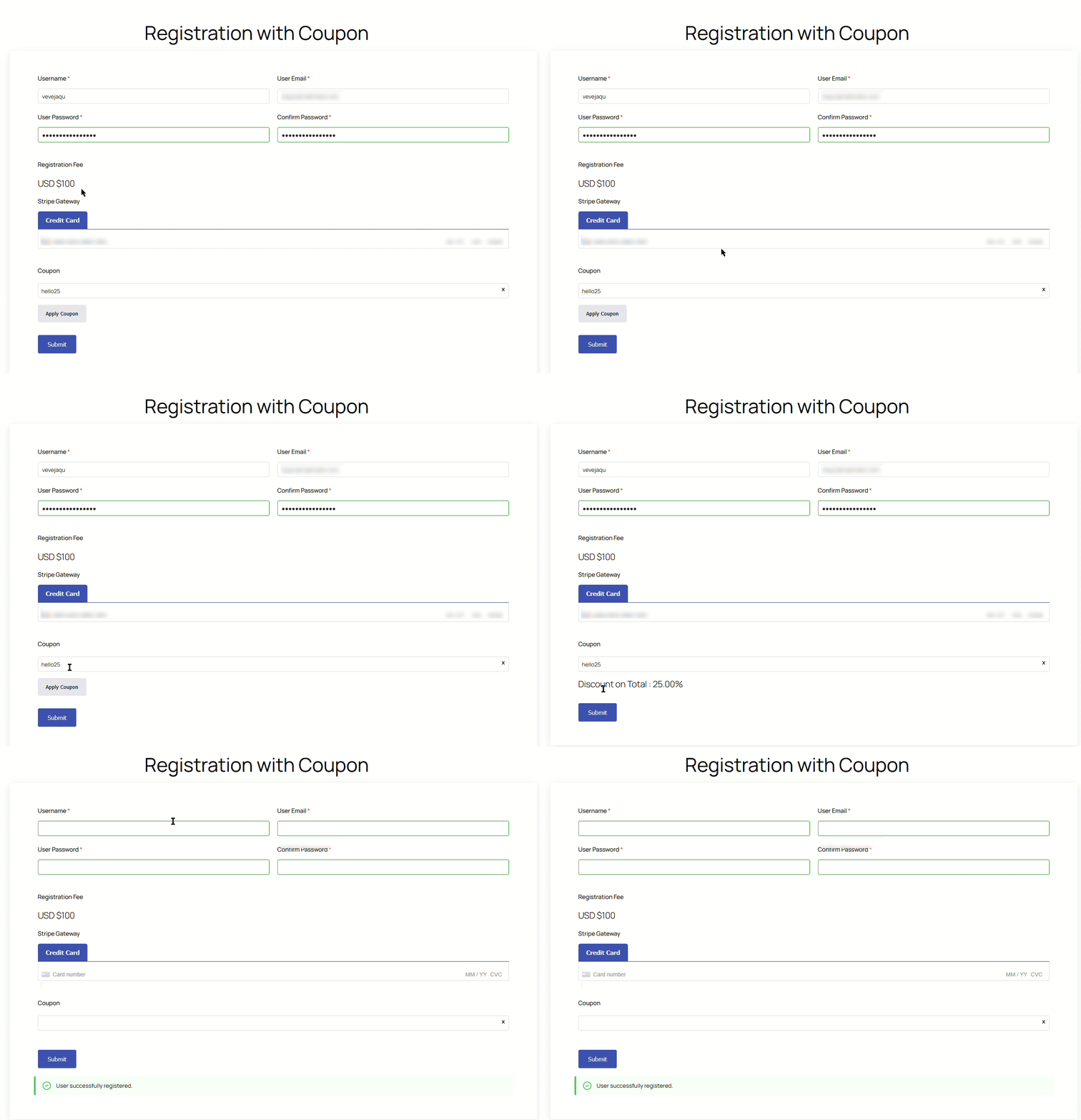
When visitors fill out a registration form or purchase a membership, they'll see the Coupon field. They enter the coupon code and click Apply Coupon. The discount is applied immediately, and the updated total is displayed before they complete payment.
Managing Existing Coupons
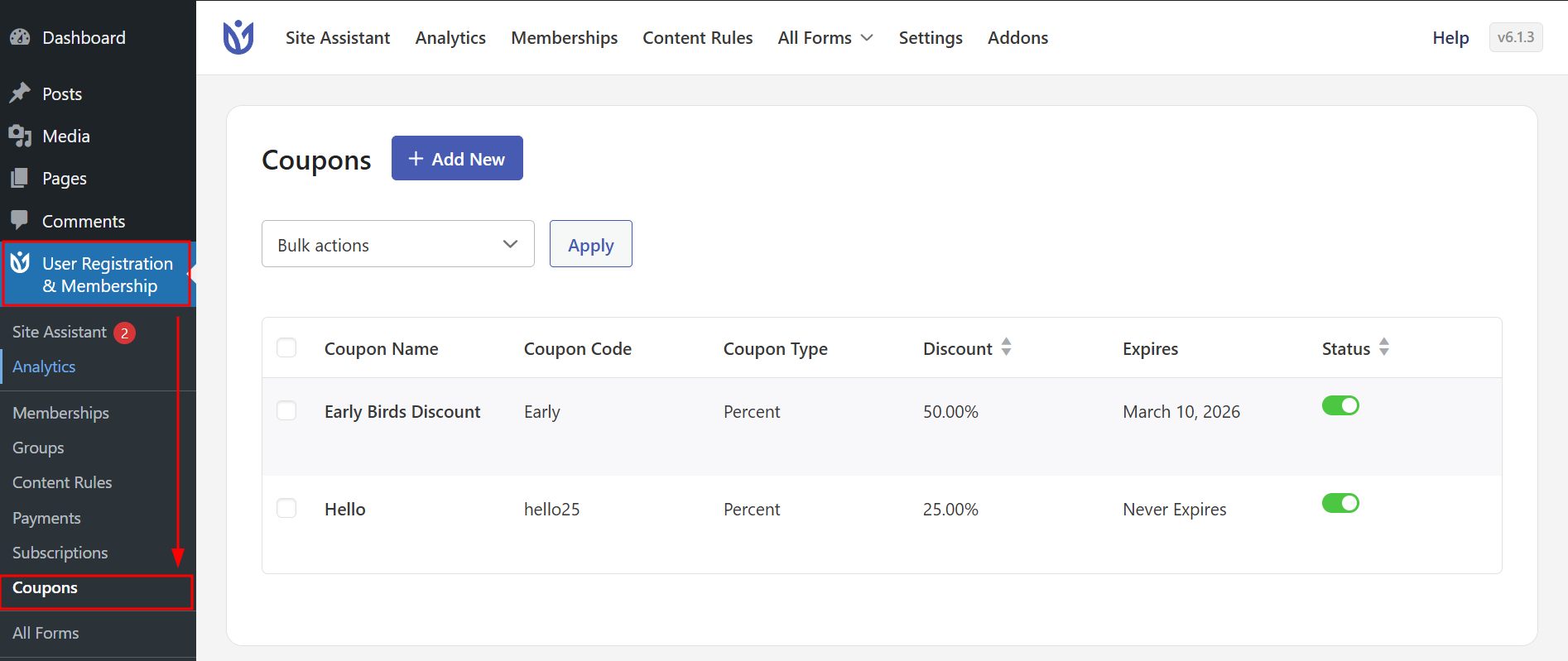
To view all your coupons, go to User Registration & Membership → Coupons. From this screen, you can edit existing coupons, change their status, or delete coupons that are no longer needed.
Keep in mind that coupon codes must be unique—you cannot create two coupons with the same code. Be sure to verify that your payment gateway is properly configured, as coupons only work with paid registrations or membership purchases.
That's it! Now you know how to create and manage discount coupons for your membership site. Next, would you like to learn how to configure payment gateways for your memberships? Be sure to check out our guide on setting up Stripe or PayPal payments for all the details.