
Remove Password Field
ProBy default, every registration form asks new users to create their own password. With the Auto Password Generation feature, you can skip this step entirely. Once enabled, User Registration & Membership automatically generates a secure password for each new user and sends it to their email address after they sign up.
Last updated on Jul 17, 2026
This is a great option if you want a faster, simpler sign-up experience for your visitors, or if you prefer to control password strength and format yourself instead of leaving it up to the user.
This feature is available only in the Pro version of User Registration & Membership.
Access Path
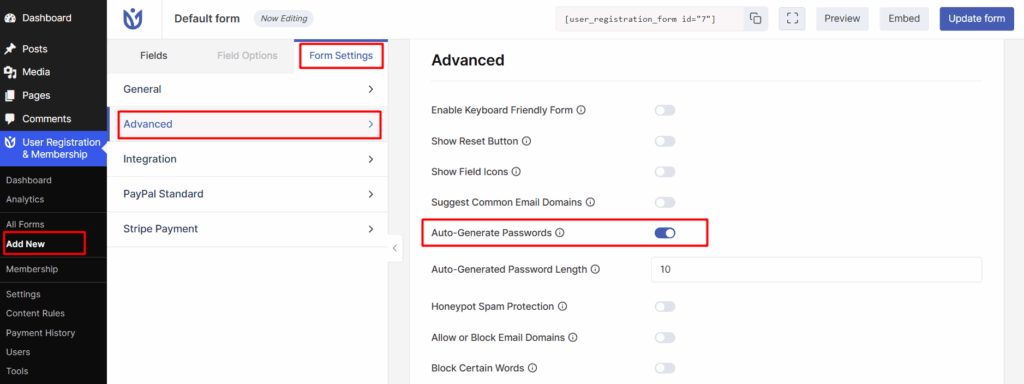
User Registration & Membership → Registration Forms → [Your Form] → Advanced
Step-by-Step Instructions
Go to User Registration & Membership → Registration Forms.
Open the form you want to edit, or click Add New to create a new one.
Once you're in the form builder, click on Form Settings, then select the Advanced tab.
Turn on the Activate Auto Generated Password option.
Click the Update Form button to save your changes.
That's it. The password and confirm password fields will now be hidden automatically, and you don't need to remove them manually.
Explain Individual Options
Activate Auto Generated Password
Enabling this option removes the password and confirm password fields from the front-end registration form. Instead, the plugin creates a strong, random password for each new user behind the scenes.
This option is found under Form Settings → Advanced for each individual form, so you can choose to enable it on some forms and leave it off on others.
You do not need to manually delete the password or confirm password fields from your form. Once this option is turned on, those fields are automatically hidden from view.
What Happens After Registration
Step | What the User Sees |
|---|---|
Filling out the form | No password or confirm password fields appear. |
Submitting the form | Registration is completed instantly. |
After submission | An email is sent containing their auto-generated password. |
Logging in | The user logs in using the password from their email. |
Closing Section
After completing the above steps, your registration form will no longer show password fields to new users. Instead, they'll receive their login credentials directly in their inbox, making the sign-up process quicker and easier. You can further personalize this experience by editing the registration email content under Email Settings.