
Auto Delete Users
ProThe Auto Delete Users feature in User Registration & Membership helps you keep your site's user list clean by automatically removing accounts that never got activated. Instead of manually checking and deleting inactive or incomplete registrations, you can set a schedule and let the plugin handle it for you. Once configured, your user database stays organized, and you won't have to worry about pending or unverified accounts piling up over time.
Last updated on Jul 17, 2026
Prerequisites:
User Registration & Membership Pro version 5.2.3 or above.
Step-by-Step Configuration Guide
Step 1: Access Plugin Settings
Log in to your WordPress admin dashboard.
Go to User Registration & Membership → Settings → Advanced.
Click on the Others tab.
Scroll down until you see the Auto Delete Users section.
Turn on the Enable Auto Delete Users toggle.
More settings will appear once it's enabled.
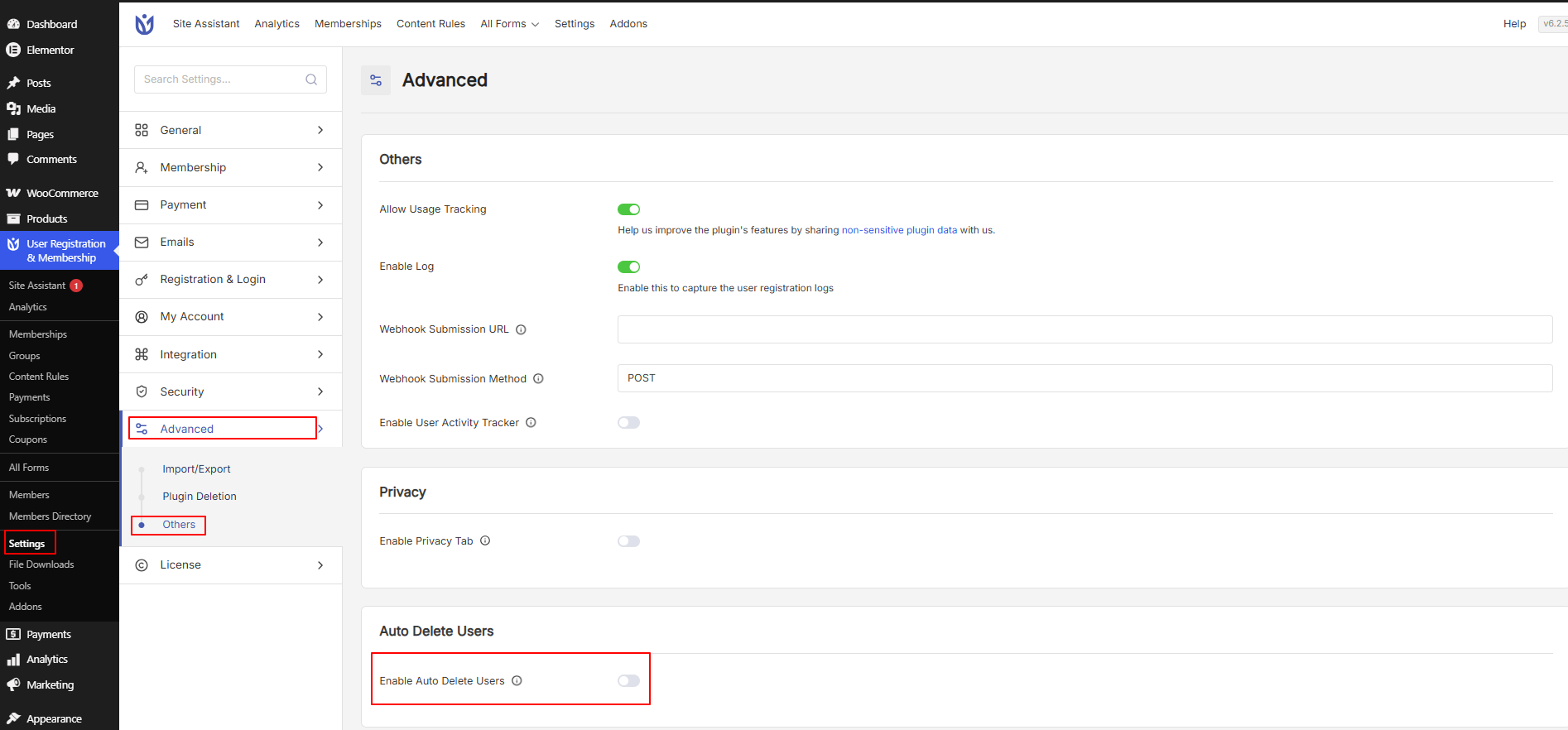
Auto Delete Users is a Pro-only feature and requires an active license.
Step 2: Set the Deletion Frequency
This setting controls how often the plugin scans your site and removes qualifying users.
Frequency | Checks Every | Best For |
|---|---|---|
Daily | 24 hours | High-traffic sites with frequent sign-ups |
Weekly | 7 days | Sites with moderate registration activity |
Monthly | 30 days | Low-traffic sites |
Yearly | 365 days | Sites that only want to remove long-term inactive accounts |
If you're not sure which to pick, start with Weekly. You can always adjust it later based on how many new sign-ups your site gets.
Step 3: Choose Which User Status to Delete
Not every inactive account is the same. Choose the type of users you want the plugin to clean up automatically.
Pending Users
Accounts still waiting for manual approval.
Use this if you have admin approval enabled and want to periodically clear out requests that were never reviewed.
Only turn this on if you check and approve pending users regularly, otherwise you could delete accounts you meant to approve.
Denied Users
Accounts that were rejected during registration.
This one is generally safe to enable since these users already can't log in or access your site. Removing them just tidies up your records.
Awaiting Email Confirmation
Accounts where the user signed up but never clicked the confirmation link in their verification email.
This is the most commonly used option, since it targets people who abandoned the sign-up process and never became real, active users.
If you're enabling this feature for the first time, start with Awaiting Email Confirmation only. It's the safest option and covers most cleanup needs.
Step 4: Choose Which User Roles Are Affected
Next, decide which user roles this cleanup should apply to.
Role | Description |
|---|---|
Subscriber | Default role given to new sign-ups (most common choice for auto-deletion) |
Contributor | Can write posts, but needs approval before publishing |
Author | Can publish their own posts |
Editor | Can manage content and other users |
Be careful when including Author or Editor roles. These users may have already created content on your site, and deleting their account could affect that content. In most cases, you'll only want to apply auto-deletion to Subscribers.
Step 5: Save Your Settings
Double-check all the options you've selected.
Click Save Changes.
A confirmation message will appear once your settings are saved.
That's it — the plugin will now automatically check for and remove users matching your criteria, based on the schedule you set.