
Team Management
ProConfigure team-based memberships with custom pricing tiers, assign team leaders, and manage multi-user access for group subscriptions.
Last updated on Jul 15, 2026
Want to let one person purchase access for multiple users? User Registration & Membership includes team management tools to help you create team pricing, assign team leaders, and manage members. This guide shows you how to manage teams on your membership site.
Before getting started, make sure you've installed and activated the User Registration & Membership Pro plugin with a Plus or Professional plan license. Then, make sure you've activated the Team Membership addon and created at least one membership plan with team pricing enabled.
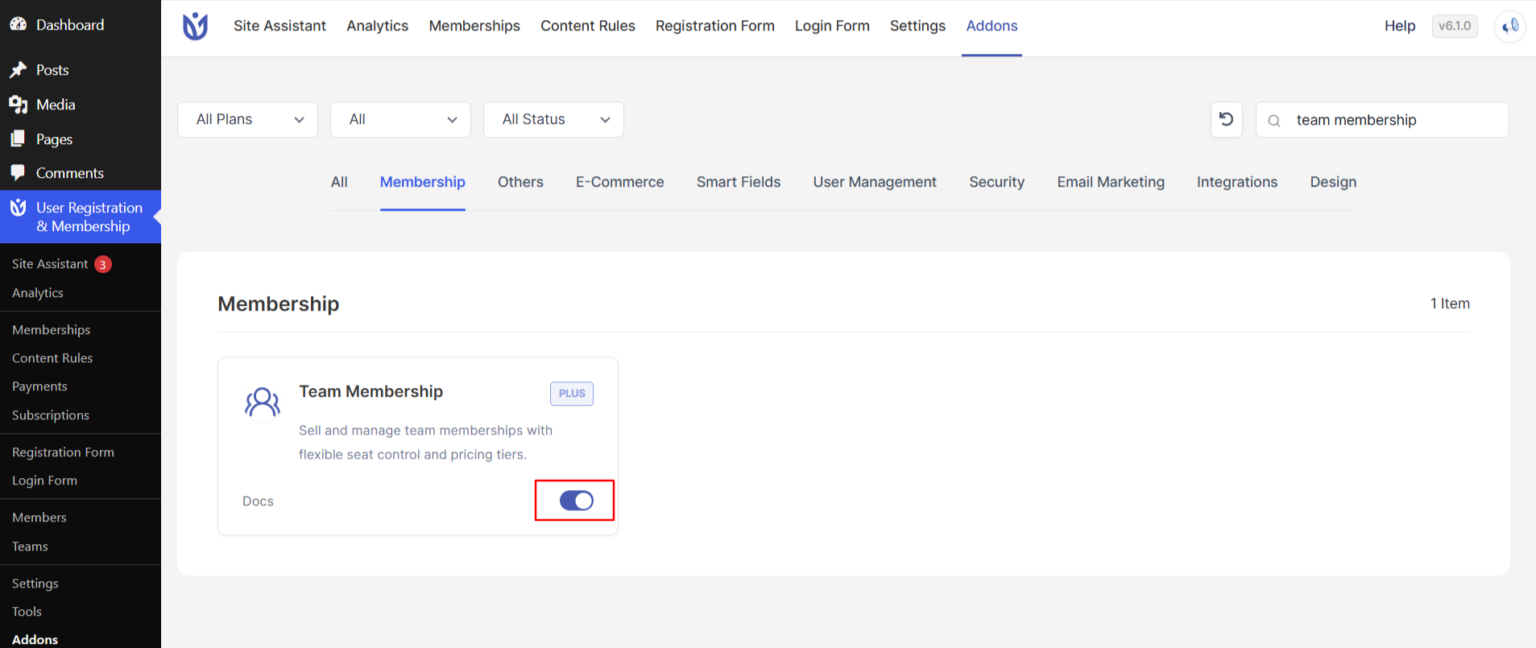
Setting Team Pricing in Membership
Team pricing allows you to define how much a team is charged based on the number of seats and the selected pricing model.
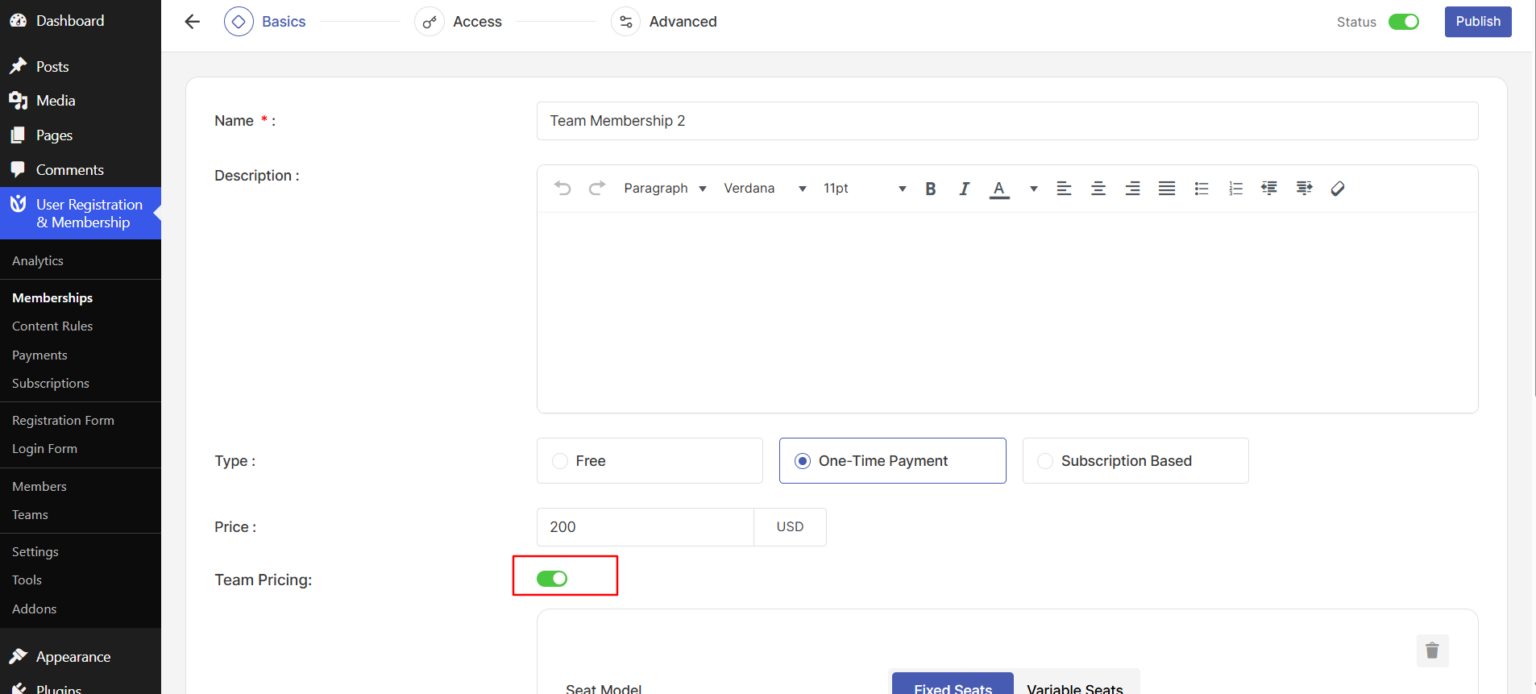
Step 1: Create or Edit a Membership
Go to User Registration & Membership → Memberships.
Create a new membership plan or edit an existing one.
Enable the Team Pricing option for the selected plan.
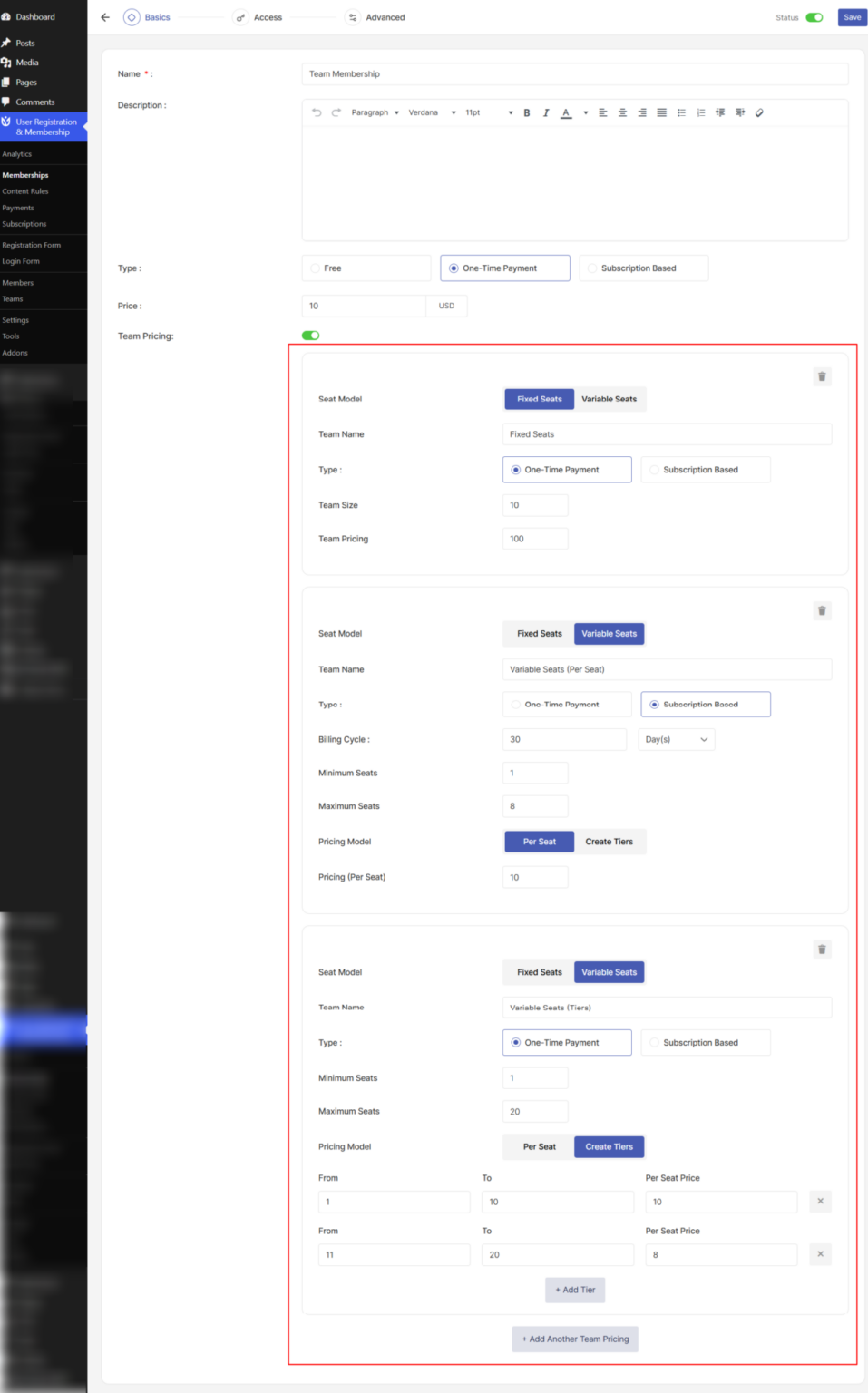
Step 2: Configure Your First Pricing Tier
Enter a Team Name (e.g., "Small Team" or "Enterprise")
Select your Seat Model:
Fixed Seats: Specify an exact number of seats (e.g., 10)
Variable Seats: Define minimum and maximum seat limits (e.g., 5-50)
If you selected Fixed Seats, enter the total team price (a single price for the entire team).
If you selected Variable Seats, choose your Pricing Model:
Per Seat: Set a price per individual seat
Tiered Pricing: Create multiple price tiers based on seat ranges (e.g., 1–5, 6–10, 11–25 seats) and assign a price per seat to each tier. Click the "Add Tier" button to add additional ranges.
Select your Pricing Type:
One-time Payment
Subscription-Based (monthly, yearly, etc.)To create additional pricing tiers, click the "Add Another Team Pricing" button.
Step 3: Save Your Membership
Click Publish button at the top right corner to save your team pricing configuration.
Team Membership Display in Registration Form
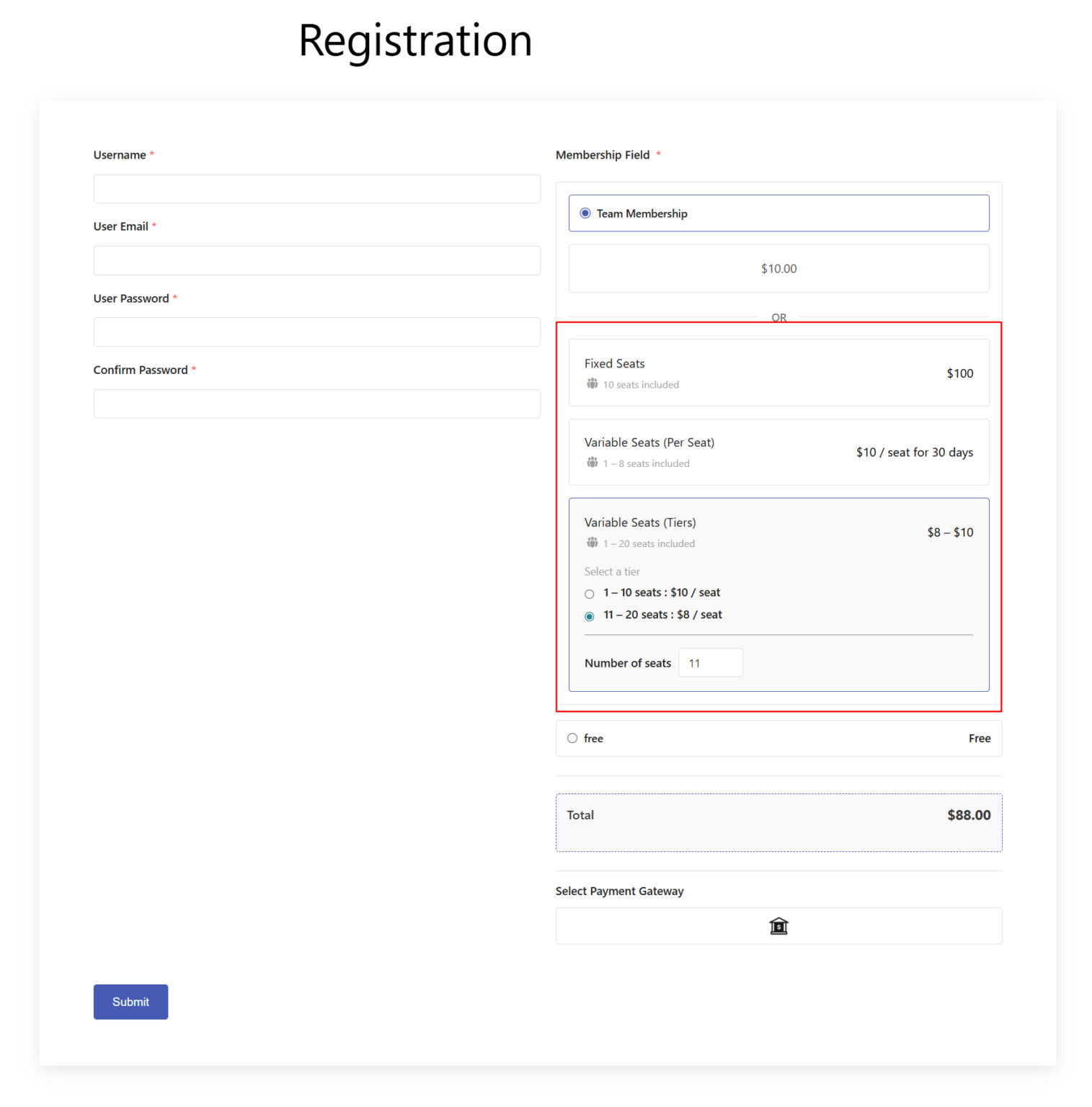
The registration form initially displays regular (individual) membership pricing for all memberships. When a user selects Team Membership, the form dynamically updates to show team-specific pricing options, including:
All available pricing tiers displayed as cards/options
Team name, team size/seat range and pricing details with duration clearly shown
Seat Input field that allows users to enter the number of seats they want to purchase for the team within the allowed seat range (for variable seats)
Tier Selection option for tier-based pricing
Users first select a tier (seat range)
The seat input is restricted to the selected tier’s range
Real-time price calculation as users select or change seats
Accessing the Teams Dashboard
To view and manage your teams, go to User Registration & Membership → Teams from your WordPress admin dashboard. Here, you'll see a comprehensive list of all teams that have been created through team membership purchases.
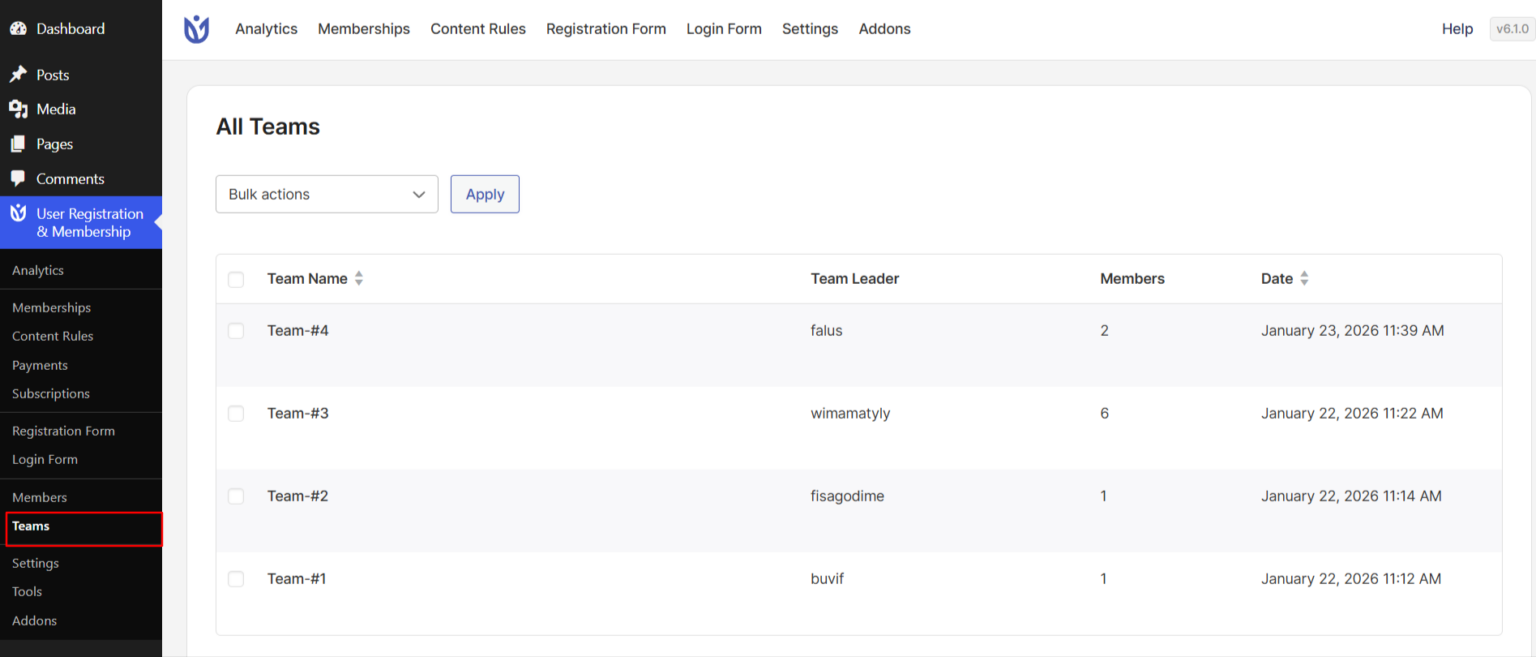
The Teams dashboard displays key information including team names, assigned team leaders, and the number of team members in each team. This gives you a quick overview of all team activity on your site.
Understanding Team Information
Each team entry in the dashboard shows:
Team Name: The display name for the team
Team Leader: The user assigned to manage the team
Team Members: The number of active members in the team
Team leaders are the users who purchased the team membership and have permission to add or remove team members within their allocated seat limit.
Managing Teams (Admin)
Navigate to User Registration & Membership → Teams to manage team settings. You will see a list of teams along with the assigned team leader and the number of team members in each team.
Edit Team Details
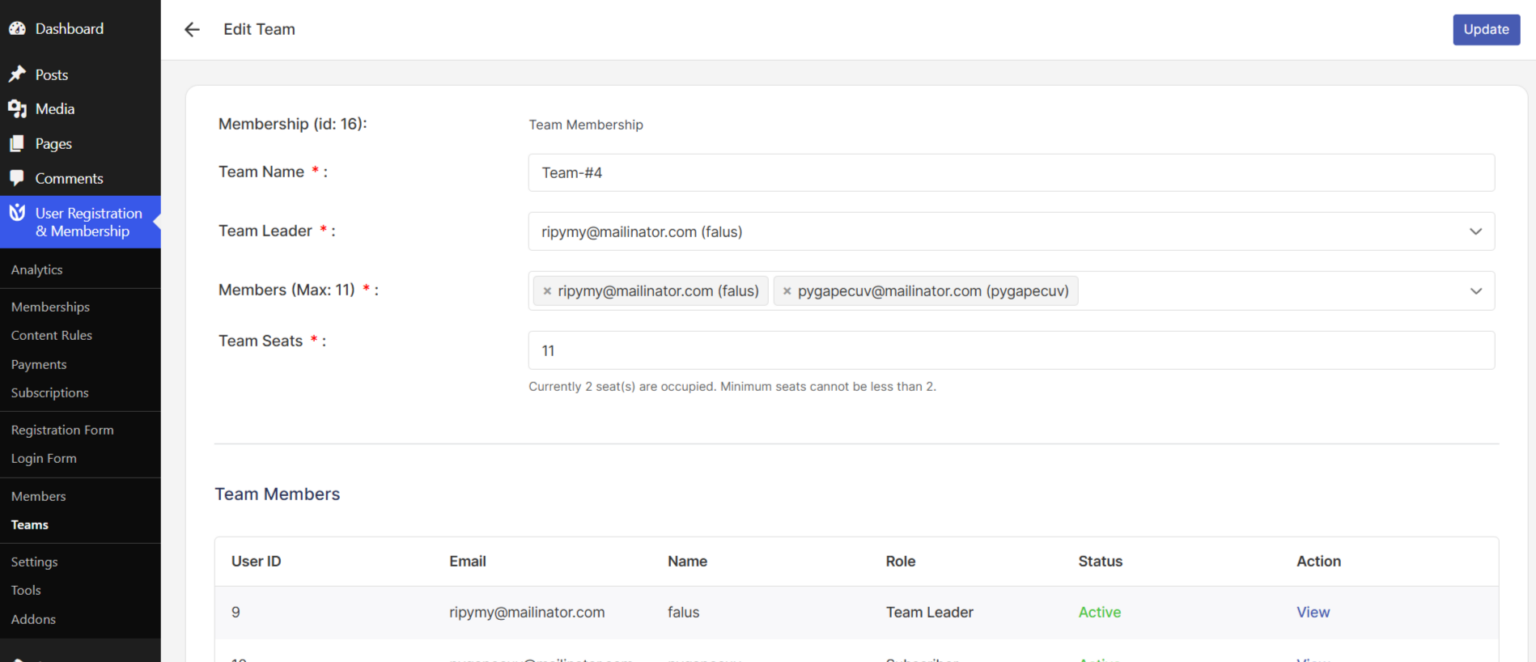
To edit a team, hover over a team row and click Edit button. Admin can update the following team details:
Team Name – Enter a new team name.
Team Leader – Assign or change the team leader.
Team Seats – Update the total number of seats allocated to the team.
Team Members – Add or remove team members
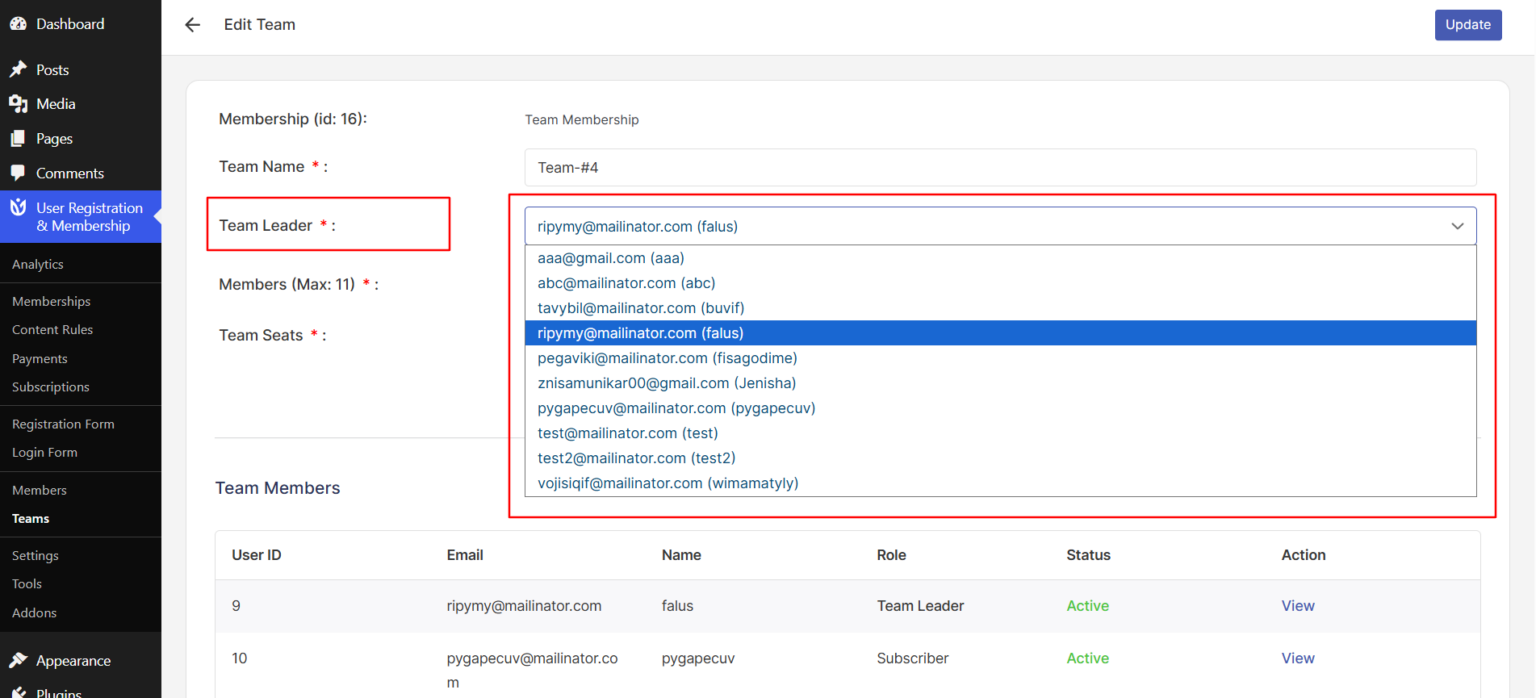
Changing Team Leader
Admin can change the team leader from the team edit form. In the Team Leader field, select a new leader from the dropdown of registered users.
Managing Team Members
Admin can manage team members directly from the team edit form.
Add Members
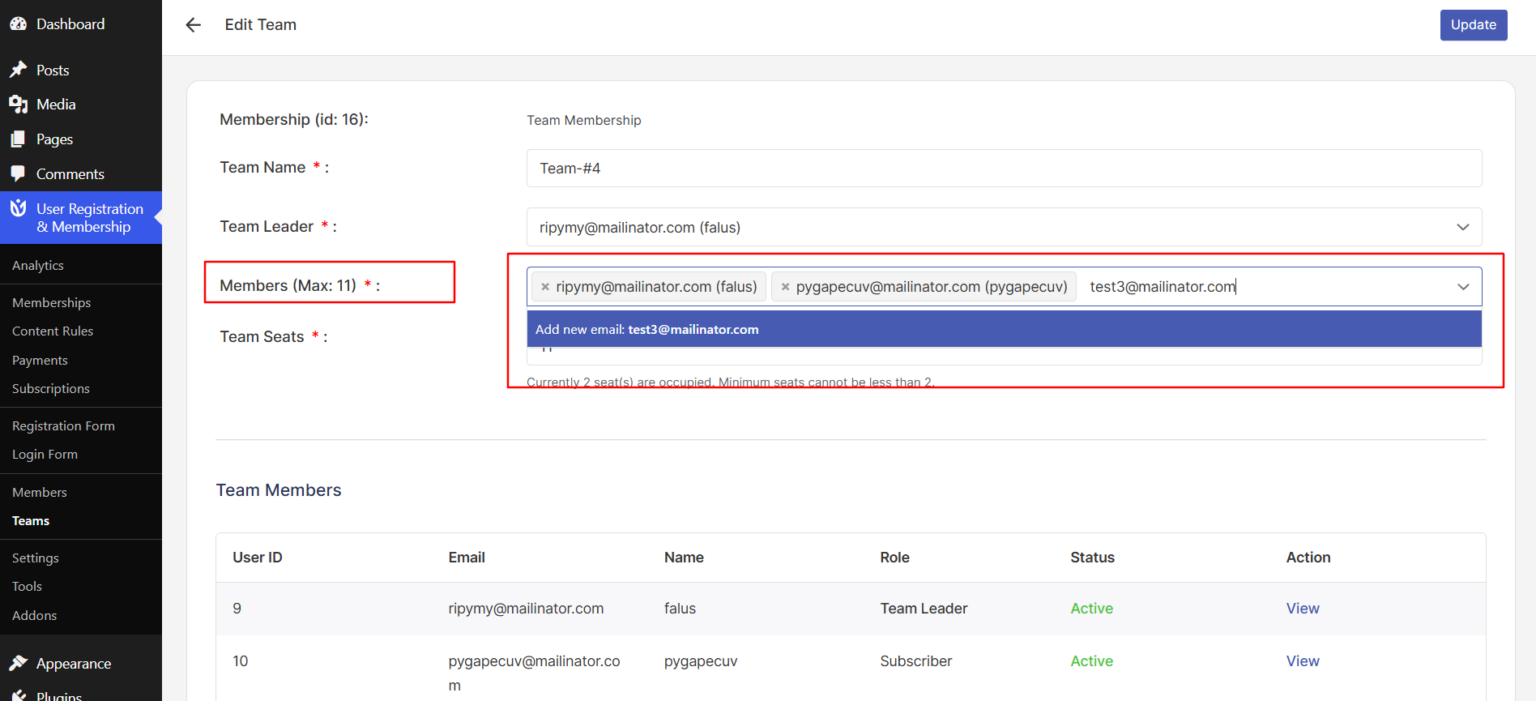
Existing Users: Add registered users to the team by selecting them from the Members dropdown.
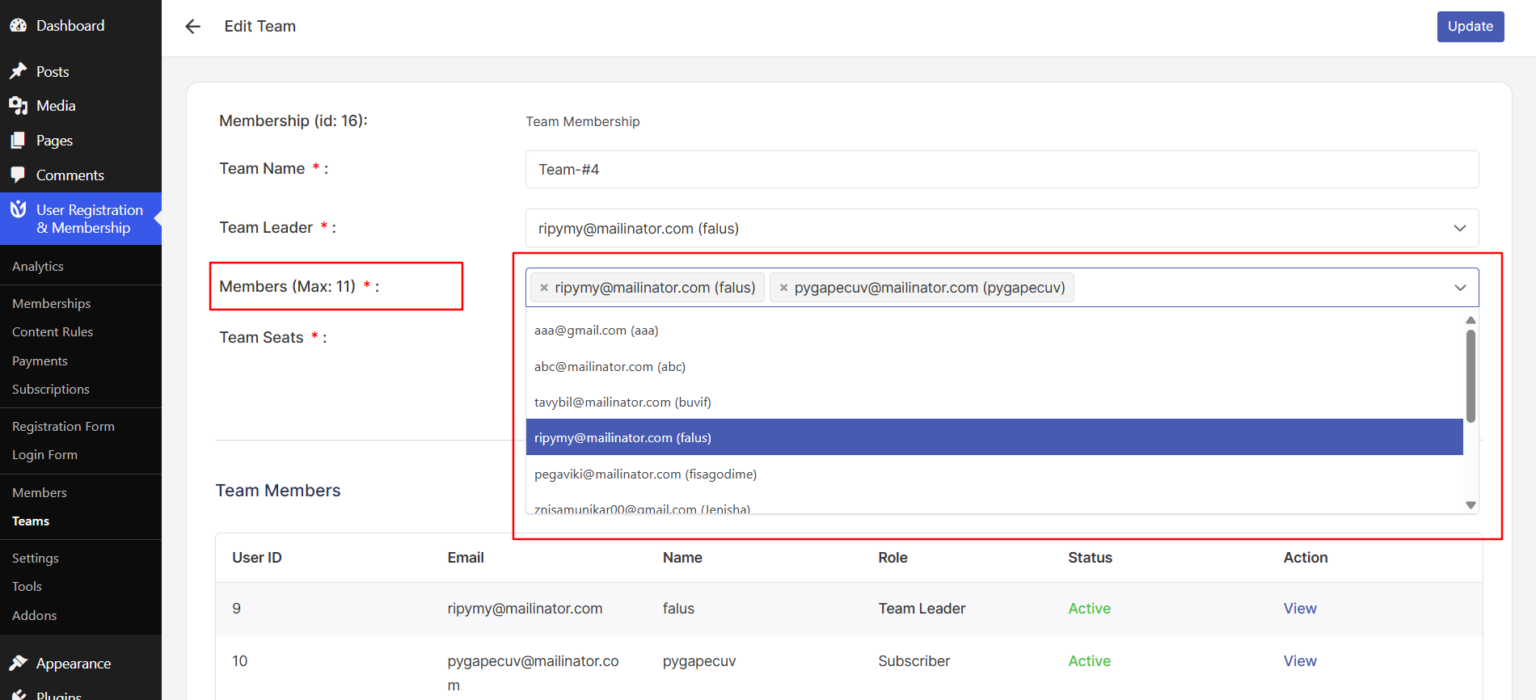
New users: Type the email in Members field. The Add new email option will appear and click it to add the user. An email is sent automatically with their login credentials and a reset password link.
Remove Members
Remove users from the team by clicking the X button on the email tag.
View Member Details
See team members information including User ID, email, name, role, and status below the edit form.
After adding/removing team members, changing the team leader or updating team details, click the Update button in the top right corner to save your changes.
Important Notes
Each email must be valid (validated automatically).
Cannot add duplicate emails.
Maximum members are limited by the purchased seat count.
Members are directly added to the team.
Changing the team leader does not remove them from the team members list.
Team Leader Account Page
When a user purchases a team membership, they become the team leader and gain access to team management through their account page.
Accessing Team Page
Team leaders can access their teams management from:
Log into their account
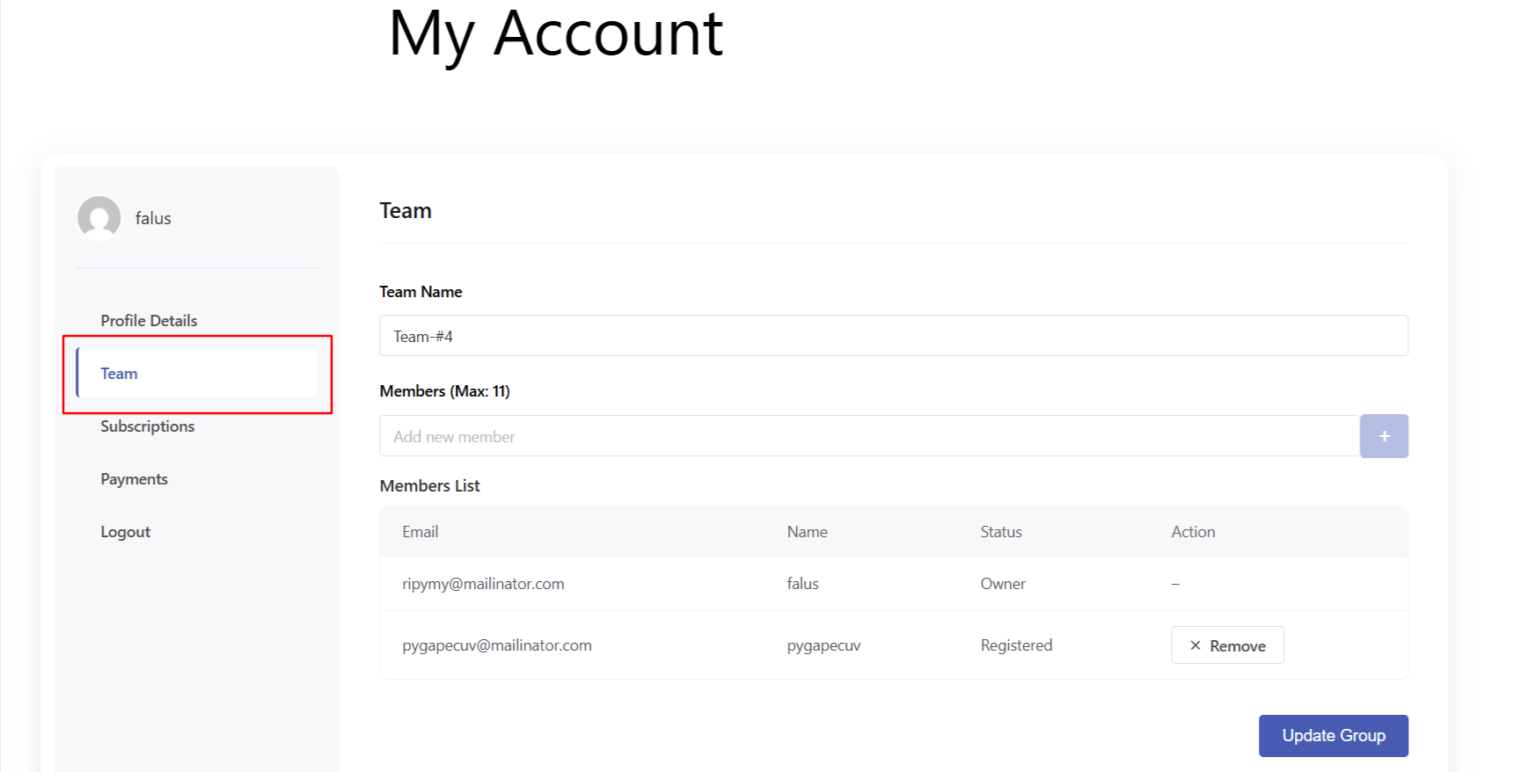
Navigate to My Account → Team from the sidebar menu
View all teams they’ve created/purchased
The Team menu item only appears for users who have purchased at least one team membership.
Updating Team Details
To edit a team, Team Leaders can do the following:
If the user has only one team: Clicking the Team tab in the sidebar will directly open the edit form.
If the user has multiple teams: Clicking the Team tab will display a table of teams. Click the Edit button for the desired team to open the edit form.
Editable Fields
Team Name (required) – Give your team a meaningful name
Members List – Add or remove member emails
Managing Team Members
Team Leaders can manage team members directly from the team edit form.
Add Members
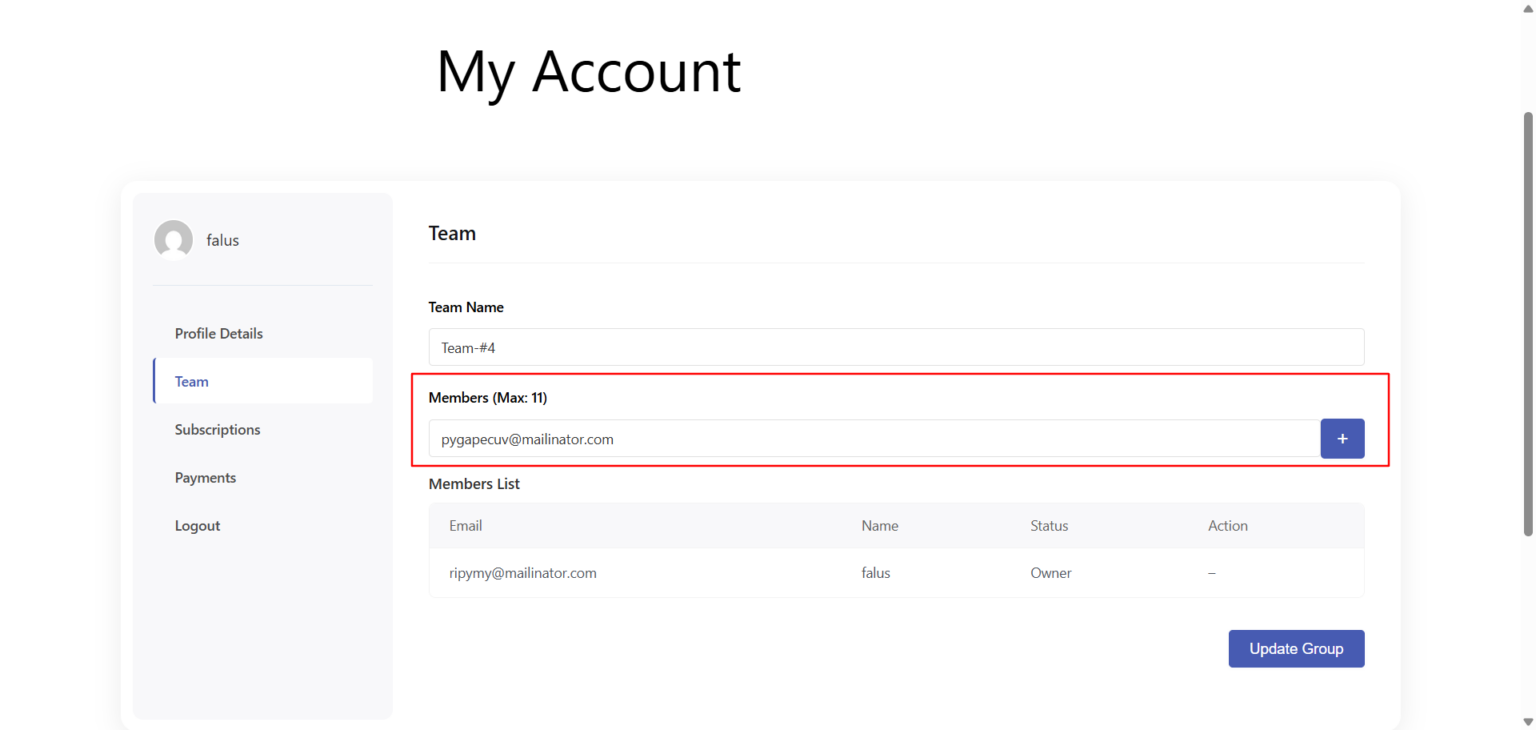
Enter the email in the Members section and click the + button. An email is sent automatically with their login credentials and a reset password link after updating the team.
Remove Members
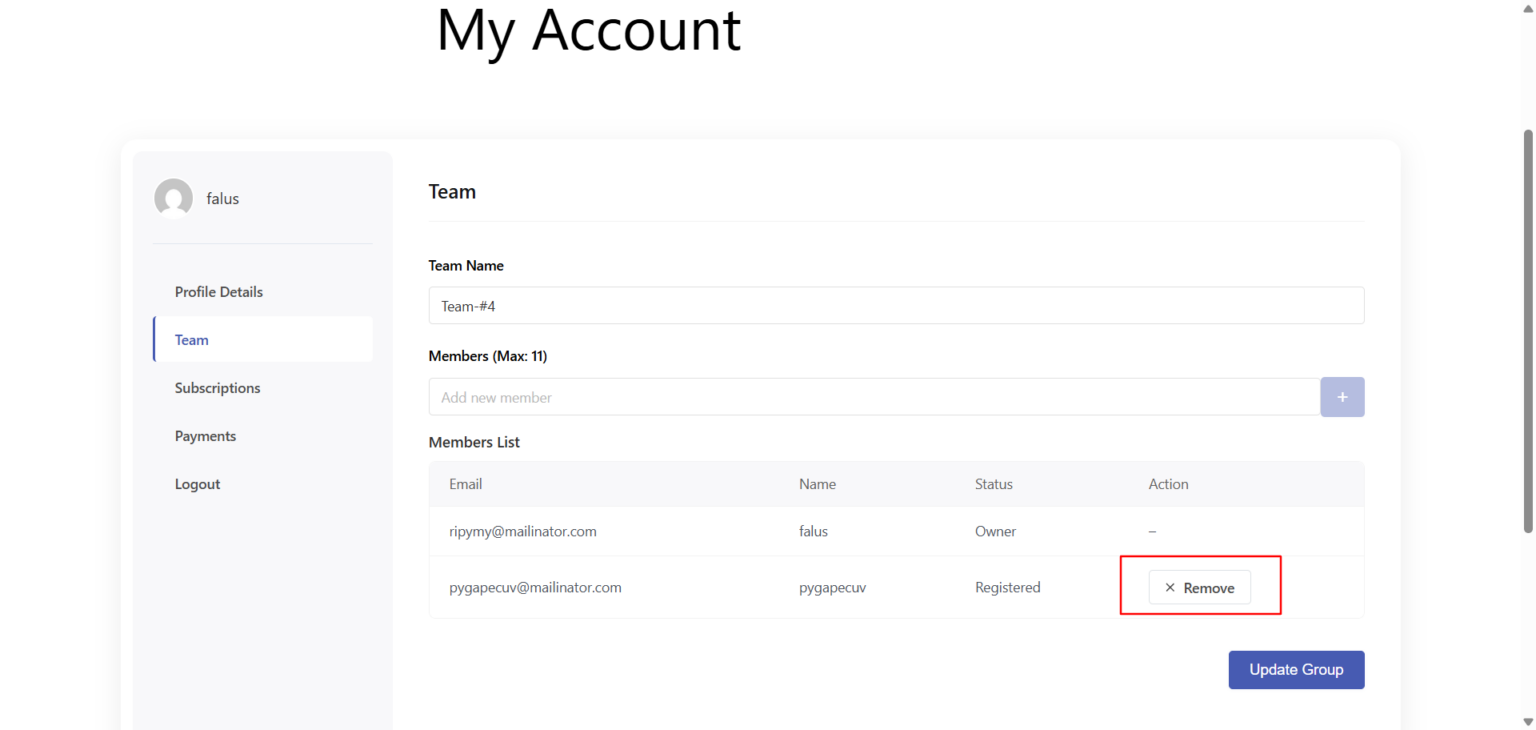
Click the Remove button of each user on the members list section to remove them from the team.
View Member Details
See team members information including email, name, and status in the Members List section.
After adding/removing team members or updating team details, click the Update button to save the changes.
Email Notifications
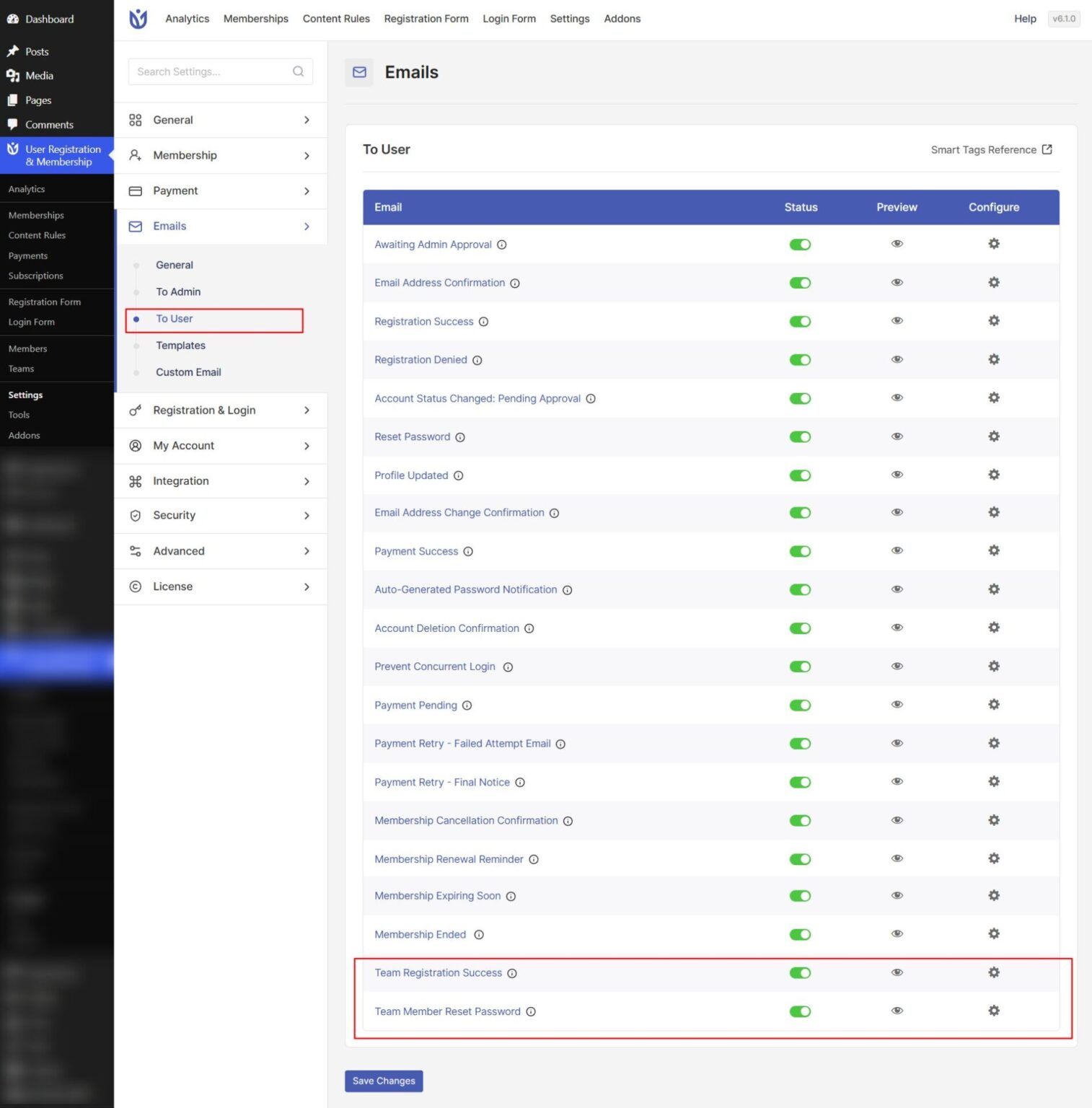
You can customize team-related emails from User Registration & Membership → Settings → Emails → To User.
Team Registration Success Email: Sent when someone joins a team
Team Member Reset Password Email: Sent only when a new user (not already registered) is added to the team.
Frequently Asked Questions
These are answers to some of the most common questions we receive about team management.
Can I add more members than the purchased seat count?
No. The maximum number of members is limited by the purchased seat count. You must increase the team seats before adding additional members.
What happens when I change the team leader?
The new team leader gains access to team management through their My Account page. The previous team leader loses management access but remains a team member unless you manually remove them.
Can I add the same email to multiple teams?
No. Each email address must be unique within a team. However, a user can be a member of multiple different teams.
Do team members need to confirm their email?
Only users with confirmed email addresses will show in the team members list. New users added to a team receive an email with login credentials and must verify their email if email confirmation is enabled in your form settings.
That's it! Now you know how to manage teams in User Registration & Membership. Next, would you like to learn how to set up team pricing for your membership plans? Be sure to check out our guide on configuring team membership pricing for all the details.