
Membership Pricing Block
A customizable block for displaying membership plans on pages and posts, with options to filter by groups, choose layout styles, and enable quick checkout access for visitors.
Last updated on Jun 11, 2026
Would you like to display your membership plans on any page or post? User Registration & Membership allows you to showcase membership options using the Membership Pricing block, making it easy for visitors to browse plans and sign up directly.
This tutorial will show you how to add and configure the Membership Pricing block to display your membership plans on your WordPress site.
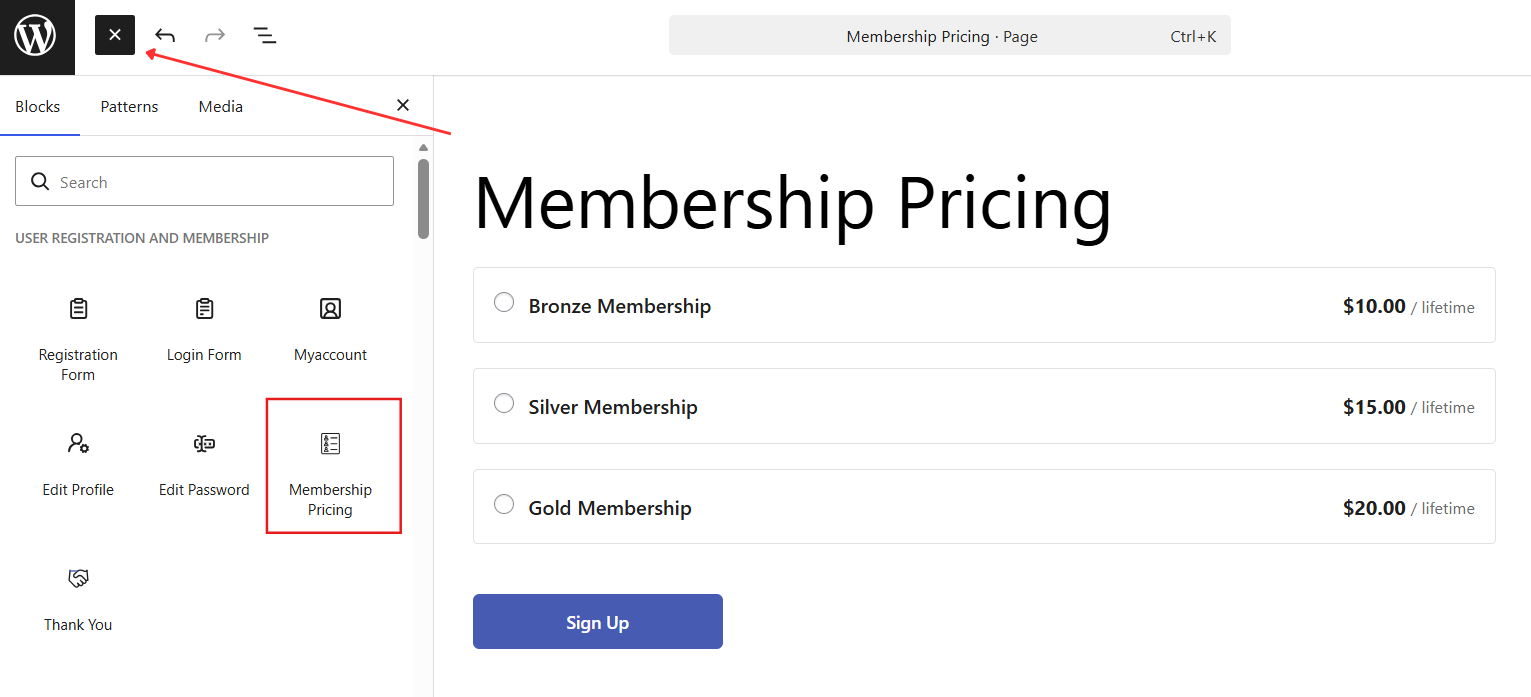
Adding the Membership Pricing Block
To add the block to any page or post:
Open the page or post editor
Click the block inserter (+) button
Search for "Membership Pricing" and select the block
The block will appear with your default membership display settings
Configuring Block Settings
Once added, you can customize the block's appearance and behavior using the settings panel on the right side of the editor.
Membership Selection
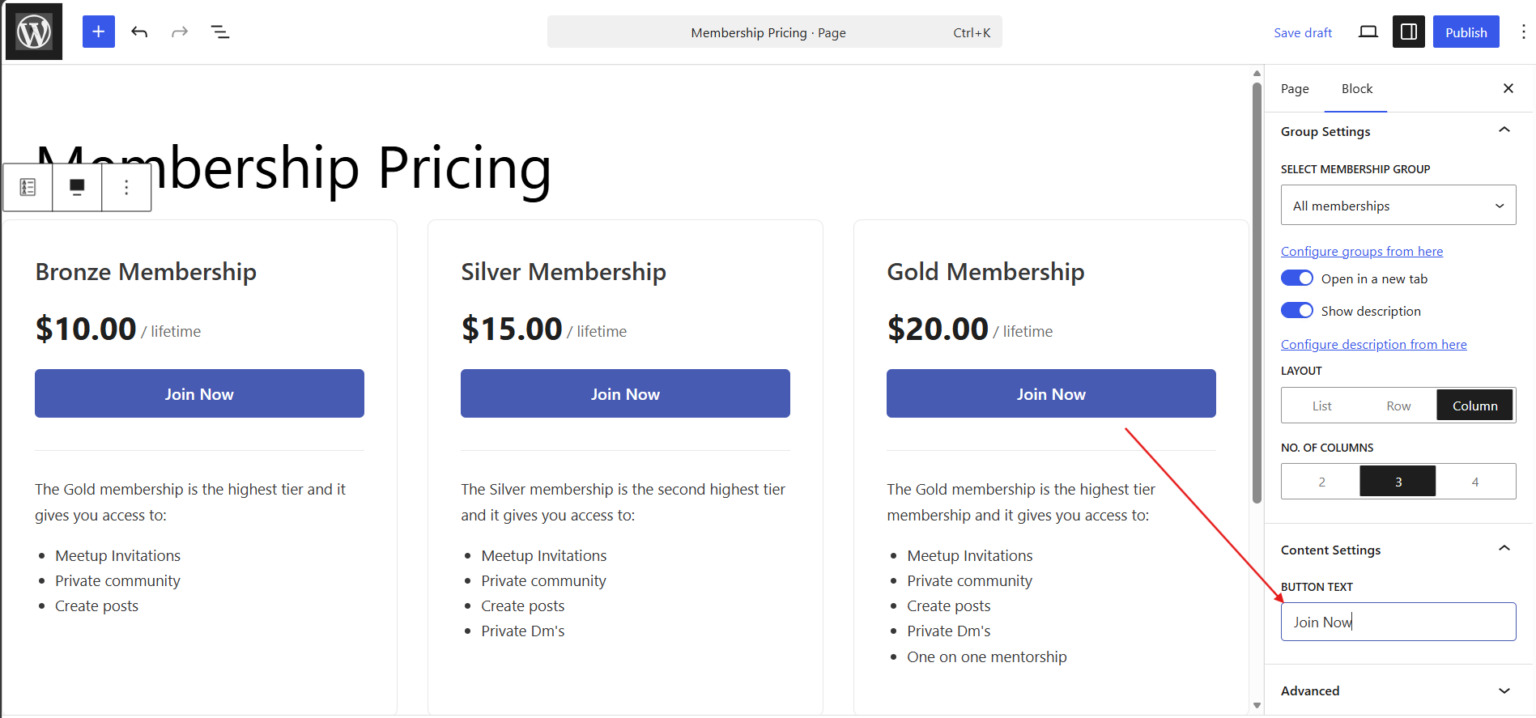
By default, the block displays all active memberships you've created. You have two options:
All memberships - Displays every membership plan you've created
Membership Groups - Display only memberships from specific membership groups
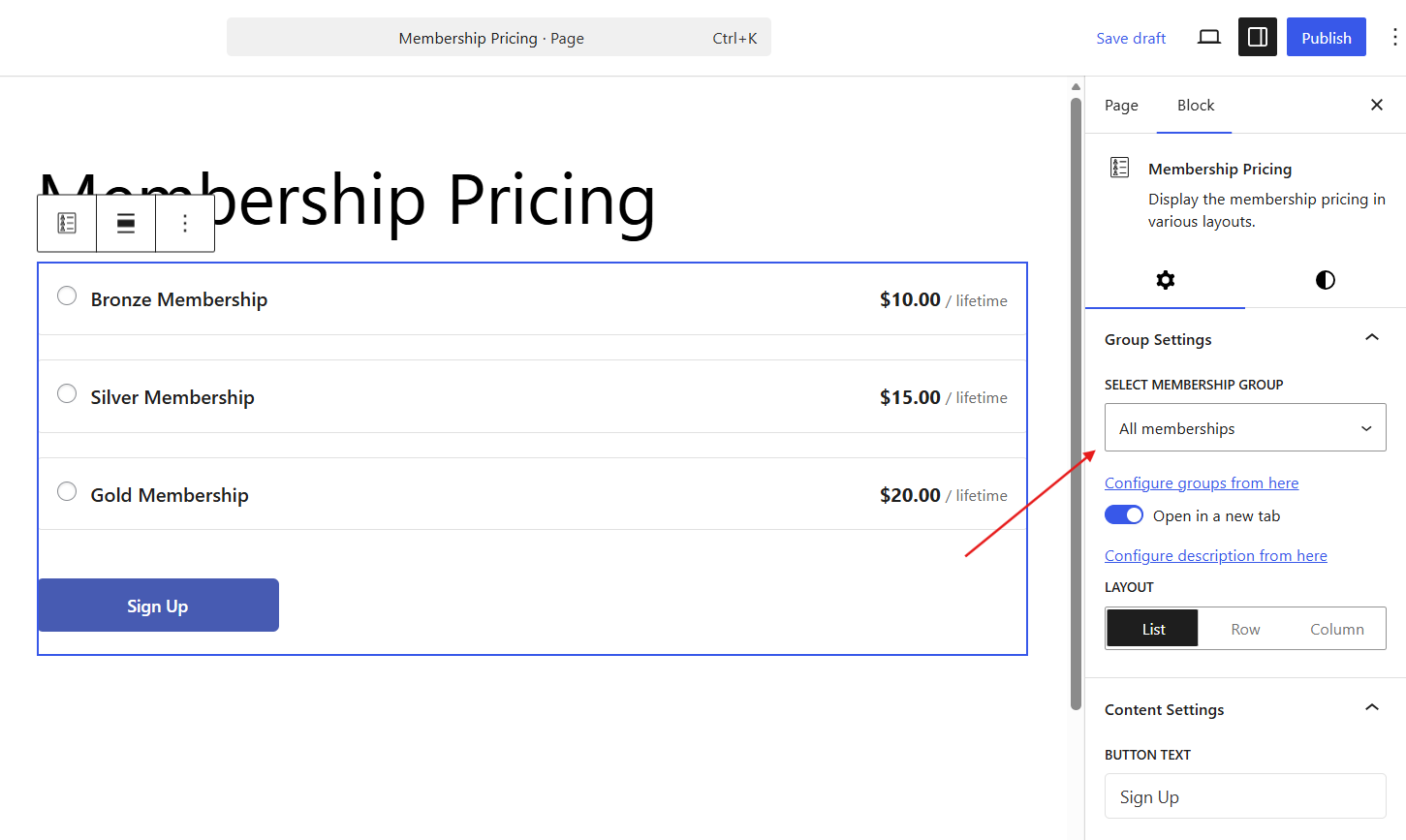
To use membership groups, you'll need to enable the membership group addon and create groups from the membership settings area.
Layout Options
Choose from three layout styles to match your page design:
List — Displays memberships in a vertical list format
Row — Shows memberships in a horizontal row
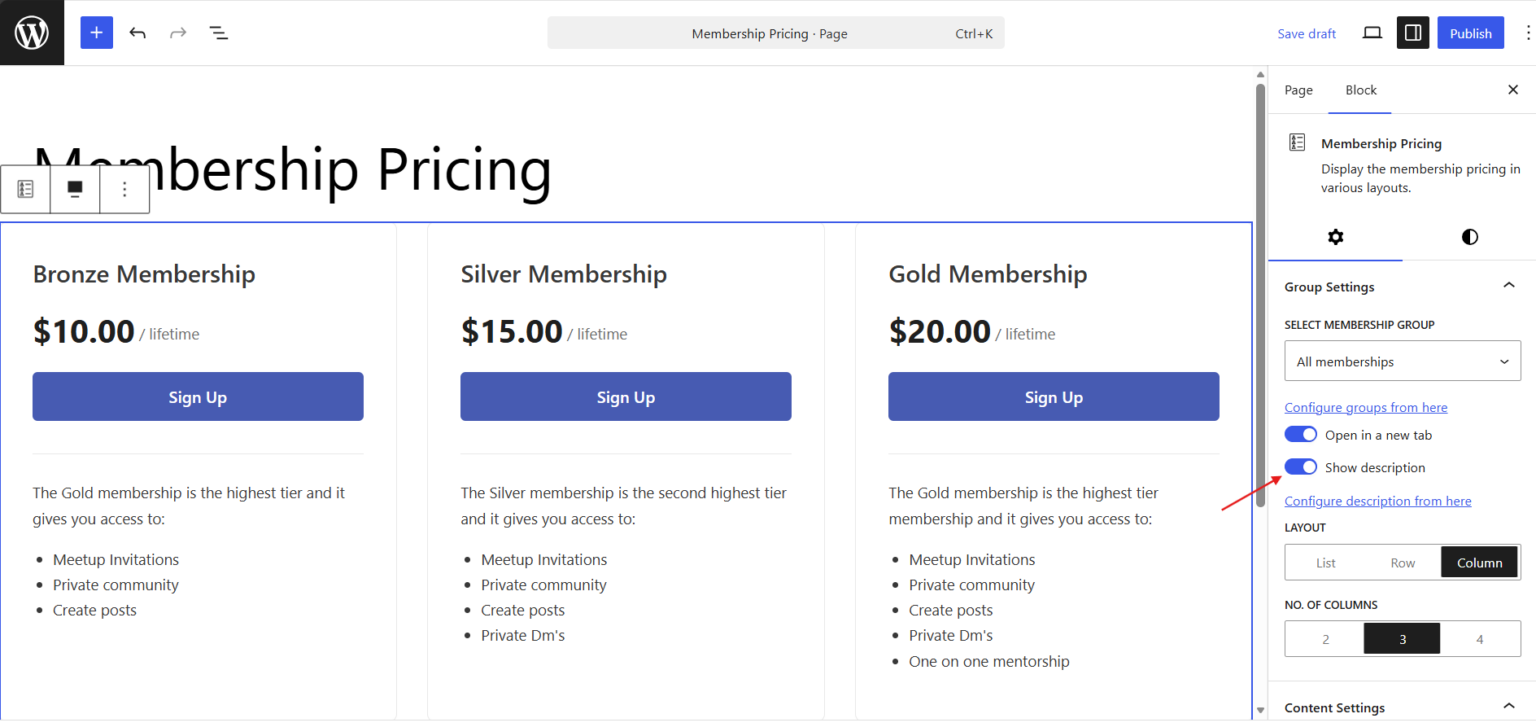
Columns — Arranges memberships in a grid of columns
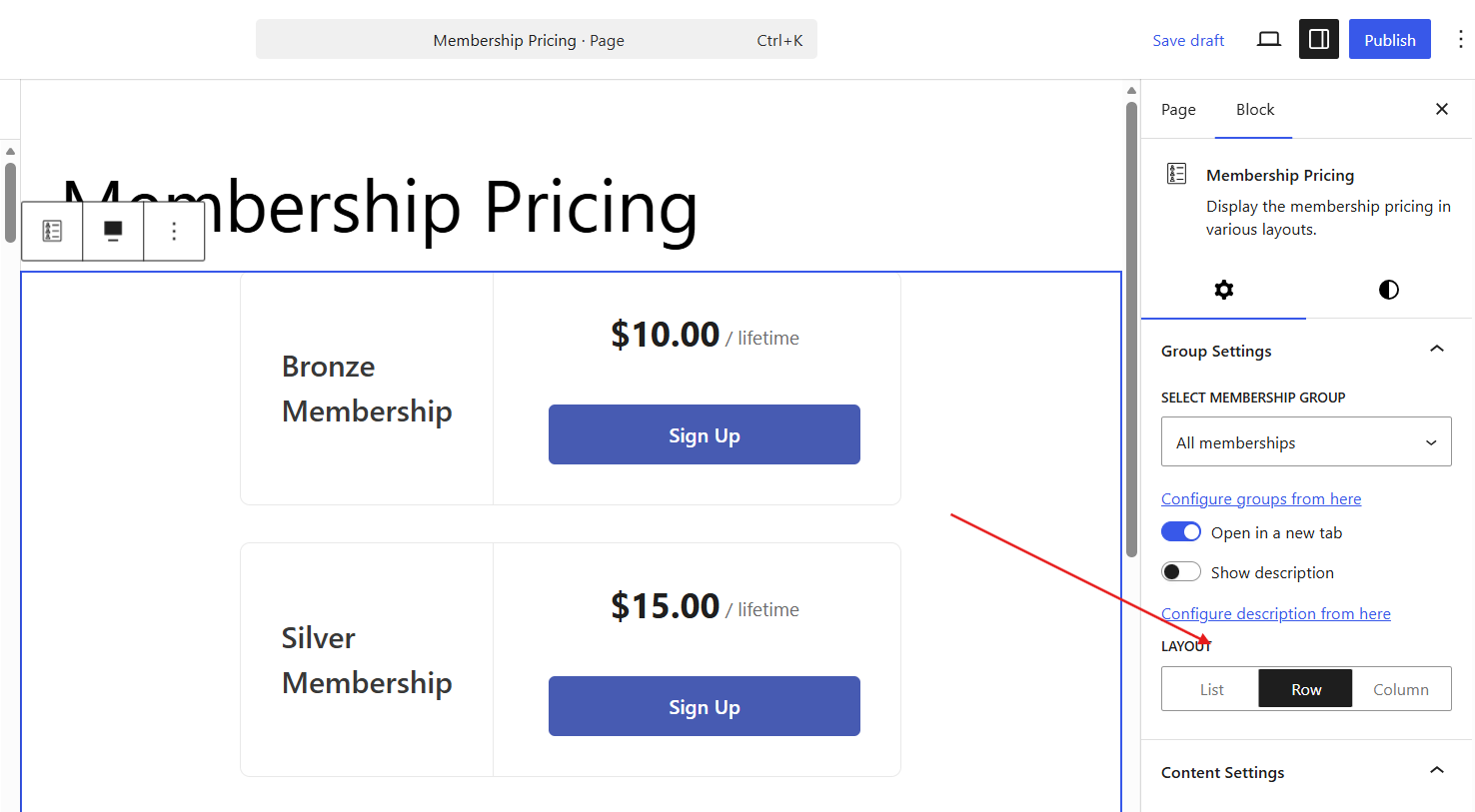
The Row and Column layouts include an option to display membership descriptions alongside the pricing information. You can click on this toggle button to enable it.
Button Customization
You can customize the sign-up button behavior and appearance:
Click on Open in new tab to have the checkout page open in a new browser tab
you can change the Button text to change the text displayed on the sign-up button (e.g., "Get Started," "Subscribe Now," "Join Today")
Styling the Block
Click on the Styles tab in the block settings to customize:
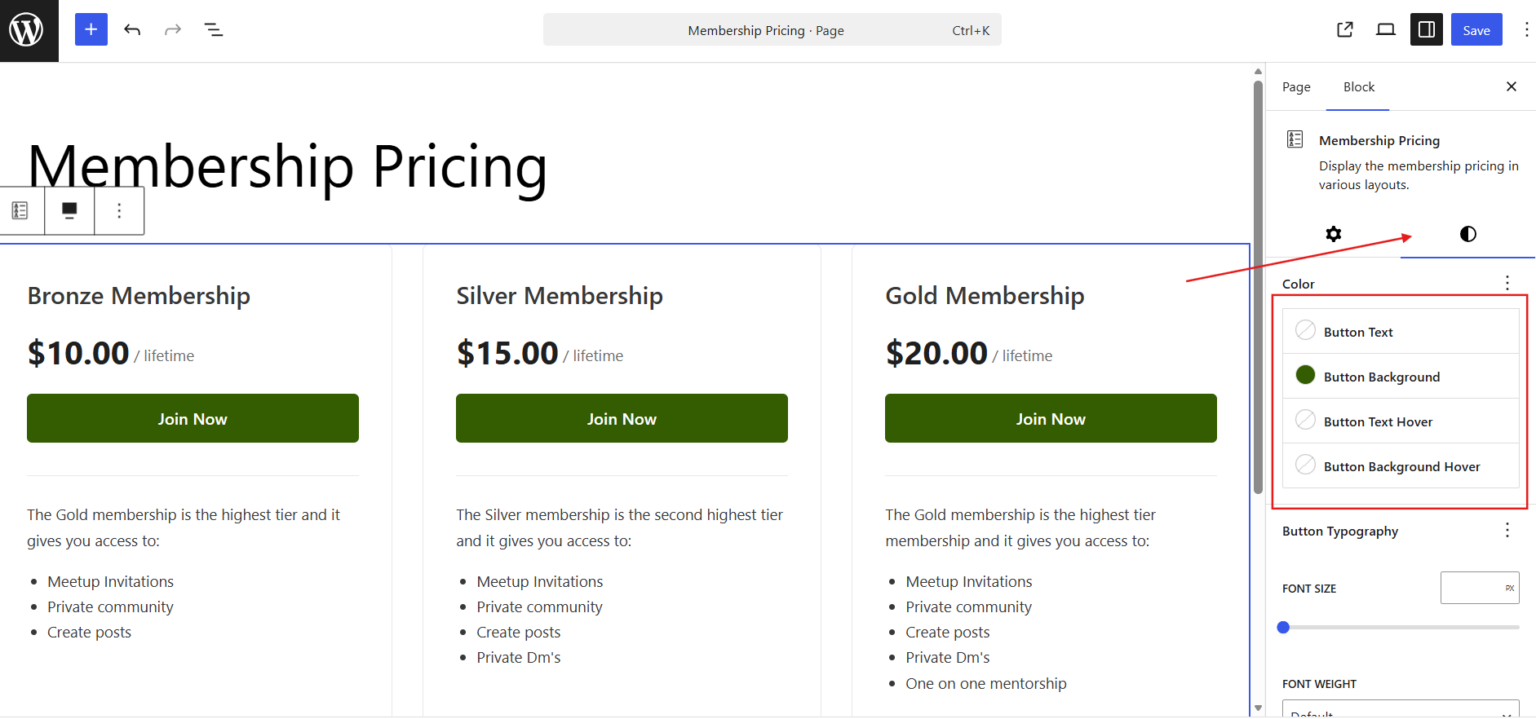
Button colors — Set the button background and text colors
Button typography — Adjust font size, weight, and style
Button padding — Control the spacing inside the button
Advanced Customization
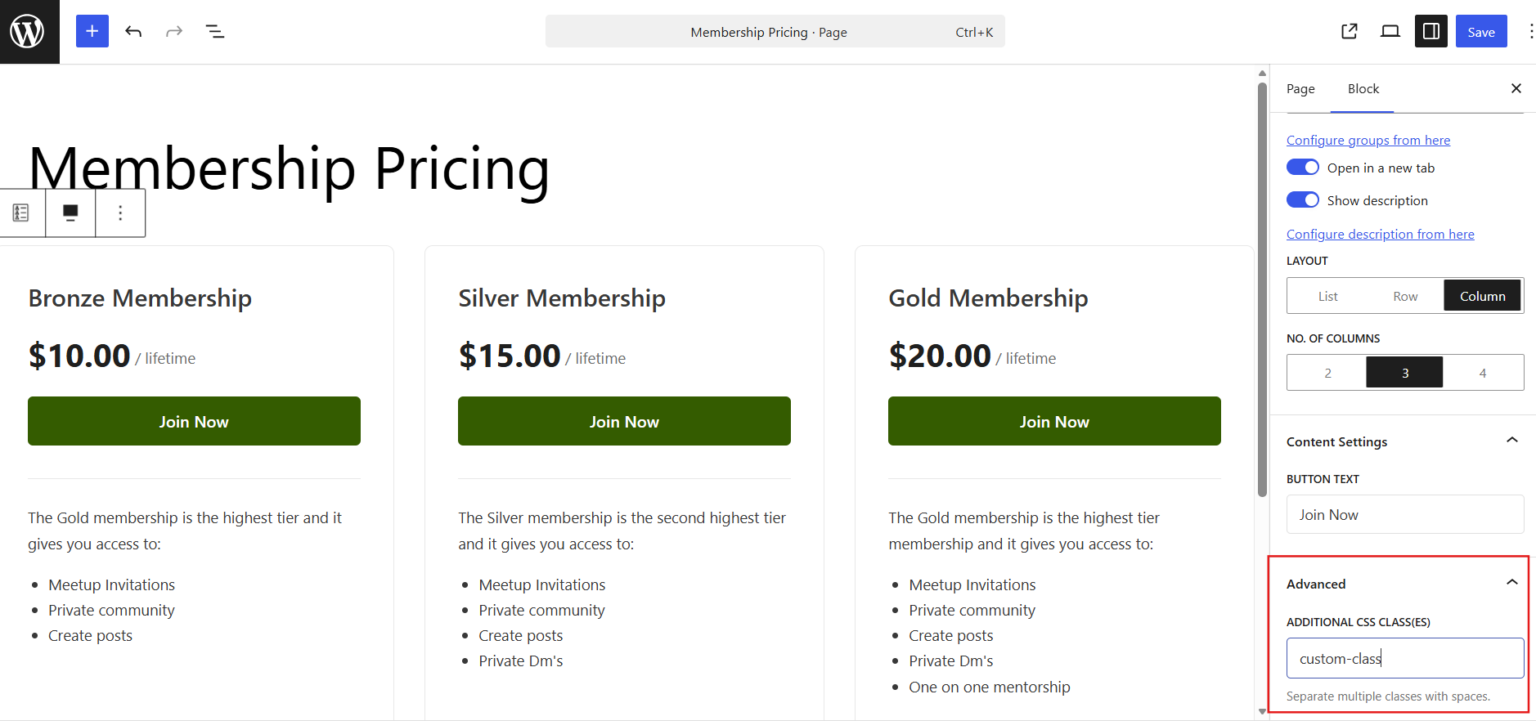
For developers or users comfortable with CSS, the Advanced tab allows you to add custom CSS classes to the block for additional styling control beyond the built-in options.
Publishing Your Membership Pricing Page
Once you've configured all your settings, click Update or Publish to save your changes.
Your membership plans will now be visible on the page, and visitors can click the sign up button to begin the registration process.