
Creating Memberships with a Free Trial
Learn how to set up subscription-based memberships with free trial periods, allowing users to access content before committing to payment.
Last updated on Jul 15, 2026
Want to let potential members try your content before they commit to paying? User Registration & Membership allows you to offer free trial periods on subscription-based memberships, giving users full access without any upfront charges. This guide will walk you through setting up memberships with trial periods.
Requirements: This feature requires the User Registration & Membership Pro plugin (Personal plan or higher).
Before getting started, make sure you've installed and activated the User Registration & Membership Pro plugin on your WordPress site. Then, make sure you've configured at least one payment gateway (Stripe or PayPal) in your payment settings.
Creating a Membership Plan with a Trial Period
To create a membership with a free trial, go to User Registration & Membership → Memberships and click Add New.
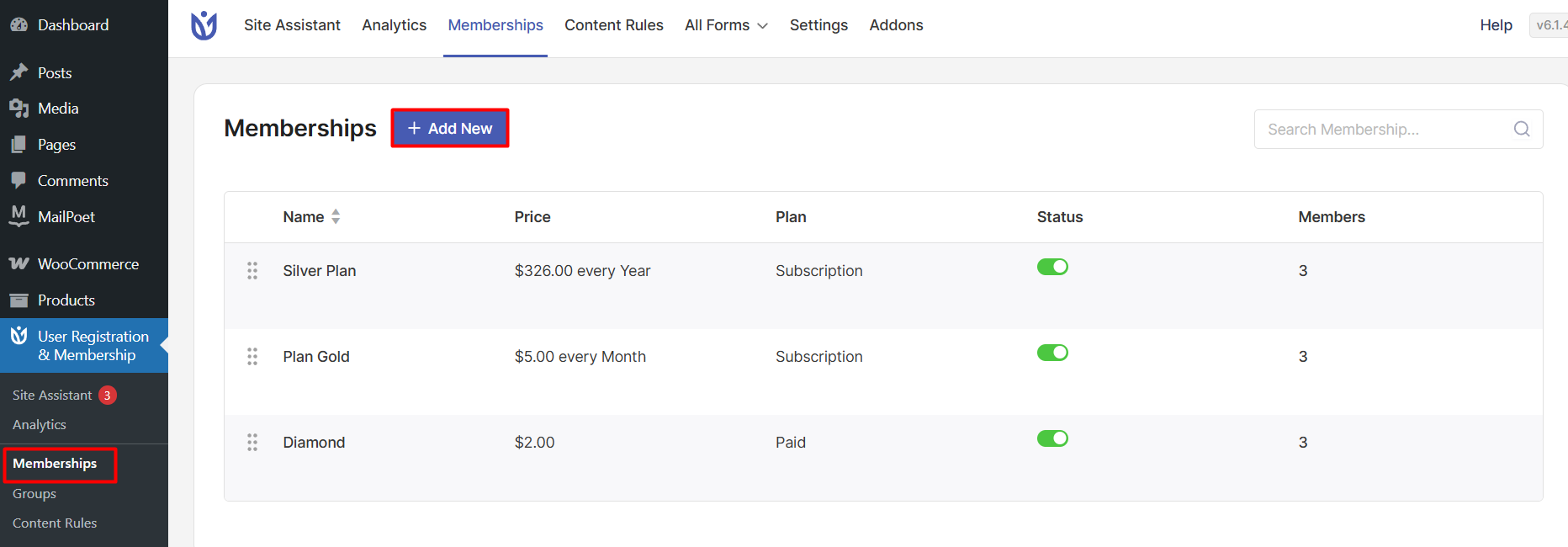
Here, you'll see the membership creation form with three main tabs: Basics, Access, and Advanced.
Configuring Basic Membership Settings
In the Basics tab, configure your membership plan details:
Enter a Membership Name (for example, "Premium Monthly")
Add a Membership Description explaining what the membership includes
Set Membership Status to Enable
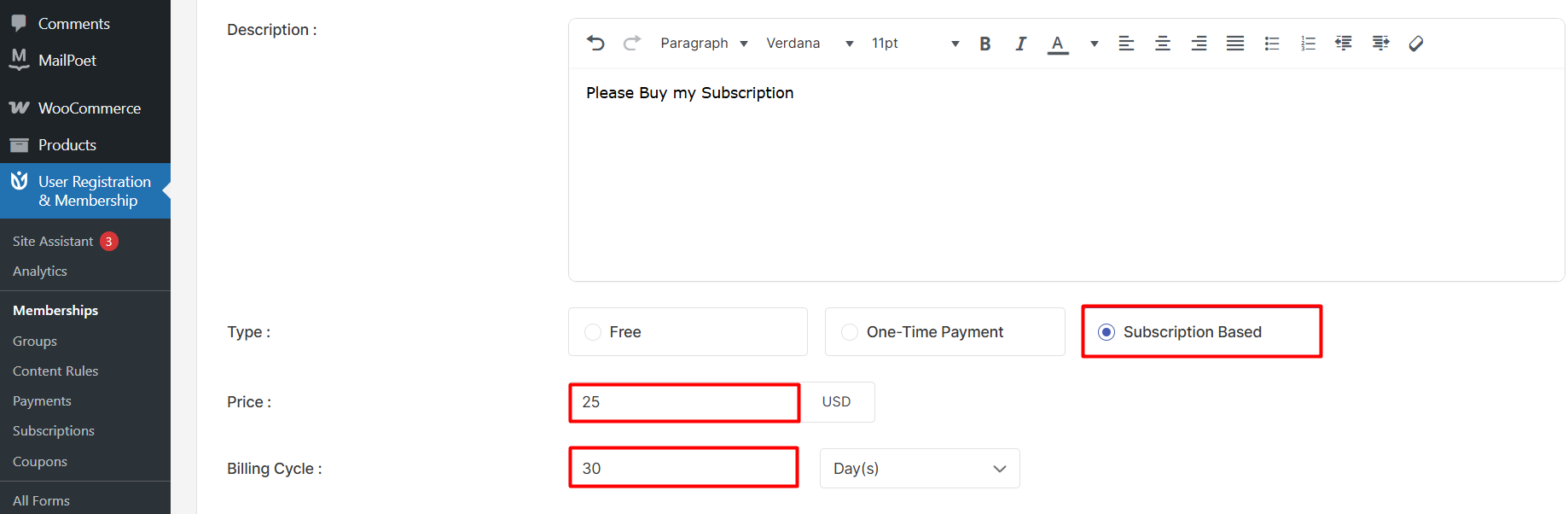
Select Subscription-Based as the Membership Type (trial periods only work with subscription memberships)
Enter the Amount members will pay after the trial ends
Set the Billing Cycle (for example, "1 month" for monthly subscriptions)
You need to enable a payment Gateway to accept payments from global settings.
Enabling the Trial Period
Once you've configured the basic settings, scroll down to the Advanced tab.
In the Advanced tab, you'll find the Trial Period option. Toggle this setting to Yes.
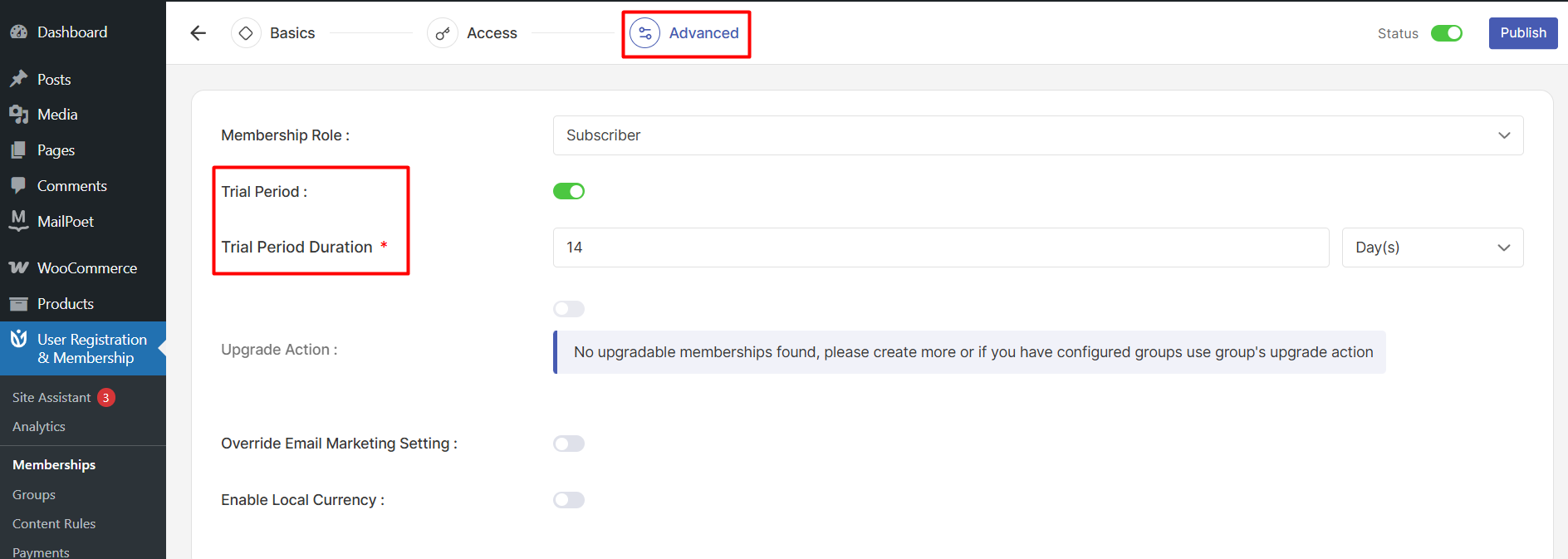
When you enable the trial period, two new fields appear:
Trial Duration Value: Enter the number of time units (for example, "7" for a 7-day trial)
Trial Duration Unit: Select the time unit from the dropdown (Days, Weeks, Months, or Years)
For example, to offer a 14-day free trial, enter "14" in the Trial Duration Value field and select "Days" from the Trial Duration Unit dropdown.
How Trial Periods Work
Once you've configured the trial period, here's what happens when a user signs up:
The user completes the registration form and selects your membership plan
They enter their payment information (required even for trials)
They get immediate access to all membership content
No payment is charged during the trial period
After the trial ends, the first payment is automatically processed
The subscription continues with regular billing cycles
Users must provide valid payment information during signup, even though they won't be charged until the trial ends. This ensures a smooth transition to paid membership when the trial period expires.
Setting Up Content Access
After configuring the trial period, go to the Access tab to define what content trial members can access.
Click + Content and select the content type you want to restrict (for example, Selected pages or Specific posts). Then, choose which pages or posts trial members can view.
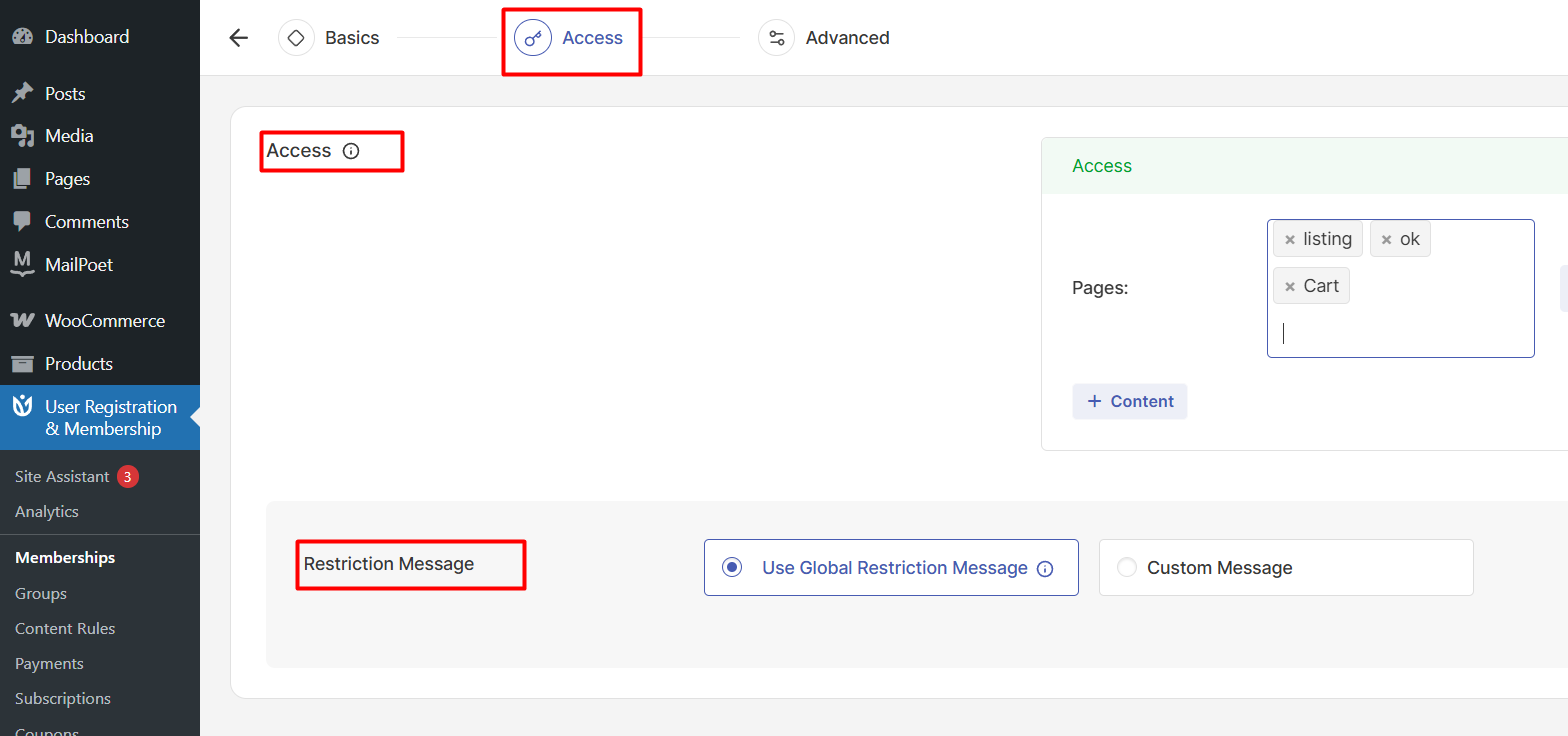
Trial members have the same access as paid members during the trial period. Once the trial ends and payment is processed, their access continues without interruption.
Publishing Your Membership Plan
Once you've configured all settings, click Create Membership to save your plan.
Your membership with a free trial is now active. Users can sign up through your registration form and start their trial immediately.