
Allow Multiple Memberships
ProLearn how to enable users to purchase and hold multiple membership plans simultaneously using Membership Groups, allowing flexible combinations of access levels and benefits.
Last updated on Jul 15, 2026
Would you like to let your members purchase and hold more than one membership plan at the same time? User Registration & Membership allows you to enable multiple memberships through Membership Groups, giving your members the flexibility to combine different access levels and benefits.
This tutorial will show you how to set up and manage multiple memberships for your site.
Before getting started, make sure you've installed and activated the User Registration & Membership plugin. Then, make sure you've installed and activated User Registration & Membership Pro with a Plus or Professional license, as the multiple memberships feature requires a premium plan.
Understanding Multiple Memberships (Pro)
Multiple memberships allow a single user to purchase and maintain more than one active membership plan simultaneously. Each membership operates independently with its own:
Billing cycle and renewal schedule
Access permissions and content restrictions
Subscription status and payment history
For example, a member could hold both a "Basic Content Access" membership and a "Premium Course Bundle" membership at the same time, gaining the combined benefits of both plans.
Multiple memberships must be configured through Membership Groups. You cannot enable this feature on individual membership plans.
Creating a Membership Group
To enable multiple memberships, you first need to create a Membership Group that contains the plans you want to offer together.
From your WordPress dashboard, go to User Registration & Membership → Groups.
On the Groups page, click Add New in the top-right corner.
Configure your group settings:
Enter a Group Name (for example, "Content & Courses Bundle")
Add a Group Description explaining what memberships are included
From the Select Memberships dropdown, choose which membership plans to include in this group
Click on the toggle button and enable Enable multiple membership.
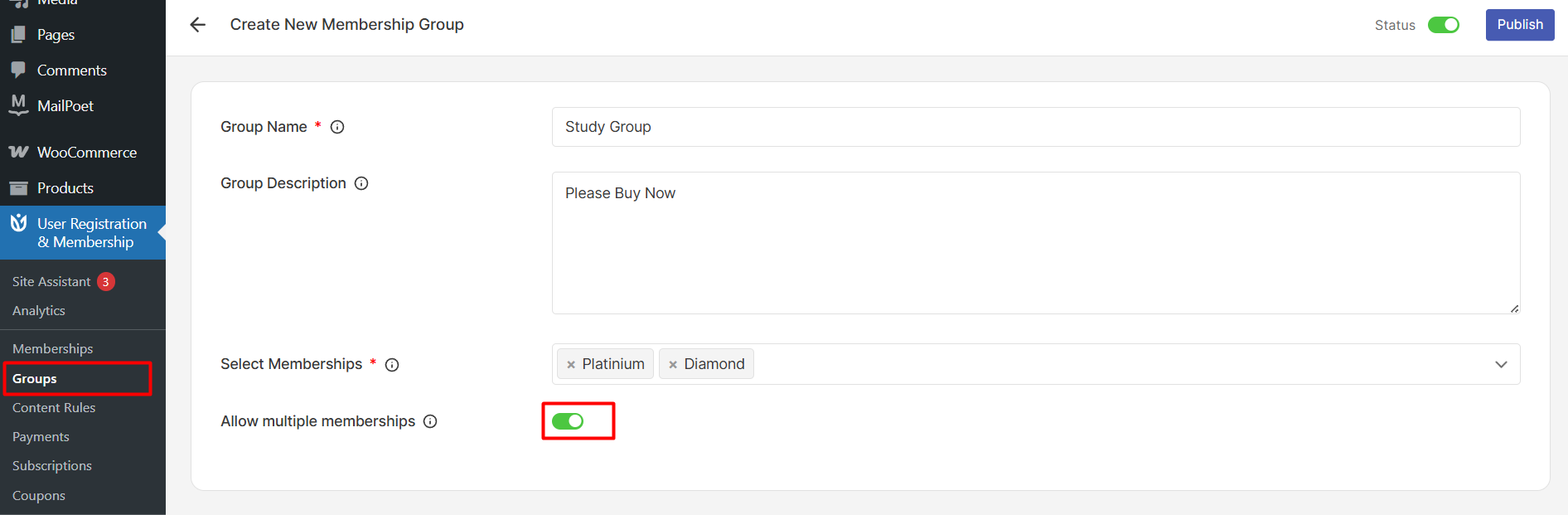
Click Publish to create the group
You cannot enable Allow Multiple Memberships and Upgrade Action at the same time within a single group. These features are mutually exclusive — choose the one that fits your business model.
How Members Purchase Multiple Memberships
When multiple memberships are enabled, the purchase process works differently than standard single-membership registration.
Members cannot select multiple memberships during their initial registration. Instead, they must:
Register and purchase their first membership through the normal registration process
Log in to their account after completing the first purchase
Navigate to the membership listing page or their account dashboard
Purchase additional memberships from the same group
Each membership requires a separate checkout process. Members will complete individual transactions for each plan they want to add to their account.