
Set Maximum Active Login
ProConfigure session limits to prevent credential sharing and restrict the number of devices that can simultaneously access a user account.
Last updated on Jul 14, 2026
Do you want to prevent users from sharing login credentials or limit how many devices can access an account simultaneously? User Registration & Membership allows you to set a maximum number of active login sessions per user account. This tutorial will show you how to configure session limits to enhance account security.
Before You Begin
Before getting started, make sure you've installed and activated the User Registration & Membership plugin on your WordPress site. Then, make sure you've created at least one login form.
Accessing the Prevent Concurrent Login Settings
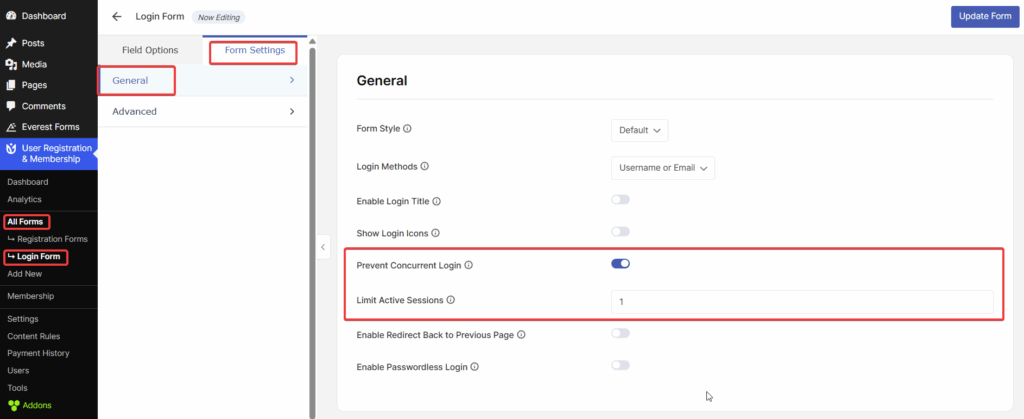
To configure maximum active login sessions, go to User Registration & Membership → All Forms → Login Form. This will open the form builder interface.
Enabling Session Limits
Once you're in the form builder, navigate to Form Settings → General → Prevent Concurrent Login. Scroll down until you find the Prevent Concurrent Login option.
Toggle on the Prevent Concurrent Login switch to enable the feature. Once enabled, you'll see an additional field appear below the toggle.
Setting the Maximum Number of Sessions
In the Limit Active Sessions field, enter the maximum number of simultaneous logins you want to allow for each user account. For example:
Enter 1 to allow only one active session at a time
Enter 2 to allow users to be logged in on two devices simultaneously
Enter 3 or higher for more flexible access
Click Update Form to save your changes.
How It Works
Once you've configured the session limit, the system will track active login sessions for each user account. When a user attempts to log in and the maximum number of active sessions has been reached, they will receive an error message and be prevented from logging in.
The user will need to log out from one of their existing sessions before they can log in on a new device. Alternatively, existing sessions will automatically expire after a period of inactivity, freeing up a session slot.
Common Use Cases
Session limits are particularly useful for:
Membership sites where you want to prevent credential sharing between multiple users
Online course platforms where each enrollment should be used by only one person
Premium content sites where you want to limit simultaneous access to paid accounts
Business applications where you need to enforce license compliance
That's it! Now you know how to set maximum active login sessions for your user accounts. Next, would you like to add additional security measures to your login forms? Be sure to check out our guide on setting up two-factor authentication for enhanced account protection.