
Enable the ‘Remember Me’ option on the login forms
Learn how to add a 'Remember Me' checkbox to login forms, allowing users to stay logged in across browser sessions without re-entering credentials.
Last updated on Jul 14, 2026
Would you like to let users stay logged in across browser sessions? User Registration & Membership allows you to add a 'Remember Me' checkbox to your login forms, so users don't have to enter their credentials every time they visit. This tutorial will show you how to enable this feature.
Prerequisites
Before getting started, make sure you've installed and activated the User Registration & Membership plugin on your WordPress site. You'll also need at least one login form created.
Enabling the Remember Me Checkbox
To enable the 'Remember Me' option, go to User Registration & Membership → All Forms → Login Forms.
Here, you'll see your login form in the form builder. Click on the Remember Me field in the form preview.
In the Field Options panel on the left, you'll see an Enable Remember Me toggle. Click this toggle to turn it on.
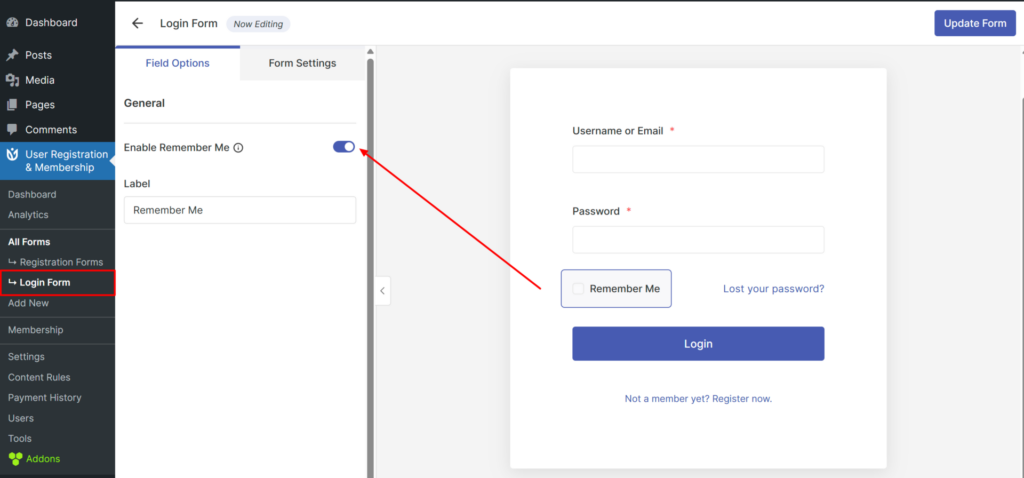
Once enabled, you can customize the label text that appears next to the checkbox. By default, it says "Remember Me," but you can change this to match your site's language or style.
How Remember Me Works
When users check the Remember Me box before logging in, their login session persists even after they close their browser. This means they won't need to enter their username and password again on their next visit.
If users don't check the box, their session ends when they close their browser, and they'll need to log in again next time.
That's It!
Now you know how to enable the 'Remember Me' option on your login forms. Next, would you like to customize other aspects of your login form? Be sure to check out our complete guide on configuring login form settings for all the details.