
Displaying the login form
Learn how to display customizable frontend login forms on your WordPress site using the User Registration & Membership plugin's shortcode and configuration options.
Last updated on Jul 14, 2026
Would you like to add a custom login form to your WordPress site? User Registration & Membership allows you to create professional login forms that replace the default WordPress login page with a fully customizable frontend experience. This tutorial will show you how to display the login form on your website using different methods.
Prerequisites
Before getting started, make sure you've installed and activated the User Registration & Membership plugin on your WordPress site.
Understanding the Login Form
User Registration & Membership includes a built-in login form that you can add to any page on your site. The login form includes standard fields like Username or Email and Password, along with optional features like Remember Me and password recovery links.
Method 1: Using the Login Form Shortcode
The simplest way to display the login form is using a shortcode. To add the login form to any page or post, use the following shortcode:
[user_registration_login]Copy this shortcode and paste it into any page or post where you want the login form to appear. The form will display automatically when the page loads.
Method 2: Using the Login Form Block
If you're using the WordPress block editor (Gutenberg), you can add the login form using a dedicated block.
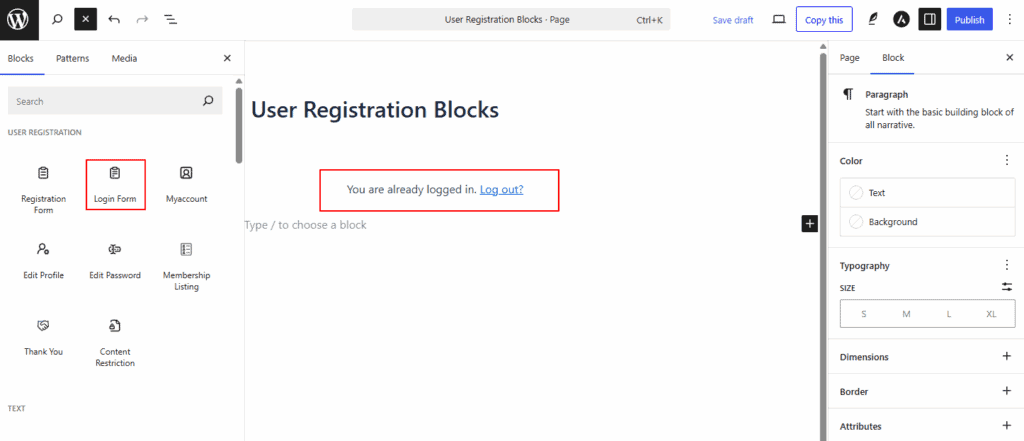
To add the login form block, open the page editor and click the plus (+) icon to add a new block.
Search for "User Registration" or "Login Form" in the block search. Select the Login Form block from the results, and it will be added to your page.
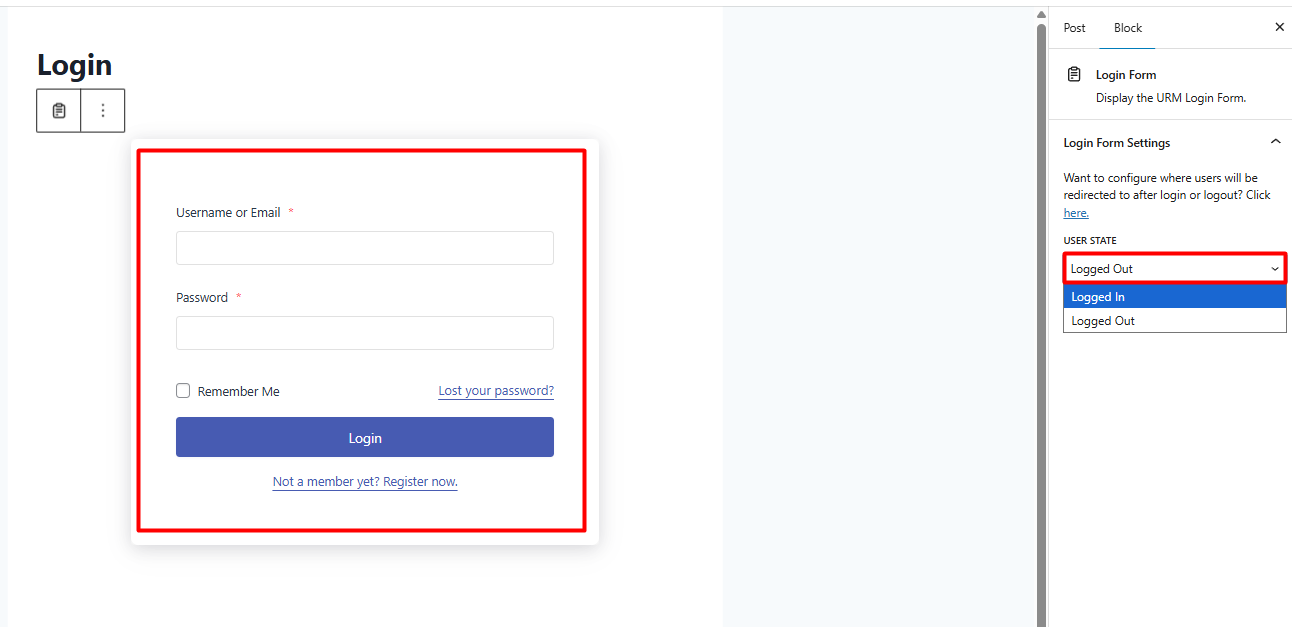
To customize this block, you can click on it and choose if its should be displayed in logged in or logged out state for user.
Method 3: Creating a Dedicated Login Page
For the best user experience, create a dedicated login page that users can access from your site navigation.
From your WordPress dashboard, go to Pages → Add New. Give your page a title like "Login" or "Member Login." Add the login form using either the shortcode [user_registration_login] or the Login Form block. Click Publish to make the page live.
Once published, you can add a link to this page in your site's navigation menu or footer.
Testing Your Login Form
After adding the login form to your page, test it to ensure everything works correctly.
Open your login page in a private or incognito browser window. Try logging in with a test user account. Verify that the Remember Me option works if enabled. Test the lost password link to ensure it directs to the correct page. Check that the registration link (if present) leads to your registration form.
If you encounter any issues, verify that you've saved all settings and that the correct pages are assigned in User Registration & Membership → Settings → General → Pages.
Frequently Asked Questions
Can I have multiple login forms on different pages?
Yes, you can add the login form shortcode or block to as many pages as you need. The same login form will appear on each page where you add it.
What happens if users try to access the default WordPress login page?
If you've enabled the Disable Default WordPress Login Screen option, users will be automatically redirected to your custom login page. If you haven't enabled this option, both the default WordPress login and your custom login form will work.
Can I customize the login form's appearance?
Yes, you can customize the form's appearance using the plugin's style settings at User Registration & Membership → Settings → General → Style. You can change colors, button styles, and other visual elements. For advanced customization, you can add custom CSS.
Where do users go after logging in?
By default, users are redirected to the My Account page after login. You can customize this redirect URL in the login form settings at Form Settings → General → Redirect URL. You can also set up role-based redirects to send different user types to different pages.
That's it! Now you know how to display the login form on your WordPress site using User Registration & Membership. Next, would you like to learn how to customize the login form's appearance or set up advanced login features? Be sure to check out our guide on customizing login forms for all the details.