
Oxygen Builder
Learn how to add and customize User Registration forms and login pages using Oxygen Builder's visual editor without coding.
Last updated on Jul 15, 2026
Would you like to design custom registration and login pages using Oxygen Builder's visual editor? User Registration & Membership integrates seamlessly with Oxygen Builder Pro, allowing you to add registration forms, login forms, and user account features to your pages without writing code. This tutorial will show you how to add and customize User Registration blocks in Oxygen Builder.
Before getting started, make sure you've installed and activated both the User Registration & Membership plugin and Oxygen Builder Pro on your WordPress site.
Opening the Oxygen Builder Editor
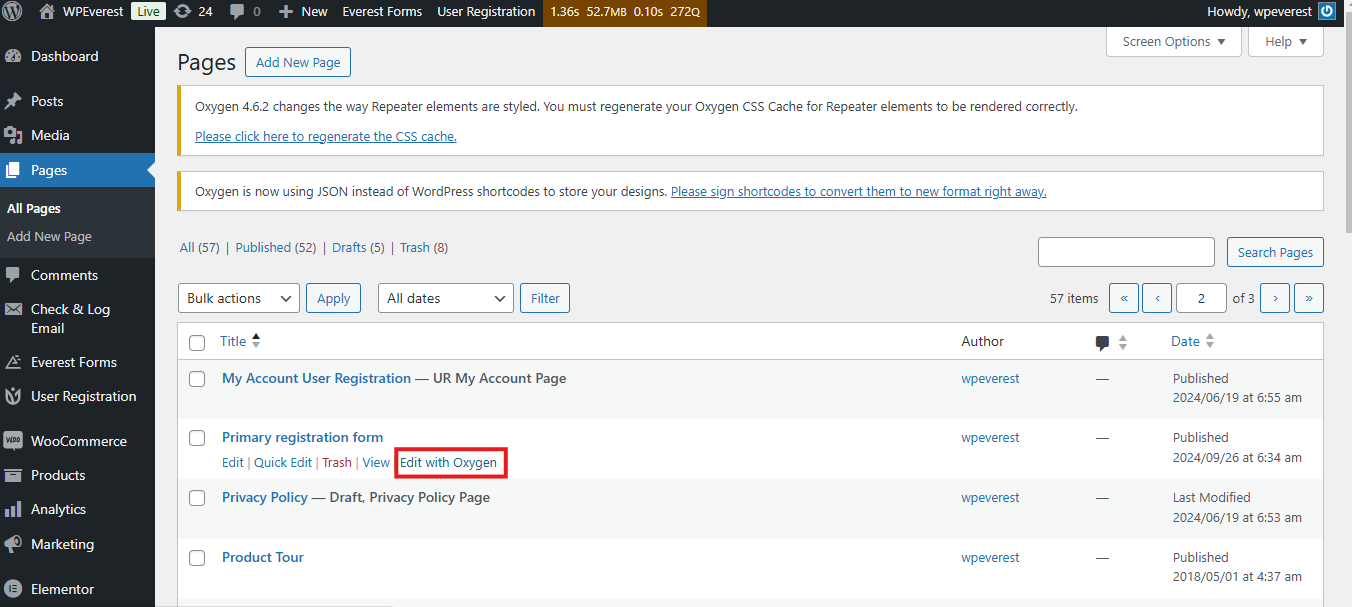
To begin editing a page with Oxygen Builder, go to your WordPress dashboard and navigate to the Pages section. Find the page you want to edit and hover below the page name. Click 'Edit with Oxygen' to open Oxygen's visual page builder.
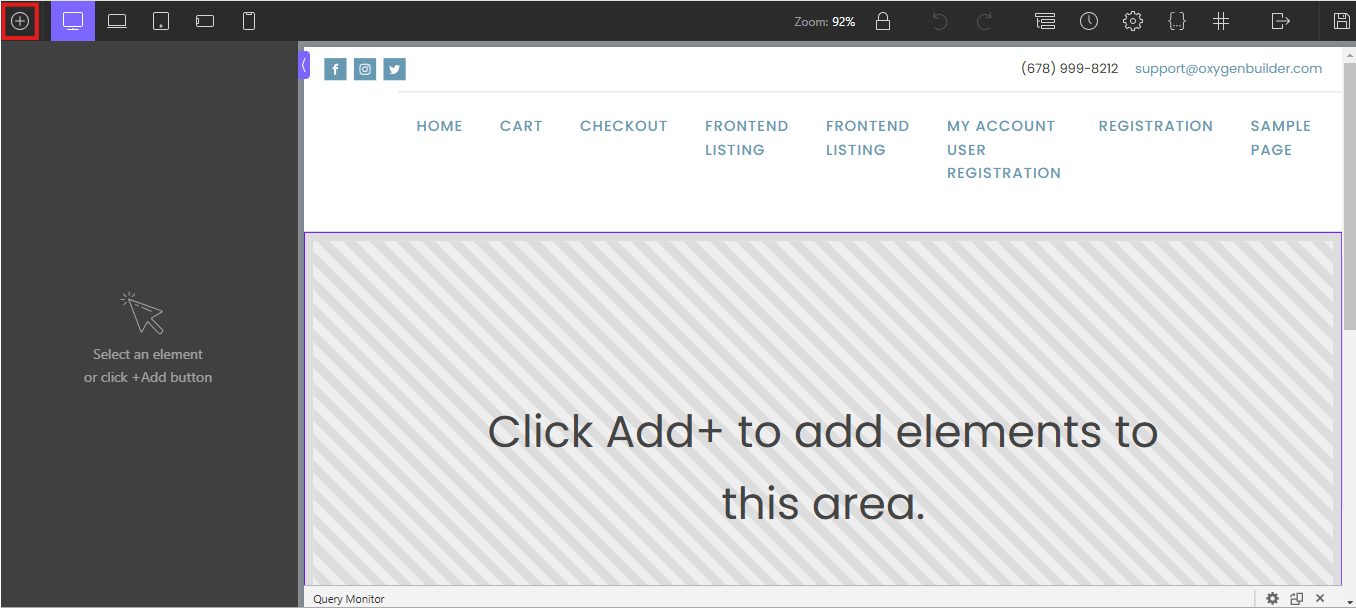
Once the Oxygen Builder interface loads, you'll see your page canvas in the center with editing tools on the left side.
Adding User Registration Blocks
To add a User Registration block to your page, click the plus icon in the top left corner of the Oxygen Builder interface. This opens the module sidebar showing all available blocks and elements.
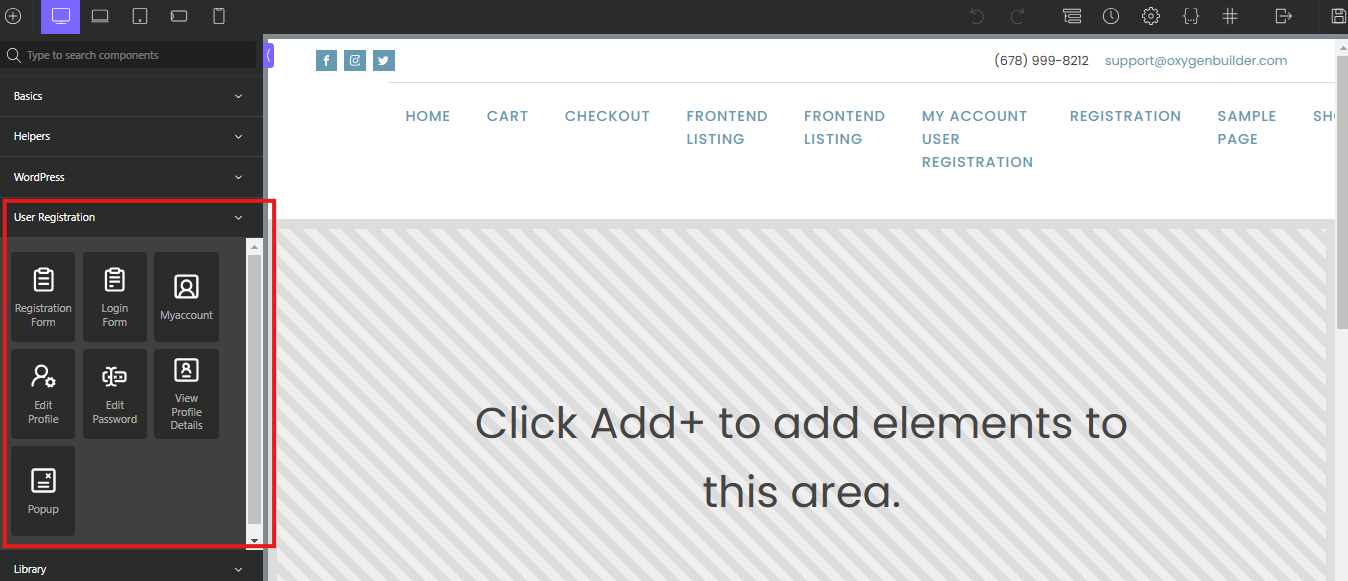
Scroll down the sidebar until you locate the User Registration menu section. Here, you'll find all available User Registration blocks that you can add to your page.
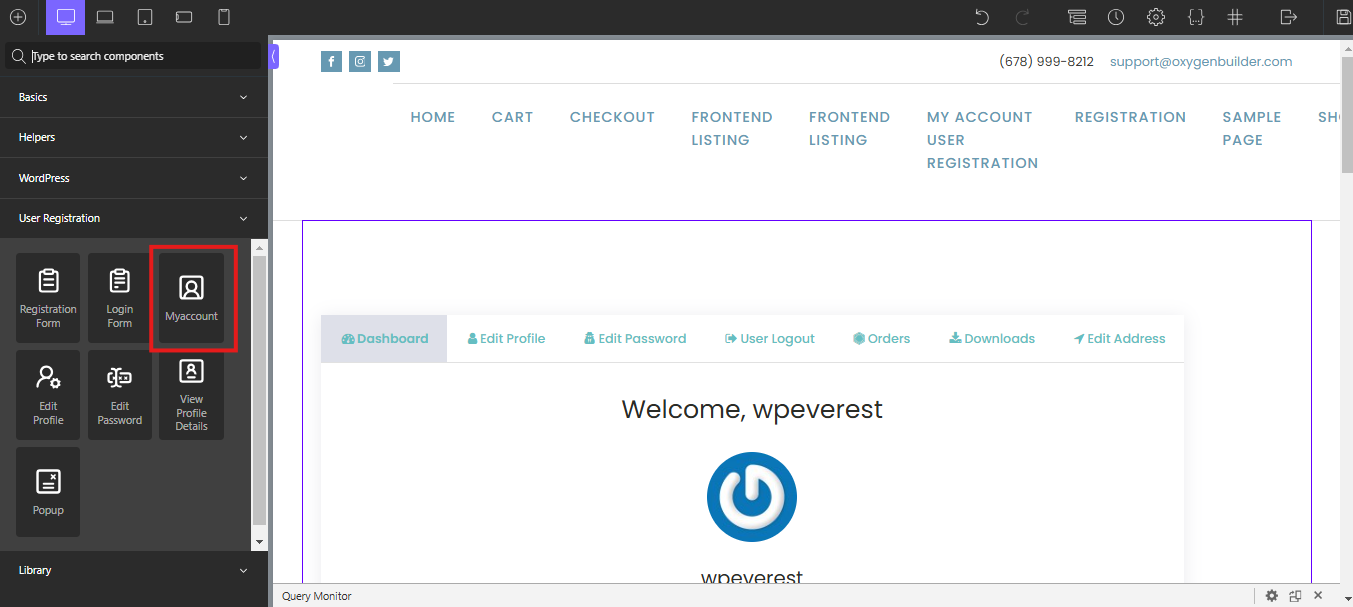
Before adding a User Registration block, you'll need to add a section to your page first. Click on any User Registration block from the menu—your options include Registration Form, Login Form, My Account, Edit Profile, Edit Password, View Profile Details, and Popup.
Available User Registration Blocks
Oxygen Builder provides access to seven different User Registration blocks:
Registration Form — displays your custom registration forms
Login Form — adds a login form to any page
My Account — shows the user account dashboard
Edit Profile — allows users to update their profile information
Edit Password — provides a password change interface
View Profile Details — displays user profile information
Popup — adds popup functionality to your forms
Customizing Block Styling
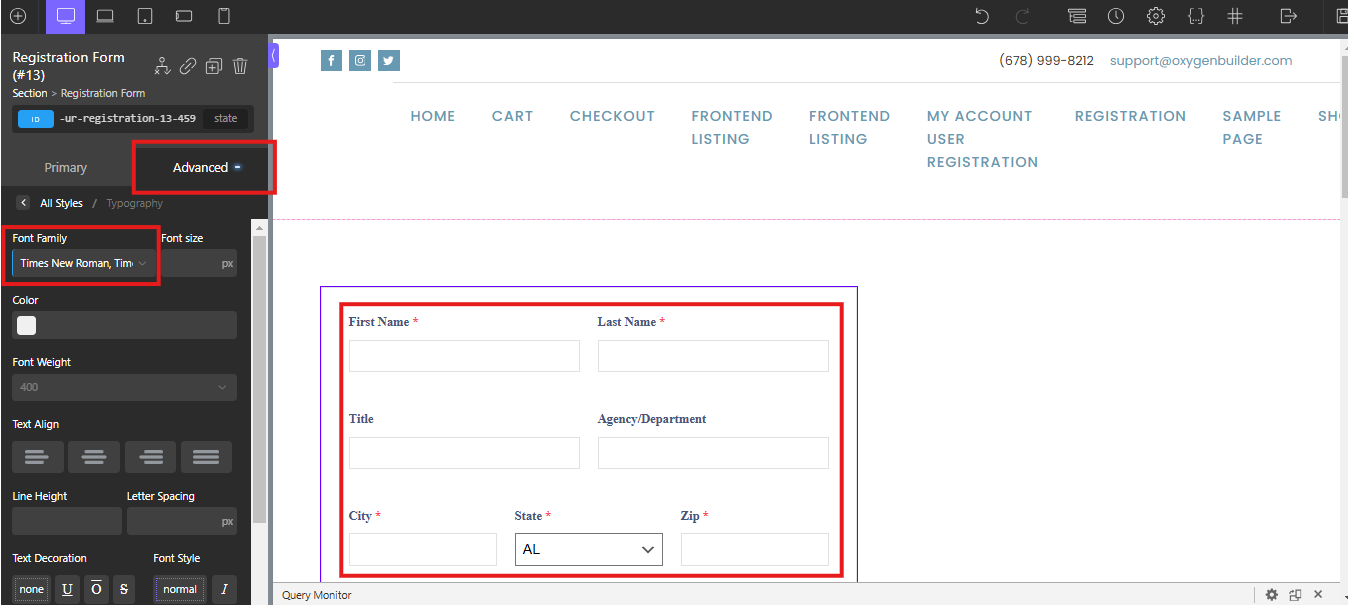
After adding a User Registration block to your page, you can customize its appearance using Oxygen Builder's styling options. All User Registration blocks support both Primary and Advanced styling customization.
Primary styling options allow you to customize the form container, labels, and buttons. These settings control the basic visual appearance of your registration or login forms.
Advanced styling options provide deeper customization capabilities. You can modify background colors, adjust size and spacing, change typography, add borders, and even include custom CSS and JavaScript.
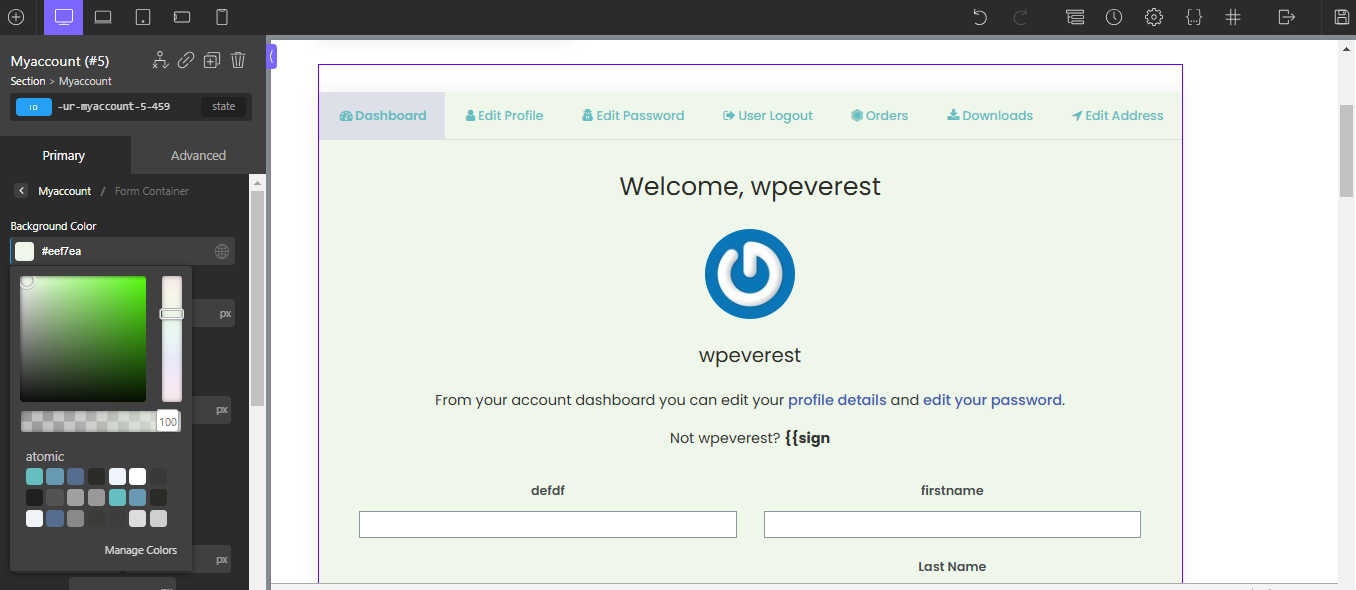
The Advanced options also include layout settings to control how your form elements are arranged on the page.
Requirements and Compatibility
This integration requires Oxygen Builder Pro—the free version of Oxygen Builder is not compatible with User Registration blocks. Make sure you have the Pro version installed before attempting to add User Registration features to your pages.
That's it! Now you know how to add and customize User Registration forms and features using Oxygen Builder's visual editor. Next, would you like to learn more about customizing individual form fields or configuring form settings? Be sure to check out our complete guide to the User Registration form builder for all the details.