
LearnDash
ProAutomatically enroll users in LearnDash courses through custom registration forms with instant access upon signup.
Last updated on Jul 17, 2026
Would you like to automatically enroll users in LearnDash courses when they register on your site? User Registration & Membership allows you to create custom registration forms that connect directly to LearnDash, so users can select courses during signup and gain instant access. This tutorial will show you how to set up the LearnDash integration and configure automatic course enrollment.
Before getting started, make sure you've installed and activated the User Registration & Membership Pro plugin on your WordPress site. Then, make sure you've installed and activated the LearnDash LMS plugin.
Requirements: The LearnDash integration requires the LearnDash addon, available with Plus or Professional plans.
Installing and Activating the LearnDash Addon
To connect User Registration & Membership with LearnDash, you'll need to activate the LearnDash addon first.
Go to User Registration & Membership > Addons in your WordPress dashboard. Here, you'll see a list of all available addons organized by category. Locate the LearnDash addon and toggle the switch to Activate.
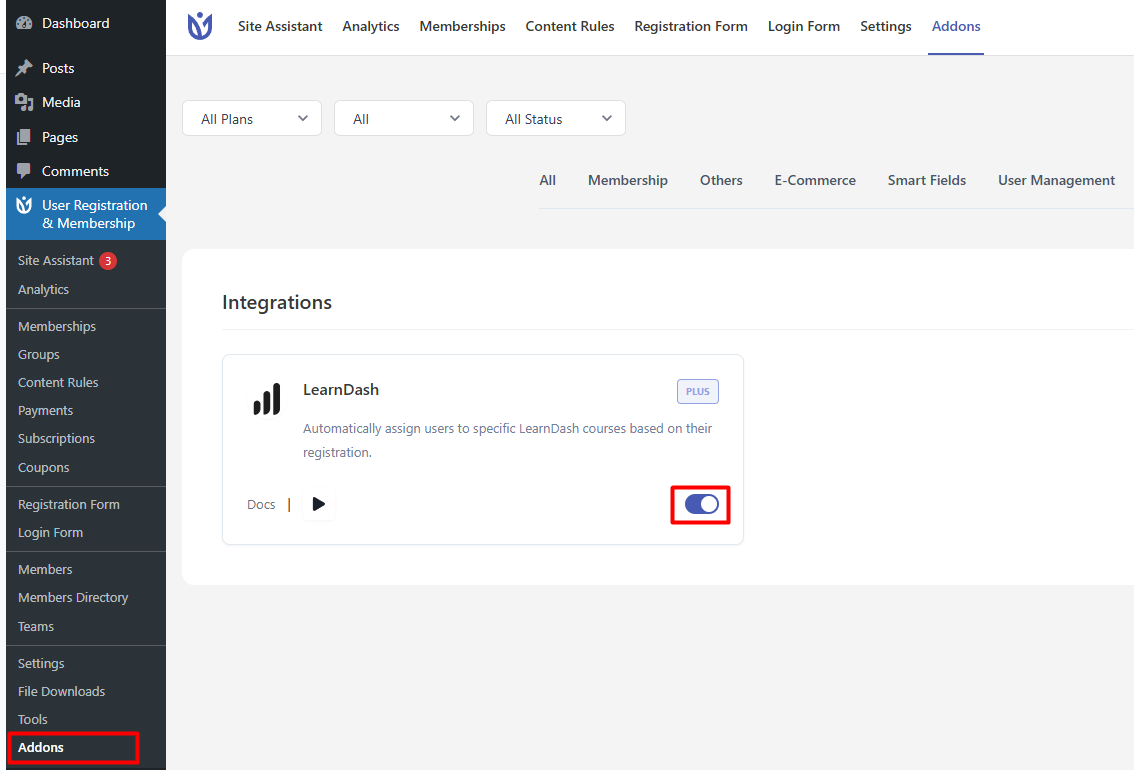
Once activated, the LearnDash integration features will be available in your registration forms.
Adding the LearnDash Field to Your Registration Form
The LearnDash field allows users to select courses or groups during registration. You can add this field to any new or existing registration form.
Go to User Registration & Membership > Add New to create a new registration form, or edit an existing form. In the form builder, you'll see the LearnDash field available in the field palette on the left side.
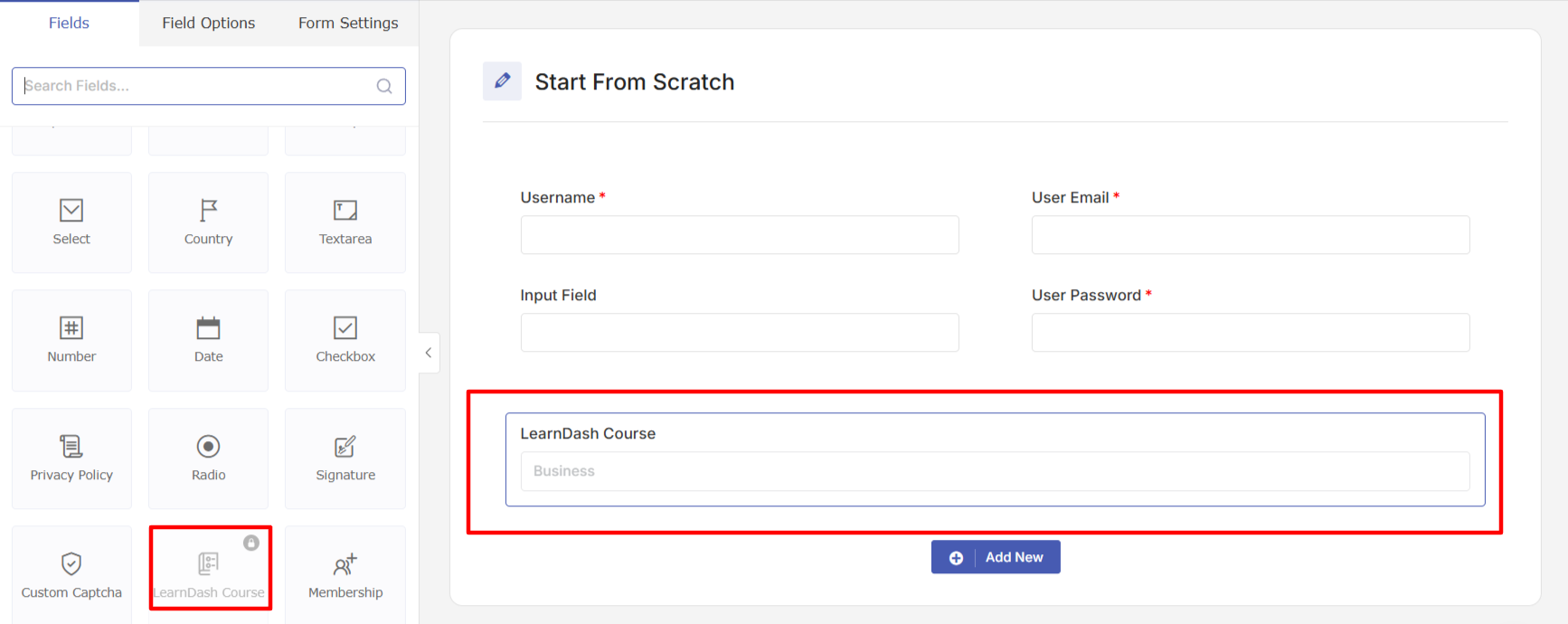
Drag the LearnDash field from the palette and drop it into your form. By default, the form includes User Email and User Password fields — the LearnDash field will appear alongside your other registration fields.
Click on the LearnDash field to access Field Options in the left sidebar.
Configuring the LearnDash Field
Once you've added the LearnDash field, you'll need to configure how it works.
In Field Options > Advanced Settings, locate the Enroll Type dropdown. Here, you can choose between two options:
Courses — Users can select individual LearnDash courses
Groups — Users can select LearnDash groups
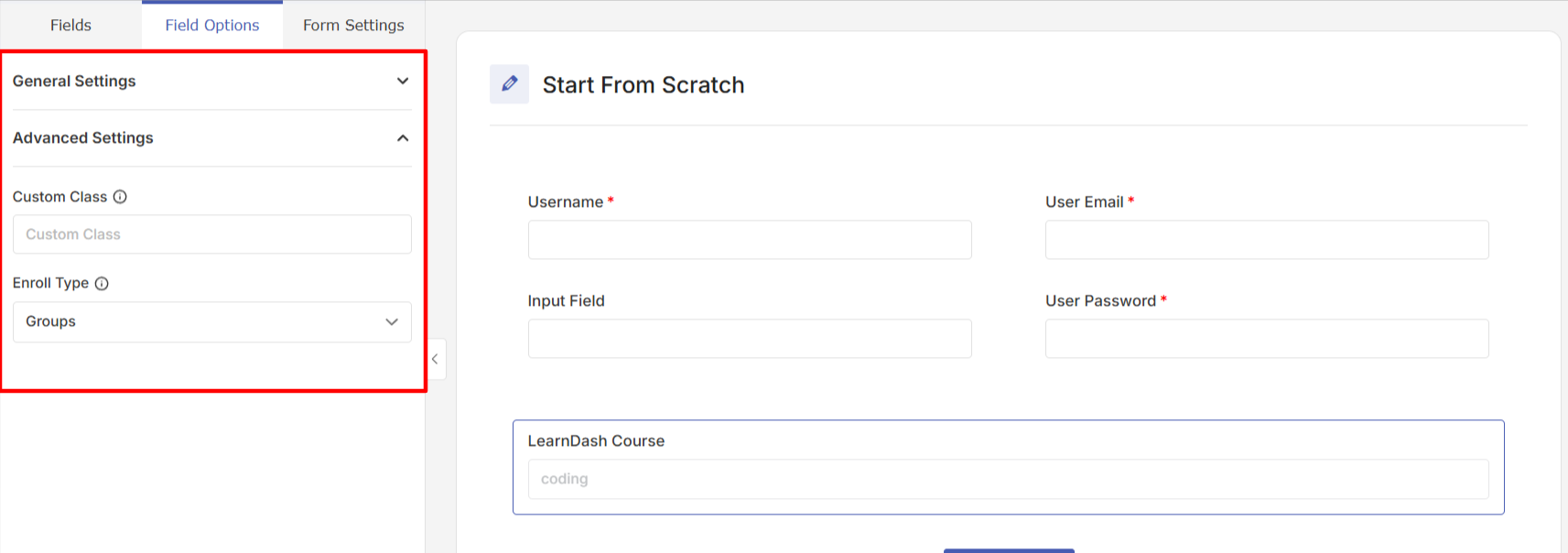
Select the enroll type that matches your setup. If you want users to choose from individual courses, select Courses. If you've organized your courses into LearnDash groups, select Groups.
You can also configure the field type. The LearnDash field can display as either a select field (dropdown) or checkbox (allowing multiple selections). Choose the option that works best for your registration flow.
Click Update Form to save your changes.
Setting Up Automatic Course Enrollment
User Registration & Membership can automatically enroll users in specific courses when they register — no manual intervention required.
Go to User Registration & Membership > All Forms and click Edit on the form you want to configure. Navigate to Form Settings > LearnDash LMS.
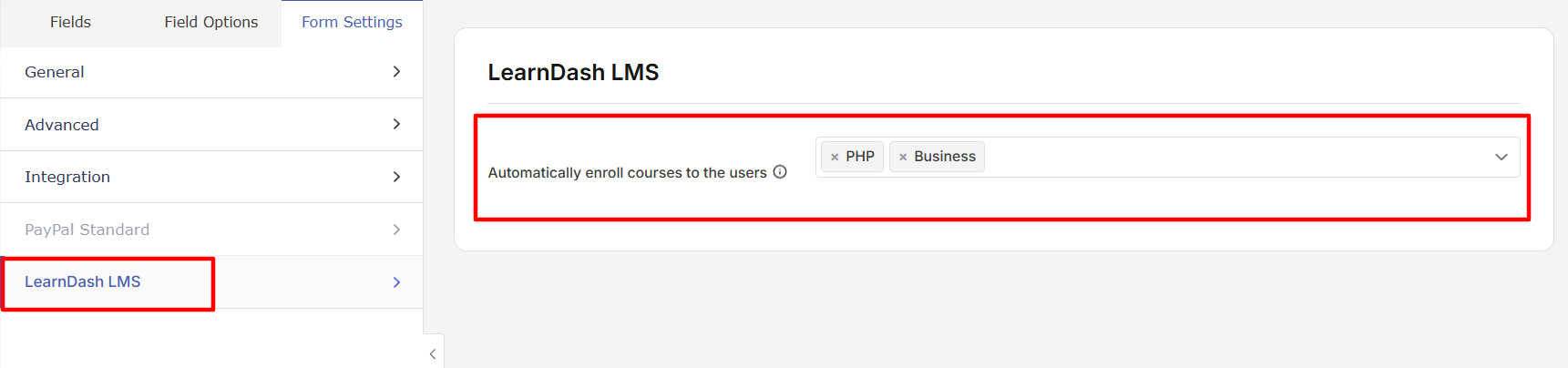
Here, you'll see the Automatically enroll courses option. Click the dropdown and select the courses you want all users to be enrolled in when they submit this form. You can select multiple courses.
Click Update Form to save your settings. Now, every user who registers through this form will be automatically enrolled in the selected courses.
Courses set to 'Open' Access Mode in LearnDash will automatically enroll users even if not selected in these settings. To exclude courses from automatic enrollment, set them to Premium or Closed Access Mode in LearnDash.
Configuring Conditional Course Enrollment
If you'd prefer to enroll users in courses based on conditions they meet during registration, you can use conditional enrollment.
Go to Form Settings > LearnDash LMS and enable Assign LearnDash course Conditionally. Once enabled, you'll see options to create conditions.
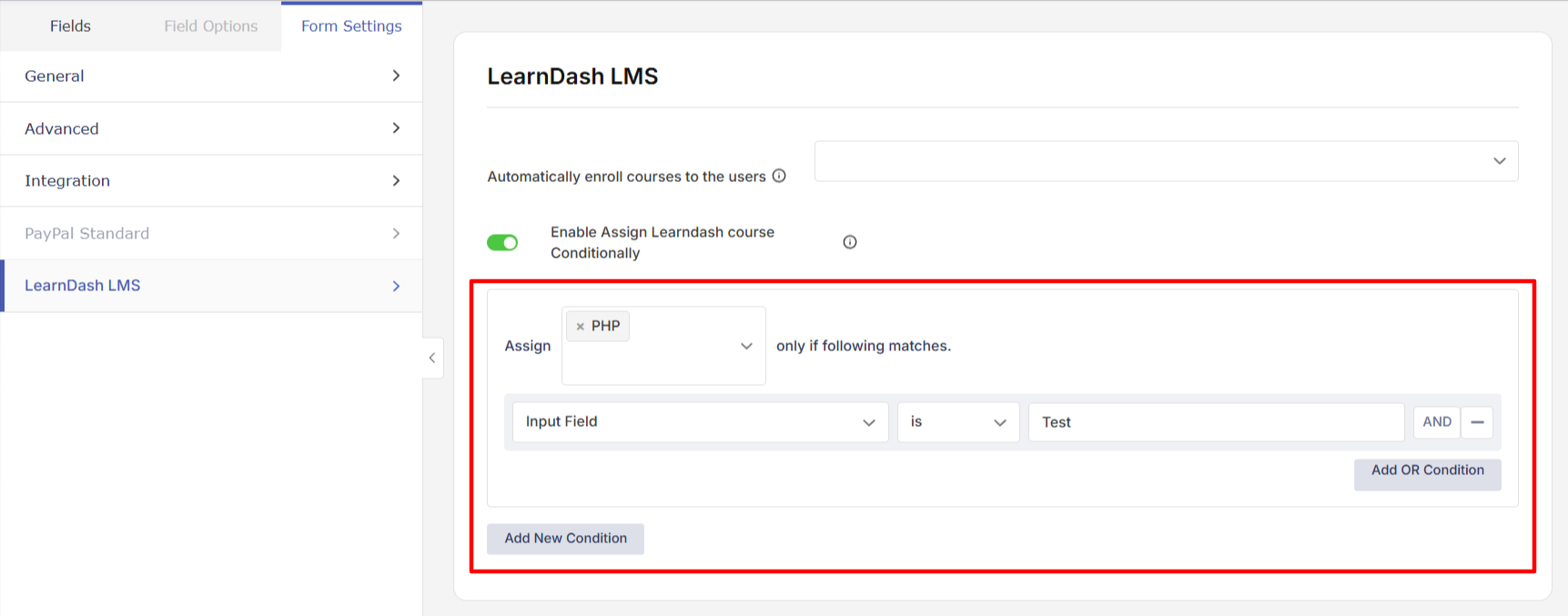
Click Add Condition to create your first rule. You can set conditions based on any field in your registration form. For example, you might enroll users in different courses based on their selected membership plan, their role, or their responses to specific form fields.
For each condition, select:
The form field to evaluate
The comparison operator (equals, contains, etc.)
The value to match
The courses to enroll users in when the condition is met
You can create multiple conditions to handle different enrollment scenarios. Click Update Form to save your conditional enrollment rules.
Controlling Course Access Mode in LearnDash
LearnDash courses have an Access Mode setting that affects how automatic enrollment works with User Registration & Membership.
To change a course's Access Mode, go to LearnDash LMS > Courses in your WordPress dashboard. Select the course you want to configure and click Settings.
In the course settings, locate the Access Mode option. You'll see three choices:
Open — Anyone can access the course without enrollment
Premium — Users must be enrolled to access the course
Closed — Users must be enrolled to access the course
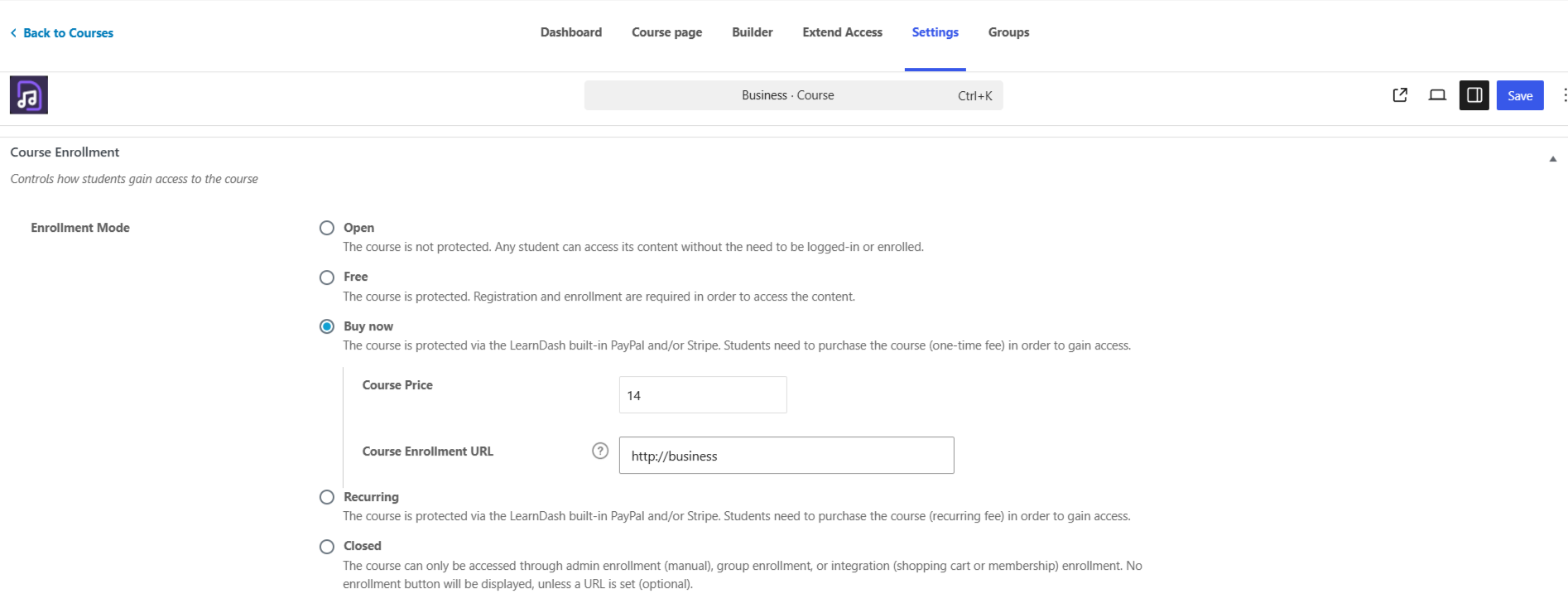
If you set a course to Open, users will be automatically enrolled even if you haven't selected it in your automatic enrollment settings. To prevent this, set the course to Premium or Closed Access Mode.
Click Update to save the course settings.
Replacing Default LearnDash Login and Registration
By default, LearnDash uses its own login and registration pages. You can replace these with your User Registration forms for a consistent experience.
First, disable LearnDash's built-in login and registration. Go to LearnDash LMS > Settings and locate the General > Appearance > Login & Registration and disbale it.
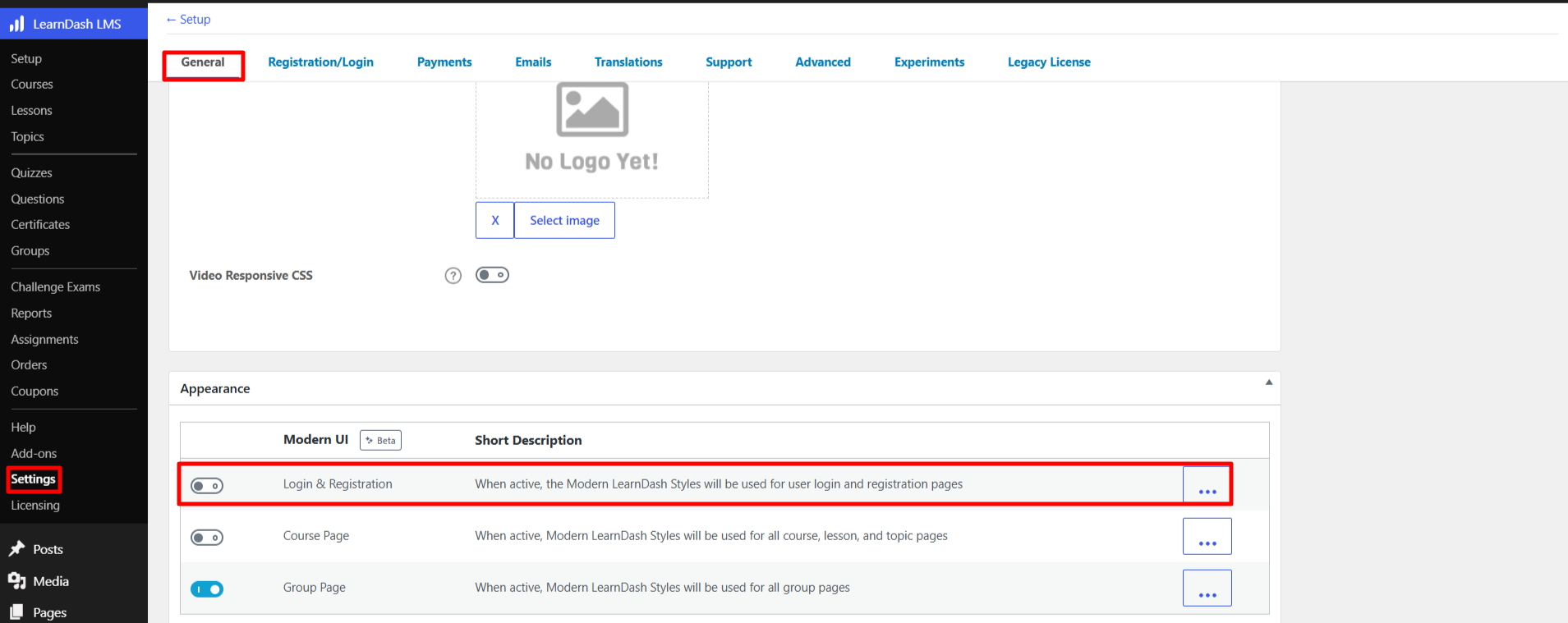
Next, configure your User Registration forms as the default login and registration pages. Go to User Registration & Membership > Settings > General > Pages and select your registration page from the Registration Page dropdown. Select your login page from the Login Page dropdown.
Click Save Changes. Now, when users try to access LearnDash courses, they'll be directed to your custom User Registration forms instead of the default LearnDash pages.
Viewing Course Details in My Account
Users can view their enrolled LearnDash courses directly from their User Registration & Membership account page.
Once the LearnDash addon is activated, a LearnDash tab automatically appears in the My Account page. Users can click this tab to see:
All courses they're enrolled in
Course progress and completion status
Course expiry dates (if applicable)
Links to access their courses
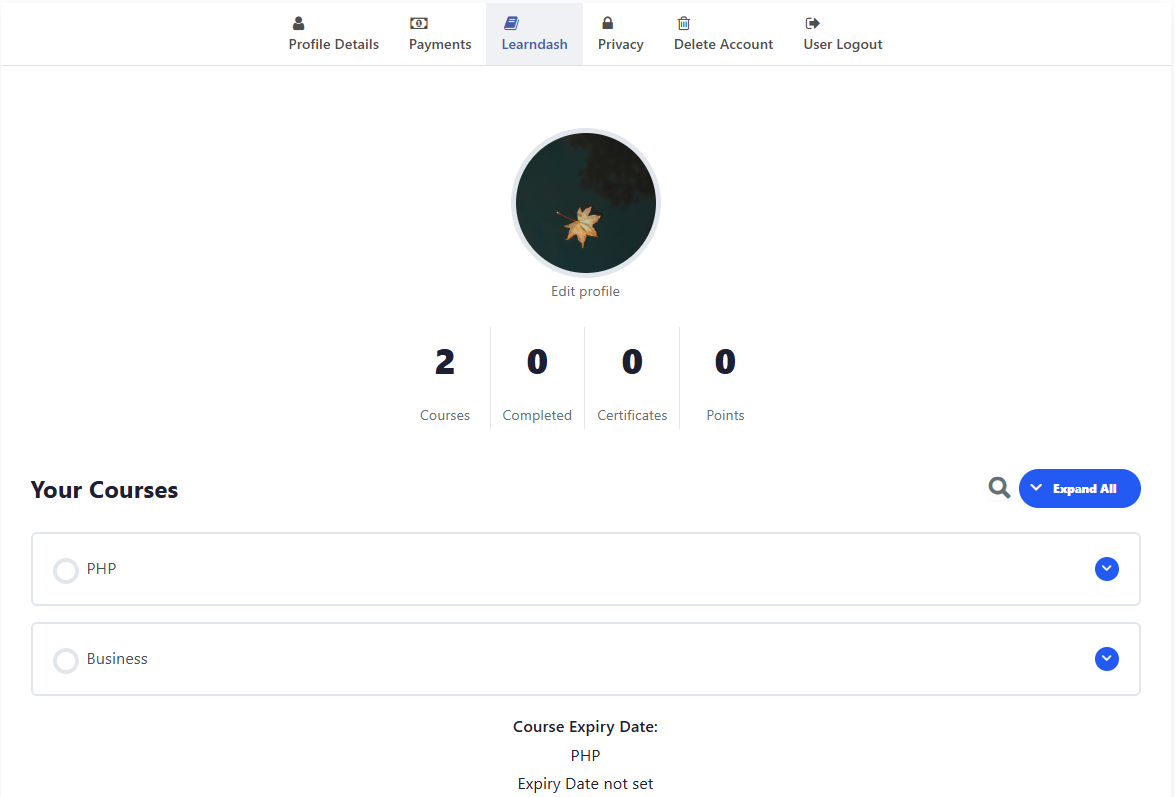
No additional configuration is needed — the LearnDash tab appears automatically for users who have registered through User Registration & Membership forms.
Frequently Asked Questions
Can users select multiple courses during registration?
Yes. If you configure the LearnDash field as a checkbox field, users can select multiple courses. If you use a select field (dropdown), users can only choose one course.
What happens if I change a course's Access Mode after users are enrolled?
Changing the Access Mode won't affect users who are already enrolled. They'll retain access to the course. The Access Mode only affects new enrollments.
Can I enroll users in both courses and groups?
Not in the same field. The LearnDash field can be set to either Courses or Groups mode. If you need both, add two separate LearnDash fields to your form — one for courses and one for groups.
Do users need to complete payment before being enrolled in courses?
If your form includes payment fields, enrollment happens after successful payment. If your form is free, enrollment happens immediately after registration.