
Google Sheets
ProAutomatically sync WordPress user registration data to Google Sheets in real-time with secure OAuth authentication and custom field mapping.
Last updated on Jul 21, 2026
Would you like to automatically send user registration data from your WordPress forms to Google Spreadsheets? User Registration & Membership allows you to connect your registration forms to Google Sheets, so every new signup is instantly logged in a spreadsheet you can access, analyze, and share.
This tutorial will show you how to set up the Google Sheets integration, authenticate your Google account, and map your form fields to spreadsheet columns.
Prerequisites
Before getting started, make sure you've installed and activated the User Registration & Membership Pro plugin on your WordPress site. Then, make sure you've installed and activated the Google Sheets addon from User Registration & Membership → Addons.
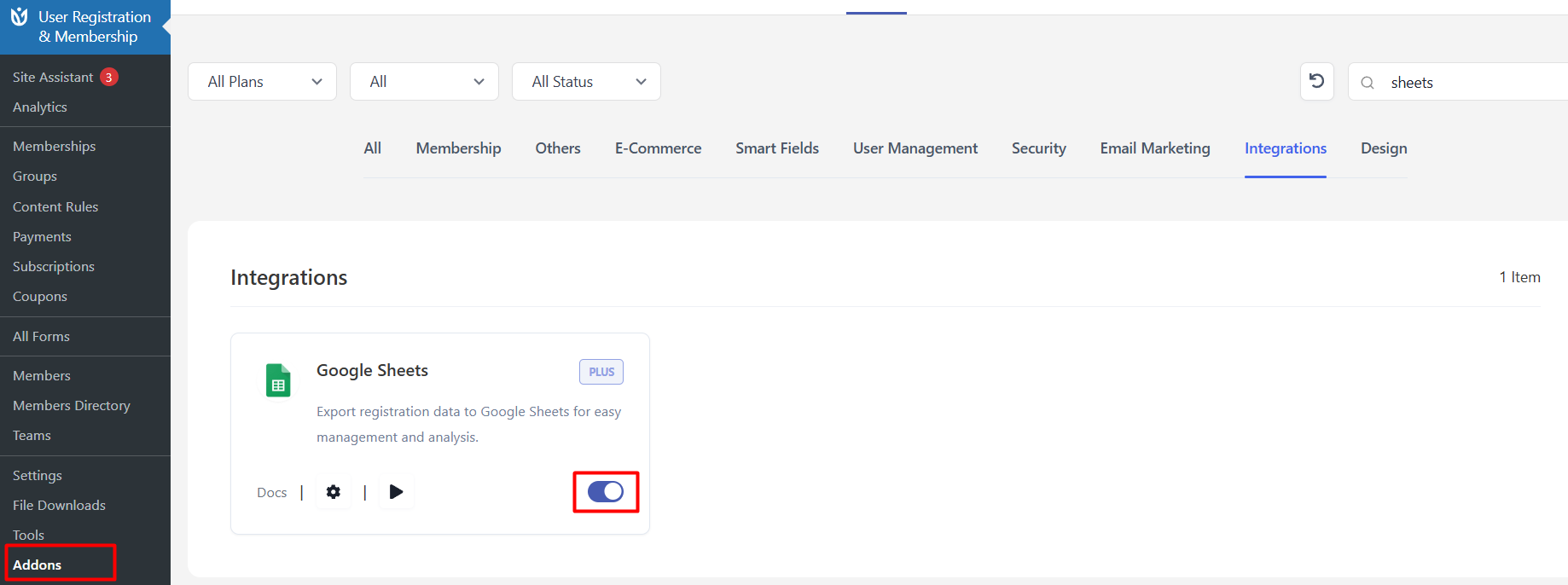
Requirements: The Google Sheets addon requires the Plus or Professional plan.
Setting Up Google Cloud Console
To connect User Registration & Membership with Google Sheets, you'll need to create OAuth credentials in the Google Cloud Console. This allows the plugin to securely access your Google Sheets on your behalf.
Creating a Google Cloud Project
Go to https://console.cloud.google.com/ and sign in with your Google account.
If you don't have an existing project, click Select a project at the top of the page, then click New Project.
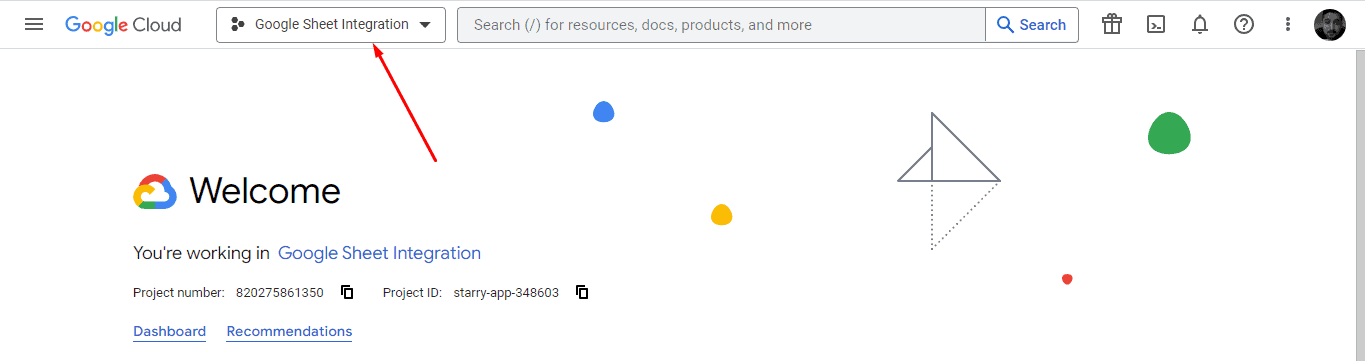
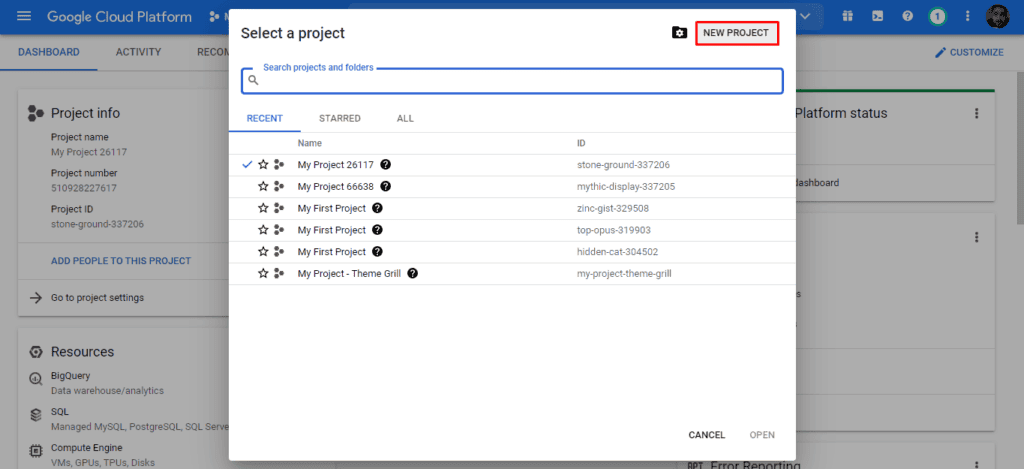
Enter a project name and organization (if applicable), then click Create.
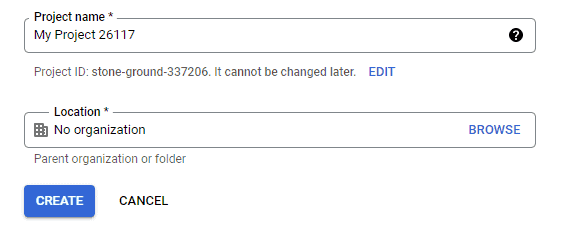
Once your project is created, make sure it's selected in the project dropdown at the top of the page.
Enabling the Google Sheets API
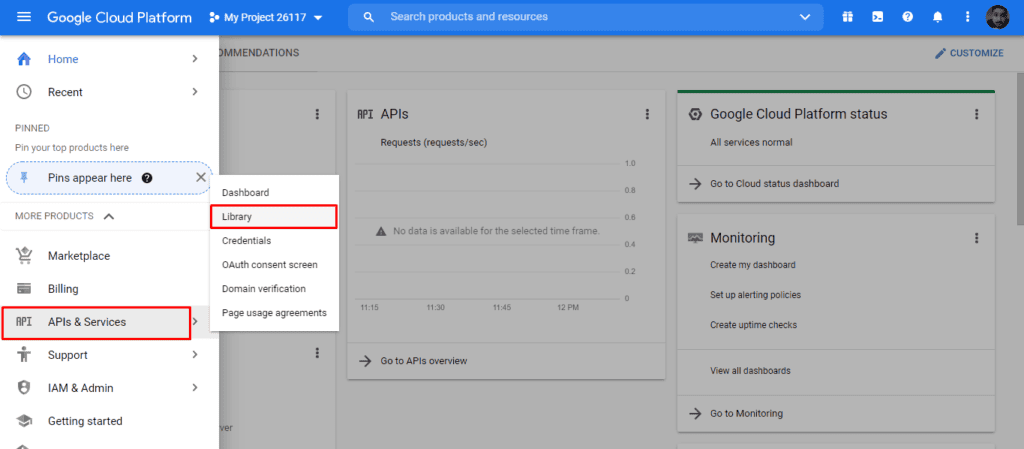
From the Google Cloud Console dashboard, navigate to API & Services → Library.
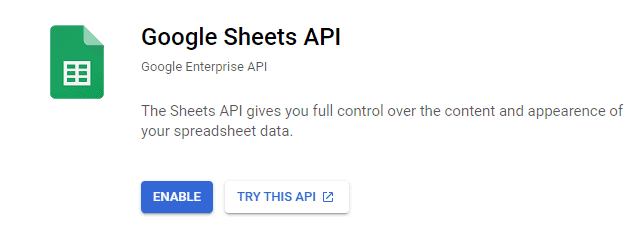
In the API Library, search for Google Sheets API and click on it. Then, click the Enable button to activate the API for your project.
Configuring the OAuth Consent Screen
Before you can create credentials, you need to configure the OAuth consent screen. This is the screen users see when they authorize the plugin to access their Google Sheets.
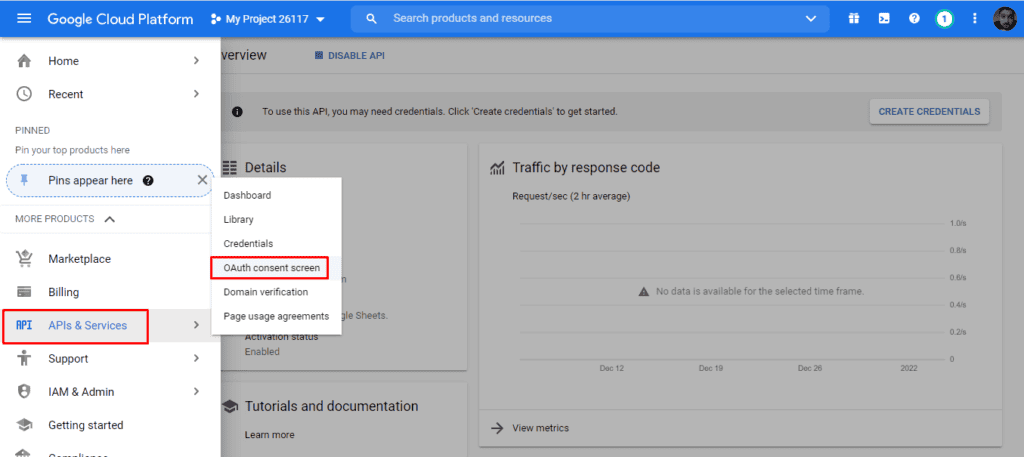
Navigate to API & Services → OAuth consent screen.
Select External as the user type, then click Create.
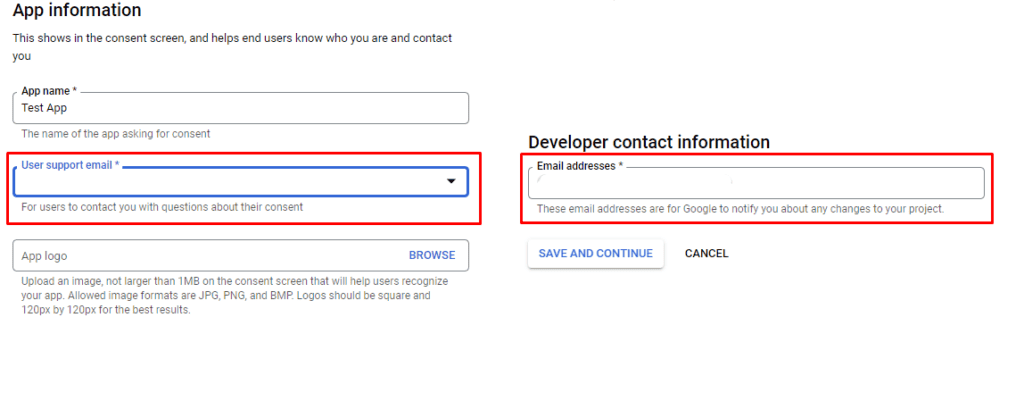
On the next screen, enter the following information:
Application Name: Enter a name for your application (e.g., "User Registration Integration")
User Support Email: Enter your email address
Developer contact information: Enter your email address (this can be the same as the User Support Email)
Click Save and Continue to proceed through the remaining steps. You can leave the optional fields blank.
Once you've completed the setup, click Publish App from the OAuth Consent Screen page to make your app functional.
You must publish the OAuth app for the integration to work. Unpublished apps will not authenticate properly.
Creating OAuth Credentials
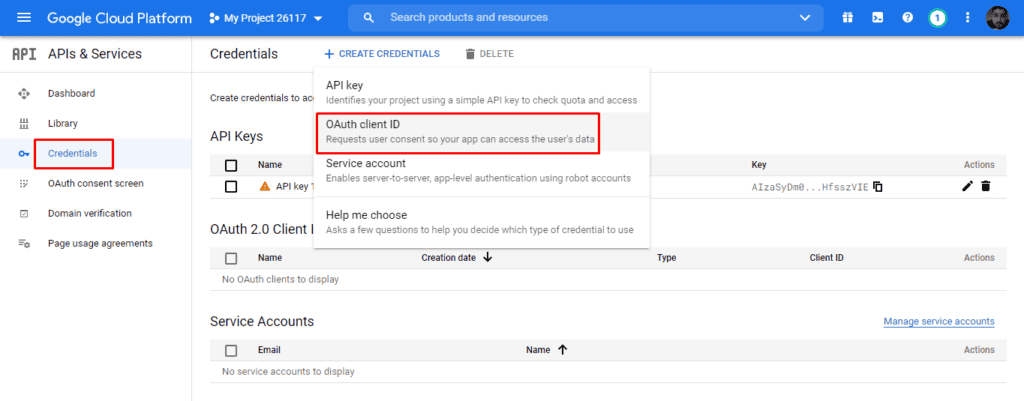
Navigate to API & Services → Credentials and click Create Credentials at the top of the page.
Select OAuth Client ID from the dropdown menu.
On the next screen, select Web Application as the application type.
Enter a name for your OAuth client (e.g., "User Registration Google Sheets").
Under Authorized redirect URIs, click Add URI and enter the following URL, replacing yoursite.com with your actual domain:
https://yoursite.com/wp-admin/admin.php?page=user-registration-settings&tab=integration§ion=google-sheetsImportant: The redirect URI must exactly match this pattern for your domain. Make sure to include https:// and the full path.
Click Create to generate your credentials.
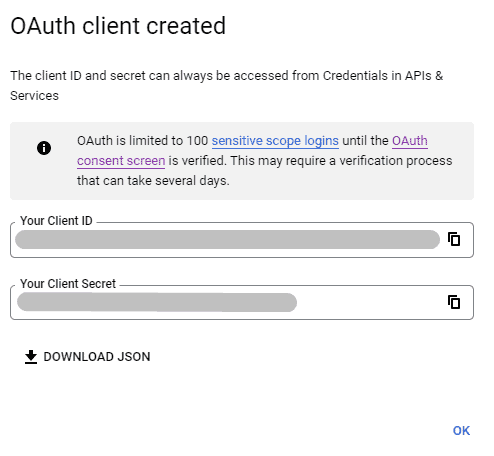
A popup will appear with your Client ID and Client Secret. Copy both of these values — you'll need them in the next step.
Connecting Google Sheets to User Registration
Now that you have your OAuth credentials, you can connect Google Sheets to the User Registration & Membership plugin.
In your WordPress dashboard, go to User Registration & Membership → Settings → Integration → Google Sheets.
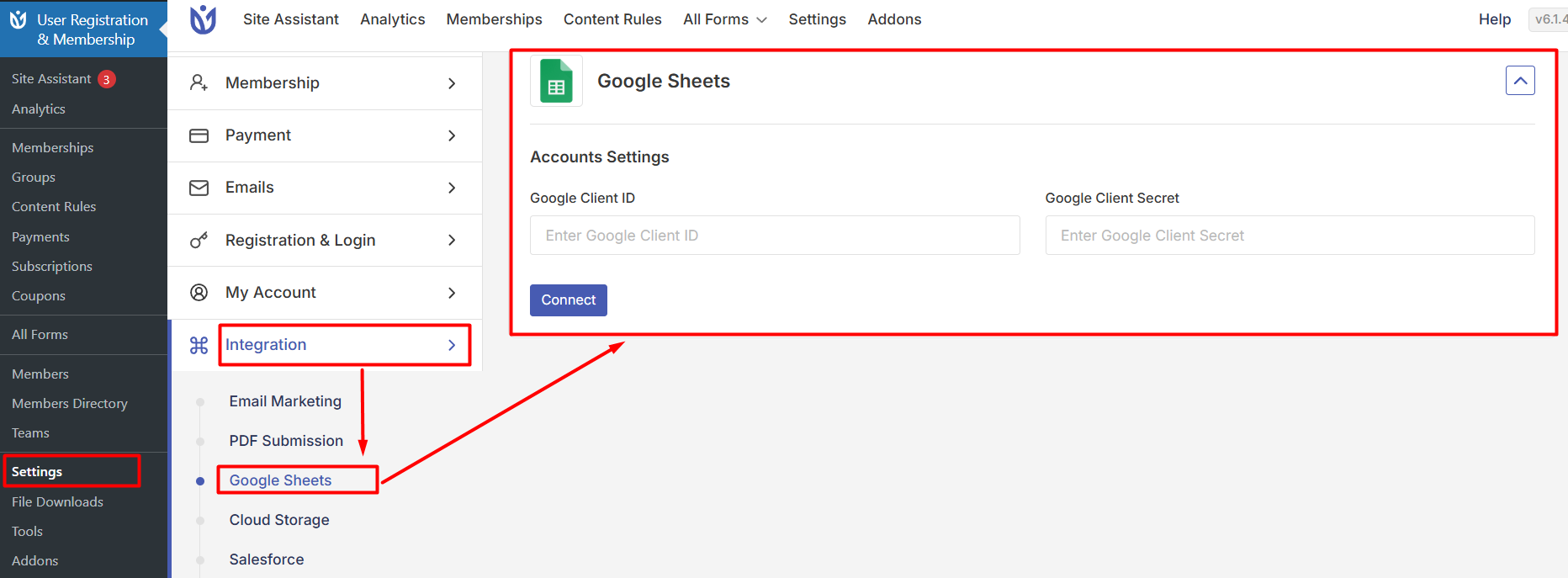
Paste your Client ID and Client Secret into the corresponding fields.
Click Connect to authenticate with Google. You'll be redirected to Google's authorization page.
Sign in with your Google account and grant the requested permissions. Once authorized, you'll be redirected back to your WordPress site.
Click Verify Access Code to complete the connection.
Mapping Form Fields to Google Sheets
With the integration connected, you can now configure which registration forms send data to Google Sheets and how that data is organized.
Creating a Google Sheets Connection
Go to User Registration & Membership → All Forms and select the form you want to connect to Google Sheets.
Navigate to Form Settings → Google Sheets and click the Add New Sheet button.
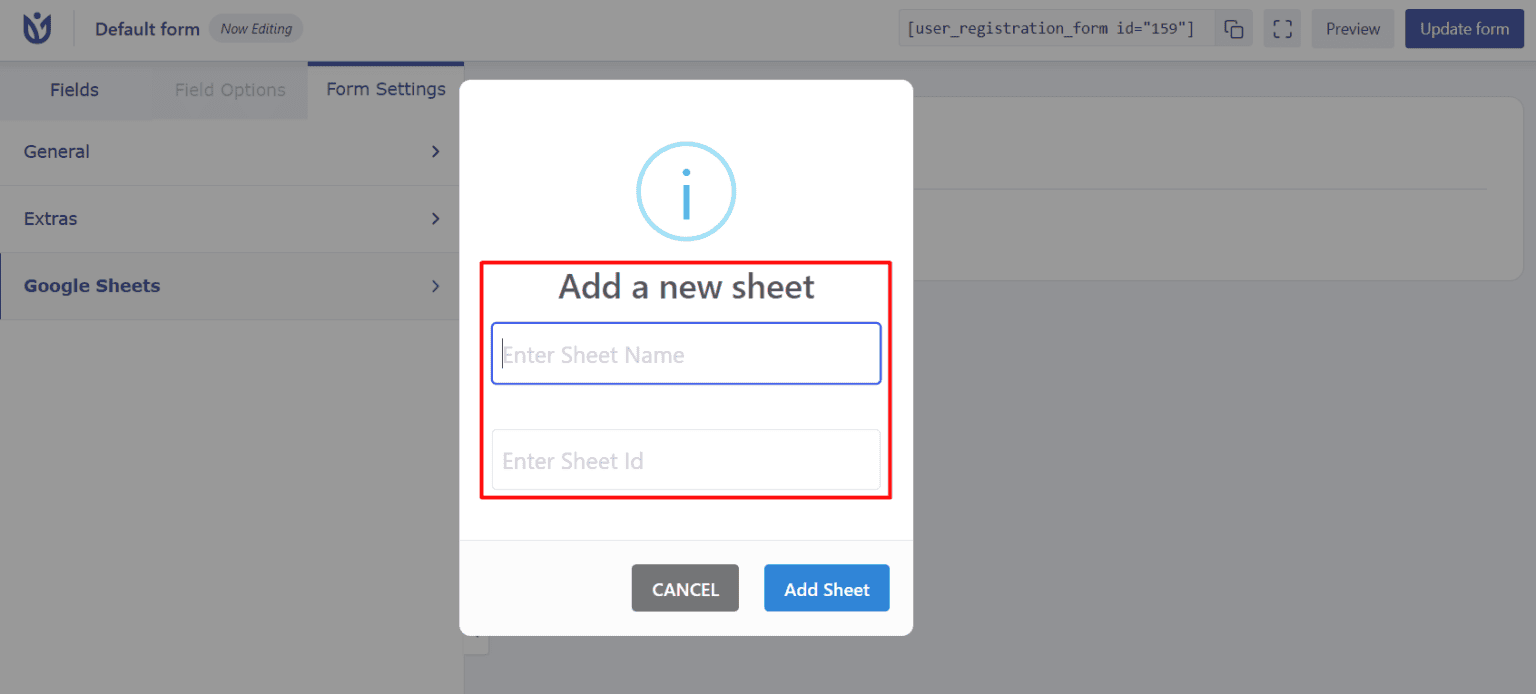
You'll need the Sheet ID from your Google Sheets URL. Open the Google Sheets spreadsheet you want to use and copy the ID from the URL. The Sheet ID is the long string of characters between /d/ and /edit in the URL.
For example, in this URL:
https://docs.google.com/spreadsheets/d/1ABC123xyz456/editThe Sheet ID is 1ABC123xyz456.

Paste the Sheet ID into the field and click Add Sheet.
Mapping Fields to Columns
Once you've added the sheet, you'll see a field mapping interface. This is where you match your User Registration form fields to the columns in your Google Sheets spreadsheet.
For each form field you want to send to Google Sheets, select the corresponding column from the dropdown menu. The column names come from the first row of your spreadsheet.
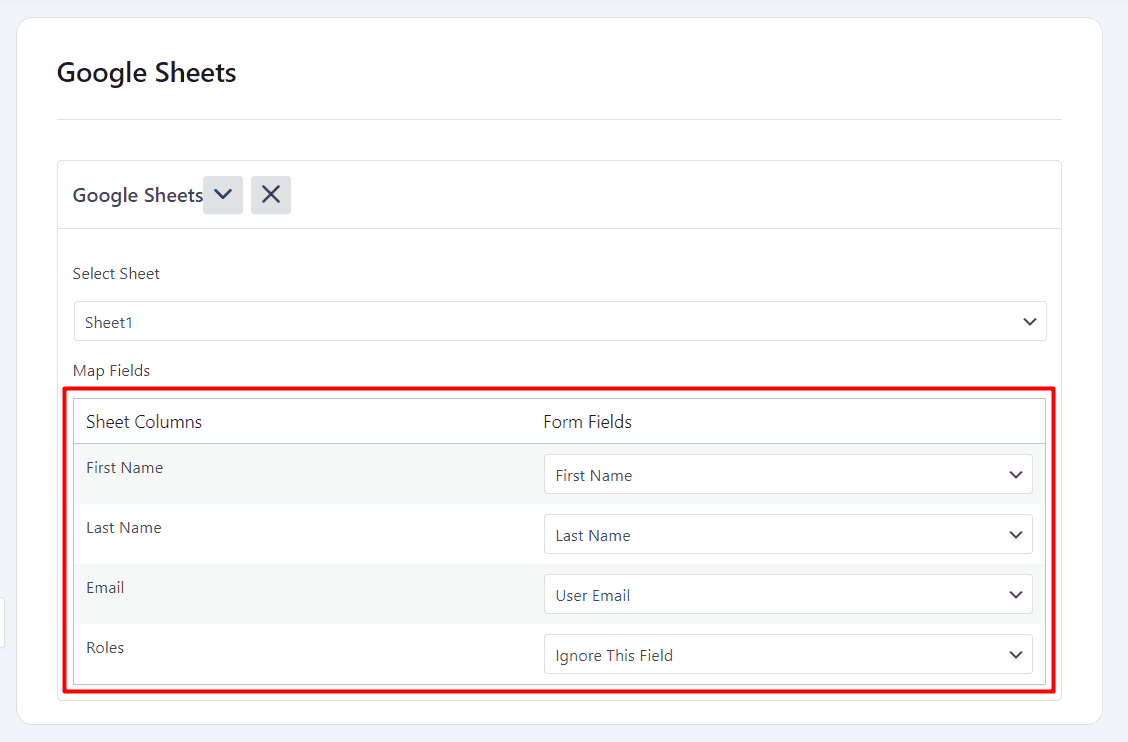
The Sheet Name in Google Sheets doesn't need to match your form name — the integration uses the Sheet ID to identify the correct spreadsheet.
Click Update Form to save your field mapping.
Testing the Integration
To verify the integration is working correctly, submit a test registration through your form.
After submission, open your Google Sheets spreadsheet and check that the new row contains the data from your test registration.
If the data doesn't appear, check the following:
Verify your OAuth credentials are correct in User Registration & Membership → Settings → Integration → Google Sheets
Confirm the Sheet ID is correct in your form settings
Make sure the column names in your spreadsheet match the field mappings
Check that your Google Sheets API is enabled in the Google Cloud Console