
BuddyPress
ProAutomatically sync user registration form data with BuddyPress profile fields to eliminate duplicate data entry and streamline member onboarding.
Last updated on Jul 15, 2026
Would you like to connect your User Registration & Membership forms with BuddyPress to sync user profile data automatically?
User Registration & Membership allows you to map registration form fields to BuddyPress profile fields, so member information flows seamlessly between the two plugins. This guide will show you how to set up and configure the BuddyPress integration.
Prerequisites
Before getting started, make sure you've installed and activated the User Registration & Membership plugin on your WordPress site. You'll also need to have the BuddyPress plugin installed and activated, with at least one BuddyPress profile field group created.
Understanding BuddyPress Field Mapping
User Registration & Membership includes a field mapping feature that synchronizes form data with external plugins like BuddyPress. When enabled, data entered into your registration forms automatically populates the corresponding BuddyPress profile fields, eliminating the need for users to enter the same information twice.
The mapping works by connecting User Registration form fields to BuddyPress profile field meta keys. Once configured, every new registration or profile update syncs the data to BuddyPress automatically.
Create a custom profile field
The Profile Details section of BuddyPress can be customized using a tool. You may get to it by heading to Users > Profile Fields in the WordPress administration section. Name (Primary), the sole field that is displayed by default, is a field that must be filled up. This information is used to identify a person on the website; it appears at the top of their profile and in activity items.
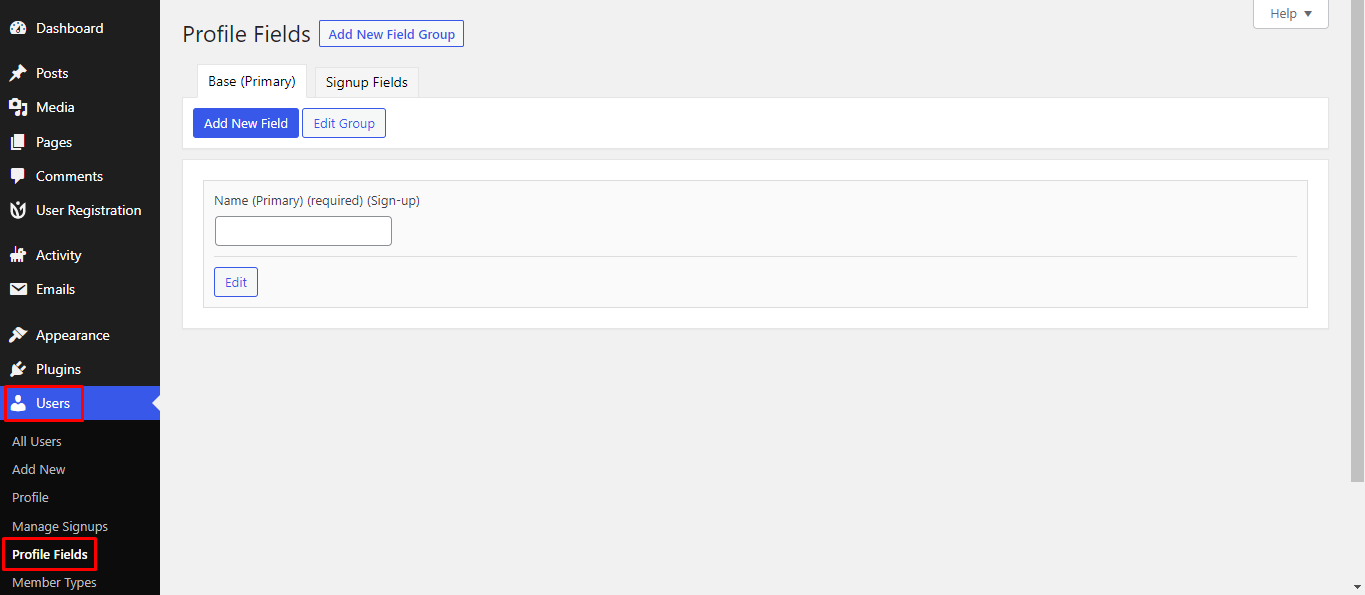
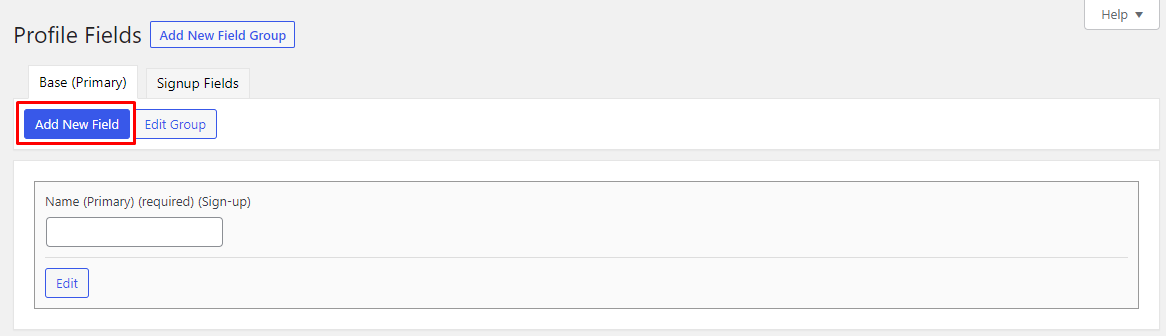
Profile fields can collect a variety of information from your users. BuddyPress offers the following field types: text box, multi-line text box, date selector, radio buttons, drop-down select box, multi-select box, and checkboxes. Let’s add a checkbox field to collect your users’ favorite musicians upon signup. First, click on the “Add New Field” button.
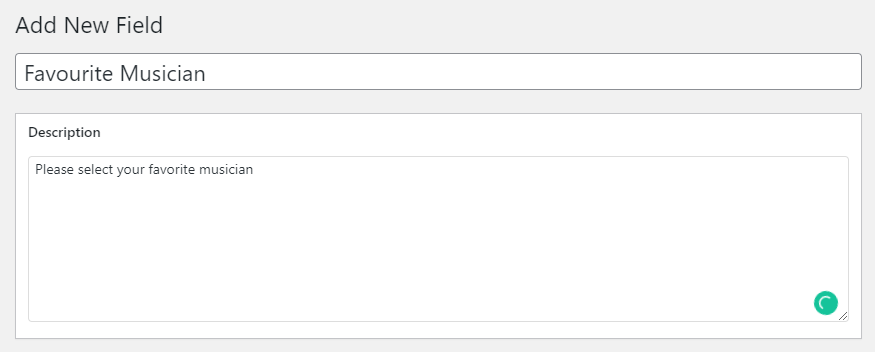
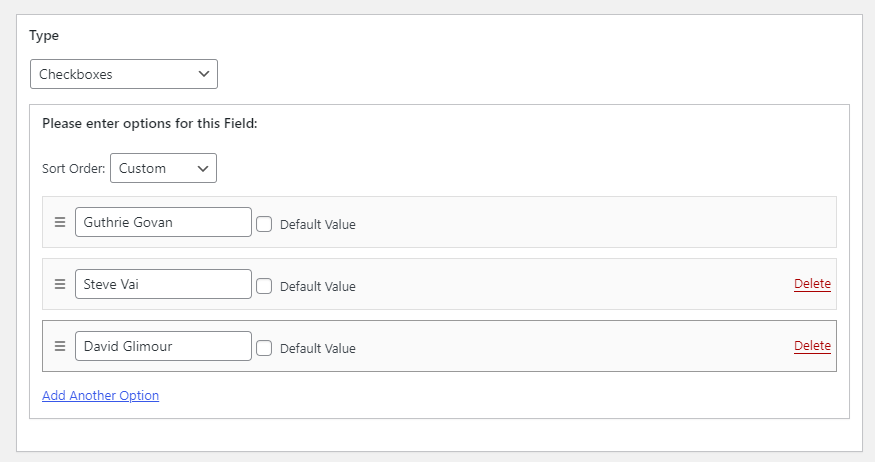
Add the “field title” (which serves as the registration form’s label) and the “field description” (which, if not empty, serves as explanatory text), determined that this field is not required, and entered your first musician choice.
You might need more options, so you can click the link “Add another option” to add more options until you’re satisfied.
You can also select a few other options for the profile field like visibility, required or not, and an option to enable the use of this field in the BuddyPress registration form.
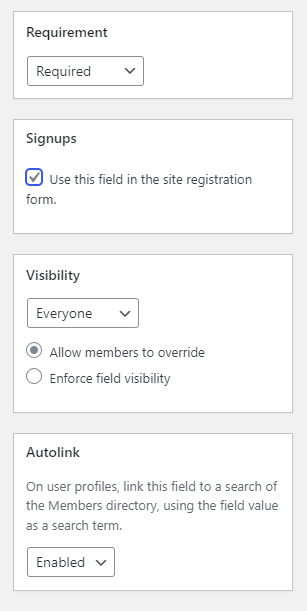
Enabling Field Mapping for BuddyPress
To set up BuddyPress integration, you'll need to enable the field mapping feature on your registration form.
Go to User Registration & Membership → All Forms → Registration Forms and select the form you want to configure. Then, navigate to Form Settings → Advanced.
Toggle on Enable Form Field Mapping With External Fields. This activates the mapping functionality for the form.
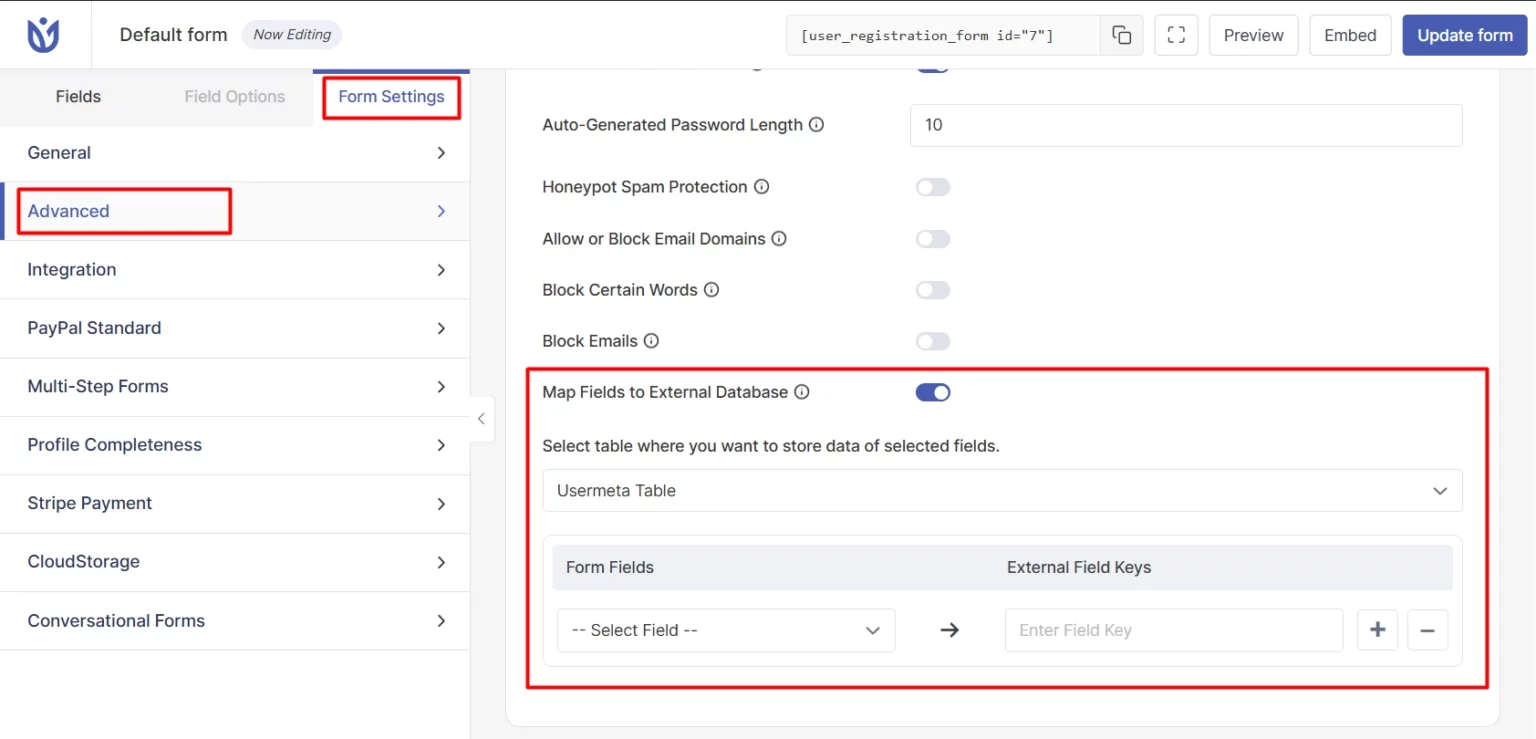
Here, you can select two types of tables:
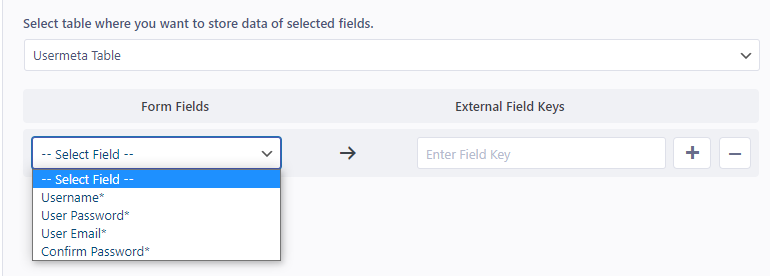
Usermeta Table: This is the default WordPress wp_usermenta table. Select the form fields and write the field keys(from the external plugin) on the available fields respectively.
External Table: If any of the external plugins create their own table, you will have to use this option. For example, in the case of BuddyPress, it creates its own table on the database.
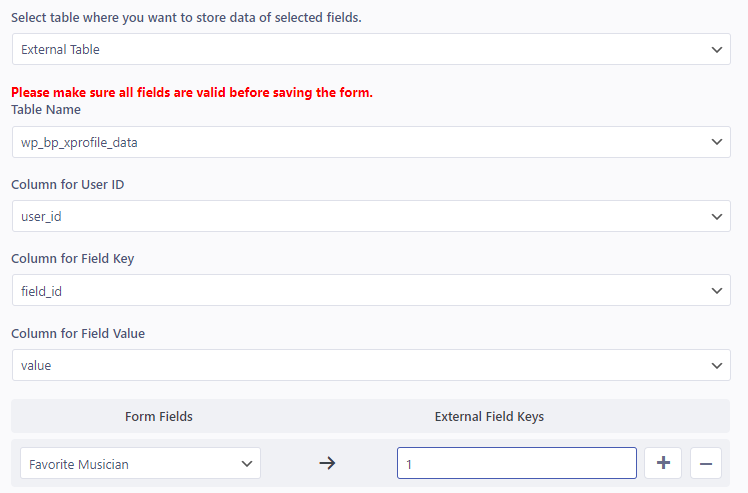
Table Name: Select the required table name for the external plugin. In the case of BuddyPress, select wp_bp_xprofile_data
Column for User ID: Select ‘user_id’.
Column for Field Key: Select ‘field_id’.
Column for Field Value: Select ‘value’
Now, choose the User Registration ‘checkbox’ field on the left and write the field key for the checkbox field on the BuddyPress registration form. Hit ‘Update Form.
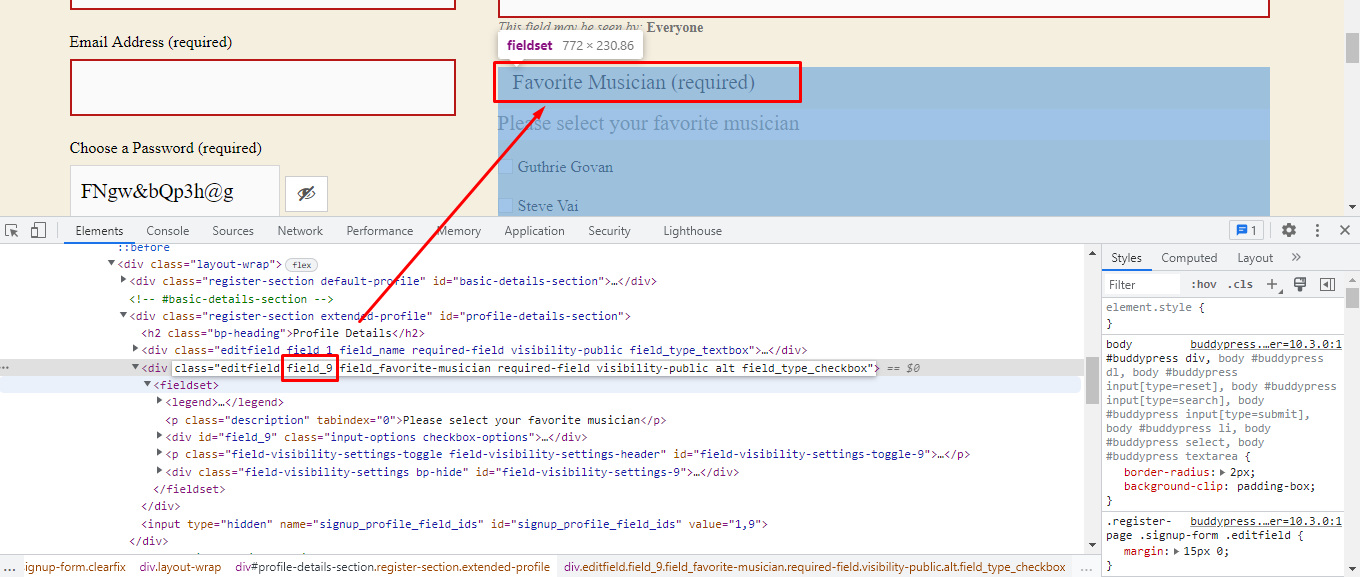
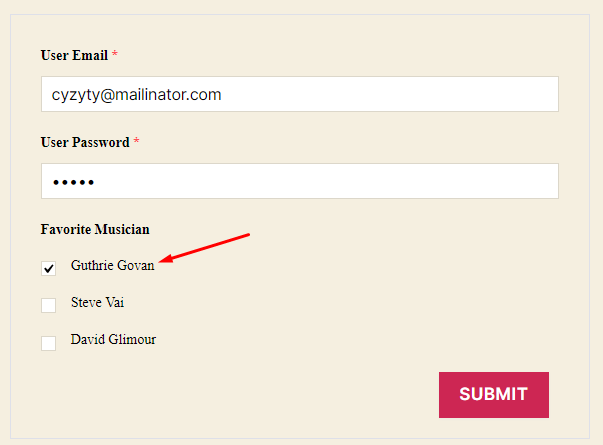
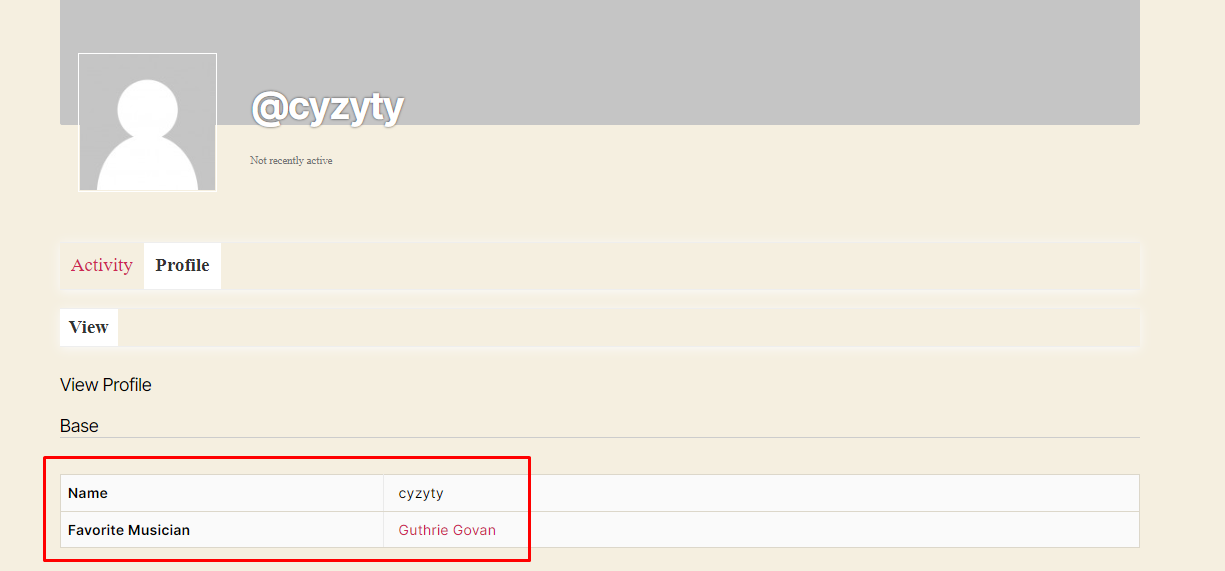
You can now register a user via the User Registration form and that user will have the checkbox field mapped in his/her BuddyPress Member account page.
Important Notes About BuddyPress Mapping
Field mapping is configured per individual form, not globally. If you have multiple registration forms, you'll need to set up mapping for each one separately.
You must know the exact meta keys used by BuddyPress for each profile field. Incorrect meta keys will prevent data from syncing properly.
The mapping works with the default WordPress usermeta table, which is where BuddyPress stores profile data by default.
Field types should be compatible between User Registration and BuddyPress for proper syncing. For example, text fields should map to text fields, and date fields should map to date fields.