
ActiveCampaign
ProAutomatically sync WordPress user registrations with ActiveCampaign email lists using API integration to add subscribers without manual imports.
Last updated on Jul 15, 2026
Would you like to automatically add new users to your ActiveCampaign email lists when they register on your site? User Registration & Membership allows you to sync registration data directly with ActiveCampaign, so every new signup becomes a subscriber without manual imports. This tutorial will show you how to connect ActiveCampaign to your registration forms and map form fields to your ActiveCampaign lists.
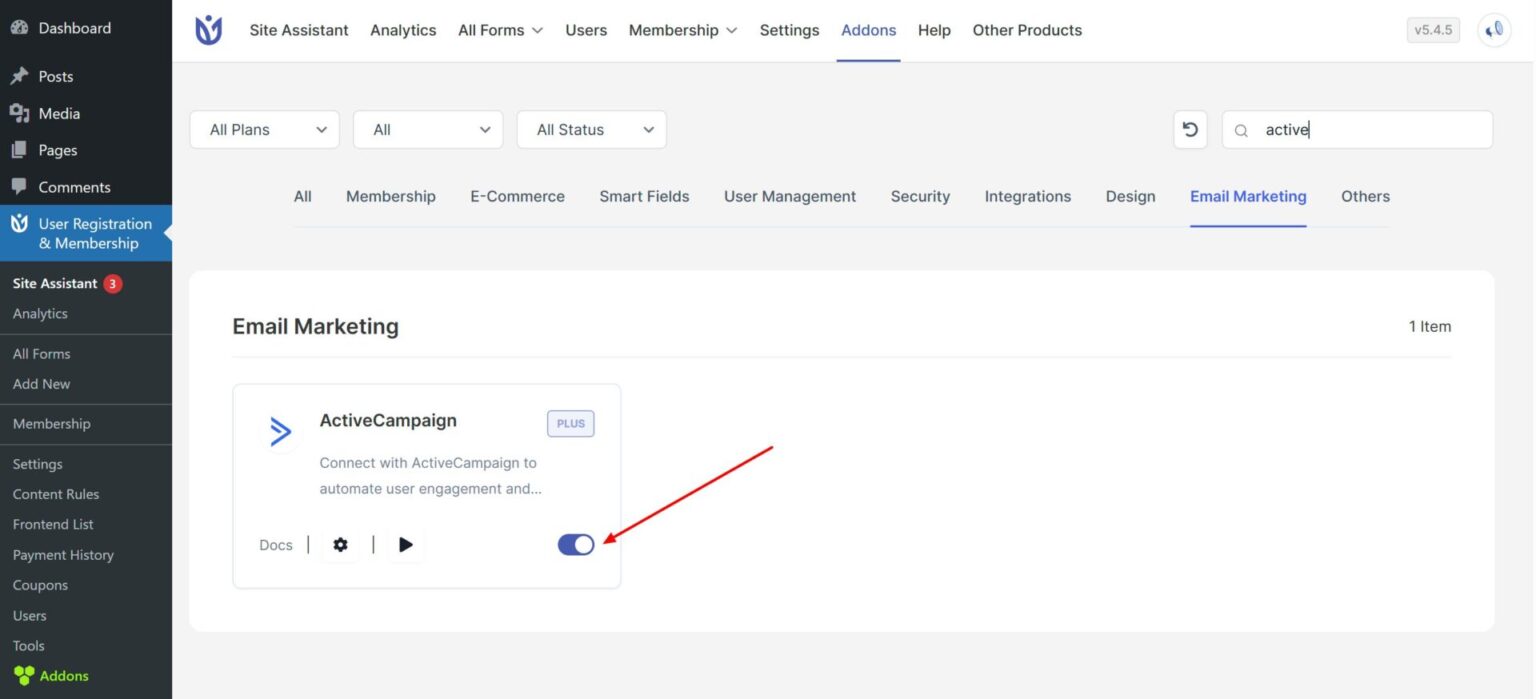
Before getting started, make sure you've installed and activated the User Registration & Membership Pro plugin. Then, make sure you've installed and activated the ActiveCampaign addon from User Registration & Membership → Addons.
Getting Your ActiveCampaign API Credentials
To connect User Registration & Membership with ActiveCampaign, you'll need your API Key and API URL from your ActiveCampaign account. From your ActiveCampaign dashboard, go to Settings → Developer to access your API credentials. Here, you'll see your API URL and API Key. Copy both of these - you'll need them in the next step.
How to get the ActiveCampaign API Key and URL? - Official Documentation
Connecting Your ActiveCampaign Account
Once you have your API credentials, go to User Registration & Membership → Settings → Integration → ActiveCampaign.
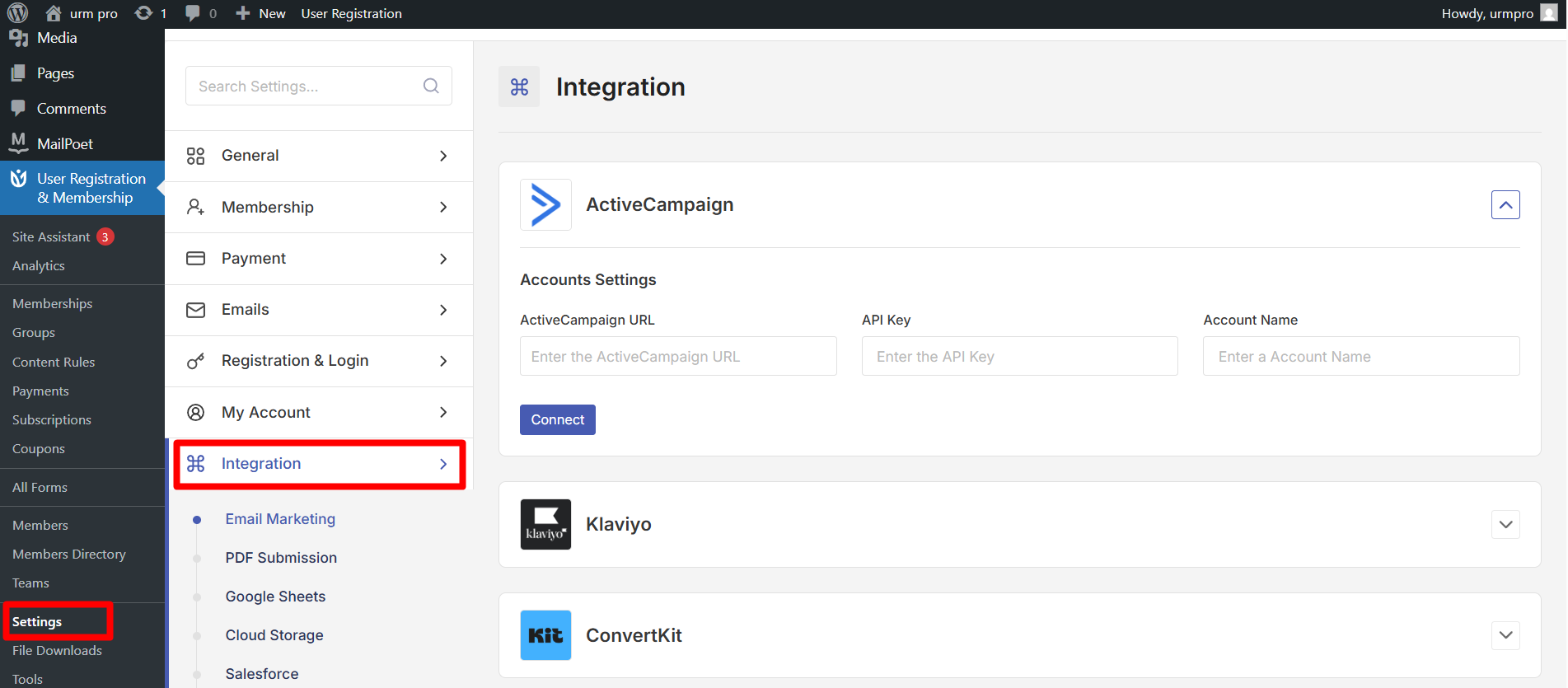
Enter your ActiveCampaign URL in the first field, then paste your API Key in the second field. Give your connection a name — this is just for your reference if you connect multiple ActiveCampaign accounts. Then, click the Connect button to link your account.
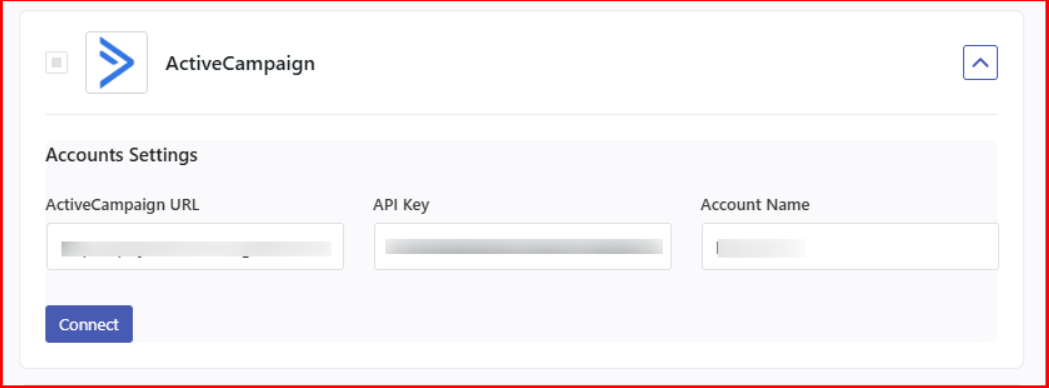
Once connected, you'll see a confirmation message. You can add multiple ActiveCampaign accounts by repeating this process. If you need to disconnect an account later, click the Disconnect button next to the account name.
Linking ActiveCampaign to a Registration Form
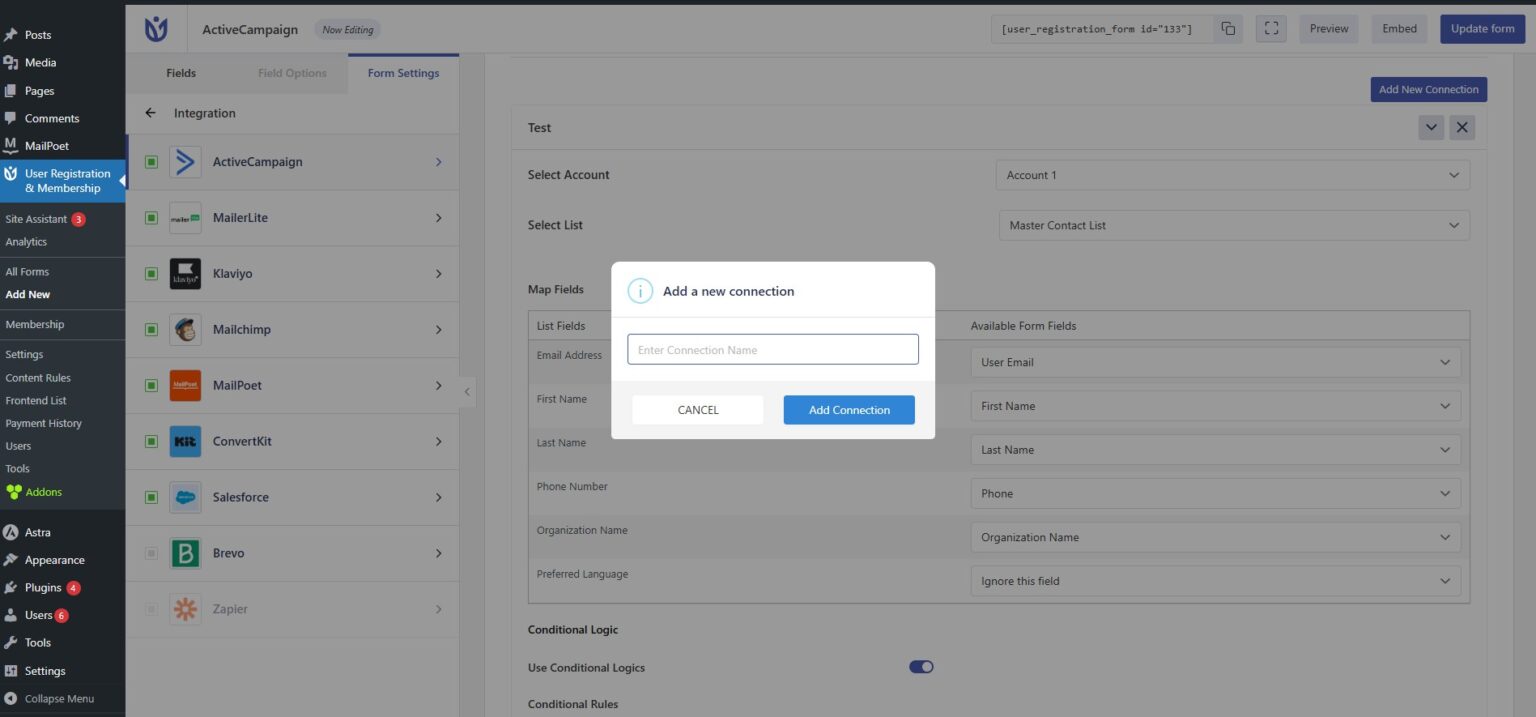
Now that your ActiveCampaign account is connected, you can link it to any registration form. Go to User Registration & Membership → All Forms and click Edit on the form you want to connect. Navigate to Form Settings → Integration → ActiveCampaign, then click Add Connection.
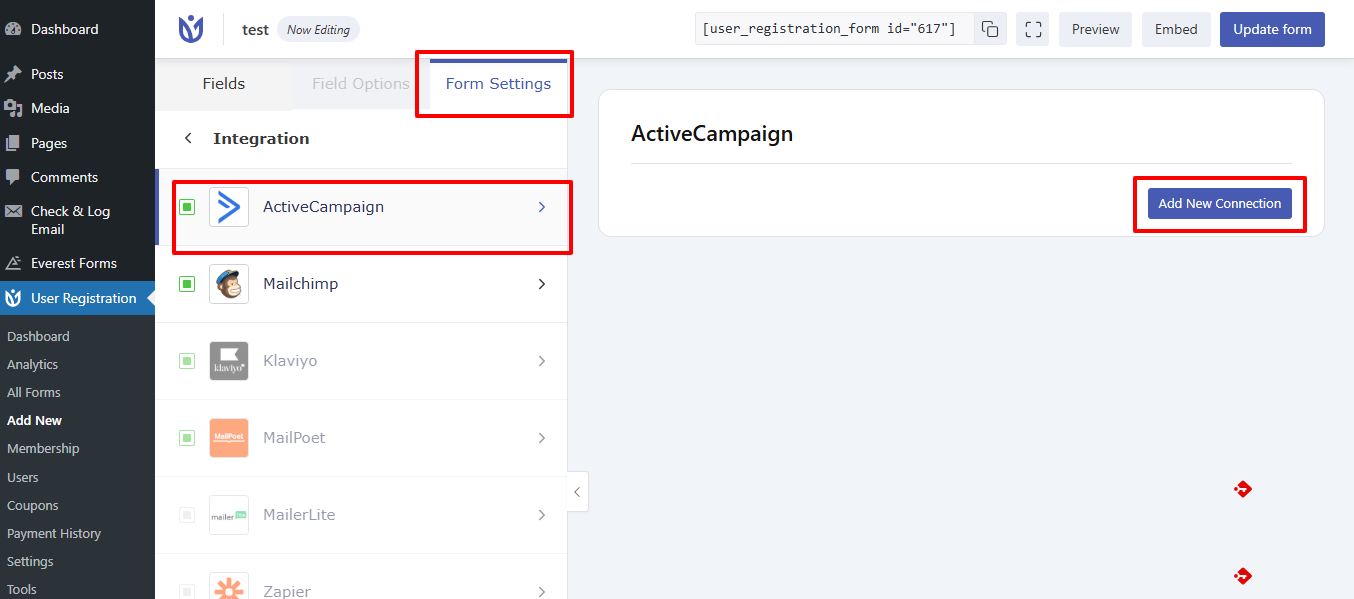
Give this connection a nickname — this is just for your reference and won't be visible to users. Then, click Add Connection to continue.
Mapping Form Fields to ActiveCampaign
After creating the connection, you'll see options to map your registration form fields to ActiveCampaign list fields. From the Select Account dropdown, choose which connected ActiveCampaign account to use if you have multiple accounts configured. Then, select the ActiveCampaign list where you want to send registration data from the Select List dropdown.
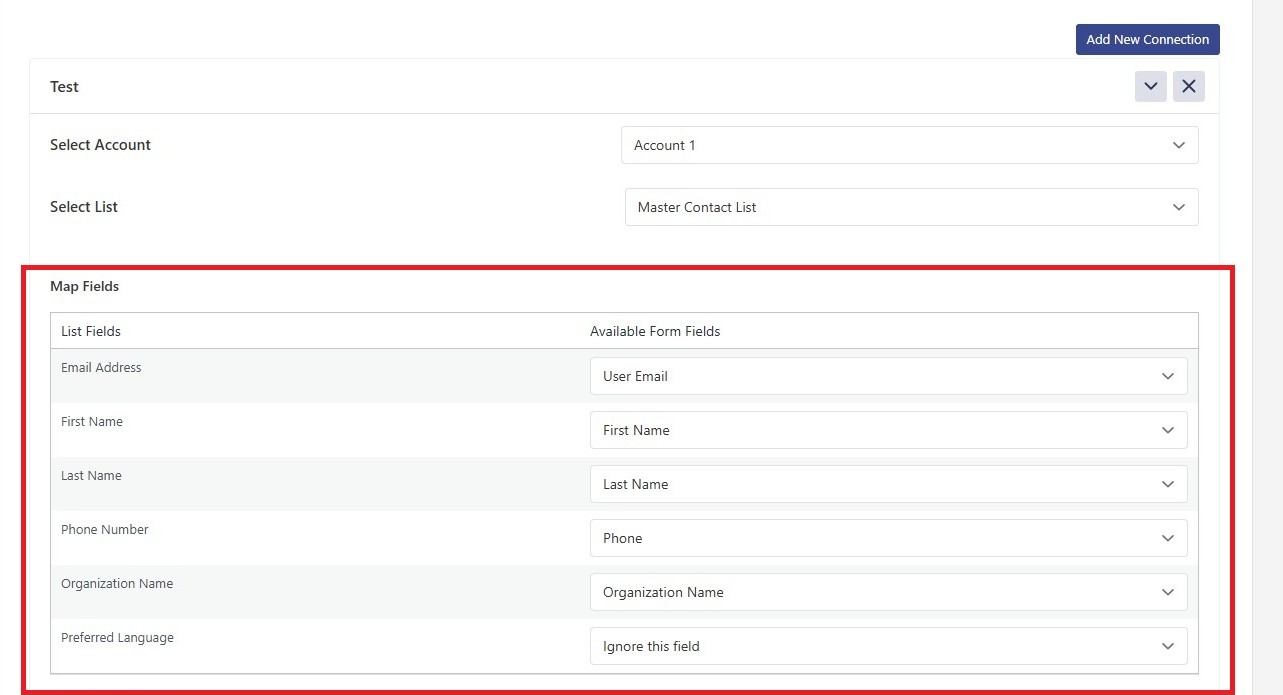
Next, map your form fields to the corresponding ActiveCampaign fields. The email field mapping is required — select which form field contains the user's email address. You can also map additional fields like first name, last name, and any custom fields you've created in ActiveCampaign. User Registration & Membership supports up to 100 field mappings per connection.
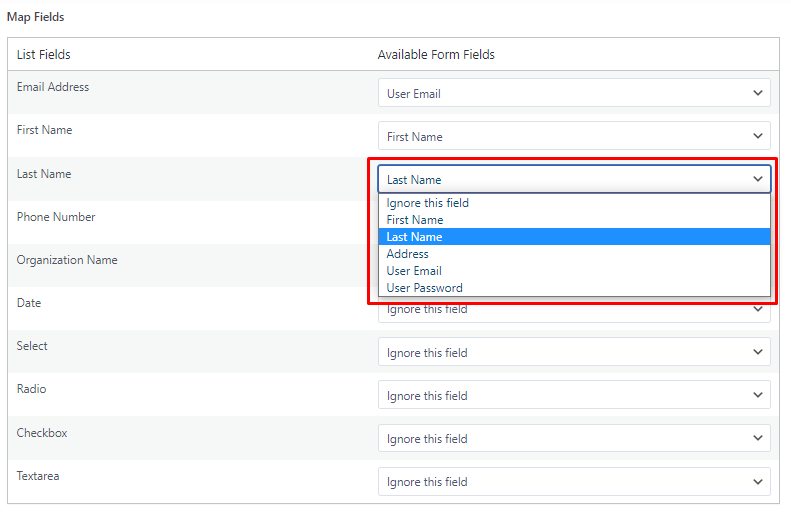
Once you've mapped all the fields you need, click Save Changes to activate the integration.
Using Conditional Logic (Optional)
If you'd like to control when users are added to ActiveCampaign based on their form responses, enable Use Conditional Logic. This allows you to create rules that only send data to ActiveCampaign when specific conditions are met — for example, only adding users who select a particular checkbox or choose a specific option from a dropdown.
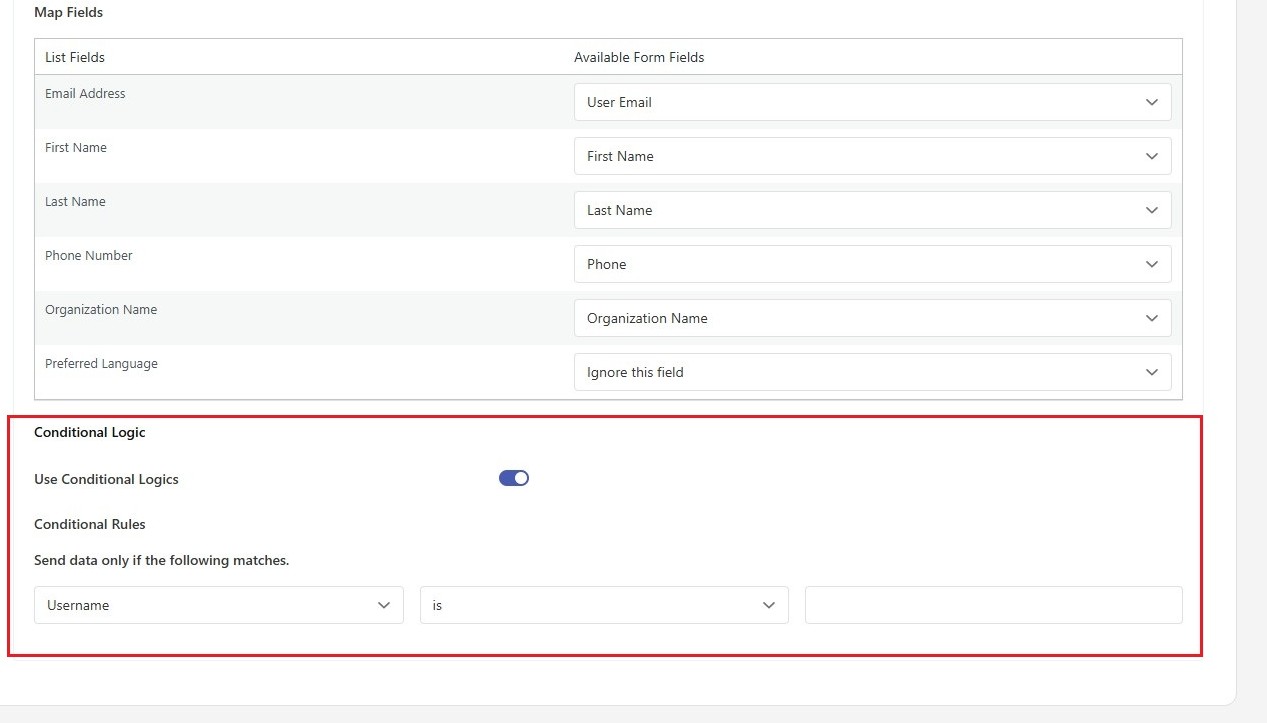
To set up conditional logic, toggle on Use Conditional Logic and configure your rules based on form field values. Be sure to check out our guide on using conditional logic with integrations for complete details.
How the Integration Works
Once the integration is active, new users who register through your form will automatically be added to your selected ActiveCampaign list. The integration works with standard registration forms, WooCommerce checkout forms, and the user Account Page. Contact details sync for both new and existing users whenever they register or update their information.
If you're using membership plans, you can sync membership data alongside contact information. ActiveCampaign's site tracking capabilities also work with registered users, allowing you to monitor how they interact with your site and campaigns.
That's it! Now you know how to connect ActiveCampaign to your registration forms and automatically build your email lists. Next, would you like to learn about other email marketing integrations? Be sure to check out our guides on MailChimp, MailerLite, and Kit integrations for more options.