
General Style Settings
Customize registration forms and membership pages to match your brand by configuring colors, buttons, and visual elements from centralized style settings.
Last updated on Jul 14, 2026
Would you like to match your registration forms and membership pages to your website's branding? User Registration & Membership allows you to customize colors and button styles from a central location. This guide will show you how to access and configure the General Style Settings to create a consistent look across all your forms.
Before Getting Started
Before getting started, make sure you've installed and activated the User Registration & Membership plugin on your WordPress site.
Accessing General Style Settings
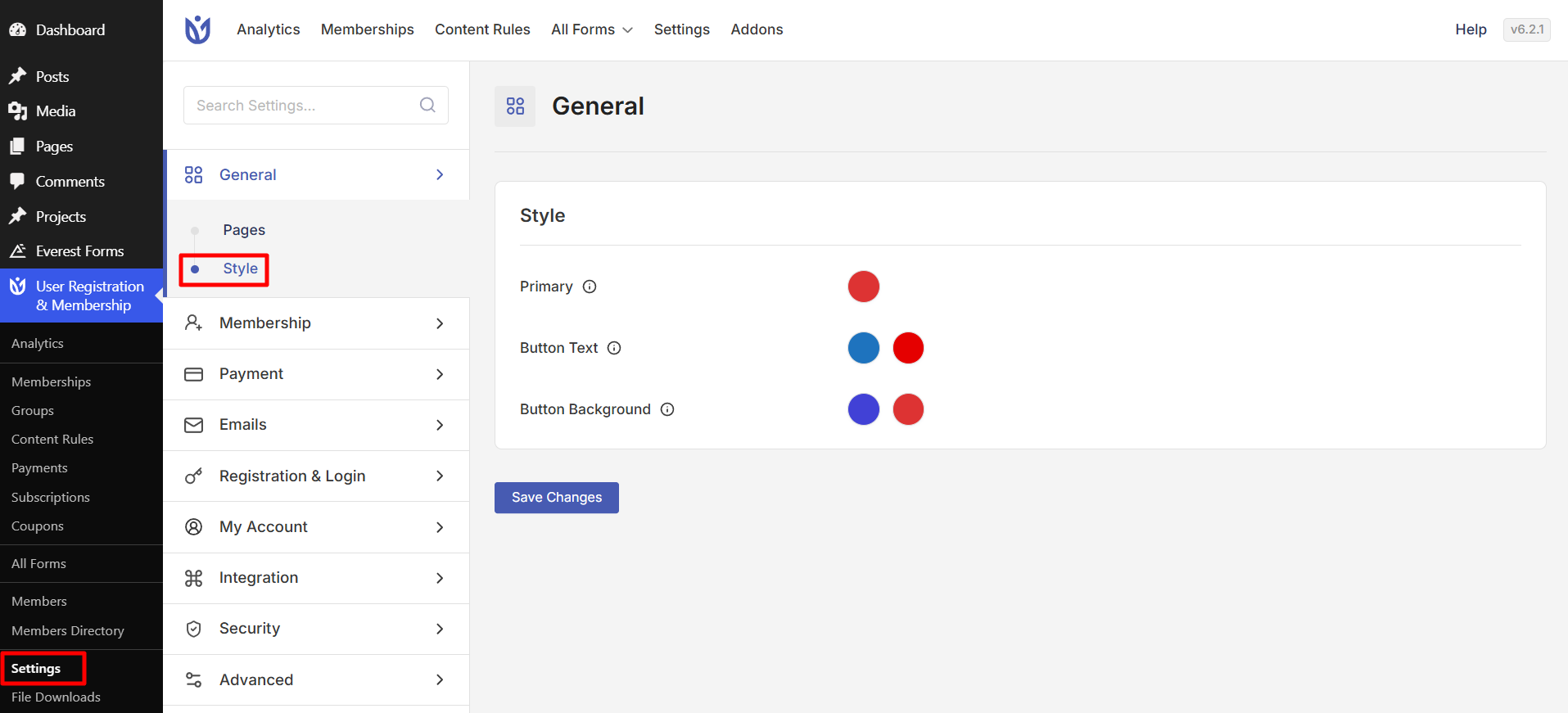
To customize your plugin's appearance, go to User Registration & Membership → Settings → General. The Style section contains all the visual customization options that apply across your entire site.
Here, you'll find options to customize:
Primary color for highlights and active states
Button text color
Button background color
Customizing Your Primary Color
The Primary Color setting controls the main accent color used throughout the plugin interface. This color appears in:
Active form field borders
Selected menu items
Highlighted elements
Link colors
To change your primary color:
Click the color circle next to Primary Color
Select a color from the color picker, or enter a hex code directly (e.g., #790a0a)
The preview updates in real-time as you make changes
Tip: Choose a primary color that matches your website's brand colors for a cohesive look.
Styling Your Buttons
User Registration & Membership provides two button color settings to ensure your buttons are both attractive and readable.
Button Text Color
This setting controls the color of text displayed on plugin buttons.
To customize button text:
Click the color circle next to Button Text
Choose a color that contrasts well with your button background
Preview the change before saving
Important: Make sure your button text color has sufficient contrast with the button background for readability. Light text works best on dark backgrounds, and dark text works best on light backgrounds.
Button Background Color
This setting controls the background color of plugin buttons.
To change button background:
Click the color circle next to Button Background
Select a color that matches your branding
Ensure the color works well with your chosen button text color
Saving Your Changes
Once you've customized your style settings:
Review all your color choices
Click Save Changes at the bottom of the page
Visit your registration or login forms to see the changes in action
Your style settings will now apply to all User Registration & Membership forms and pages across your site.