
Site Assistant
Guides you through essential membership site configuration tasks, including page setup, payment integration, linking existing users, and core plugin settings.
Last updated on Oct 14, 2026
Site Assistant helps you complete the essential setup tasks for your membership site.
You can access it from WordPress Dashboard → User Registration & Membership → Site Assistant. If any setup tasks require your attention, a notification badge will appear next to Site Assistant in the admin sidebar.
Before you begin, make sure the User Registration & Membership plugin is installed and activated on your WordPress site.
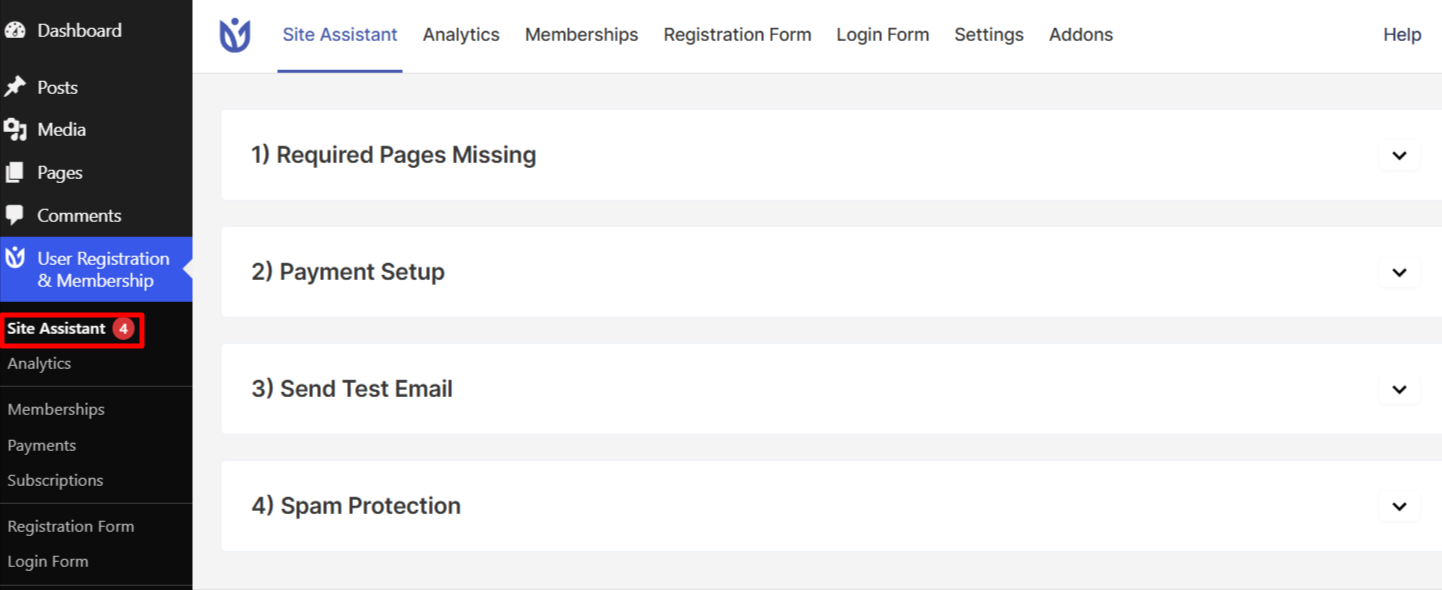
Required Pages Missing
Site Assistant alerts you when essential pages are missing. Without these pages, users can't register, log in, or manage their accounts.
To fix this, go to User Registration & Membership → Settings → General → Pages. Select pages from the dropdowns for Registration Page, Login Page, My Account Page, Lost Password Page, and Thank You Page. If pages don't exist, run the Setup Wizard at User Registration & Membership → Settings → Tools → Setup Wizard to create them automatically.
Payment Setup
If you're running a paid membership site, Site Assistant reminds you to configure payment gateways.
Go to User Registration & Membership → Settings → Payment → Payment Method. Configure at least one gateway: PayPal, Stripe, Bank Transfer, Authorize.net, or Mollie. Enter your API credentials, toggle test mode if needed, and click Save Changes.
Send Test Email
Site Assistant reminds you to verify email delivery. Without working emails, users can't receive account activation links or password resets.
Go to User Registration & Membership → Settings → Email → General. Scroll to the bottom, enter your email address, and click Send Email. Check your inbox and spam folder. If emails don't arrive, install an SMTP plugin like SmartSMTP to fix delivery issues.
Spam Protection
Site Assistant reminds you to enable spam protection to block bot registrations.
Enable CAPTCHA: Go to User Registration & Membership → Settings → Registration & Login → Captcha. Choose reCAPTCHA v2, reCAPTCHA v3, hCaptcha, or Cloudflare Turnstile. Enter your Site Key and Secret Key, then enable CAPTCHA on individual forms in Form Settings → General.
Or enable Honeypot: Open your form, go to Form Settings → Anti-Spam and Security, and toggle Enable Honeypot on.
Linking Existing Users
Do you already have WordPress users from before you installed User Registration & Membership, or users added another way, such as by an import or another plugin? Those users didn't sign up through one of your registration forms, so their front-end profile page can't show your form's fields.
When Site Assistant finds users like this, it shows a Link Existing Users card. Linking connects them to a registration form so their profile page shows that form's fields.
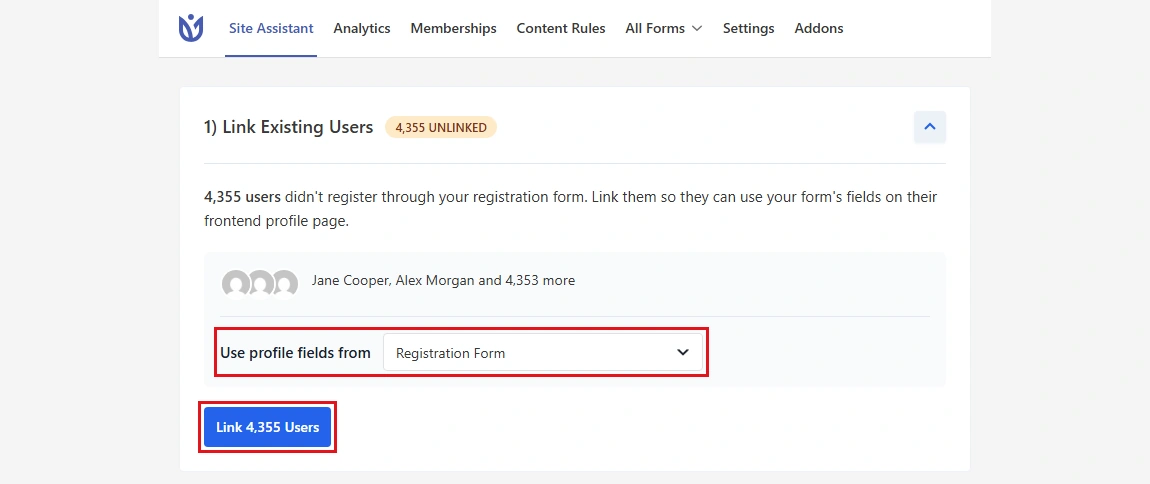
The card shows how many users are UNLINKED, who they are (the first few names, then "and N more"), and which form to use. When you have more than one published registration form, Use profile fields from is a list. With one form, its name is shown.
To link them:
Go to User Registration & Membership → Site Assistant.
On the Link Existing Users card, choose a form in Use profile fields from.
Click Link N Users. The button shows its progress, for example Linking 500 of 4,355..., while it works.
A message tells you how many users were linked to the form you chose.
Users are linked in batches of 500, so this is safe on large sites. A user who already belongs to a registration form is never changed. The administrator you're logged in as isn't counted or linked. Site Assistant has no button to undo linking, so choose the form carefully.
If some users can't be linked, you'll see Linking incomplete: click the button again to retry. If another administrator has already linked them, you'll see Nothing to link.
When everyone is linked and nothing else needs attention, Site Assistant shows Setup Complete! and, after a few seconds, takes you to your forms.
That's it! Site Assistant notifications disappear automatically once you complete each setup task. Next, ready to create your first membership plan? Be sure to check out our guide on creating membership plans for all the details.
Dismissing Notifications
Site Assistant notifications automatically disappear once you complete the required setup steps. You don't need to manually dismiss them—simply configure the missing settings and Site Assistant will update automatically.
If you see a notification badge on Site Assistant, click it to view which setup tasks still need attention.
That's it! Site Assistant helps you catch configuration issues early so your membership site runs smoothly from day one. Next, would you like to explore advanced membership features? Be sure to check out our guide on creating membership plans for all the details.