
My Account Settings
Configure layout options, profile settings, auto-logout behavior, and custom endpoints for your WordPress My Account page.
Last updated on Jul 15, 2026
Would you like to customize how your My Account page looks and behaves? User Registration & Membership allows you to control the layout, profile settings, auto-logout behavior, and URL endpoints for logged-in users. This guide will show you how to configure these settings.
Before getting started, make sure you've installed and activated the User Registration & Membership plugin on your WordPress site. You'll also need a page designated as your My Account page with the [user_registration_my_account] shortcode.
Accessing My Account Settings
To configure your My Account page settings, go to User Registration & Membership > Settings > My Account from your WordPress dashboard. Here, you'll see three tabs: General, Customize My Account, and Endpoints.
Configuring General Settings
The General tab controls the overall appearance and behavior of your My Account page.
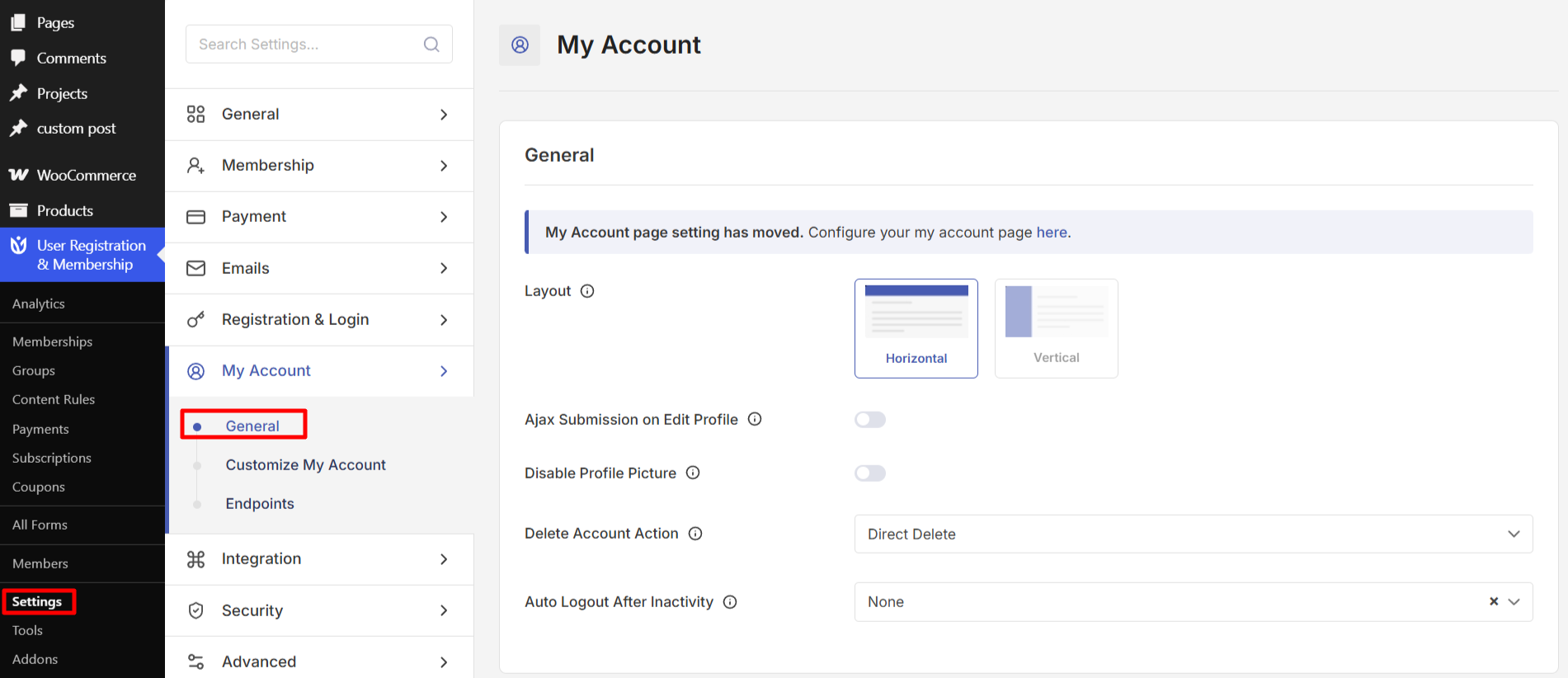
Choosing Your Layout
User Registration & Membership offers two layout options for your My Account page:
Horizontal: Navigation tabs appear at the top of the page
Vertical: Navigation menu appears on the left side of the page
Select the layout that best matches your site design and user experience goals.
Enabling Ajax Submission on Edit Profile
When you enable Ajax Submission on Edit Profile, users can update their profile information without the page refreshing. This creates a smoother, more modern user experience. Toggle this option on to allow page-refresh-free profile updates.
Managing Profile Pictures
If you want to hide the profile picture upload section from your My Account page, enable the Disable Profile Picture option. When disabled, users will not see or be able to upload profile images.
Configuring Delete Account Action
The Delete Account Action setting controls how users can delete their own accounts. You have two options:
Disable: Users cannot delete their own accounts
Direct Delete: Users can delete their accounts immediately without additional confirmation
The knowledge base also mentions a Prompt Password Popup Before Delete Account option that adds a security layer to prevent accidental deletion, though this may require verification in your current version.
Setting Auto Logout After Inactivity
To automatically log out users after a period of inactivity, configure the Auto Logout After Inactivity setting. You can choose from the following time periods:
5 minutes
10 minutes
15 minutes
20 minutes
30 minutes
60 minutes
None (no automatic logout)
This feature helps protect user accounts by automatically ending sessions when users step away from their devices.
Using Customize My Account
Requirements: The Customize My Account feature is a premium add-on available with the Plus plan or higher.
The Customize My Account add-on allows you to create professional member dashboards with advanced customization options. With this add-on, you can add custom tabs, control role-based visibility, and style your My Account page without writing code.
For complete details on using the Customize My Account add-on, see our guide on customizing the My Account page.
Customizing Endpoints
Endpoints are the URL segments that appear after your My Account page URL. For example, if your My Account page is at yourwebsite.com/my-account, the Edit Profile endpoint creates the URL yourwebsite.com/my-account/edit-profile.
The Endpoints tab allows you to customize these URL segments for different sections of the My Account page.
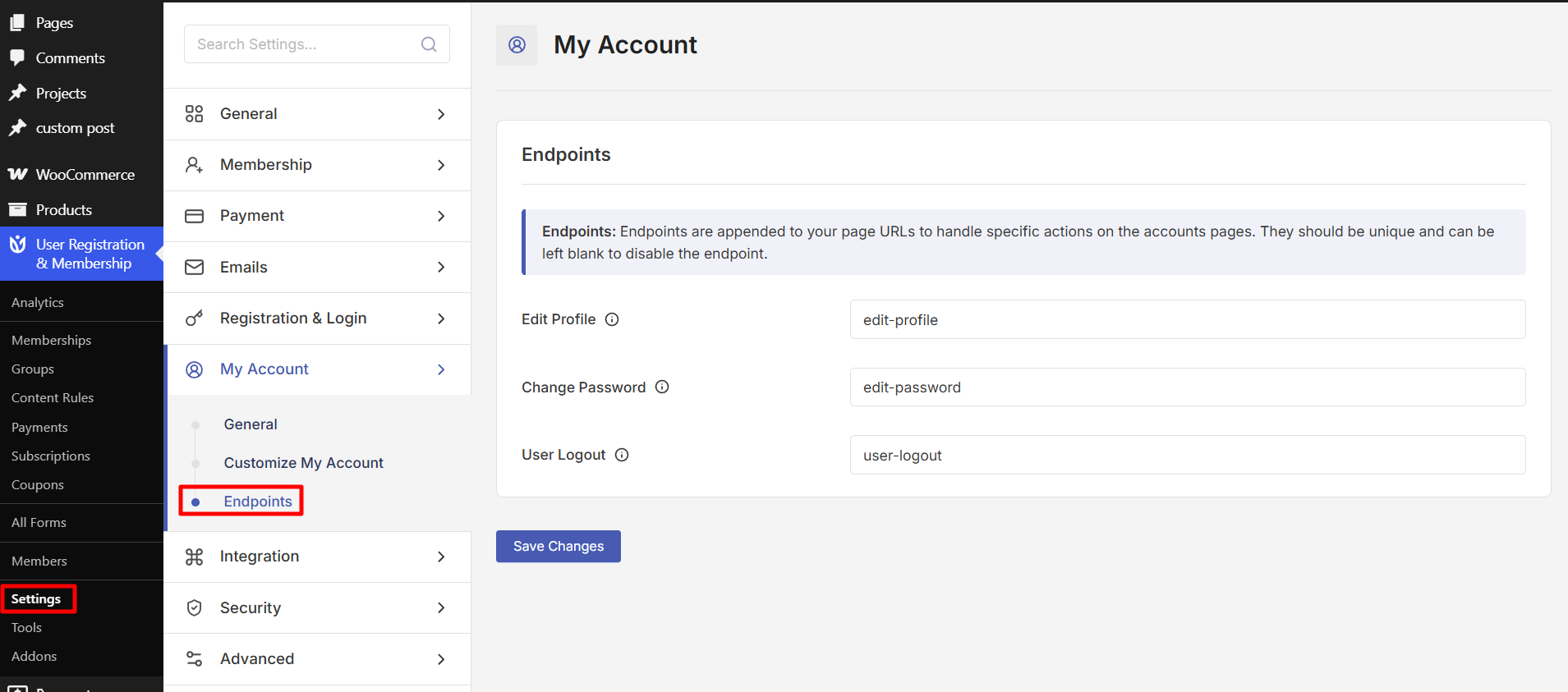
Available Endpoints
You can customize the following endpoints:
Edit Profile (default: edit-profile)
Change Password (default: edit-password)
User Logout (default: user-logout)
To customize an endpoint, simply enter your preferred URL segment in the field. Each endpoint value must be unique. If you leave an endpoint blank, that section will be disabled and won't appear in the My Account navigation.
Saving Your Changes
After configuring your My Account settings, click the Save Changes button at the bottom of the page. Your settings will take effect immediately for all users.
Frequently Asked Questions
Can I use different layouts for different user roles?
The layout setting applies to all users viewing the My Account page. However, with the Customize My Account add-on, you can control which tabs are visible to specific user roles.
What happens if I disable an endpoint?
When you leave an endpoint field blank, that section will not appear in the My Account navigation menu. Users will not be able to access that functionality through the My Account page.
Does Ajax Submission work with all form fields?
Ajax Submission on Edit Profile works with standard profile fields. If you encounter issues with specific fields, particularly those hidden by conditional logic, this feature can help resolve save errors.
That's it! Now you know how to configure your My Account settings. Next, would you like to learn more about customizing the appearance of your My Account page? Be sure to check out our guide on the Customize My Account add-on for all the details.