
Membership Settings
Configure membership renewal behavior and customize restriction messages for members accessing protected content on your WordPress site.
Last updated on Jul 14, 2026
Would you like to control how your members renew their subscriptions and customize the message visitors see when they try to access restricted content? User Registration & Membership allows you to configure renewal behavior and set a global restriction message that appears across your entire site. This tutorial will show you how to configure these essential membership settings.
Before getting started, make sure you've installed and activated the User Registration & Membership plugin on your WordPress site.
Accessing Membership Settings
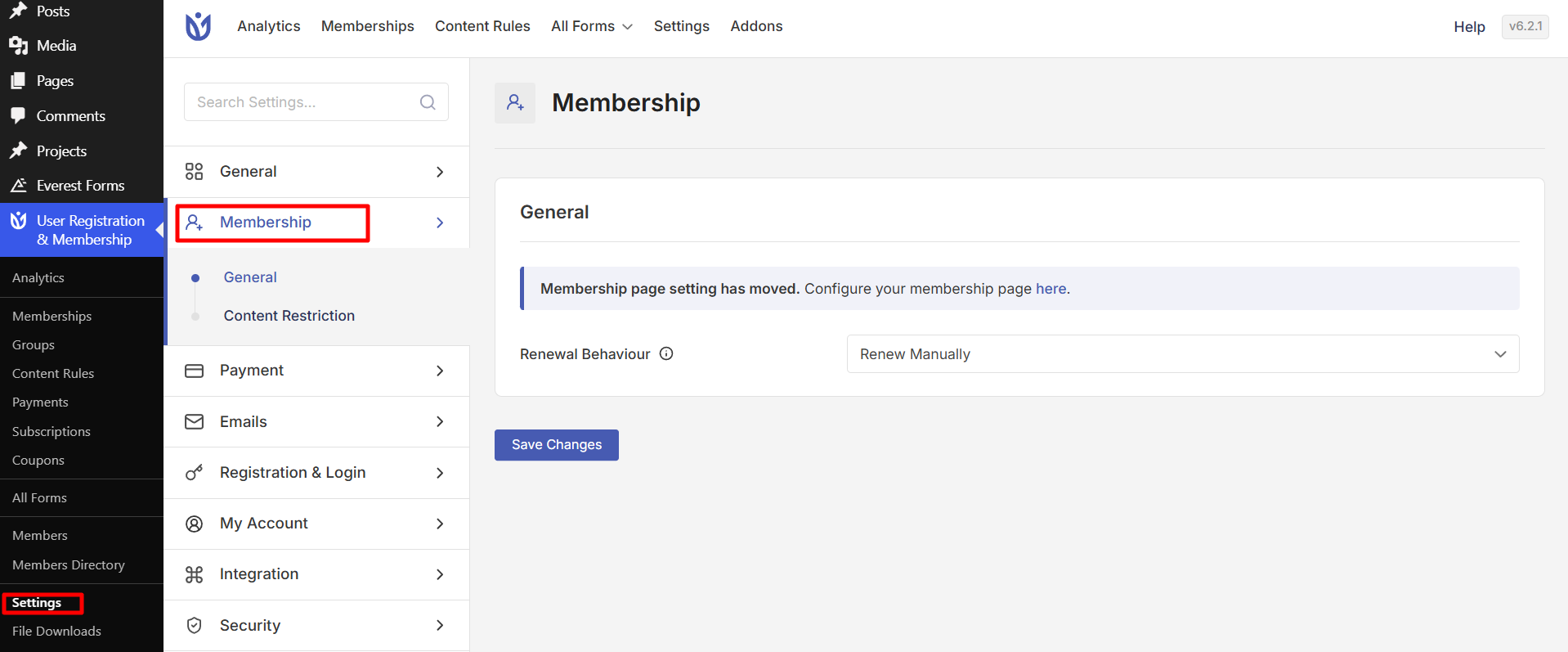
To configure your membership settings, go to User Registration & Membership > Settings > Membership. Here, you'll see two main sections: General and Content Restriction.
Configuring Renewal Behaviour
From the Membership settings page, locate the General section. Here, you'll find the Renewal Behaviour option.
The Renewal Behaviour setting controls how membership subscriptions are renewed. You have two options:
Renew Automatically — Subscriptions renew automatically through your payment provider (Stripe, PayPal, etc.) without requiring any action from your members.
Renew Manually — Members must manually renew their subscriptions when they expire.
Select your preferred renewal method from the dropdown. We recommend automatic renewal for most membership sites — it reduces churn and ensures uninterrupted access for your members.
Setting the Global Restriction Message
Scroll down to the Content Restriction section. Here, you'll find the Global Restriction Message setting.
The Global Restriction Message is the default message shown to visitors when they try to access content that requires a membership. This message appears across your entire site unless you override it on individual pages or posts.
Enter your custom message in the text editor. You can include:
A brief explanation of why the content is restricted
A call-to-action encouraging visitors to sign up or log in
Links to your membership plans or registration page
Smart tags to personalize the message
Once you've configured both settings, click Save Changes at the bottom of the page.
Frequently Asked Questions
These are answers to some of the most common questions we receive about membership settings.
Can I override the global restriction message on specific pages?
Yes. The global restriction message is a fallback that applies site-wide. You can override it on individual pages, posts, or content rules by setting a custom restriction message in those specific locations.
What happens if I change from automatic to manual renewal?
Existing subscriptions will continue with their current renewal method until their next renewal date. New subscriptions will use the renewal method you've selected. Members with automatic renewal will need to manually renew when their current subscription expires.
Can I use smart tags in the global restriction message?
Yes. You can use smart tags to personalize the restriction message. For example, you can include the user's name or link to specific membership plans. Be sure to check out our guide on smart tags for all available options.
That's it! Now you know how to configure your membership renewal behavior and set a global restriction message. Next, would you like to learn how to create membership plans or set up content restriction rules? Be sure to check out our complete guide to membership plans for all the details.