
General Pages Settings
Configuration guide for setting up the five essential pages required for User Registration & Membership plugin functionality.
Last updated on Jul 14, 2026
User Registration & Membership needs five essential pages to work properly. This guide shows you how to set them up quickly.
Before getting started, make sure you've installed and activated the User Registration & Membership plugin on your WordPress site.
Quick Setup
Go to User Registration & Membership > Settings > General > Pages. If you ran the Setup Wizard during installation, these pages were created automatically. If not, follow the steps below to create them manually.
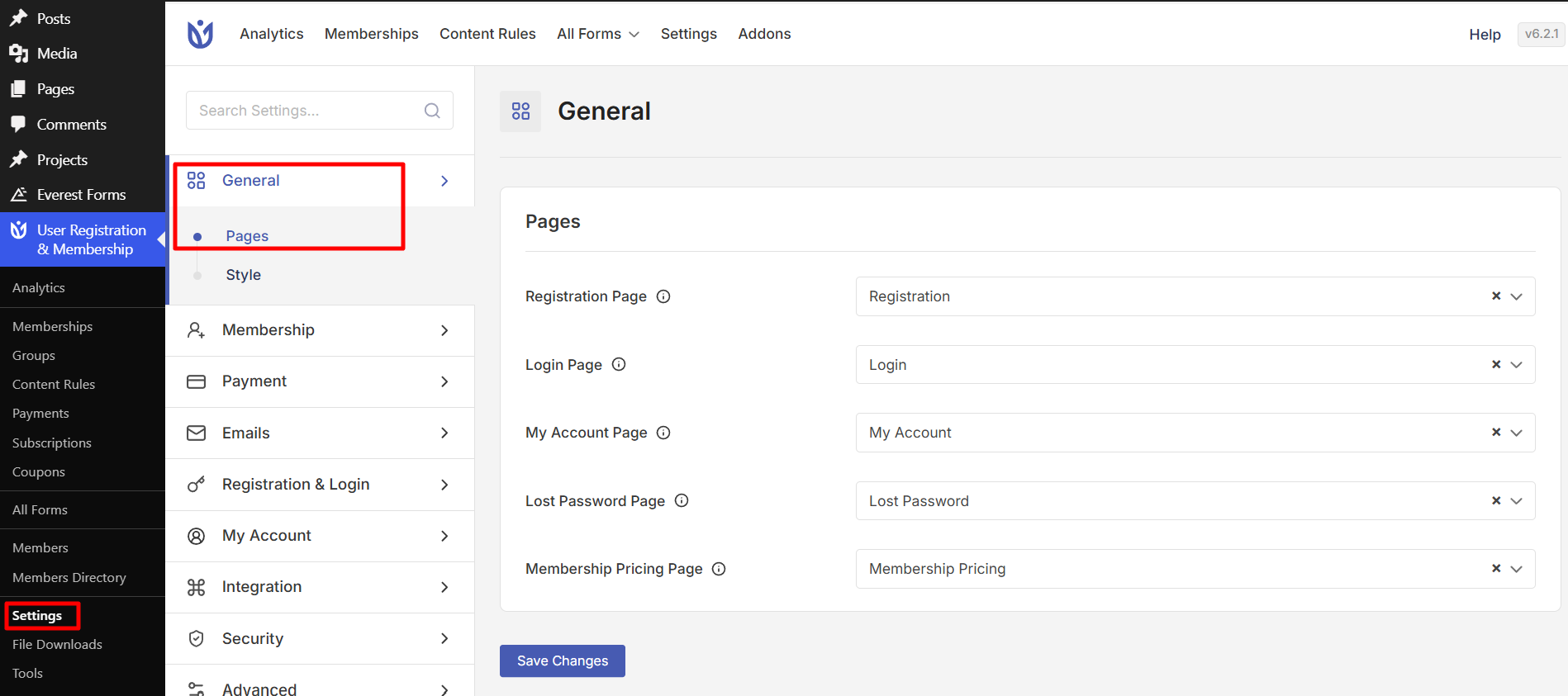
Registration Page
The Registration Page displays your registration form where new users sign up for accounts.
Go to Pages > Add New and title it Registration
Add your form using the Registration Form block OR shortcode [user_registration_form id=XX] Note: Replace XX with your actual form ID. For example, if your form ID is 5, use [user_registration_form id=5] in the shortcode.
Publish the page
Assign it at User Registration & Membership > Settings > General > Pages > Registration Page
Login Page
The Login Page displays the login form for existing users.
Create a page titled Login
Add the Login Form block OR shortcode [user_registration_login]
Publish and assign it at Settings > General > Pages > Login Page
My Account Page
The My Account Page provides users with a dashboard to manage their profile, view subscriptions, and update account details.
Create a page titled My Account
Add the My Account block OR shortcode [user_registration_my_account]
Publish and assign it at Settings > General > Pages > My Account Page
Lost Password Page
The Lost Password Page allows users to reset forgotten passwords.
Create a page titled Lost Password
Add Lost Password block OR shortcode [user_registration_lost_password]
Publish and assign it at Settings > General > Pages > Lost Password Page
Membership Pricing Page
The Membership Pricing Page displays all available membership plans and pricing options to potential members.
Create a page titled Membership Plans
Add the Membership Pricing block OR shortcode [user_registration_membership_pricing]
Publish and assign it at Settings > General > Pages > Membership Pricing Page
Quick Reference: All Shortcodes
Registration: [user_registration_form id=XX]
Login: [user_registration_login]
My Account: [user_registration_my_account]
Lost Password: [user_registration_lost_password]
Pricing: [user_registration_membership_pricing]
That's it! Now you know how to configure all the essential pages for your User Registration & Membership site.
Next, would you like to customize how your forms look? Be sure to check out our guide on configuring form style settings for all the details.