
Set up Wizard Walkthrough
A step-by-step guide to configuring the User Registration & Membership plugin through its initial setup wizard, covering paid, free, and basic registration options.
Last updated on Jul 14, 2026
The Setup Wizard guides you through the initial configuration of User Registration & Membership. This guide covers all three setup options and shows you exactly what to expect at each step.
Before You Begin
Make sure you have:
User Registration & Membership plugin installed and activated
WordPress admin access
A clear idea of whether you need paid memberships, free memberships, or basic registration
Step 1: Launch the Setup Wizard
When you first activate the plugin, you'll see a welcome message. Click the Get Started button to launch the Setup Wizard.
The wizard uses a 4-step progress indicator: Welcome → Membership → Payment → Finish
Step 2: Choose Your Setup Type
You'll see three setup options. Choose the one that matches your needs:
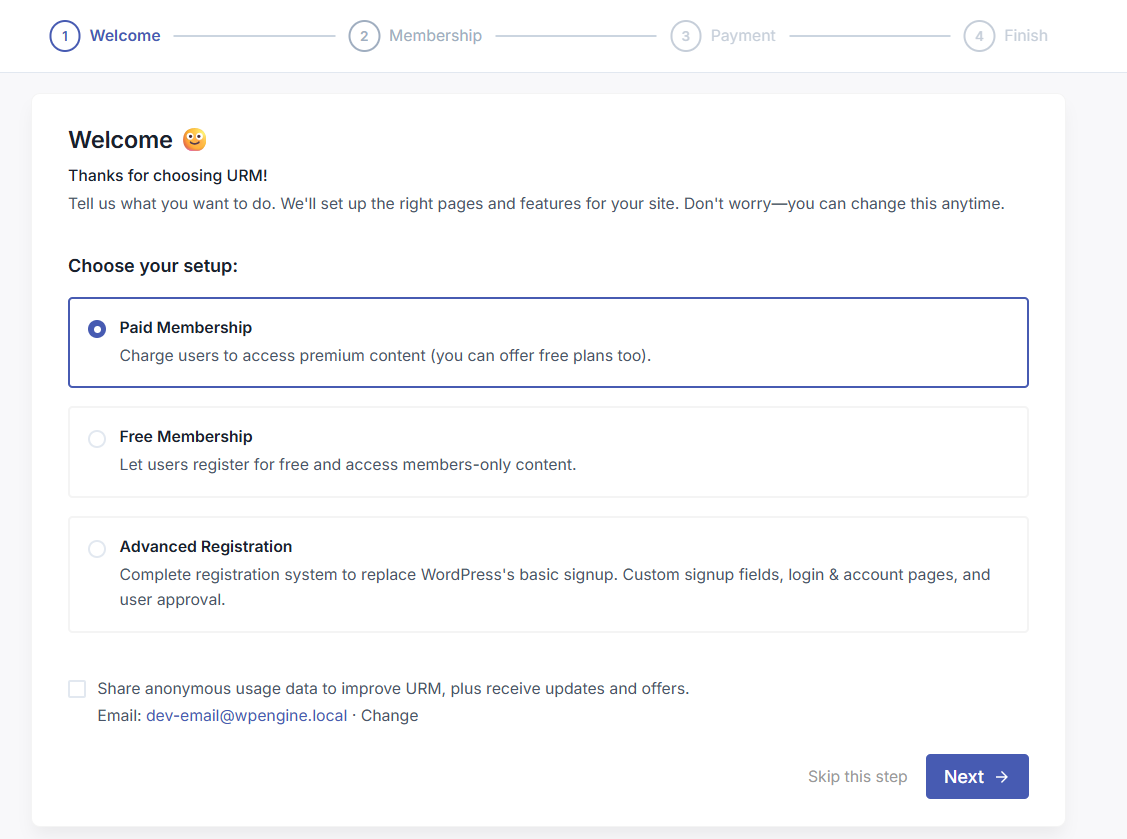
Option 1: Paid Membership Setup
Follow these steps if you selected Paid Membership.
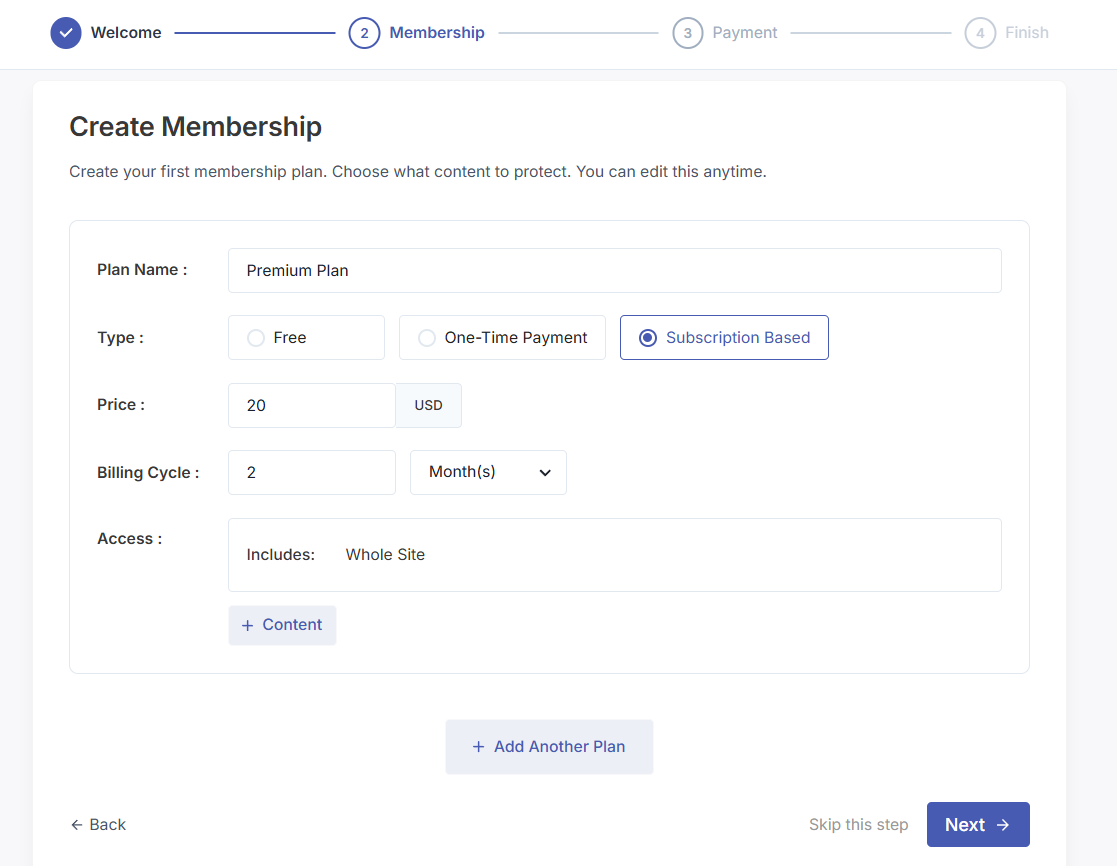
Create Your First Membership Plan. You'll be prompted to create your first paid membership plan. Fill in:
Plan Name — e.g., 'Premium Member', 'Gold Plan'
Type — Select 'Free', 'One-Time Payment' or 'Subscription Based'
Price — Set the price (e.g., $29.99)
Billing Cycle (only for subscription plan): Choose the number for recurring day/week/month/year for your plan.
Access — Choose content to restrict
You can add more membership plans later. Click Next to continue.
2. Configure Payment Gateway. Choose your preferred currency and choose which payment methods to enable: PayPal, Stripe or Offline Payment method.
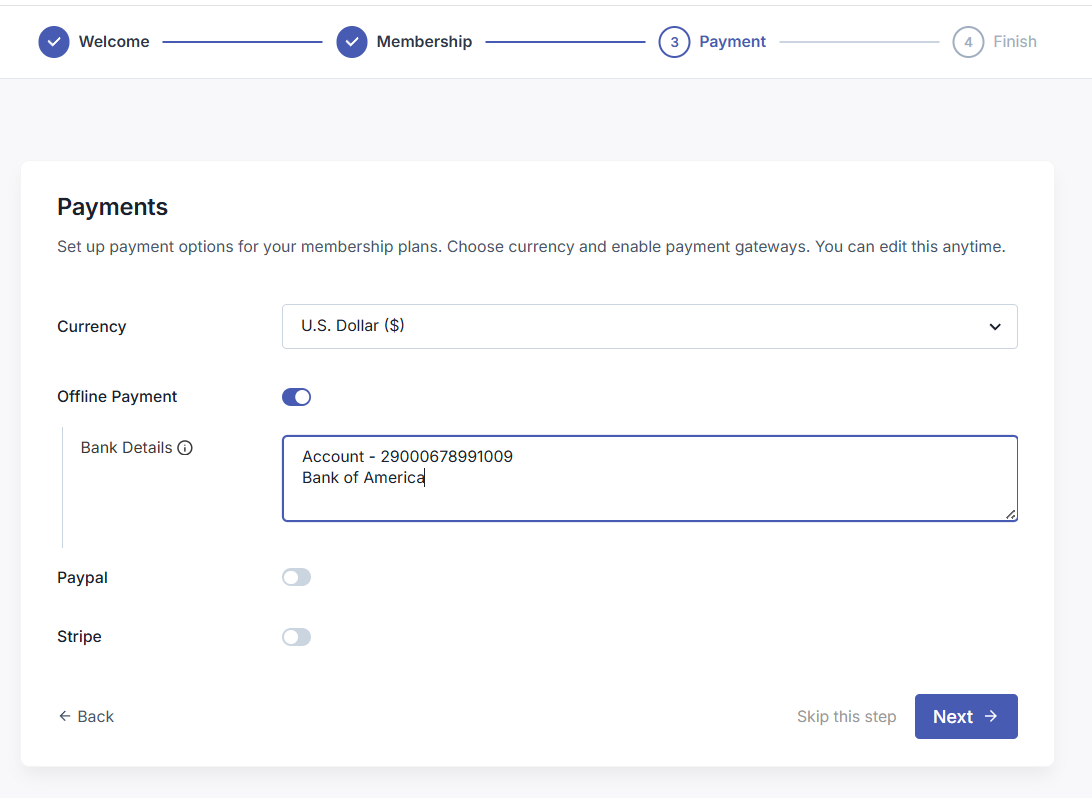
At minimum, enable one payment gateway. Click Next after configuration.`
Complete the setup by click on Go to Dashboard. Registration Page, My Account Page, Login Page, and Membership Pricing Page will be created for you after the setup.
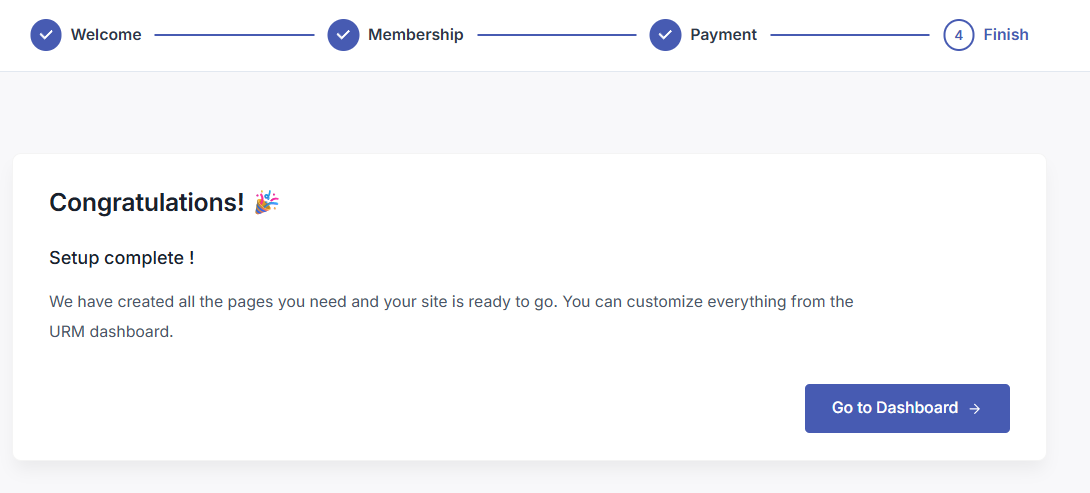
Option 2: Free Membership Setup
Follow these steps if you selected Free Membership.
Follow these steps if you selected Paid Membership.
Create Your First Membership Plan. You'll be prompted to create a free membership plan. Fill in:
Plan Name — e.g., 'Member A', 'Web Plan'
Type — Select 'Free' plan that's already selected for you.
Access — Choose content to restrict. Click on +Content and Whole Site or Pages or Posts and select pages or posts.
You can add more membership plans later. Click Next to continue.
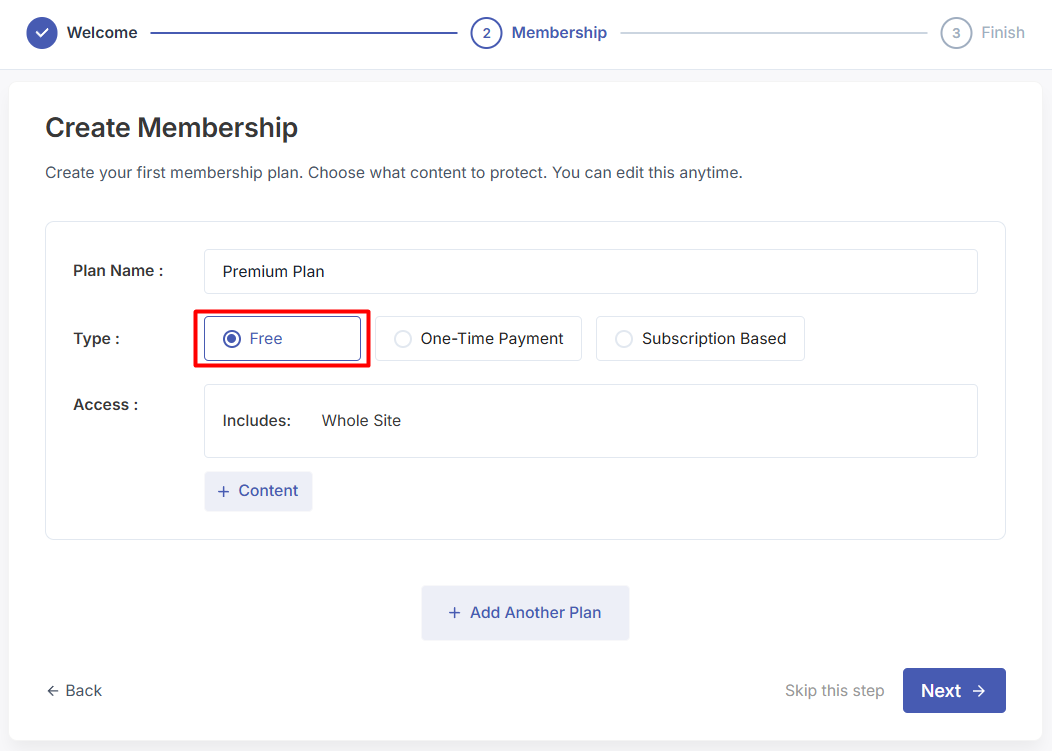
Complete the setup by click on Go to Dashboard. Registration Page, My Account Page, Login Page, and Membership Pricing Page will be created for you after the setup.
Option 3: Advanced Registration Setup
Follow these steps if you selected Advanced Registration.
1. Configure User Approval and Login. Click on the dropdown from User Approval And Login Option:
Auto Approval with Manual Login — Users are approved automatically but must log in manually
Auto Approval with Auto Login — Users are approved and logged in immediately
Admin Approval — You manually review each registration
Auto Approval After Email Confirmation — Users verify email before accessing the site
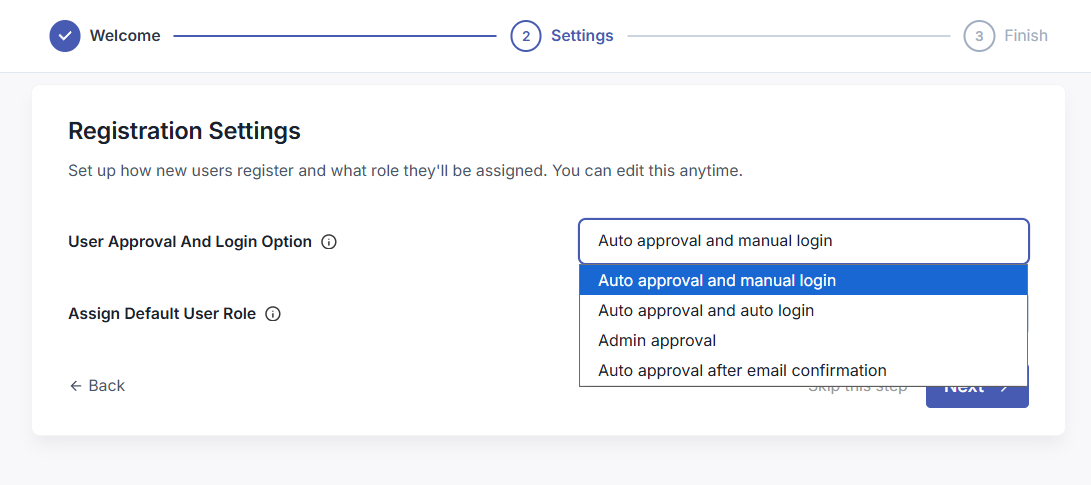
2. Assign Default User Role: Choose the WordPress role assigned to new users:
Subscriber (recommended) — Can only manage their profile
Contributor — Can write posts but not publish
Author — Can publish their own content
Editor — Can manage all content
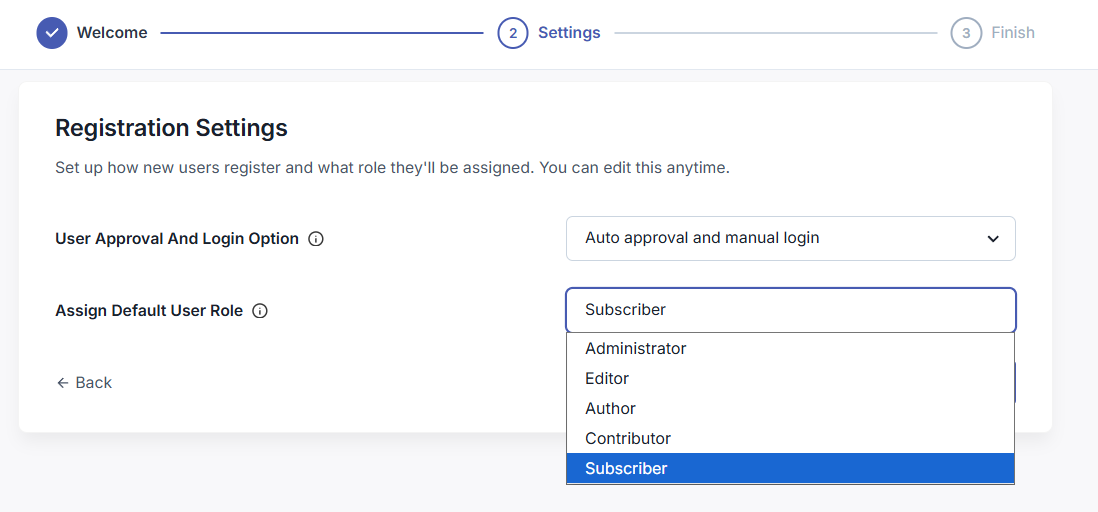
Click Next to continue.
Complete the setup by click on Go to Dashboard. Registration Page, My Account Page, Login Page, and Membership Pricing Page will be created for you after the setup.
What Happens After Setup
Regardless of which setup type you chose, after completing the wizard:
All required pages are created and published
A default registration form is available and ready to use
User approval and role settings are configured
You can start accepting registrations immediately
All settings can be modified later from the plugin dashboard
Re-running the Setup Wizard
If you need to change your initial configuration or want to switch between setup types, you can re-run the wizard at any time:
Go to User Registration & Membership → Tools in your WordPress dashboard
Click the Setup Wizard tab
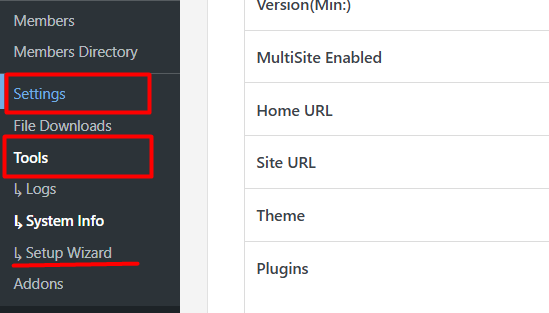
Follow the same steps outlined above for your chosen setup type
Re-running the wizard will not delete your existing forms, pages, or user data. It only updates the configuration options you change during the wizard process.