
Install the User Registration & Membership Plugin (FREE)
Step-by-step guide for installing the User Registration & Membership plugin via WordPress dashboard or manual upload methods.
Last updated on Jul 14, 2026
Would you like to add custom user registration to your WordPress site? User Registration & Membership allows you to create professional registration forms with a drag-and-drop builder, replacing WordPress's default registration system. This tutorial will show you how to install and activate the free version of the plugin.
Before installing the User Registration & Membership Plugin, ensure your WordPress environment meets the requirements listed in this doc.
Installation Methods
There are two primary methods to install User Registration & Membership Plugin. Choose the method that best suits your comfort level and requirements.
Method 1: Install from WordPress Admin Dashboard (Recommended)
This is the easiest and most common method for installing the plugin directly from the WordPress Plugin Repository.
Step 1: Access Plugin Installation
Log in to your WordPress admin dashboard.
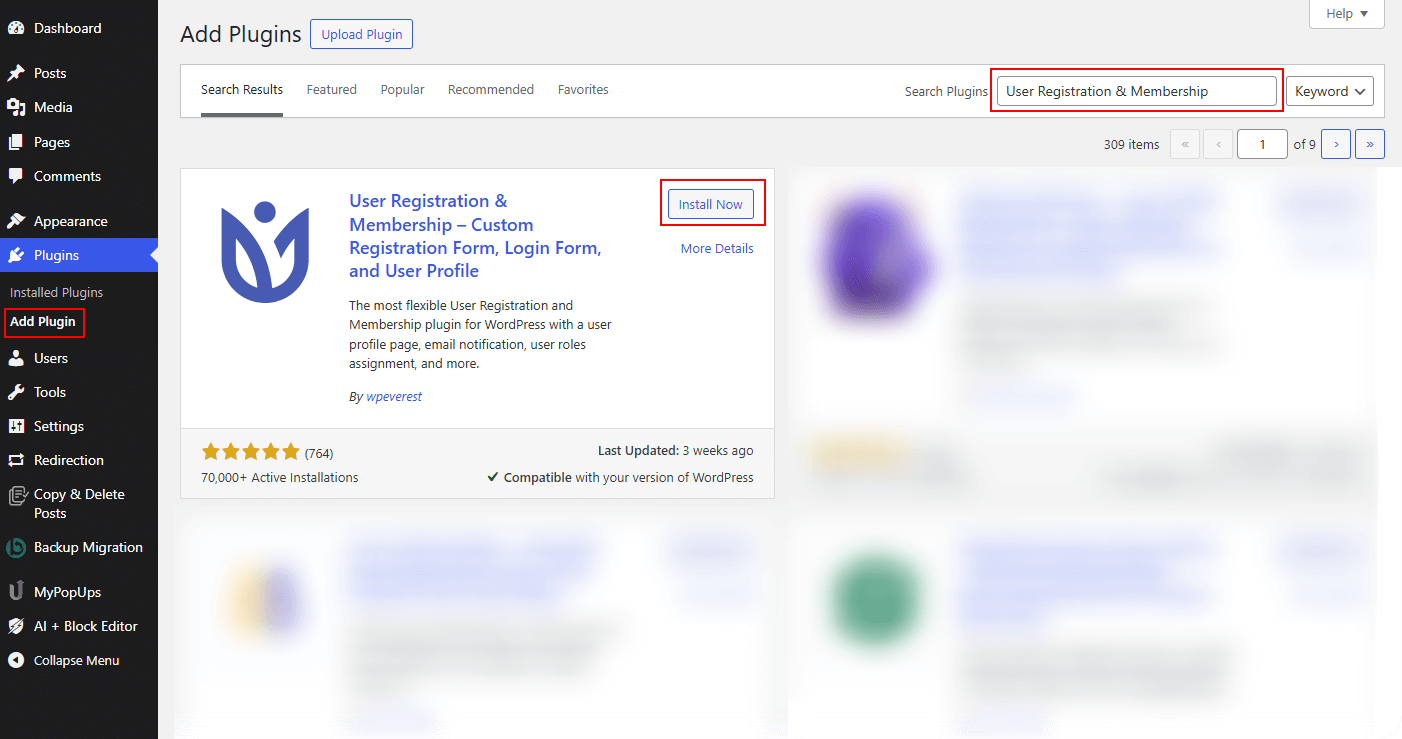
Navigate to Plugins > Add Plugin from the left sidebar.
You'll see the "Add Plugins" page with search functionality.
Step 2: Search for the Plugin
In the search box (top right), type: User Registration & Membership.
Press Enter or click the search button.
Look for the plugin by WPEverest with the title "User Registration & Membership".
Step 3: Install and Activate the Plugin
Click the Install Now button on the User Registration & Membership plugin card.
WordPress will download and install the plugin automatically.
Wait for the installation (usually 10-30 seconds) and click the Activate button that appears after installation.
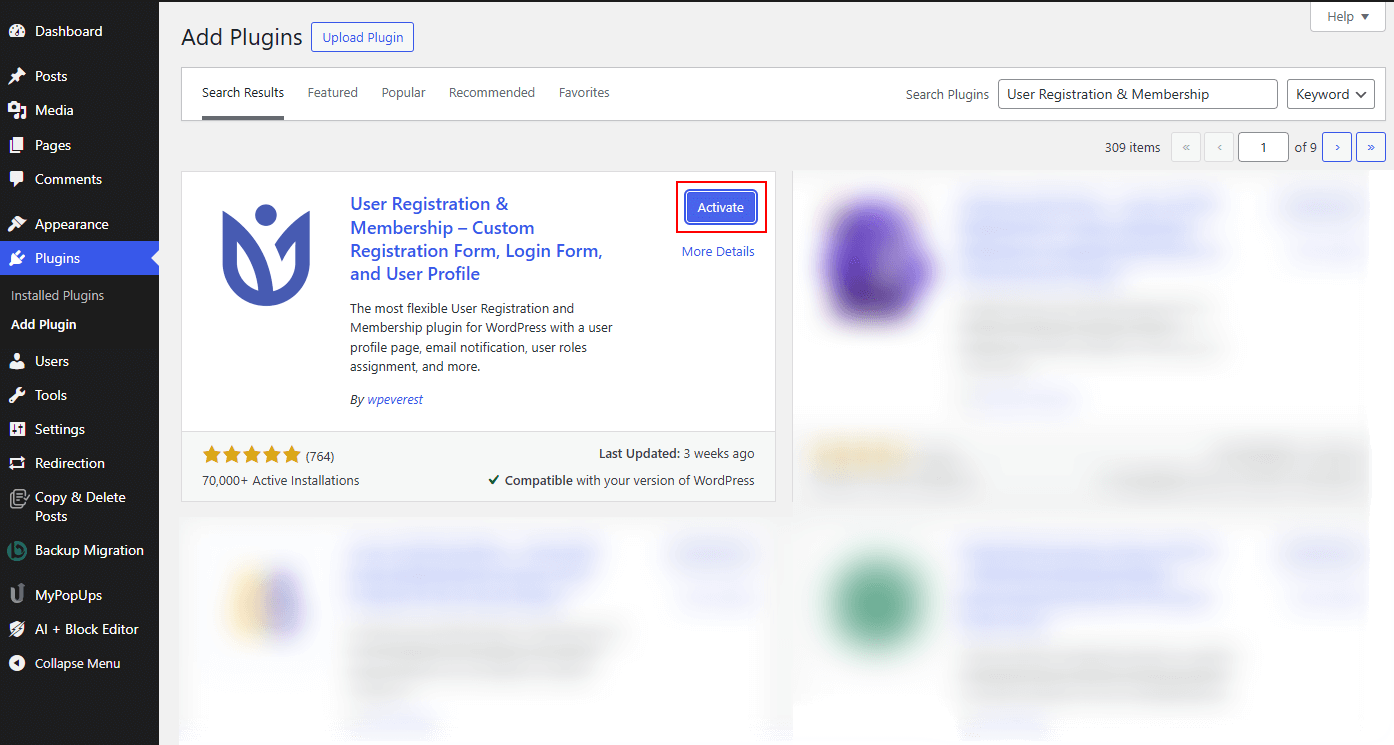
Alternatively, go to Plugins > Installed Plugins and activate it from there.
Upon activation, you'll be redirected to the plugin's welcome screen.
Method 2: Manual Upload Installation
Use this method if you've downloaded the plugin file separately or need to install a specific version.
Step 1: Download the Plugin
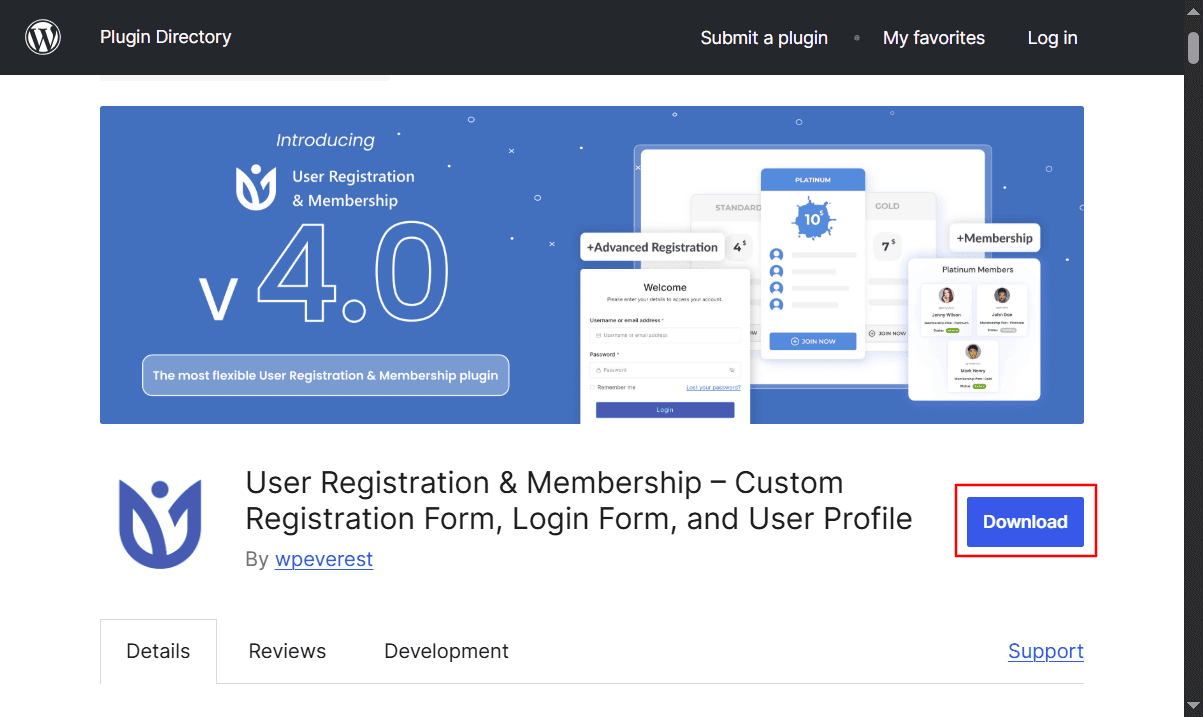
Visit the WordPress Plugin Repository
Click the Download button to get the latest version
Save the .zip file to your computer (do not extract it)
Step 2: Upload via WordPress Admin
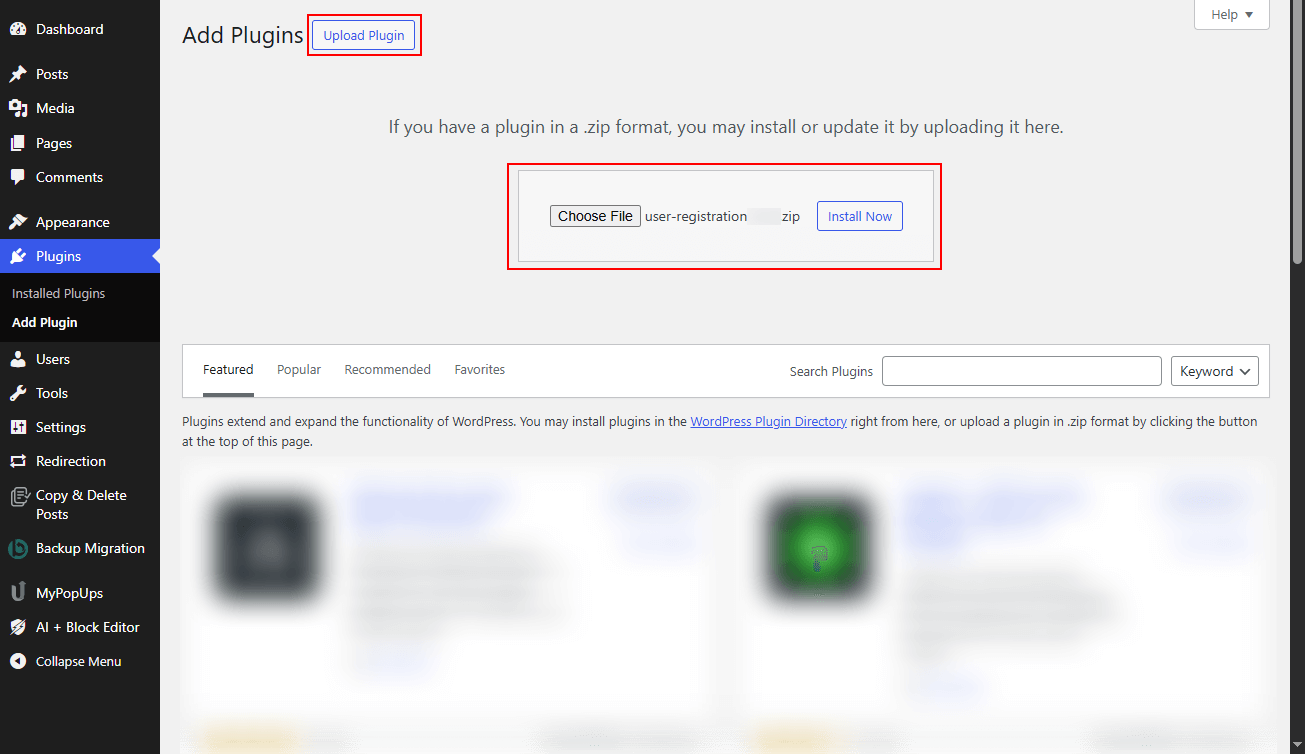
In your WordPress admin, go to Plugins > Add Plugin
Click the Upload Plugin button at the top of the page
Click Choose File and select the downloaded .zip file
Click Install Now to begin the upload process
Step 3: Complete Installation
Wait for the upload and installation to complete
Click Activate Plugin to enable the functionality
You'll be taken to the plugin's initial setup screen
Post-Installation Setup
After successful installation and activation, you must configure the plugin to meet your needs.