
Payment Fields
ProEnable payment collection during registration with one-time payments, subscriptions, or variable pricing using PayPal, Stripe, Authorize.net, or Mollie gateways.
Last updated on Jul 15, 2026
Would you like to collect payments during user registration? User Registration & Membership allows you to add payment fields to your registration forms and accept one-time payments, subscription plans, or variable pricing options. This guide will show you how to add and configure payment fields in your registration forms.
Before You Begin
Before getting started, make sure you have installed and activated the User Registration & Membership pro plugin. Then, you must activate and configure at least one payment gateway addon. Payment fields will not appear in the form builder until a payment addon is activated.
To activate a payment addon, go to User Registration & Membership > Addons and enable one of the following:
PayPal Payment
Stripe
Authorize.net
Mollie
After activating a payment addon, configure the payment gateway settings at User Registration & Membership > Settings > Payments before adding payment fields to your forms.
Available Payment Field Types
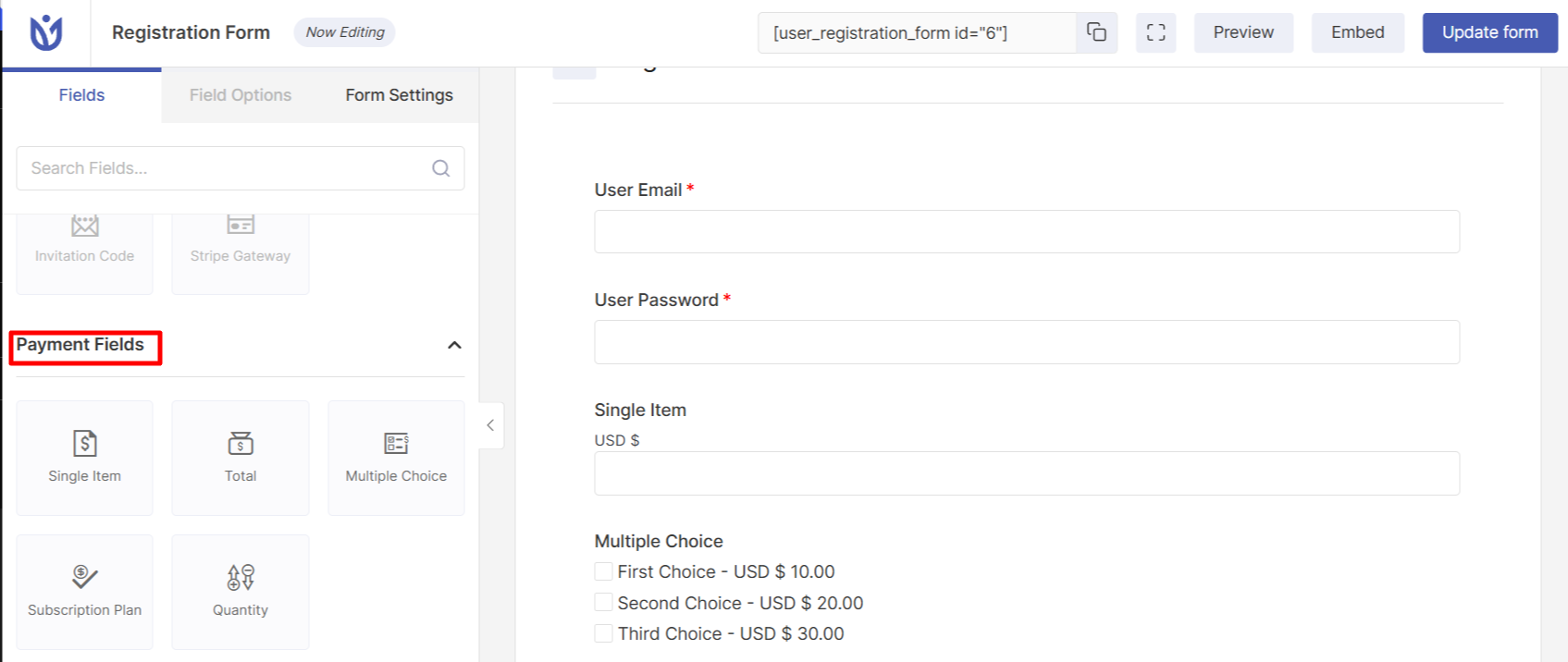
User Registration & Membership provides five payment field types. Each field type serves a different purpose for collecting payments:
Single Item
The Single Item field charges a fixed price that you set. Use this field when you want to charge the same amount to all users who register through the form.
Multiple Choice
The Multiple Choice field lets users select from different pricing options. Use this field when you want to offer users a choice between different products, services, or membership tiers at different price points.
Quantity
The Quantity field allows users to specify how many items they want to purchase. This field must be mapped to either a Single Item field or a Multiple Choice field. The total price is calculated by multiplying the quantity by the item price.
Total
The Total field displays the calculated total amount based on other payment fields in the form. This field automatically combines amounts from Single Item fields, Multiple Choice selections, and Quantity calculations.
Subscription Plan
The Subscription Plan field enables recurring payments. Use this field to create subscription-based memberships with automatic billing cycles. You can configure the billing frequency and offer trial periods.
Adding Payment Fields to Your Form
To add payment fields to your registration form, go to User Registration & Membership > All Forms and select the form you want to edit. In the form builder, scroll to the Payment Fields section in the left sidebar.
Drag and drop the payment field you want to add into your form. Click on the field to configure its settings in the Field Options panel.
Configuring Payment Field Settings
Each payment field has specific settings you can configure. Click on a payment field in your form to access its Field Options.
Enable Selling Price
For Multiple Choice and Subscription Plan fields, you can enable the Selling Price option. When enabled, you can set both a regular price and a discounted selling price. Users will see the original price crossed out with the selling price displayed.
Item Type
Payment fields support three item types:
Pre Defined: You set the price in the admin area and users see the fixed amount
User Defined: Users enter their own amount, useful for donations or pay-what-you-want pricing
Hidden: The price is hidden until checkout
Using Payment Fields with Coupons
Payment fields work with the Coupons addon. When the Coupons addon is activated, you can add a Coupon field to your form. Users can enter discount codes to reduce the total payment amount.
The Coupon field requires the Coupons addon to be active. For more information about creating and managing coupons, see our guide on setting up discount codes.
Important Notes About Payment Fields
Payment fields cannot be used in forms that contain a Membership field
When a Membership field is present, payment settings are configured at the membership level instead of through payment fields
The Range Slider field can also be used as a payment field, even though it is not listed in the Payment Fields section
Multiple Single Item fields can be combined in one form, and the Total field will calculate the sum across all payment fields
Next Steps
That's it! Now you know how to add and configure payment fields in your registration forms. Next, would you like to learn how to set up payment gateways? Be sure to check out our guides on configuring PayPal payments and Stripe integration for complete payment setup instructions.