
Assign User Roles Conditionally
ProAutomatically assign WordPress user roles based on form responses using conditional logic to streamline user registration and membership management.
Last updated on Jul 14, 2026
Conditional user role assignment allows you to automatically assign different WordPress user roles based on how users fill out your registration form.
Prerequisites
Conditional Logic add-on must be installed and activated
A User Registration form must be created
Understanding of WordPress user roles (Subscriber, Contributor, Author, Editor, Administrator)
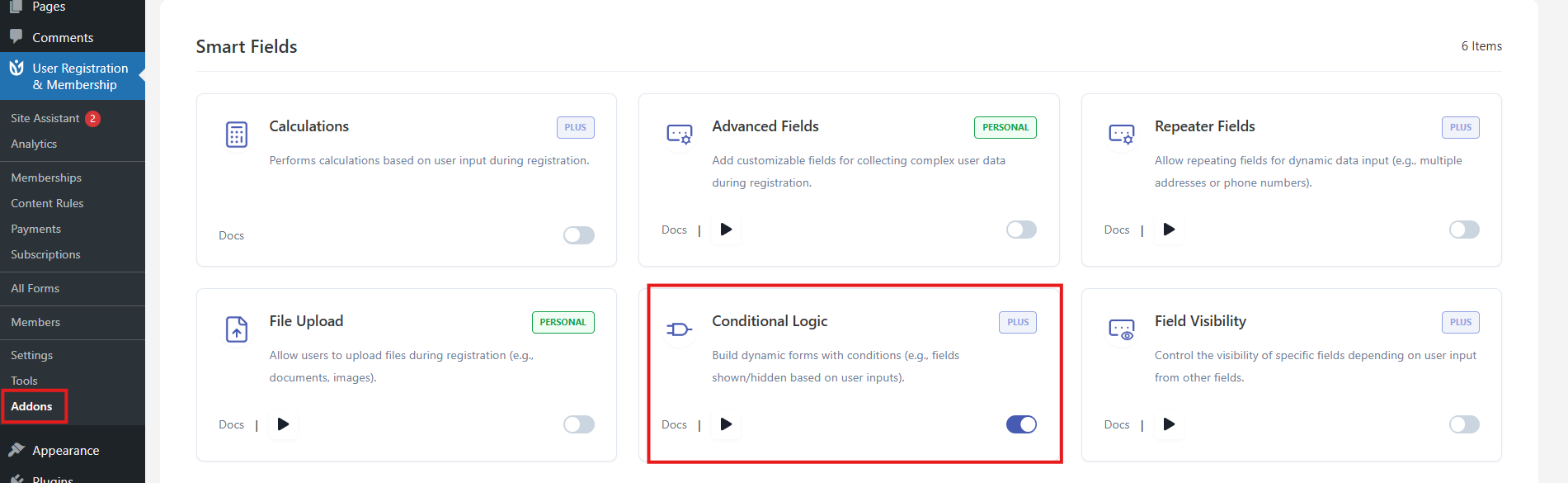
Steps:
1. Navigate to Form Settings
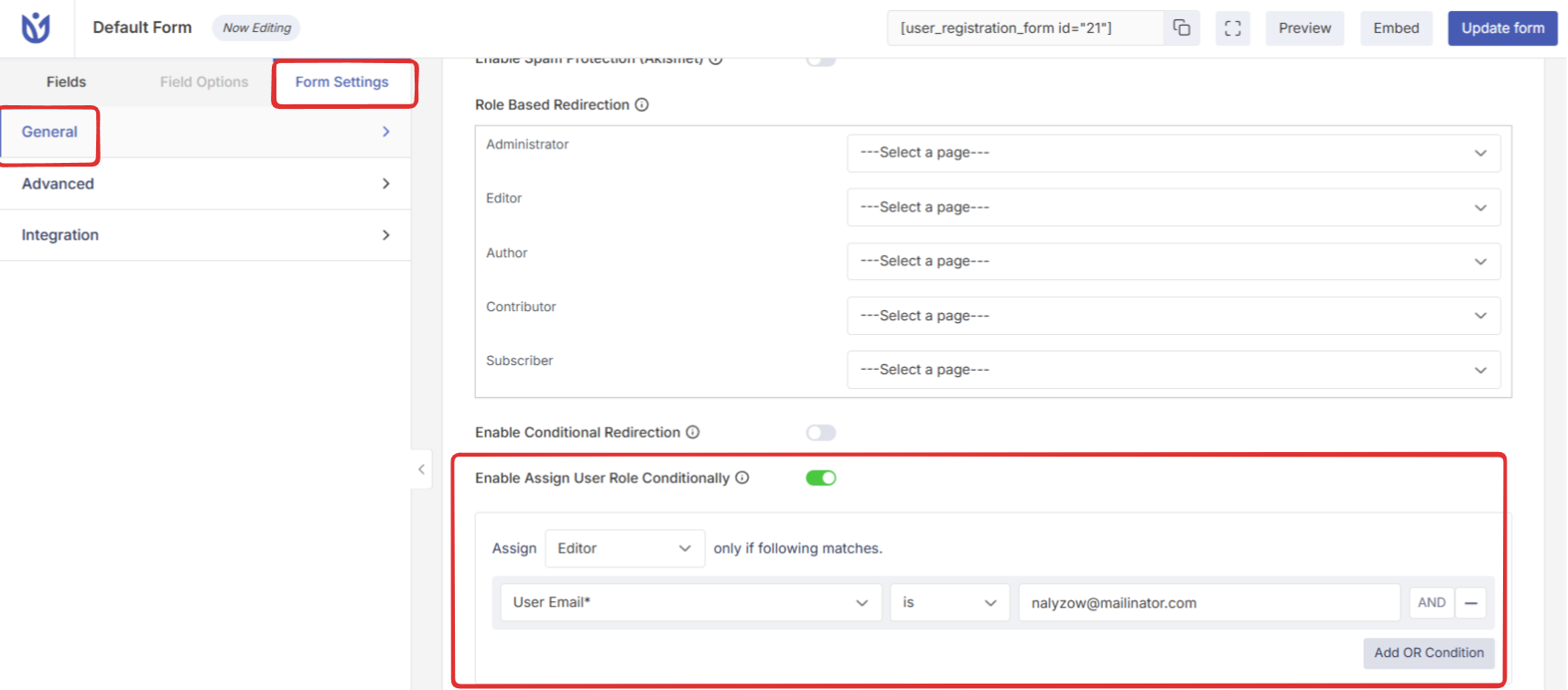
Go to User Registration & Membership → All Forms
Select the form you want to edit
Click on Form Settings → General Settings
2. Enable Conditional Role Assignment
Scroll down to find 'Enable Assign User Role Conditionally'
Toggle the option to enable it
3. Set Up Conditions
Define your condition rules (e.g., "If Gender = Male, assign Editor role")
Use AND/OR buttons to combine multiple conditions
Select the user role to assign when conditions are met
4. Add Multiple Role Conditions (Optional)
Click Add Rule to create additional role assignment conditions
Configure different roles for different scenarios
5. Save and Test
Click Update Form to save your settings
Test by registering with different form responses
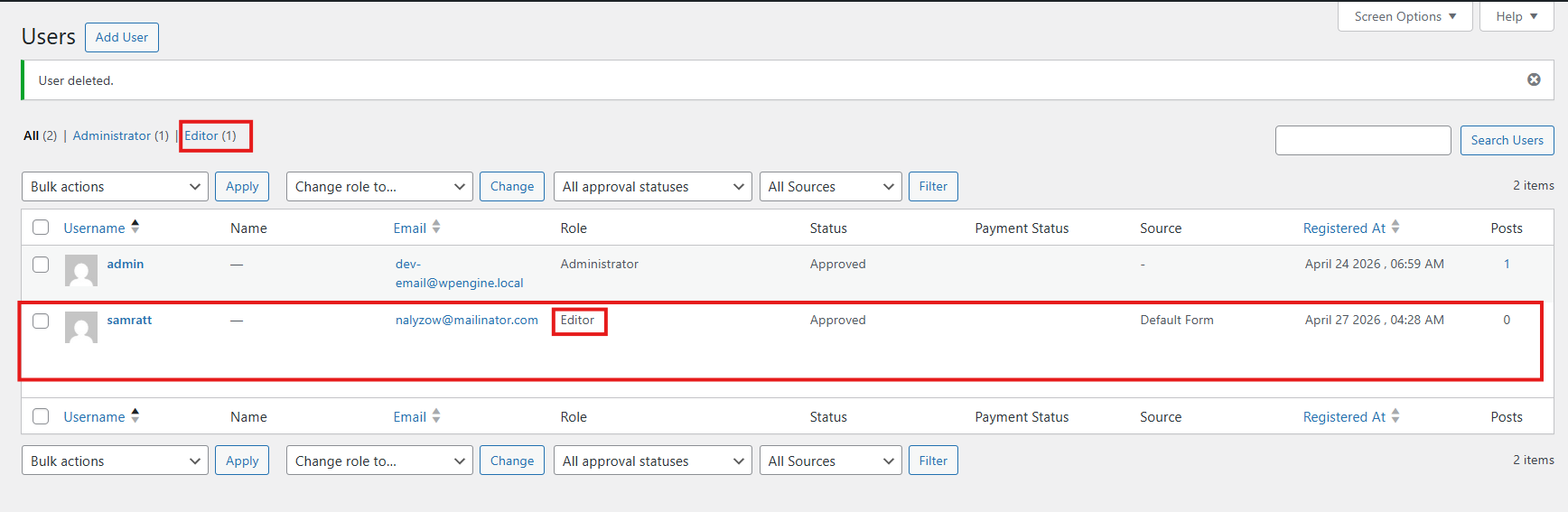
Verify role assignments in Dashboard → Users
Frontend Form Registration
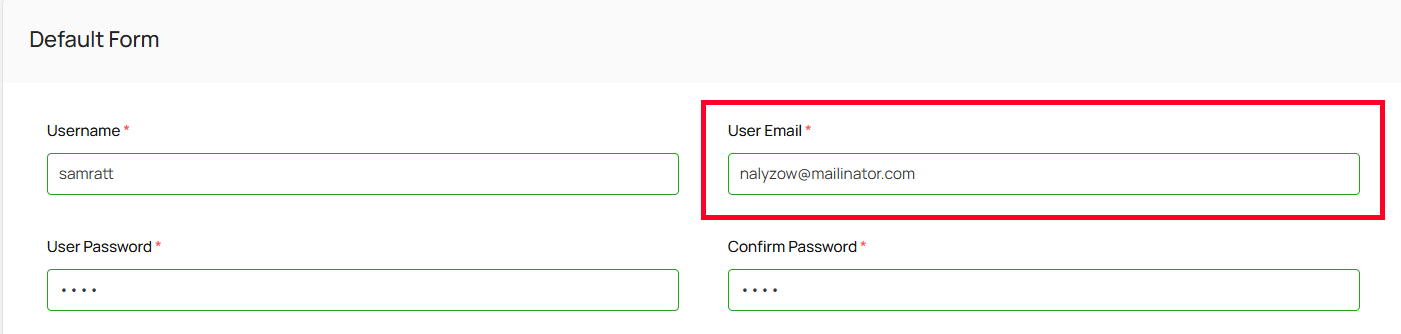
After the user registers meeting the conditional rules that you set up, you can see the role is assigned. Go to your Admin Dashboard and go to the Users tab. Here you can see that the user is assigned to the Editor user role on your WordPress website.
Important Notes
This feature is enabled per form, not globally
Multiple conditions can be combined using AND/OR logic
Role assignment happens automatically upon registration when conditions are met
You can configure multiple user role conditions simultaneously