
Field Visibility
ProControl which registration fields users can see and edit during registration and on profile pages with customizable visibility settings.
Last updated on Jul 15, 2026
Want to control which registration fields users can see and edit at different stages? User Registration & Membership lets you customize field visibility and editability on both registration forms and user profile pages.
This guide will walk you through configuring field visibility settings to create the exact registration and profile experience you need.
Prerequisites
Before getting started, make sure you've installed and activated the User Registration Pro plugin on your WordPress site. Then, make sure you've installed and activated the Field Visibility add-on.
The Field Visibility add-on is available with Personal, Plus, Professional, and ThemeGrill Agency plans.
Understanding Field Visibility
Field Visibility controls where your form fields appear and whether users can edit them. You can configure each field to:
Show only during registration
Show only on the profile details page
Show in both locations
Be read-only in one or both locations
This gives you complete control over the user experience at each stage of the registration and profile management process.
Installing the Field Visibility Add-on (Plus Plan)
To install the Field Visibility add-on:
Install and Activate User Registration & Membership Pro
Go to User Registration & Membership > Addons
Search for Field Visibility add-on and toggle to enable it.
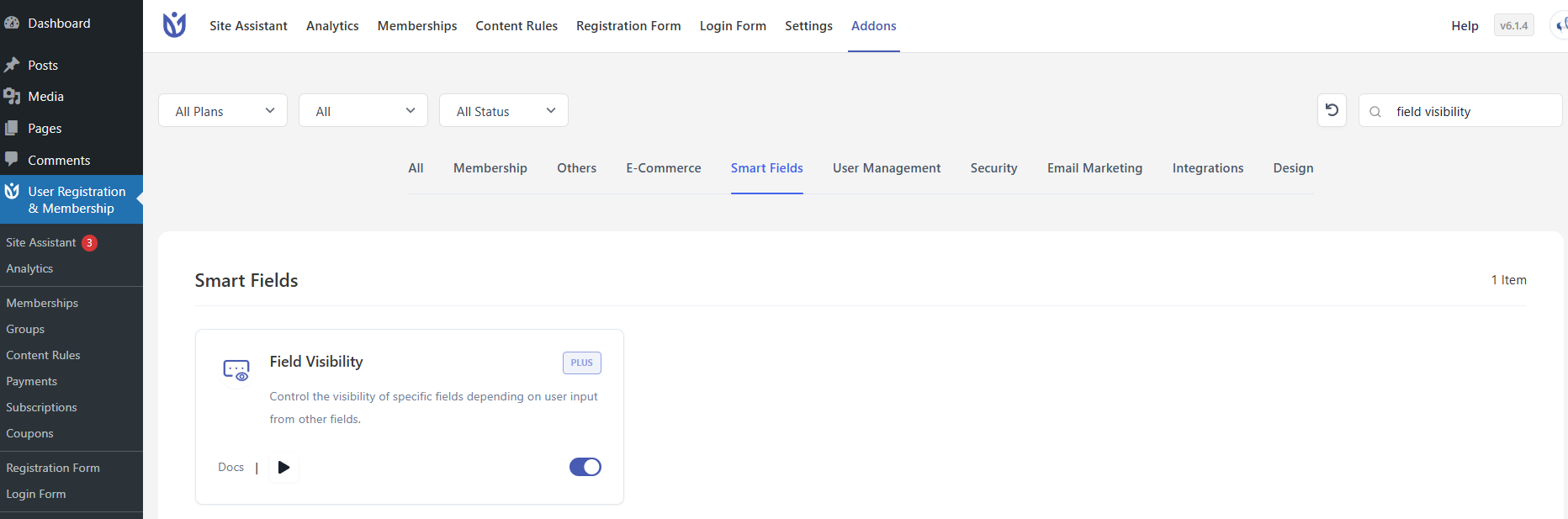
Once activated, the Field Visibility settings will appear in your form field options.
Configuring Field Visibility
To configure visibility settings for a form field:
Go to User Registration & Membership → All Forms
Click Edit on the form you want to modify
Click on the form field you want to configure and you'll be directed to Field Options
Scroll down to the Visibility Settings section in the field options
Configure the Show on and Enable Read-only dropdown as needed
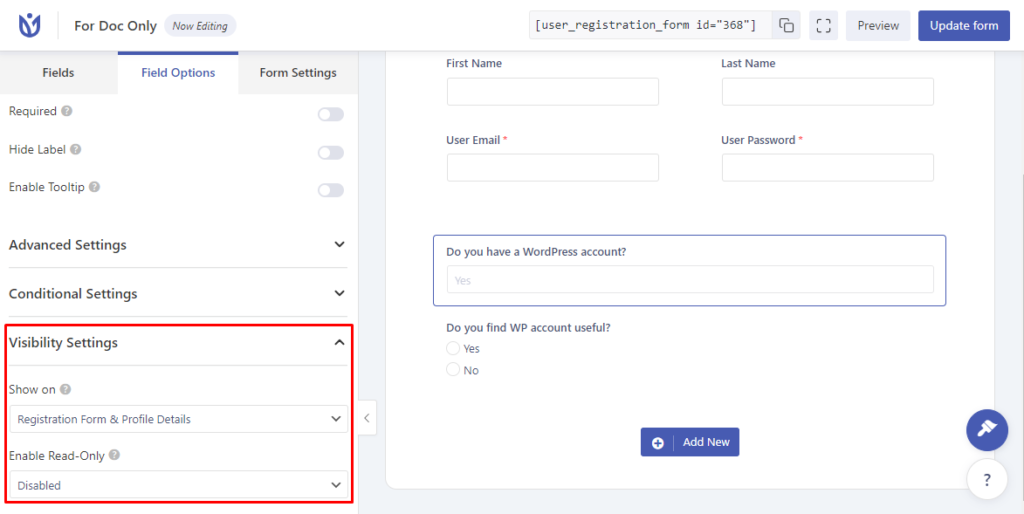
Click Update Form to save your changes
Field Visibility Options
Field Visibility Setting
The Field Visibility dropdown controls where the field appears:
Registration Form — Field only shows on the registration form. Users cannot see or edit it after registration.
Profile Details — Field only shows on the Profile Details page. Users don't see it during registration but can view and edit it later.
Registration Form & Profile Details — Field appears in both locations. Users see it during registration and can access it on their profile page.
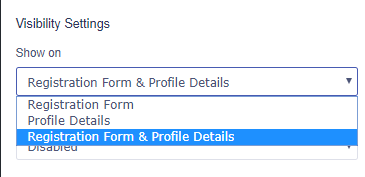
Read-only Setting
The Read-only dropdown controls whether users can edit the field:
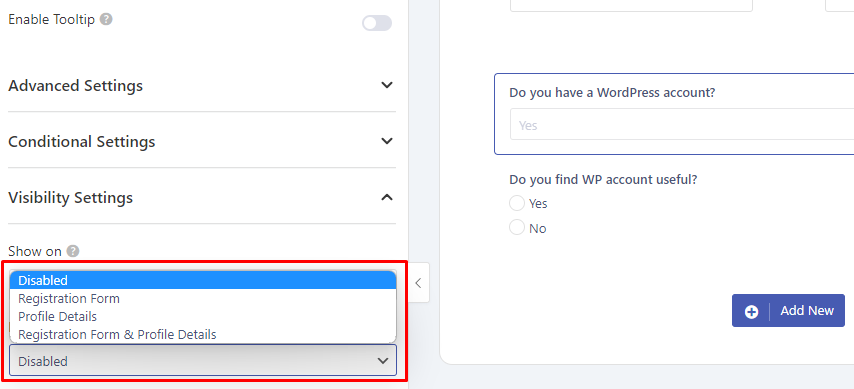
Registration Form — Field is read-only during registration but can be edited from the Profile Details page.
Profile Details — Field can be edited during registration but becomes read-only on the Profile Details page.
Registration Form & Profile Details — Field is read-only in both locations. This creates unchangeable default values.
Field Support
Important: Not all fields support Field Visibility options:
Email and Username fields do not support Field Visibility options because they are required core fields
Password, Confirm Password, Confirm Email, and Privacy Policy fields have partial support only
All other form fields fully support both Field Visibility and Read-only settings.
Common Use Cases
Registration-Only Fields
If you need to collect information during registration that users shouldn't change later:
Set Field Visibility to Registration Form & Profile Details
Set Read-only to Profile Details
Users will see the field during registration and on their profile page, but they won't be able to edit it after registration.
Profile-Only Fields
If you want users to add information after registration:
Set Field Visibility to Profile Details
The field won't appear during registration but will be available on the Profile Details page for users to complete later.
Unchangeable Default Values
If you need to set values that users can never change:
Set Field Visibility to Registration Form & Profile Details
Set Read-only to Registration Form & Profile Details
Set a default value in the field's Advanced Settings
This creates fields with permanent default values that users can see but never modify.
Important Notes
Read-only fields on registration forms can still be edited from Profile Details unless both are set to read-only
Use the Registration Form & Profile Details read-only option when you need truly unchangeable values
Field visibility settings apply per form, so different forms can have different visibility configurations for the same field types